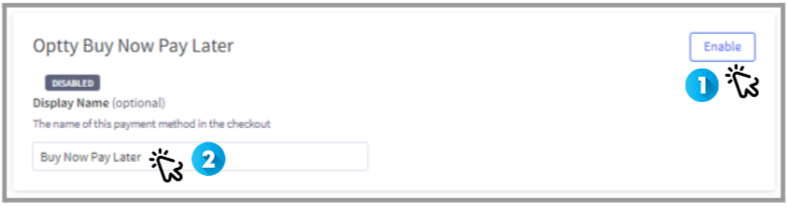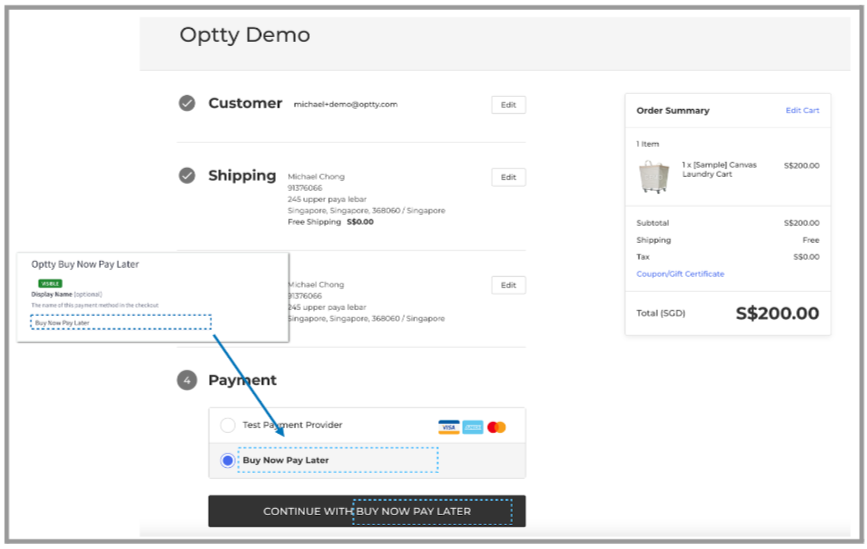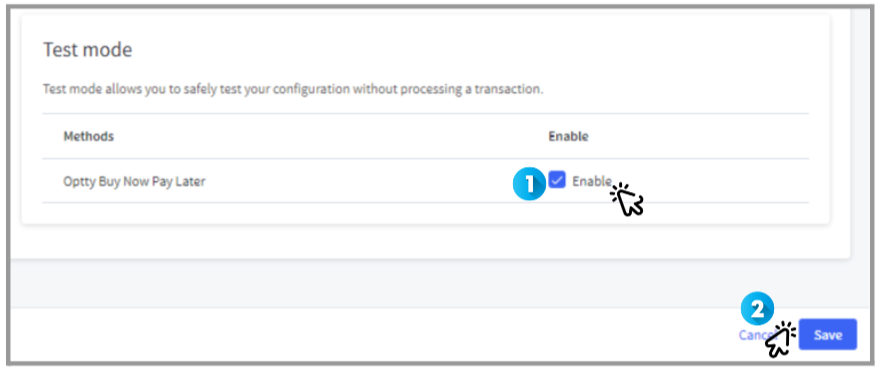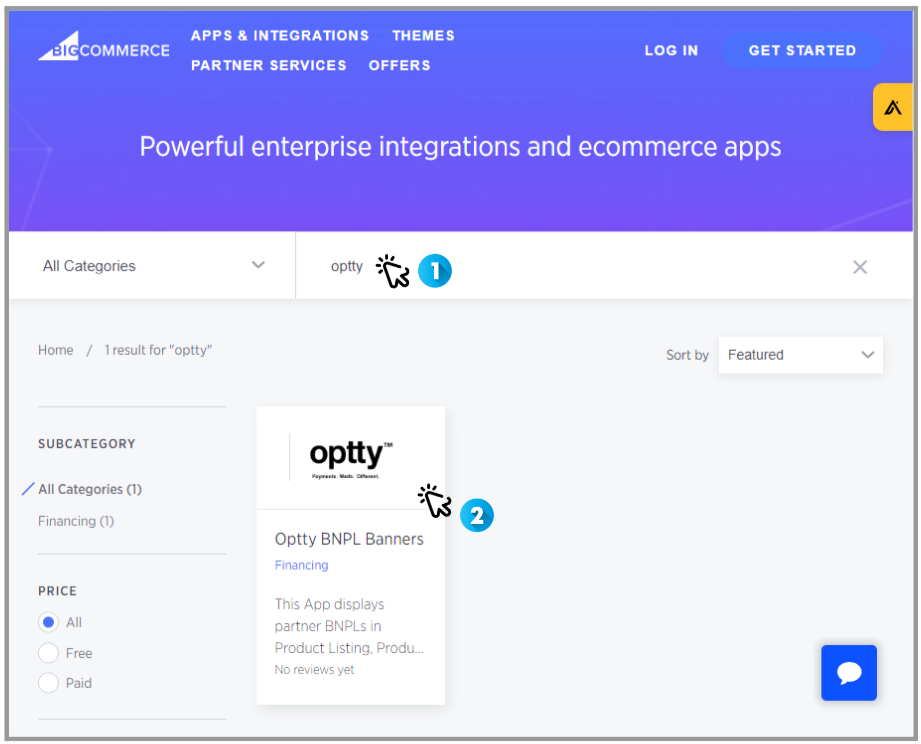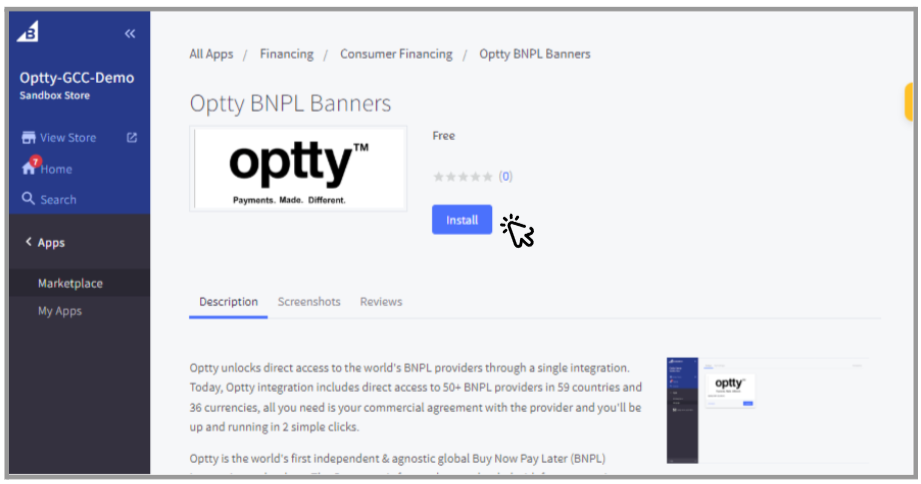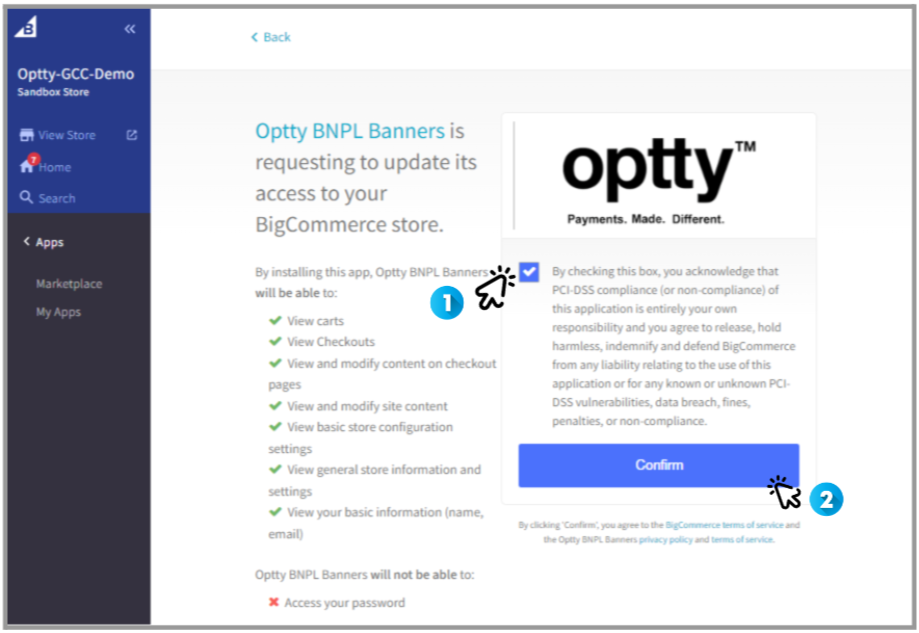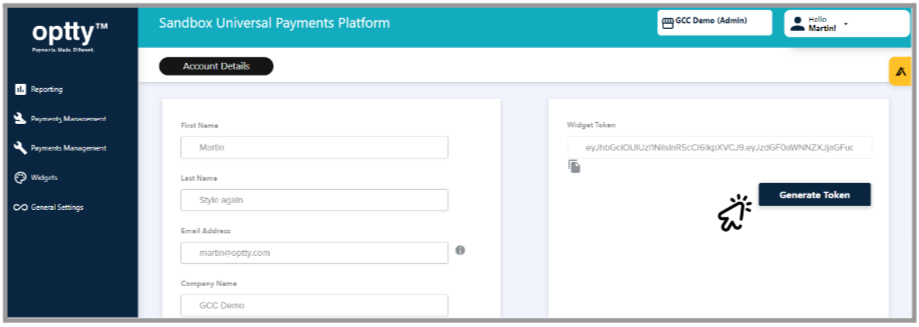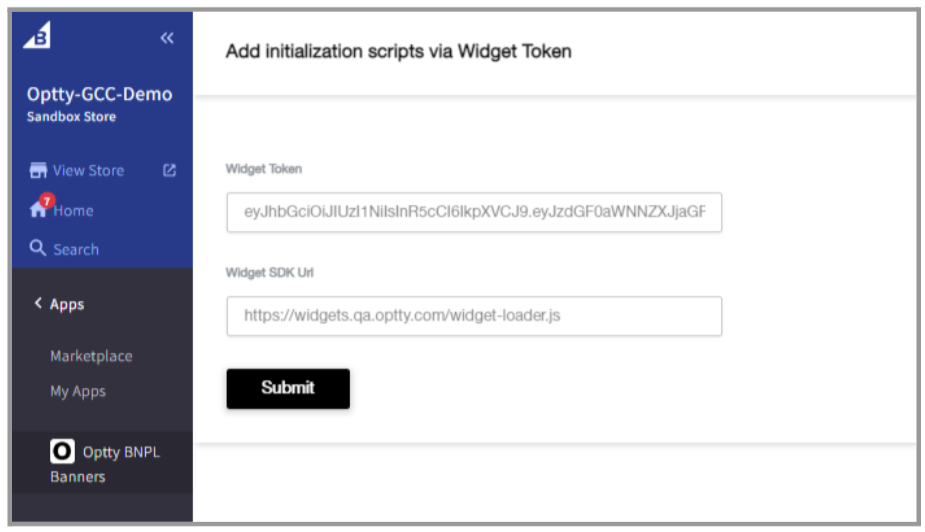


# Get Started

### What is Optty?

Optty is a payments orchestration layer that has partnered with 145+ Payment Providers globally. We help merchants & partners streamline their payment processing and increase customer payment choice through a single API.

![](https://content.gitbook.com/content/fCUCEi1845pQGMcbjae6/blobs/b3oTBJ7ZJeux0DzxaXPD/6239d5604a568bd6fcbfb3bc_dev-portal-v2.png)

## Sign Up for a Sandbox

Sign up for a sandbox account [here](https://www.optty.com/merchant-account)

## Choose Integration Option

From easy-to-install plugins for popular eCommerce platforms to a comprehensive set of API's that give you full control across the integration, we provide options to cater for different business types, sizes and technical architectures that allow merchants and payment service providers to integrate with Optty.

{% tabs %}
{% tab title="API" %}

## **Custom API Integration**

Our comprehensive set of API's provides you with full control over the integration and flexibility to adapt to different use cases. Through this method of integration, the look and feel of your desktop and mobile website checkout can be pixel perfect for your brand's style.

<figure><img src="https://3947039319-files.gitbook.io/~/files/v0/b/gitbook-x-prod.appspot.com/o/spaces%2FfCUCEi1845pQGMcbjae6%2Fuploads%2FvvS5KAwH9n0zmVSS28QQ%2Fimage.png?alt=media&amp;token=ba28b623-26ad-437a-8ca5-3c15b0947c5c" alt=""><figcaption></figcaption></figure>

{% content-ref url="/pages/-MlPr\_M0l91Lzb3gSEdI" %}
[Direct API Orders](/direct-api-orders/overview)
{% endcontent-ref %}
{% endtab %}

{% tab title="Widgets" %}

## Widgets

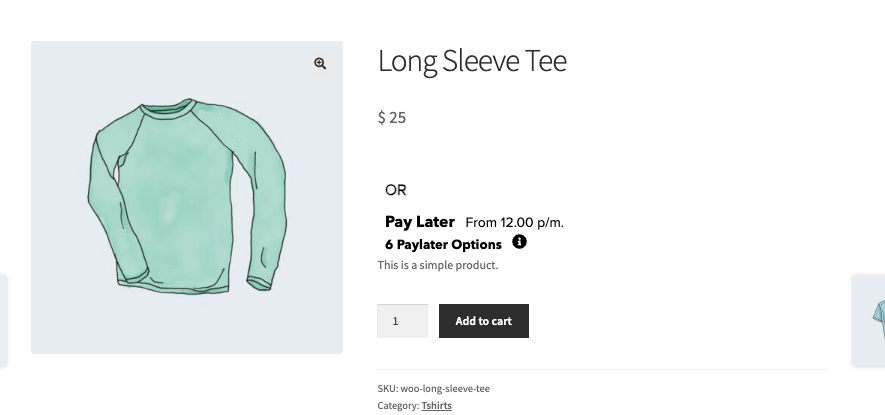
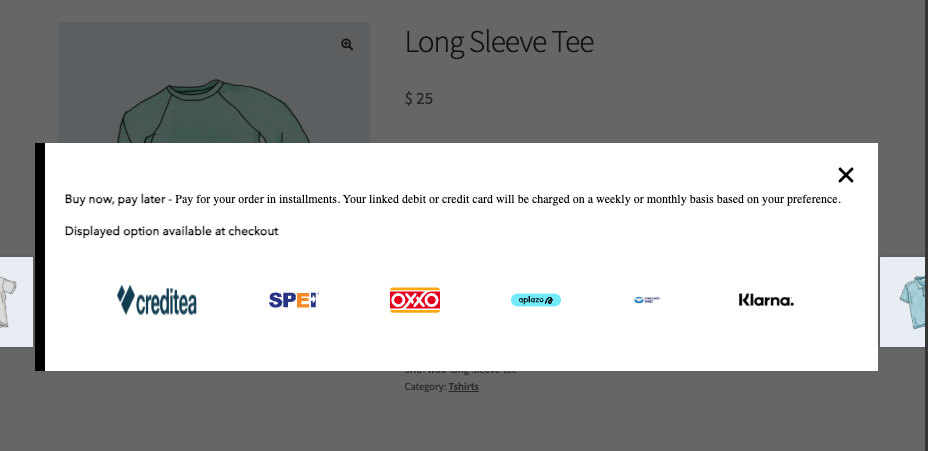
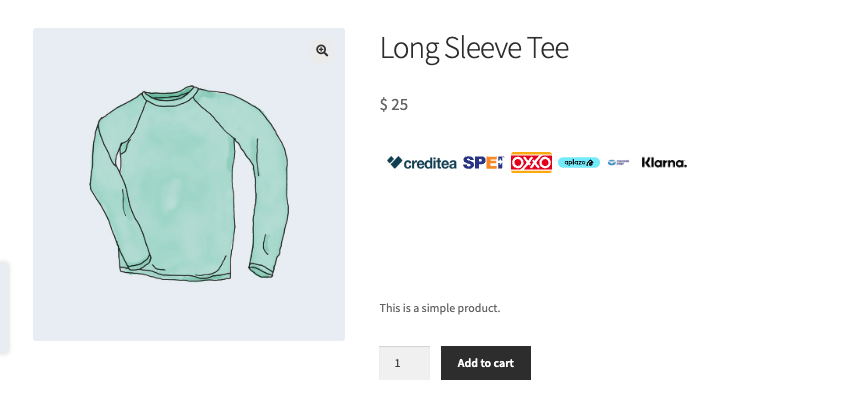
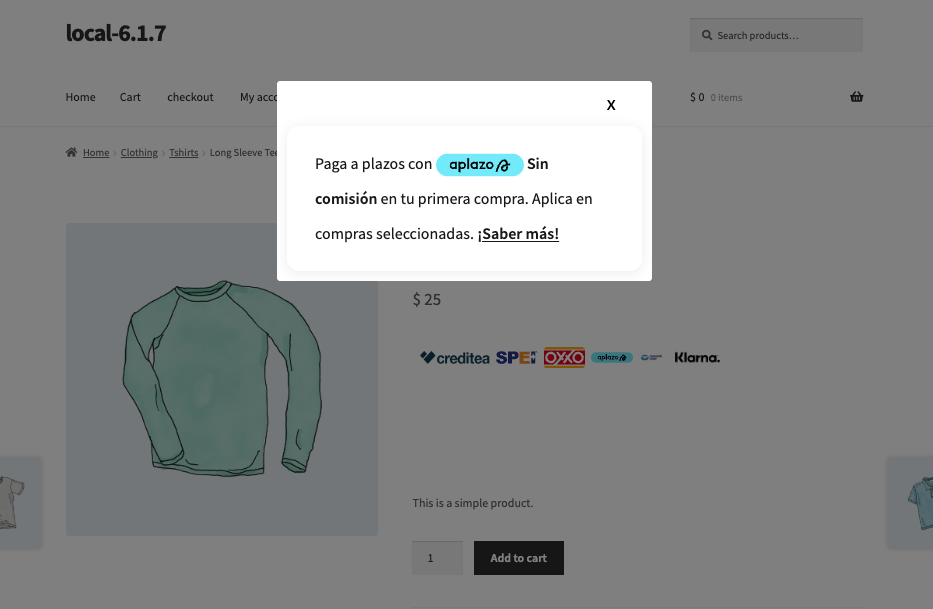
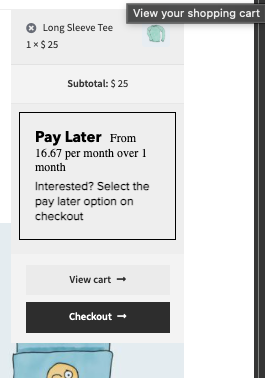
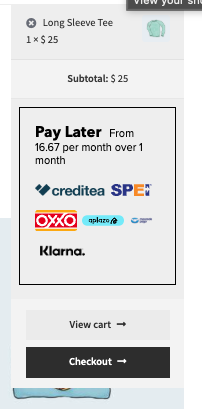
Our set of widgets are easy to install, and are the quickest way to implement Optty on a non-ecommerce platform.

These widgets include additional CTA information that can be configured from the UPP.

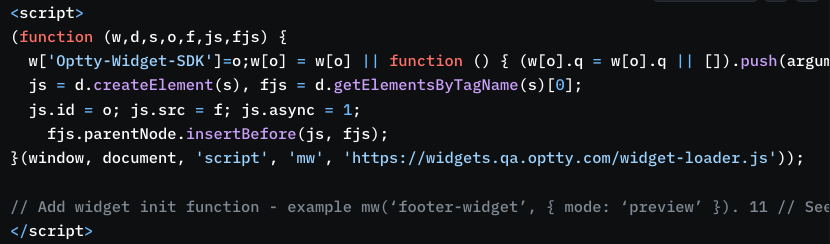
![](https://content.gitbook.com/content/fCUCEi1845pQGMcbjae6/blobs/y8yCdKeKifwmcCR0IB3U/image.png)

{% content-ref url="/pages/rb4pokyK7PGbxzj3Pf9N" %}
[Widget Setup and Integration](/widget/widget-setup-and-integration)
{% endcontent-ref %}
{% endtab %}

{% tab title="eCommerce" %}

## **eCommerce Platforms & Third Party Shopping Carts**

Optty has developed easy to install plugins that integrate with the leading third party eCommerce platforms to allow you to easily add Alternative Payment Methods into your store's checkout.

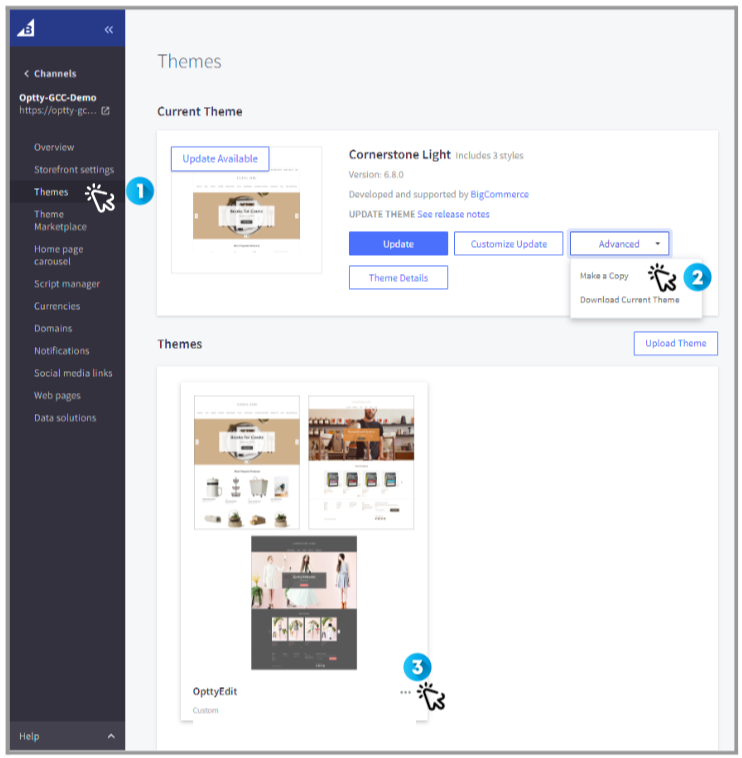
![](https://content.gitbook.com/content/fCUCEi1845pQGMcbjae6/blobs/NeoBlMeo5534WIgsohJx/image.png)

{% embed url="<https://docs.optty.com/#platforms-1>" %}
{% endtab %}

{% tab title="Hosted Payment Page" %}

## Hosted Payment Page

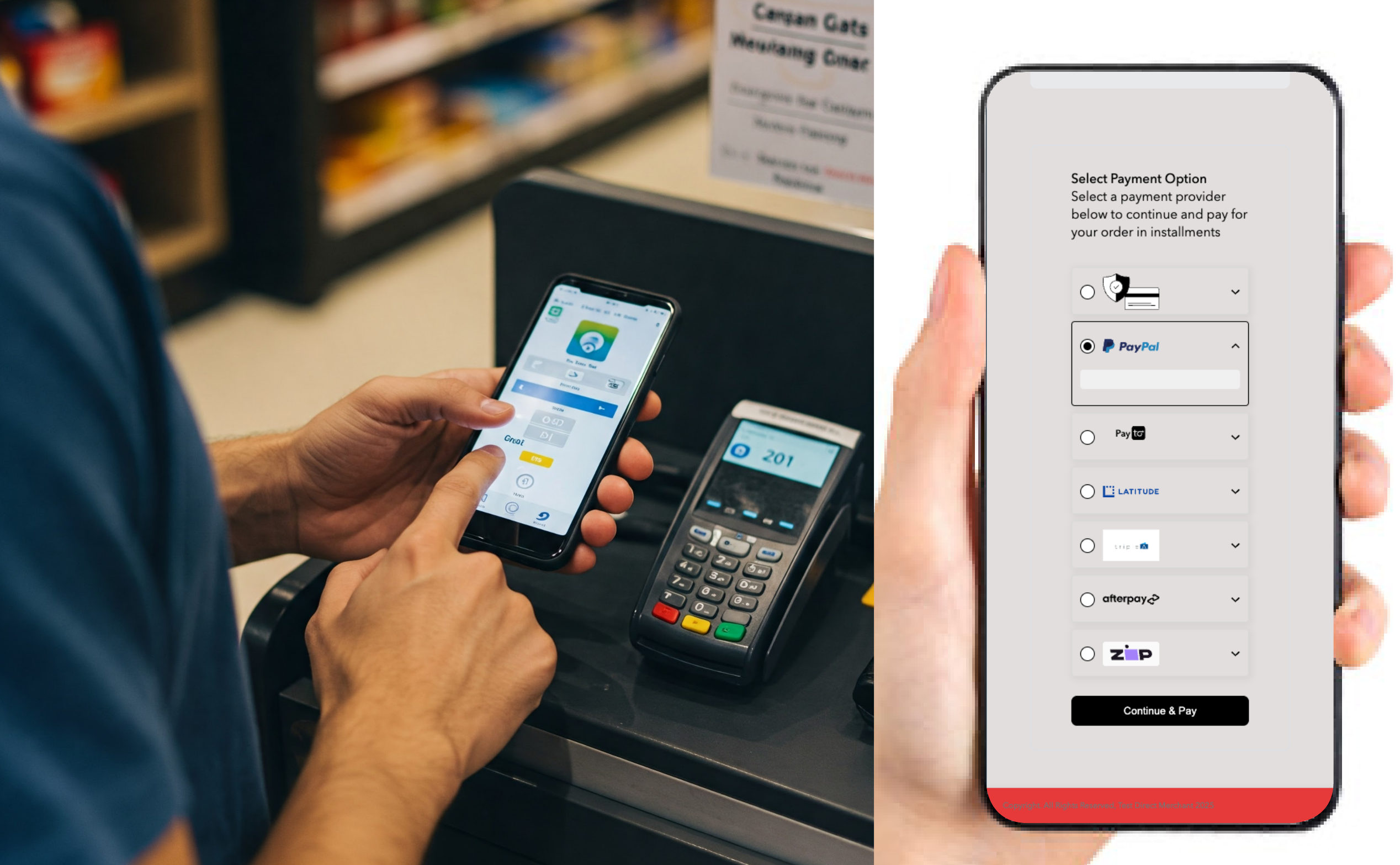
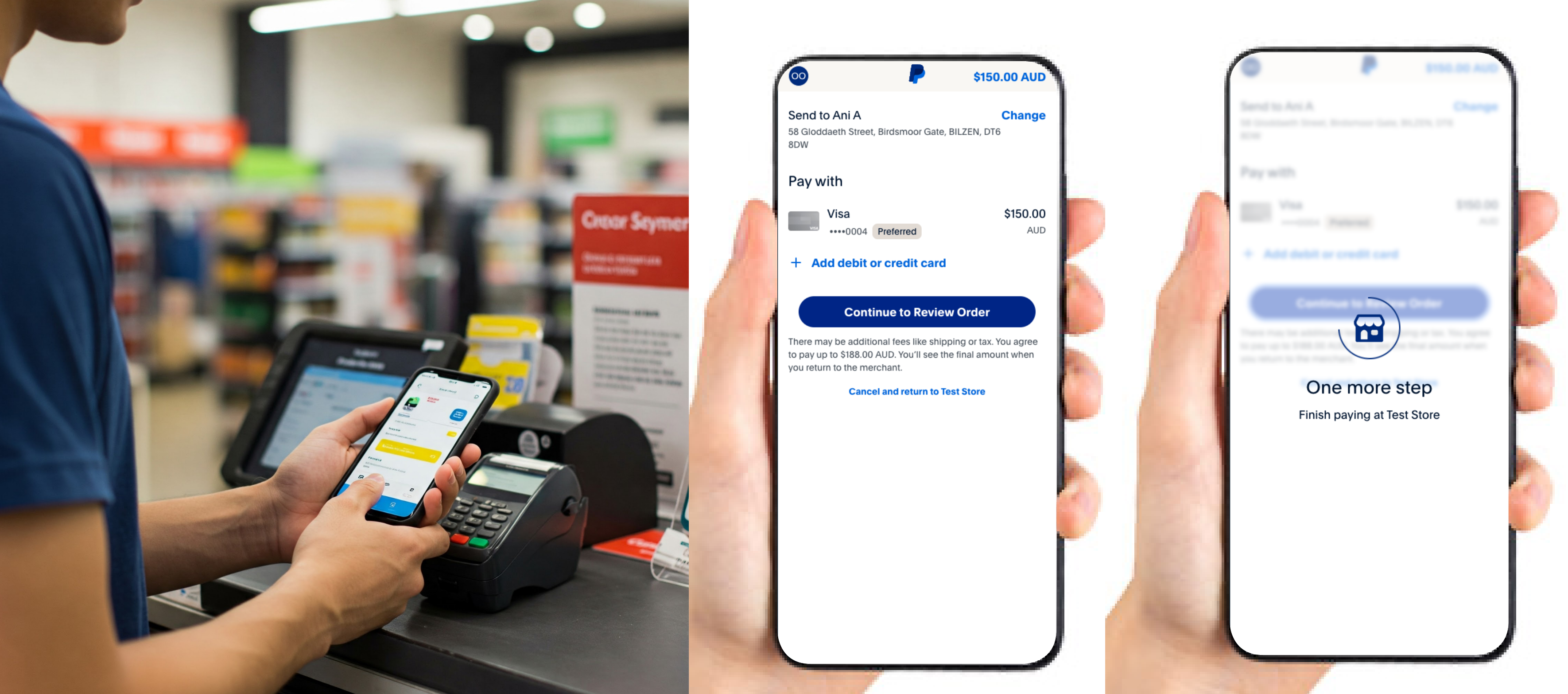
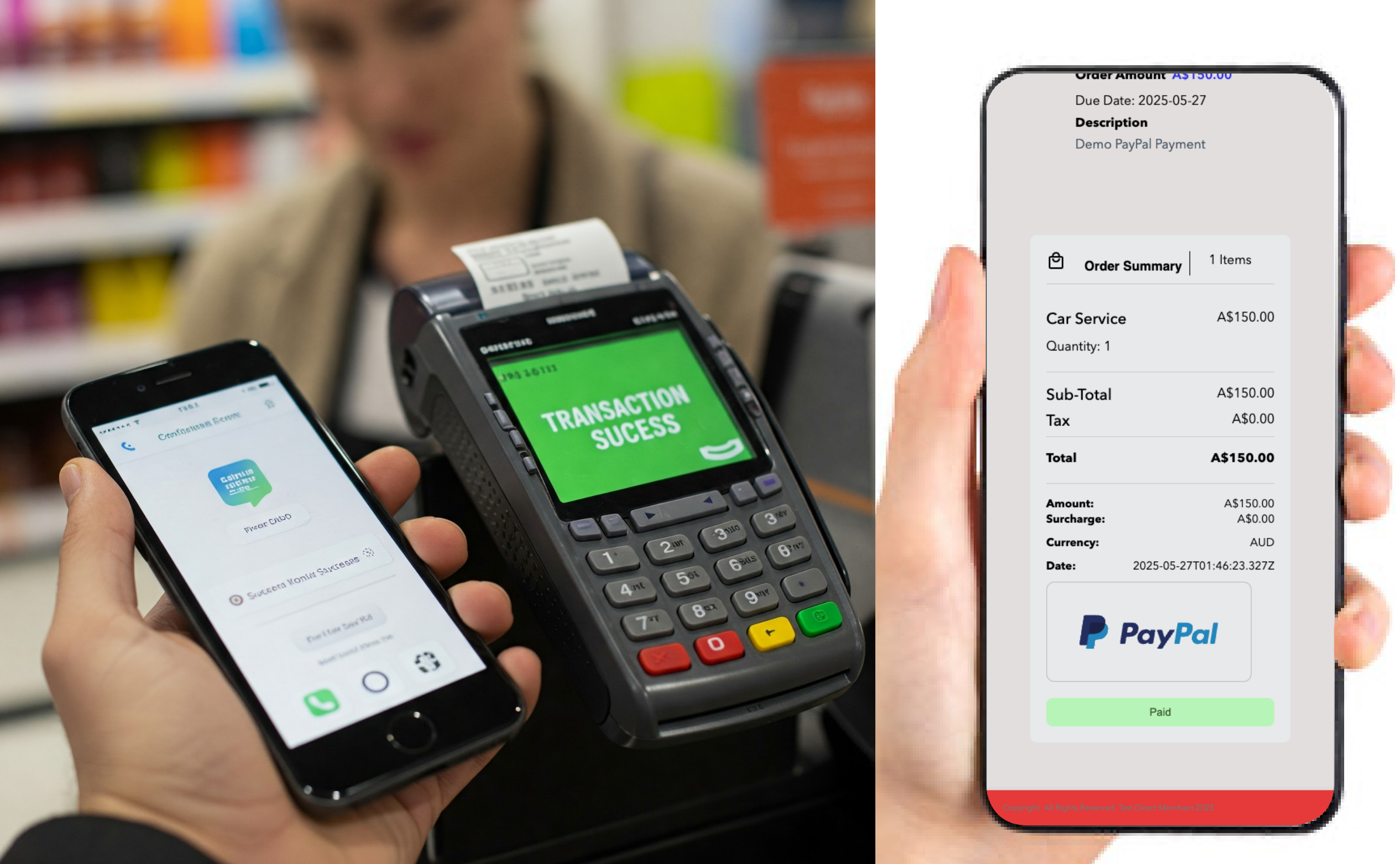
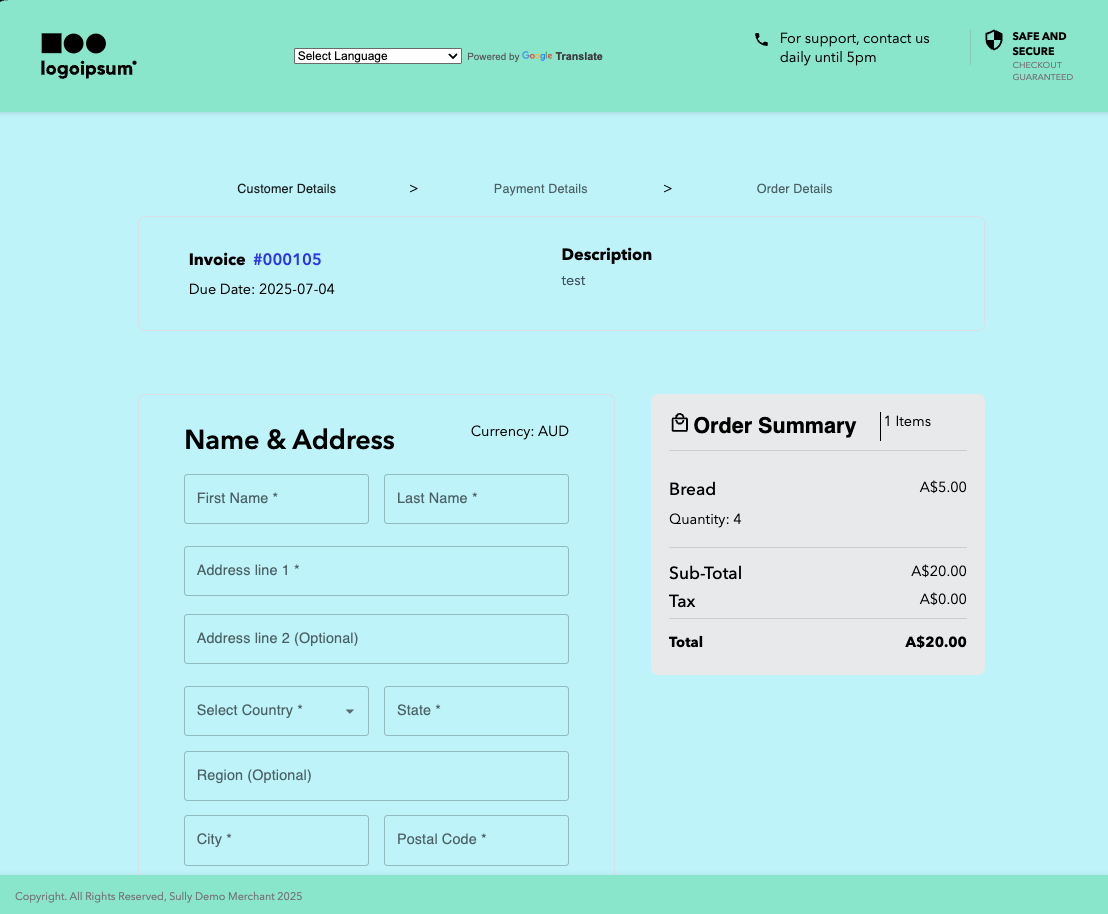
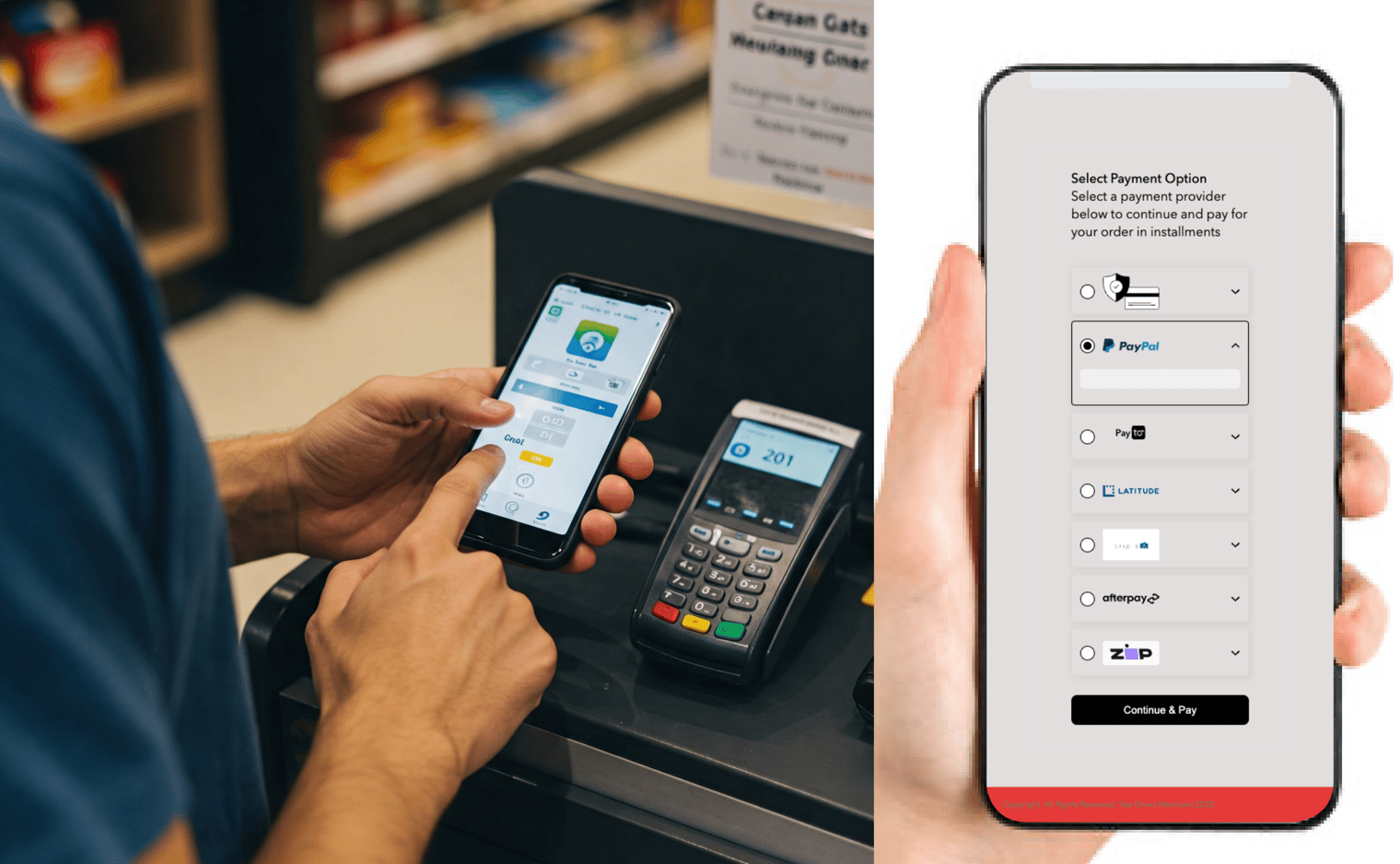
By implementing Optty's hosted payment page (Optty Direct), you can accept payments without needing to write any code. Payment links can be generated and shared directly from the UPP.

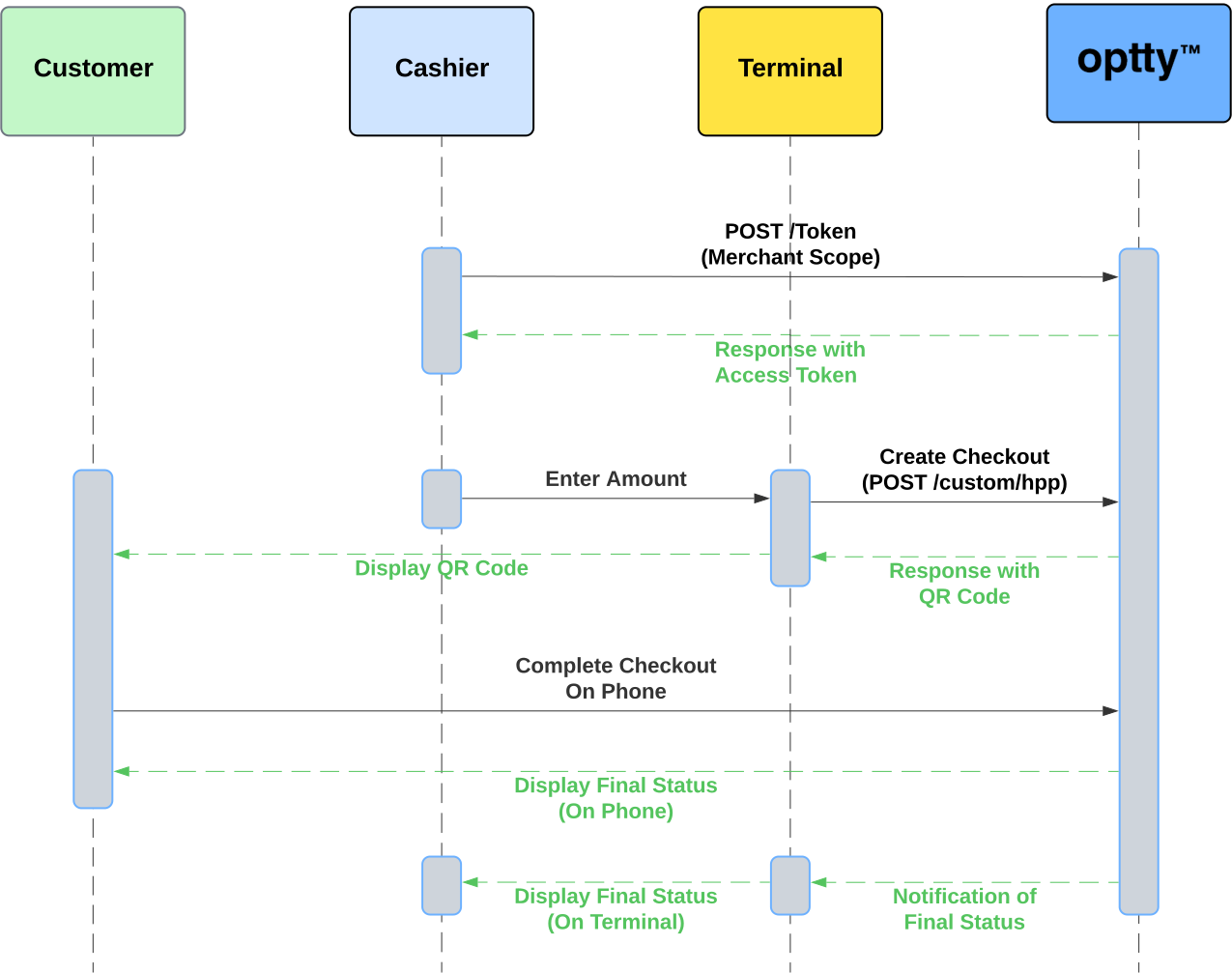
Additionally, the API allows for various use cases, such as attaching payment links to invoices or processing in-store payments.

<figure><img src="https://www.gitbook.com/cdn-cgi/image/dpr=2,width=760,onerror=redirect,format=auto/https%3A%2F%2Fcontent.gitbook.com%2Fcontent%2FfCUCEi1845pQGMcbjae6%2Fblobs%2FYbawyqf7CiiYnyR0Ac7W%2FOptty%20Direct%20In%20Store%20Step%202_%20Decision.png" alt="" width="375"><figcaption></figcaption></figure>
{% endtab %}
{% endtabs %}

## Platforms <a href="#platforms" id="platforms"></a>

<table data-card-size="large" data-column-title-hidden data-view="cards" data-full-width="false"><thead><tr><th></th><th data-type="content-ref"></th><th data-hidden data-card-cover data-type="files"></th></tr></thead><tbody><tr><td><img src="https://content.gitbook.com/content/fCUCEi1845pQGMcbjae6/blobs/5Tqtl2l6vniwRsPDsDXF/image.png" alt=""></td><td><a href="/platforms/magento-2">Magento 2</a></td><td></td></tr><tr><td><img src="https://content.gitbook.com/content/fCUCEi1845pQGMcbjae6/blobs/cL91lmkcYgyFpltaIXJa/Salesforce-Horizontal-cropped.png" alt=""></td><td><a href="/platforms/salesforce-commerce-cloud">Salesforce Commerce Cloud</a></td><td></td></tr><tr><td><img src="https://content.gitbook.com/content/fCUCEi1845pQGMcbjae6/blobs/uFx7mSMZQhRsI6JaZ77Y/image.png" alt=""></td><td><a href="/platforms/woocommerce">WooCommerce</a></td><td></td></tr><tr><td><img src="https://3947039319-files.gitbook.io/~/files/v0/b/gitbook-x-prod.appspot.com/o/spaces%2FfCUCEi1845pQGMcbjae6%2Fuploads%2FiryuyCwIXMUUn7QZrgIN%2Fimage.png?alt=media&amp;token=38b968ca-a167-4767-8c01-8b546bd8e098" alt="" data-size="original"></td><td></td><td></td></tr></tbody></table>

{% hint style="info" %}
Please feel free to reach out to our 24/7 Support teams, via <mark style="color:blue;"><support@optty.com>,</mark> for more details
{% endhint %}


# Introduction


# Go Live


# Payment Method Feature Matrix


# Demo Recordings


# Notification Handling

When integrating Optty, you will want your applications to receive events on Orders as their status is updated, so that you can update your backend systems accordingly. You should always handle the PENDING status on initial response, redirect and webhooks and handle a state where the status is not final until a proceeding webhook.

Receiving webhook events helps you respond to asynchronous events, such as when a payment/refund/capture reaches a final state or changes state.

## How to enable Notifications

Using the steps below, you can enable notifications on your account

{% stepper %}
{% step %}
[Log in to the Universal Payment Platform](https://upp.qa.optty.com/)

<figure><img src="https://3947039319-files.gitbook.io/~/files/v0/b/gitbook-x-prod.appspot.com/o/spaces%2FfCUCEi1845pQGMcbjae6%2Fuploads%2FcpC6cZpO60hDy8opGQ9D%2Fimage.png?alt=media&amp;token=7423721a-e54d-4dd0-9524-d0dd6cec2f57" alt=""><figcaption><p>Universal Payment Platform</p></figcaption></figure>
{% endstep %}

{% step %}
[Go to the admin settings](https://upp.optty.com/admin-setting)

<figure><img src="https://3947039319-files.gitbook.io/~/files/v0/b/gitbook-x-prod.appspot.com/o/spaces%2FfCUCEi1845pQGMcbjae6%2Fuploads%2F3erAbaiIMN6TciKXvHQG%2Fimage.png?alt=media&amp;token=407ccfe7-4140-48d1-9b1c-65864772b03e" alt=""><figcaption><p>Admin Settings</p></figcaption></figure>
{% endstep %}

{% step %}
Click on Webhook/Callback Settings

Enter the URL where you want to receive notifications.

The "Raw Payment Method Response", when enabled, will forward both the standardised notification from Optty and will include a nested field with the notification we received from the provider that we standardised. This feature it only recommended in some rare edge cases when you wish to get payment method specific information.

<figure><img src="https://3947039319-files.gitbook.io/~/files/v0/b/gitbook-x-prod.appspot.com/o/spaces%2FfCUCEi1845pQGMcbjae6%2Fuploads%2Fpzty552dOkLd6yiINUyj%2Fimage.png?alt=media&amp;token=cb70ad92-cf6a-4a2e-a1ad-69a75a94dd56" alt=""><figcaption></figcaption></figure>
{% endstep %}

{% step %}
Click on Save Changes

You have successfully configured your webhook notifications. For every status change or update, you will receive a notification on the URL you have set in the Universal Payment Platform.
{% endstep %}
{% endstepper %}

{% hint style="info" %}
You can also set a notification URL for each order when [creating an order](/direct-api-orders/order-flow/post-orders) by passing in the "dynamicCallbackURL" field in the request body, it will only be sent notifications for ORDER\_ASYNC\_CALLBACK events

<pre class="language-json"><code class="lang-json"><strong>"dynamicCallbackUrl": "https://example.com/dynamicCallbackUrl" 
</strong></code></pre>

{% endhint %}

## How it works?

Optty Payment Platform allow you to receive updates on specific events as part of the Optty Payment process.

It will also include the token on a final status update, such as `SUCCESSFUL` or `DECLINED` , if you have set `tokenisation.getToken` to `true` on the order. This token can be used for merchant-initiated payments by sending it as `tokenisation.token` on a later order [Merchant Initiated Orders](/direct-api-orders/order-flow/merchant-initiated-orders)

Endpoints must be configured in the [merchant dashboard](https://upp.qa.optty.com/admin-setting), separately for Sandbox and Production environments. If a notification is not received successfully, we will retry to send the event.

### Type of Events

<details>

<summary>ORDER_ASYNC_CALLBACK</summary>

This event will sent to you whenever a pending order get into final state (asynchronously), it will be having the order details and updated status of Order.

Status `SUCCESSFUL` `DECLINED` `CANCELED` `PENDING` `ERROR`

{% hint style="info" %}
If dynamicCallbackUrl is passed while creating order this event notification will be sent to dynamicCallbackUrl else the on the url which was configured from Universal Payment Platform
{% endhint %}

</details>

<details>

<summary>ORDER_CAPTURE_ASYNC_CALLBACK</summary>

This event will be sent to you whenever a order which required manual capture and that has been done

Status: `SUCCESSFUL` `ERROR`

{% hint style="info" %}
This event will be sent to the URL which was configured in Universal Payment Platform
{% endhint %}

</details>

<details>

<summary>REFUND_CALLBACK</summary>

This event will be sent to you whenever a refund order status is update asynchronously

Status: `SUCCESSFUL` `ERROR` `DECLINED` `PENDING`

{% hint style="info" %}
This event will be sent to the URL which was configured in Universal Payment Platform
{% endhint %}

</details>

<details>

<summary>ORDER_VOID_ASYNC_CALLBACK</summary>

This event will be sent to you whenever an authorized order is voided.

voidStatus: `SUCCESSFUL` `ERROR`

{% hint style="info" %}
This event will be sent to the URL which was configured in Universal Payment Platform
{% endhint %}

</details>

### Notification Object

Below is the notification example body for each type of notification.

{% tabs %}
{% tab title="ORDER\_ASYNC\_CALLBACK" %}

<pre class="language-json"><code class="lang-json">{
  "event": "ORDER_ASYNC_CALLBACK",
  "data": {
    "transactionId": "3d59905e-1e26-4647-a67b-6dc900bc5730",
    "reference": "Test-52",
<strong>    "status": "SUCCESSFUL",
</strong>    "hash": "8c3bc3a7628eccd78ee3b37a389e0fb650fa64ebf9f5f3d6733eec4d57ce5e2dad22f225bc716b0a63433e27826ccbf211541cf6f9356a7e6d4713e4de5efbd5",
    "currency": "AUD",
    "amount": 146.24,
    "transactionReference": "c38f5823fd",
    "provider": "FAT_ZEBRA_AU",
    "initiator": "regular",
    "metadata": null,
    "token": "nx5so6w6gprawk7ur",
    "rawBNPLResponse": null
  }
}
</code></pre>

{% endtab %}

{% tab title="REFUND\_CALLBACK" %}

```json
{
  "event": "REFUND_CALLBACK",
  "data": {
    "orderReference": "54534_F-533",
    "status": "SUCCESSFUL",
    "hash": "9b300cd24c3a96cd436c0ca847852dd2d4a1136cf928a400ade4552b40b960838c04b",
    "currency": "AUD",
    "amount": 60,
    "refundReference": "Test-342",
    "refundDescription": "60 Refunded"
  }
}
```

{% endtab %}

{% tab title="ORDER\_CAPTURE\_ASYNC\_CALLBACK" %}

```json
{
  "event": "ORDER_CAPTURE_ASYNC_CALLBACK",
  "data": {
    "reference": "FZ-LC-UT-333-Test",
    "orderReference": "FZ-LC-UT-333-Test",
    "captureReference": "test-order-12",
    "status": "SUCCESSFUL",
    "token": "nx5so6w6gpytk7ur",
    "currency": "AUD",
    "amount": "12",
    "transactionId": "b497023b-4f6d-4c42-be56-e8795177e340",
    "transactionReference": "5246c2b954",
    "provider": "NUVEI_CARDS_AU",
    "hash":"5d1e82dd0a0e9cba32ede281a223829ca7f5983fd0",
    "captureStatus": "CAPTURED",
    "rejectReason": null
  }
}
```

{% endtab %}

{% tab title="ORDER\_VOID\_ASYNC\_CALLBACK" %}

```json
{
  "event": "ORDER_VOID_ASYNC_CALLBACK",
  "data": {
    "reference": "CARDS_AU_F-40",
    "voidReference": "9724",
    "errorMessage": null,
    "status": "CANCELED",
    "transactionId": "c723354f-cee4-4671-9afc-ab76379dd9a8",
    "transactionReference": "cf099bc431",
    "token": null,
    "currency": "AUD",
    "amount": 60,
    "hash": "4667be1b3925ce3690f4f50901951bbc762962476e26ed600bcd62c6440c5ccd267bc311a28efd69d35b0a290d3065717b75539e116efc63c0fc095e3d111779",
    "provider": "NUVEI_CARDS_AU",
    "voidStatus": "SUCCESSFUL",
    "rejectReason": "Transaction Cancelled"
  }
}
```

{% endtab %}
{% endtabs %}

Below is a table describing the key fields included in the notification object:

<table><thead><tr><th width="198.3033447265625">Field</th><th width="163.6131591796875">Type</th><th>Description</th></tr></thead><tbody><tr><td><strong>event</strong></td><td>string</td><td>Type of notification, e.g., <code>ORDER_ASYNC_CALLBACK</code></td></tr><tr><td><strong>status</strong></td><td>string</td><td><p>Current status of the order, such as <code>SUCCESSFUL</code></p><p><code>DECLINED</code></p></td></tr><tr><td><strong>transactionId</strong></td><td>string</td><td>Unique identifier for the transaction.</td></tr><tr><td><strong>orderId</strong></td><td>string</td><td>Provider Order Id</td></tr><tr><td><strong>orderToken/reference</strong></td><td>string</td><td>Order Reference for merchants at Optty's end</td></tr><tr><td><strong>hash</strong></td><td>string</td><td>Secure hash key for verification purposes.</td></tr><tr><td><strong>currency</strong></td><td>string</td><td>Currency code, e.g., <code>AUD</code>.</td></tr><tr><td><strong>amount</strong></td><td>number</td><td>Transaction amount.</td></tr><tr><td><strong>transactionReference</strong></td><td>string</td><td>Reference number for tracking the transaction at Optty</td></tr><tr><td><strong>paymentStatus</strong></td><td>string</td><td>Status of Order when the order was placed</td></tr><tr><td><strong>provider</strong></td><td>string</td><td>Service provider handling the transaction, e.g., <code>FAT_ZEBRA_AU</code></td></tr><tr><td><strong>token</strong></td><td>string/null</td><td>Secure token for repeat merchant-initiated payments. Only populated when the order was created with <code>tokenisation.getToken</code> set to <code>true</code>. Store the full value exactly as received.</td></tr><tr><td><strong>redirectUrl</strong></td><td>string</td><td>Payment Page Url</td></tr><tr><td><strong>orderReference</strong></td><td>string</td><td>Unique identifier for the order.</td></tr><tr><td><strong>orderDate</strong></td><td>string</td><td>Timestamp of when the order was placed.</td></tr><tr><td><strong>rawBnplResponse</strong></td><td>object/null</td><td>Response from Provider, can turned on/Off from <a href="https://upp.qa.optty.com/admin-setting">merchant dashboard</a></td></tr><tr><td><strong>metaData</strong></td><td>object/null</td><td>The meta data which was added during order creation</td></tr><tr><td><strong>cancelledBy</strong></td><td>string</td><td>You will receive this field only in <code>CANCELED</code>status<br>"SYSTEM": The order timeout has met so system so has canceled this order<br>"USER": User the canceled the order</td></tr><tr><td><strong>preferredDisplayMode</strong></td><td>string</td><td>The display mode of payment page. IN_CONTEXT or REDIRECT</td></tr><tr><td><strong>incontextDisplayMode</strong></td><td>string/null</td><td>The mode in which IN_CONTEXT has been displayed IFRAME or POPUP</td></tr><tr><td><strong>captureStatus</strong></td><td>string</td><td>In case of capture order you will recive this field e.g. "AUTHORIZED" or "CAPTURED"</td></tr><tr><td><strong>captureReference</strong></td><td>string</td><td>Reference for Capture order</td></tr><tr><td><strong>voidReference</strong></td><td>string</td><td>Reference for Void order</td></tr><tr><td><strong>voidStatus</strong></td><td>string</td><td>In case of void order you will recive this field<br>e.g. <code>SUCCESSFUL</code> or <code>ERROR</code></td></tr><tr><td><strong>reference</strong></td><td>string</td><td>Unique identifier for the order</td></tr><tr><td><strong>rejectReason</strong></td><td>string/null</td><td>InCase of payment failure or declined it will give the reason of failure, can be null</td></tr><tr><td><strong>refundReference</strong></td><td>string</td><td>Refund Reference for refund Order</td></tr><tr><td><strong>refundDescription</strong></td><td>string</td><td>Description for refund order</td></tr></tbody></table>

This JSON structure should be parsed and validated to ensure accurate order and transaction processing.<br>


# Exception Handling

This page explains some exceptions that could occur when handling the payment response.

## 1. Order Status is Not Final

If a final order status cannot be attained within the checkout session and the order status remains "PENDING," Optty employs an asynchronous process. This process will either continue to poll the APM's API or listen for order status updates from the APM until a final status (successful, canceled, or declined) is received.

To handle this exception, merchants should implement a listener that can asynchronously receive the final order status event from Optty. This listener will then trigger an action to update the order status in the merchant system and customer checkout, reflecting the final payment update for the order.

{% hint style="info" %}
This exception can also occur for refunds, please refer to the REFUND\_CALLBACK on [Notification Handling](/universal-integration-features/notification-handling)
{% endhint %}

The diagram below illustrates this scenario.

<figure><img src="https://3947039319-files.gitbook.io/~/files/v0/b/gitbook-x-prod.appspot.com/o/spaces%2FfCUCEi1845pQGMcbjae6%2Fuploads%2FlQBqaCdhHJoAYIOCbU97%2FNotification%20Flow.png?alt=media&amp;token=730b4943-bf77-4467-acbf-b6795d1c4876" alt=""><figcaption></figcaption></figure>

## 2. Communication of Status Update to Customer Fails

This exception often arises when a merchant attempts to inform the customer of their payment outcome during the checkout session after a redirect, but this fails because the customer exits the journey after the payment is complete. This usually happens if the customer closes their browser before the process concludes or if there are network issues between the merchant and the customer.

Should the customer prematurely end the checkout session before a final order status is received from the APM, the asynchronous process detailed in "exception 1" should be used to communicate the final status.

To manage this exception, merchants ought to update the customer on the final payment status of their order via email or another asynchronous messaging tool.

<figure><img src="https://3947039319-files.gitbook.io/~/files/v0/b/gitbook-x-prod.appspot.com/o/spaces%2FfCUCEi1845pQGMcbjae6%2Fuploads%2FKxmTStmkcNmoYjtU3f00%2FCustomer%20Exits%20Flow%20Exception%20(1).png?alt=media&amp;token=94dbf3f2-e965-4f18-9389-f784220191fe" alt=""><figcaption></figcaption></figure>

\
\ <br>


# Order Reconciliation Service

#### Order Reconciliation Service

To ensure the integrity and finality of all transactions, Optty provides the "Order Reconciliation Service." This backend service automates the process of verifying order statuses and managing payment timelines, preventing misaligned states between your system and the Payment Provider.

**Key Functions**

This service performs two critical functions:

1. **Status Poling**: The service continuously polls the status of the APM to ensure that the order status in Optty is always up-to-date and accurately reflects the true state of the payment. This eliminates discrepancies and maintains Optty as a single source of truth for all your transactions.
2. **Payment and Checkout Timeouts**: The service allows you to set time limits on the payment process, giving you greater control over your order fulfillment pipeline. If any timeout is reached we cancel the order with the payment method and set the state in Optty to canceled. We differentiate between canceled by ORS by saying canceled by system, if the user manually cancels it will have a canceled by user status in the portal.
   * **Cancellation Timeout**: You can define how long an order is available for a customer to complete payment from the moment the order is created by passing in `cancellationTimeout`. If the customer does not finalize the payment within this timeframe, the service will automatically cancel the order, ensuring you do not have to stay commited to fulfilling an order that is unlikely to be paid.
   * **Checkout Timeout**: Some payments may remain in a pending state for a period of time after the customer completes the checkout process. You can set a `checkoutTimeout` (e.g., 2 minutes) to limit how long you are willing to wait for a final payment status once the customer completes the checkout process. If a final state (successful or declined) is not reached within this time, the service will cancel the order. This prevents transactions from being in a non-final state for extended periods of time while the customer waits and allows you to prompt the customer to retry the payment, reducing customer wait times and improving the overall checkout experience.

{% hint style="success" %}
The values `cancellationTimeout` and `checkoutTimeout` can be passed when creating order through widgets or direct API integrations.
{% endhint %}

**Manual Intervention for Edge Cases**

In a rare scenario where a race condition occurs—for instance, if a customer finalizes their payment at the exact moment a timeout request is sent—a status mismatch can occur.

To address this, our service includes a manual intervention protocol. In such cases, the system will send an email to you to manually intervene with the payment. You may then access how to handle on a case by case basis. These cases are extremely rare and will not occur often, expecially when the timeouts are set at longer time periods.


# Channels

{% hint style="warning" %}
Unless the feature is relevant to your use case, the Channels field is not mandatory and should be left blank.
{% endhint %}

A payment method can be turned on for multiple channels, and each channel for a payment method can have its own configuration, including credentials. To turn on a payment method with a channel, use the "Add New" payment method functionality, but select a channel in the channels section at the bottom of the credentials page.

Based on site or customer information, you will then pass the channel field into the payment flow. This will specify to use of payment methods with the configuration of that channel. E.g. if you have PayPal and Klarna enabled on the default channel, and PayPal enabled for the channel passed into the APIs, only PayPal will be available for the customer.

### Creating Channels

<figure><img src="https://3947039319-files.gitbook.io/~/files/v0/b/gitbook-x-prod.appspot.com/o/spaces%2FfCUCEi1845pQGMcbjae6%2Fuploads%2FM1PIqTMsmla6MVY2zXRg%2Fimage.png?alt=media&amp;token=b9273267-7d8a-4afa-93db-85071c5f1834" alt=""><figcaption><p>Creating Channels</p></figcaption></figure>

Channels must be created before turning on a payment method, and using a channel is available. The Channel Name is used as a reference within the UPP, and the Channel alias is used when referencing the Channel in API calls.

### Enabling a Payment Method with Channels

<figure><img src="https://3947039319-files.gitbook.io/~/files/v0/b/gitbook-x-prod.appspot.com/o/spaces%2FfCUCEi1845pQGMcbjae6%2Fuploads%2FyPNYFc7ruRA3tGaJDTZc%2Fimage.png?alt=media&amp;token=408da93d-d988-476d-a924-68ff2e3caf6a" alt=""><figcaption><p>Enabling a Payment Method Using Channels</p></figcaption></figure>

After enabling a payment method with a channel, you will see two instances of the same payment method with the related channel identified. You can manage both of these individually to update the configuration.

<figure><img src="https://3947039319-files.gitbook.io/~/files/v0/b/gitbook-x-prod.appspot.com/o/spaces%2FfCUCEi1845pQGMcbjae6%2Fuploads%2Fq3BDQtxxbgrBDmyXZJNb%2FScreenshot%202025-06-05%20at%203.18.10%E2%80%AFpm.png?alt=media&amp;token=f2dbaa5f-6e34-46db-b62e-258277963ea3" alt=""><figcaption><p>Viewing Channels on Payment Methods</p></figcaption></figure>

### Primary Use Cases

**Omni-Channel:** If using the Optty checkout on multiple checkouts, such as E-commerce Store, App or In-store, you may wish to apply a different configuration, ranging from different provider fees for reporting or different technical credentials to use a different MID. You may also wish to show different providers on each checkout using channels.

**Routing**: Based on criteria such as customer information or order items, it may be preferred to route the transaction through particular payment methods or different credentials; this can be accomplished with channels.

### Passing Channel to the Options and Order endpoint

Two parts of the Order flow must be passed through the channel reference, the Create Order endpoint and the Get Options endpoint. In both cases, when passing no channel, it will default to all payment methods configured without a channel selected.

When getting payment method options, passing a channel will filter the response such that all payment methods returned are enabled for that channel.

When creating an order, the channel will be used to identify which configuration to use to process the order.

The same channel should be passed to both options and orders to ensure that the payment method and channel combination passed to orders is a valid one, otherwise, an error will be thrown.


# Enabling a Payment Method

This guide explains how to add and configure a payment method for your merchant account using the UPP (Universal Payment Platform).

### 1. Open the Payment Methods page

1. Log in to the UPP.
2. In the left-hand sidebar, click **Payment Methods**.

**What you see:** A table listing every payment method already added to your account. Each row shows the provider logo, a currency flag badge, a status (**Active** or **Inactive**), and a **Manage** button on the right. Above the table is an **Add New** button (top-right) and filter controls for payment type, currency, and status. Rows can be dragged up or down to change the checkout display order.

<figure><img src="https://3947039319-files.gitbook.io/~/files/v0/b/gitbook-x-prod.appspot.com/o/spaces%2FfCUCEi1845pQGMcbjae6%2Fuploads%2F6kPgZGcyx6DFax3tu0z3%2FScreenshot%202026-04-17%20at%205.40.07%E2%80%AFPM.png?alt=media&amp;token=63e362a8-3969-4414-9959-57c9c646d6ee" alt=""><figcaption></figcaption></figure>

### 2. Select a provider to add

1. Click **Add New**.
2. Browse the provider grid. Use the **Payment Type** and **Currency** filter dropdowns at the top to narrow results.
3. Providers already enabled on your account appear in a dimmed **Already Added** section and cannot be selected again.
4. Click the tile for the provider you want to configure.

<figure><img src="https://3947039319-files.gitbook.io/~/files/v0/b/gitbook-x-prod.appspot.com/o/spaces%2FfCUCEi1845pQGMcbjae6%2Fuploads%2Fnz5nXeG1grYwE6j4c8Br%2FScreenshot%202026-04-17%20at%205.43.20%E2%80%AFPM.png?alt=media&amp;token=69d01303-d742-49cd-b6dd-6b49d7245bef" alt=""><figcaption></figcaption></figure>

<figure><img src="https://3947039319-files.gitbook.io/~/files/v0/b/gitbook-x-prod.appspot.com/o/spaces%2FfCUCEi1845pQGMcbjae6%2Fuploads%2FjHsnQ7qmth4RTk9IvJnd%2FScreenshot%202026-04-17%20at%205.44.32%E2%80%AFPM.png?alt=media&amp;token=625aa8da-d548-4b4b-a0db-3225c83899e7" alt=""><figcaption></figcaption></figure>

### 3. Complete the configuration wizard

The wizard shows a horizontal tab bar across the top.Tabs are unlocked in order, you must complete or skip each step.

<table><thead><tr><th width="229.921875">Tab</th><th>Purpose</th></tr></thead><tbody><tr><td><strong>API Credentials</strong></td><td>Authenticate to the payment provider</td></tr><tr><td><strong>Provider Configurations</strong></td><td>Set operational rules for this payment method</td></tr><tr><td><strong>Checkout Configurations</strong></td><td>Control how this method appears in the checkout widget</td></tr><tr><td><strong>Product Configurations</strong></td><td>Control how this method appears on product pages</td></tr></tbody></table>

<figure><img src="https://3947039319-files.gitbook.io/~/files/v0/b/gitbook-x-prod.appspot.com/o/spaces%2FfCUCEi1845pQGMcbjae6%2Fuploads%2FA8G1XZ2nhyNhmJ4NIjGh%2FScreenshot%202026-04-17%20at%206.19.35%E2%80%AFPM.png?alt=media&amp;token=f9751ad9-efbc-49da-9e82-d7ea7605a0fe" alt=""><figcaption></figcaption></figure>

**Understanding credential fields**

Every payment provider defines its own set of credential fields. The UPP renders exactly the fields that provider requires.

A form section titled **"Enter Credentials"** containing one or more labelled text inputs. Each field label has a small **ⓘ information icon** immediately to the right of the label text. Hovering over the ⓘ displays a tooltip with the **info guide,** a sentence explaining what the credential is and exactly where to find it (for example: *"Your Client ID is found in the provider's Developer Dashboard under Apps & Credentials"*). Required fields are marked with a red asterisk (\*). Optional fields have no asterisk.

***

**Scenario A : Manual API credentials**

***

If no OAuth or parent-managed path applies, enter the credentials in the dynamic form fields, click **Test Connection**, then click **Next**.

<figure><img src="https://3947039319-files.gitbook.io/~/files/v0/b/gitbook-x-prod.appspot.com/o/spaces%2FfCUCEi1845pQGMcbjae6%2Fuploads%2FoA5g7OVudsk8Tb7ZDeT2%2FScreenshot%202026-04-22%20at%2011.58.30%E2%80%AFAM.png?alt=media&amp;token=7f10487a-b46b-457f-9c0f-69d404fd4f9e" alt=""><figcaption></figcaption></figure>

<figure><img src="https://3947039319-files.gitbook.io/~/files/v0/b/gitbook-x-prod.appspot.com/o/spaces%2FfCUCEi1845pQGMcbjae6%2Fuploads%2F2LNw9Apx8SRVXZ9bmobc%2FScreenshot%202026-04-22%20at%2012.04.56%E2%80%AFPM.png?alt=media&amp;token=6579f11f-b22e-4c91-934b-0461f16669e5" alt=""><figcaption></figcaption></figure>

***

**Scenario B : OAuth connection**

***

Certain providers support an OAuth redirect flow. When available, the credentials tab shows a **"Connect with \[Provider]"** button instead of (or alongside) the credentials form.

<figure><img src="https://3947039319-files.gitbook.io/~/files/v0/b/gitbook-x-prod.appspot.com/o/spaces%2FfCUCEi1845pQGMcbjae6%2Fuploads%2FtWShrq58g9b4GvmOGYpi%2FScreenshot%202026-04-17%20at%206.27.20%E2%80%AFPM.png?alt=media&amp;token=f66941f9-bbdc-4823-b889-51fed205e3d8" alt=""><figcaption></figcaption></figure>

**How the merchant OAuth redirect flow works:**

1. Click **Connect with \[Provider]**.
2. The UPP saves your progress and navigates your browser tab to the provider's authorisation page.
3. Sign in to your provider account and grant the requested permissions.
4. The provider redirects your browser back to the UPP automatically.
5. The credentials tab now shows a confirmation:

   > *"You are now connected to \[Provider]."*
6. Click **Next** to continue, no manual credentials are required.

***

**Scenario C :** **Credentials managed by your parent account**

***

If your parent account has already configured credentials for this provider, the credentials form is replaced by the following message:

> *"Credentials for this provider are managed by \[Parent Name]. No additional credentials are required."*

<figure><img src="https://3947039319-files.gitbook.io/~/files/v0/b/gitbook-x-prod.appspot.com/o/spaces%2FfCUCEi1845pQGMcbjae6%2Fuploads%2Flj72sRwAJxWzUneiNJEO%2FScreenshot%202026-04-17%20at%206.24.44%E2%80%AFPM.png?alt=media&amp;token=4b0cdf44-b199-4232-81fc-1c8875d3ee81" alt=""><figcaption></figcaption></figure>

A plain text message and a **Next** button. No input fields are shown.

Click **Next** and the payment method is activated immediately using the parent's credentials. You do not need to enter or retrieve any credentials yourself.

Detailed steps for configuring credentials from parent account are mentioned in [Partner Onboarding section](/partner-onboarding-docs/parent-grandparent-apm-management/enabling-a-payment-method-parent-account)


# Overview

Prior to processing an order, please review the "Universal Integration Features."

An Order is the primary mechanism used to complete any payment through Optty. Direct integrations with the Orders API is the most flexible integration of Optty and will fulfil unique use cases.

This is where the primary advantage Optty provides is made clear. This integration flow and all API calls and responses are standardised by Optty across all payment methods that can be supported by Optty.

The below flow is a basic example, extra feature such as manual capture, partial captures, refunds and webhooks are excluded to keep this a high level flow.

<figure><img src="https://3947039319-files.gitbook.io/~/files/v0/b/gitbook-x-prod.appspot.com/o/spaces%2FfCUCEi1845pQGMcbjae6%2Fuploads%2FmSOl2EUQC7zc1iBb0SXg%2FFull%20MIT%20and%20CIT%20Flow%20(1).png?alt=media&amp;token=84145e20-f711-4d87-927d-b4318cce76fb" alt=""><figcaption></figcaption></figure>


# Environments

### Environments <a href="#environments" id="environments"></a>

Optty provides both a sandbox testing environment and a production environment for merchants and partners to use. The sandbox environment is connected to live sandbox environments of other payment methods and are not simulated to provide a realistic testing environment. No payment will be taken, however sandbox accounts and testing credentials for each payment method should be utilised.

#### Sandbox Testing Environment <a href="#sandbox-testing-environment" id="sandbox-testing-environment"></a>

| **Authentication** | <https://auth.qa.optty.com/token>               |
| ------------------ | ----------------------------------------------- |
| **Merchant URL**   | <https://api.qa.optty.com>                      |
| **Widget SDK URL** | <https://widgets.qa.optty.com/widget-loader.js> |

#### Production Environment <a href="#production-environment" id="production-environment"></a>

| **Authentication** | <https://auth.optty.com/token>               |
| ------------------ | -------------------------------------------- |
| **Merchant URL**   | <https://api.optty.com>                      |
| **Widget SDK URL** | <https://widgets.optty.com/widget-loader.js> |


# Postman

Here is our Optty postman for create order flows:

{% file src="/files/tws2gLQ3W3fFifxVJiTm" %}

Pre Requisites

1. Download the postman collection.
2. Replace `webhook_url` in the collection variables to a url you can receive webhook messages on. <https://webhook.site> is an easy way to do this.
3. Go through the Order flow outlined in the Postman collection (Steps 1, 2 and 3)
   1. Follow the redirect URL in step 3 to complete payment and test the other order management end points

This Postman collection is linked to an existing Optty merchant with pre-enabled payment methods. While sufficient for basic testing, more in-depth testing requires signing up for your own merchant account[ here](https://www.optty.com/merchant-account). Once registered, replace the \`client-id\` and \`client-secret\` with your new merchant's credentials in the collection level variables. You will also need to enable payment methods using the Optty credentials linked at the bottom of this page.

## APM Simulation

To ensure a smooth integration, we recommend using the Optty Sandbox APM for the majority of your testing. This tool allows you to simulate the full order lifecycle—from creation to final status—without relying on third-party sandbox environments.

Why use the Sandbox APM?

* Total Control: Simulate specific edge cases (e.g., specific error codes or pending states) that third-party sandboxes may not consistently support.
* Higher Stability: Avoid external downtime or credential issues often found in third-party test environments.
* Faster Iteration: Test complex asynchronous flows (like webhooks) on your own terms.

***

## Third-Party Sandbox Testing

While the Sandbox APM covers most needs, we understand you may occasionally require a "live" simulation within a specific third-party environment (e.g., ZIP AU) to verify the end-to-end redirect experience.

Below, you will find the Credentials required to enable these methods in your Optty Merchant Dashboard and the Test Payment Data needed to complete the checkout on their respective pages.

***

## Test Data

### Sandbox APM

Can be enabled on the UPP by entering ANY dummy test credentials and does not required Test Payment Data.

### ZIP Sandbox Environments

<details>

<summary>ZIP Credentials</summary>

**Api Key**\
`eyJhbGciOiJIUzI1NiIsInR5cCI6IkpXVCJ9.eyJzdWIiOiI5Njk0MzBkNC04NmQ4LTQ3MDUtOTlhMC02NDg0ZDJiY2JhOGIiLCJqdGkiOiIyNjQyYTJhZS1iODAyLTQzYmEtODk1MS1iYTliMTY4ZGEzMDEiLCJpYXQiOjE2MjYyNjQxMzR9.RPm76qd5Lc335r5o9_Ixbfg_G7DAPCzM4HAvs1ip-i0`

</details>

<details>

<summary>Zip Test Payment Data</summary>

**Successful**\
**User**: <zp_1700691729065@mailinator.com>\
**Password**: test1234\
\
**Decline**\
**User:** <skipmfa_zpv2_1758589813746_471728932@mailinator.com>\
**Password**: test1234

</details>

### FatZebra

<details>

<summary>Fat Zebra Credentials</summary>

**username**: vsmrt-TESToptty

**sharedSecret**: 733d8b567c

**access\_key**: 1DrrvOD8CW5FIA==\
\
**token**: 5517fa6e8f1580b6904b735106baa7be60b38eb6

**access\_secret**: g4amFj1RTJwQrJpUHUN\_xGUmYZw=

</details>

<details>

<summary>Fat Zebra Test Payment Data</summary>

**Card Number**: 4000000000001000\
\
**Card Holder Name**: Any\
\
**Expiry**: Any Future Date\
\
**CVC**: Any 3 Digits

</details>


# Sandbox Payment Method (Simulator)

The Sandbox APM is a dedicated payment simulation tool within the Optty sandbox environment. It is designed to remove dependencies on third-party APM sandbox environments, eliminating the need for merchants to manage multiple test credentials or external login details.

By using this single method, partners and merchants can simulate a wide range of payment behaviours, technical flows, and edge cases—making it an essential tool for testing complex integrations.

***

### 🚀 Why Use the Sandbox APM?

* Unified Testing: Simulate all payment scenarios (success, decline, pending, and refunds) easily through one interface.
* Asynchronous Simulation: Test how your system handles "Pending" states and subsequent webhook notifications without depending on third party APM environments.
* Customisable Behaviour: Configure the final outcome and timing of every transaction directly on the checkout page.

***

### 🛠 How It Works

When using the Sandbox APM in a test environment, the simulation is triggered based on the transaction setup which is configured by the user when opening the "redirectUrl".

#### 1. Payment Configuration

On the simulator checkout page, you can define the following parameters for the current transaction:

* Final Status: Choose between Successful, Declined, Cancelled, or Error.
* Initial Response:
  * Instant: The final status is returned immediately in the redirect URL.
  * Pending: The system returns an instant "Pending" status. You must then wait for an asynchronous notification (webhook) or poll the "Get Order Status" API to receive the final outcome.
* Webhook Timing: If a Pending state is selected, you can configure the delay for the asynchronous notification to either 10 seconds or 2 minutes.
  * 10 seconds allows testing that the customers final status page is updated upon recieving the webhook while they are still present.
  * 2 minutes can be used to ensure the customer is notified of the final payment status after leaving the checkout page.

#### 2. Refund Simulation

Refunds are initiated via the standard Refund API. You can pre-configure how the simulator handles these requests:

* Instant Refunds: Immediate success or failure.
* Asynchronous Refunds: Simulates a pending refund that resolves later.

***

### 💡 Common Use Cases

<table data-header-hidden><thead><tr><th width="111.8515625">Scenario</th><th>Configuration</th><th>Benefit</th></tr></thead><tbody><tr><td>Happy Path</td><td>Status: Successful | Initial: Instant</td><td>Quick verification of the checkout flow.</td></tr><tr><td>Async Webhooks</td><td>Status: Successful | Initial: Pending</td><td>Tests if your backend correctly handles <code>ORDER_STATUS</code> updates via webhooks.</td></tr><tr><td>Error Handling</td><td>Status: Declined/Error</td><td>Ensures your UI correctly displays error messages to users.</td></tr><tr><td>Edge Cases</td><td>Browser Crash / Timeout</td><td>Test system resilience when the redirect is interrupted.</td></tr></tbody></table>

***

### 📝 Important Notes

* Per-Transaction Configuration: Settings applied on the checkout page are specific to that individual payment and do not persist to the next transaction.
* Sandbox Only: This tool is strictly available in the sandbox environment and cannot be used in production.


# Create Access Token

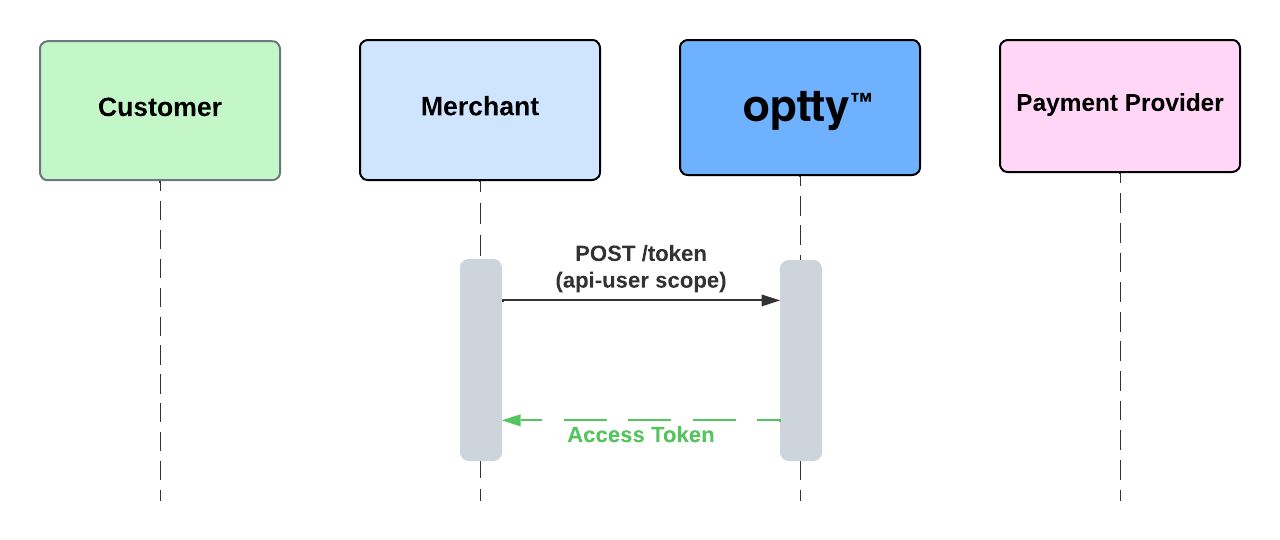
In order to access the API’s, first create an access token that will be used in the header of subsequent calls for authentication.

Access tokens expire in 24 hours from the time it was created but you are able to use this method to obtain a new token.

<figure><img src="https://content.gitbook.com/content/fCUCEi1845pQGMcbjae6/blobs/2NWZ4OLvqT1z3sJFxhjA/Authentication%20Flow.png" alt=""><figcaption></figcaption></figure>

## Create Access Token

<mark style="color:green;">`POST`</mark> `/token?expires_in=1`

Access tokens are only valid for **24 hours** from its creation. Use this method if the current token is expiring soon or it may have been compromised to obtain a new Access Token. Client ID and secret credentials are provided by Optty.

#### Headers

| Name                                           | Type | Description                       |
| ---------------------------------------------- | ---- | --------------------------------- |
| content-type<mark style="color:red;">\*</mark> |      | application/x-www-form-urlencoded |

#### Request Body

| Name                                             | Type   | Description                                                            |
| ------------------------------------------------ | ------ | ---------------------------------------------------------------------- |
| client\_id<mark style="color:red;">\*</mark>     | string | Client\_ID credentials provided by Optty                               |
| client\_secret<mark style="color:red;">\*</mark> | string | Client secret credentials provided by Optty                            |
| grant\_type<mark style="color:red;">\*</mark>    | string | Always “client\_credentials”                                           |
| scope<mark style="color:red;">\*</mark>          | string | The “api-user”, this is needed to make API calls for placing an order. |

{% tabs %}
{% tab title="200: OK Success" %}

```json
Content-type application/json:

{
    "access_token": "<access token in JWT format>",
    "expires_in": 86400,
    "token_type": "Bearer",
    "scope": "api-user"
}

```

{% endtab %}
{% endtabs %}


# Order Flow

You can initiate transactions through Optty using either customer-initiated or merchant-initiated orders. Customer-Initiated orders are best for the traditional ecommerce flow and are a mandatory part of a direct API integration if not using widgets, merchant-initiated orders can be used to fulfil additional use cases such as subscriptions or recurring customer wallets.

## Customer Initiated Orders

A customer-initiated order represents the traditional checkout flow on a e-commerce site. Optty creates an order with the relevant payment provider and returns a `redirectUrl`, to which the customer should then be redirected. The customer completes the checkout on this page, often by logging into their account with that provider or entering card details for card providers. The customer is then redirected back to the `dynamicRedirectURL`, returning control to the merchant. [#customer-initiated-orders](#customer-initiated-orders "mention")

## Merchant Initiated Orders

Merchant-initiated transactions can be used to implement services such as subscriptions or to save payment details, reducing friction at checkout for returning customers. Merchants must obtain consent and clearly communicate to the customer how the token will be used.

These orders can only be initiated after a customer has completed a customer-initiated transaction. When creating the customer-initiated transaction and setting `tokenisation.getToken` to `true`, we will generate a token for the customer's payment details. This token can then be used for recurring payments. [Merchant Initiated Orders](/direct-api-orders/order-flow/merchant-initiated-orders)

## Auto Capture

When auto capture is set to true, after a payment has been completed the payment is immediately begins the capture process, this is the primary flow outlined in the following diagrams for simplicity. If auto capture is set to false then a second status of `captureStatus` initially set to `AUTHORIZED` will be tracked to understand the capture status of your order.

## Status Definitions

**Pending**: The order has been created with the relevant payment provider. For customer-initiated transactions, this status covers waiting for customer input and provider processing the payment. For merchant-initiated transactions, "pending" represents waiting for processor confirmation.

### Final Statuses

Once one of these statuses is reached no further status updates will be made without interaction from the merchant to move to refunded.

**Success**: The payment provider has confirmed that the order has been completed successfully. The goods have been successfully paid for and can be dispatched.

**Declined**: The transaction has been declined by the provider.

**Refunded**: The transaction has been refunded. This state is only reached if the payment has been fully refunded; partial refunds will not update the order's status.

**Canceled** (system): The transaction has been canceled by the Optty system based on the order timeout time passed to Optty.

**Canceled** (payer): The payer has canceled completing the payment from the checkout page.


# Customer Initiated Orders

This is the core of the Optty service, every customer will have to complete at least their initial order through a customer-initiated transaction.

When creating an order make sure that all the `requiredFields` for the selected provider returned from the [Options](/direct-api-orders/order-flow/options)endpoint have been passed to avoid validation issues on the endpoint.

<figure><img src="https://3947039319-files.gitbook.io/~/files/v0/b/gitbook-x-prod.appspot.com/o/spaces%2FfCUCEi1845pQGMcbjae6%2Fuploads%2FNfeFZKg3eBrYgmtr7lYn%2FCustomer%20Initiated%20transaction%20(2).png?alt=media&amp;token=40c75d29-ee9f-4431-87af-1f6ed0698960" alt=""><figcaption></figcaption></figure>

## Handling Response

<table><thead><tr><th width="192.33333333333331">Parameter</th><th width="119">Type</th><th>Description</th></tr></thead><tbody><tr><td>hash<mark style="color:red;">*</mark></td><td>string</td><td>The hash being returned to the merchant for verification</td></tr><tr><td>reference<mark style="color:red;">*</mark></td><td>string</td><td>The reference provided by the merchant; can be used for lookups</td></tr><tr><td>status<mark style="color:red;">*</mark></td><td>string</td><td>The state of the transaction<br>Possible values are:<br>SUCCESSFUL, CANCELLED, DECLINED, ERROR</td></tr><tr><td>providerReference</td><td>string</td><td>The reference provided by the APM provider; can be used for lookups directly with the APM provider</td></tr></tbody></table>

### Example Redirect URL

{% code overflow="wrap" %}

```url
http://example.com?hash=coqCmt%2FIZ4E3CzPvMY8zTjQVL5hYJUiBRg8UU%2BiCWo0&reference=1234&status=SUCCESSFUL&providerReference=c4dbe976f7
```

{% endcode %}

To protect against unauthorised redirects, we strongly recommend that you verify the HMAC signature by hashing with the merchant "payment secret" to recreate the signature, and only honour the redirect if it matches.

The "payment secret" can be found on the "view profile" page under "view credentials" on the UPP.

To calculate the hash value, concatenate the 'status' and 'reference' parameters (using a pipe "|" to delimit the values) and generate a hash using the SHA512 algorithm.

Current hashed string contents - {status}|{reference}

## ID References

**Order Reference:** This is the reference used when querying the Optty system. Will be set to merchantReference from createOrder request.

**Transaction Reference:** This is an internal Optty reference to the transaction.


# Merchant Initiated Orders

Not all payment methods support this flow. Please confirm support before enabling, as a 'Not Supported' error will be thrown when attempting to use tokenisation with an unsupported provider.

This flow utilises the same endpoint as Create Order and is controlled by the `tokenisation` object in the request body:

1. Create a traditional order with `tokenisation.getToken` set to `true` (and `tokenisation.customerPresent` set to `true`), prompting the customer to complete the checkout flow.
2. Store the token returned via webhook notification from the initial order. Pass it as `tokenisation.token` in any future Create Order calls where you wish to use those tokenized payment details for processing (as illustrated in the flow below).

Status updates on merchant initiated payment should be handled the same as customer-initiated transactions outlined here [Exception Handling](/universal-integration-features/exception-handling).

{% hint style="warning" %}
The merchant or integrator must confirm that the customer consented when initiating a token transaction. Optty does not take any liability for the customer's consent to token transactions.
{% endhint %}

<figure><img src="https://3947039319-files.gitbook.io/~/files/v0/b/gitbook-x-prod.appspot.com/o/spaces%2FfCUCEi1845pQGMcbjae6%2Fuploads%2FkY40tVIM9lowamumsEIx%2FCreate%20Merchant%20Initiated%20Order%20Flow.png?alt=media&amp;token=61c58247-a5db-4238-83df-1efa8631f192" alt=""><figcaption></figcaption></figure>

## The `tokenisation` Object

Add a `tokenisation` object to the [POST /orders](/direct-api-orders/order-flow/post-orders) request body. All fields are optional.

<table><thead><tr><th width="190">Name</th><th width="104">Type</th><th>Description</th></tr></thead><tbody><tr><td>tokenisation.getToken</td><td>boolean</td><td><p>Set to <code>true</code> to create a token of the payer's payment details for use in future merchant initiated transactions. The token is returned in the <code>ORDER_ASYNC_CALLBACK</code> webhook notification when the order reaches a successful status.</p><p>Requires <code>customerPresent</code> to be <code>true</code>. Defaults to false.</p></td></tr><tr><td>tokenisation.token</td><td>string</td><td>The token returned via webhook when a previous payment was completed with <code>getToken</code> set to <code>true</code>. The payment proceeds without customer interaction. When a token is supplied, <code>customerPresent</code> must also be supplied.</td></tr><tr><td>tokenisation.customerPresent</td><td>boolean</td><td>True if the customer is present on your site when initiating the transaction.<br><br>False if the customer is not present, such as a subscription payment.</td></tr><tr><td>tokenisation.customerIdentifier</td><td>string</td><td>A stable identifier you assign to the customer (for example, their account ID in your system), used to associate saved payment methods with that customer across orders where the provider supports card-on-file. If omitted, <code>customer.email</code> is used, so supply this if you want saved cards to remain linked when a customer changes their email address.</td></tr></tbody></table>

### Example: first order, requesting a token

```json
{
  "bnplProvider": "<PROVIDER>",
  "orderReference": "ORDER-1001",
  "orderAmount": 49.95,
  "purchaseCurrency": "AUD",
  "tokenisation": {
    "getToken": true,
    "customerPresent": true,
    "customerIdentifier": "cust_8f14e45f"
  }
}
```

### Example: later merchant initiated order using the token

```json
{
  "bnplProvider": "<PROVIDER>",
  "orderReference": "ORDER-1002",
  "orderAmount": 49.95,
  "purchaseCurrency": "AUD",
  "tokenisation": {
    "token": "<TOKEN_FROM_WEBHOOK>",
    "customerPresent": false
  }
}
```

Other order fields (items, customer, addresses, redirect URLs) are sent as for any Create Order request.

{% hint style="info" %}
**Token format.** Treat the token as an opaque string: store the entire value exactly as received in the webhook and send it back unchanged. For some providers the value contains more than one part (for example, separated by a `|` character).
{% endhint %}

{% hint style="warning" %}
**Deprecated top-level fields.** `getToken`, `token` and `customerPresent` can still be sent at the top level of the request body and continue to work, but are deprecated. New integrations should use the `tokenisation` object. If both forms are sent, the values inside `tokenisation` take precedence; avoid mixing them.
{% endhint %}

The flow to get the status of the order after it has been initiated via the Create Order endpoint with a token passed in is the same as a non-token payment. A valid web hook with the same structure will be returned when the status is updated, and the structure of the Get Order endpoint will remain the same.

The only variation is the redirect URL. For a token order, the `redirectUrl` returned by Create Order does not open a checkout page. It takes the customer straight to the redirect URL you passed on the order (`dynamicRedirectUrl`), with the payment status in the same URL parameters as a non-token payment. If the customer is present, you can redirect them exactly as you would for a normal order and reuse the same status page for tokenised and non-tokenised payments.

For a customer not present transaction, there is no need to do anything with the Redirect URL, there is no payment processing done when redirected.


# Options

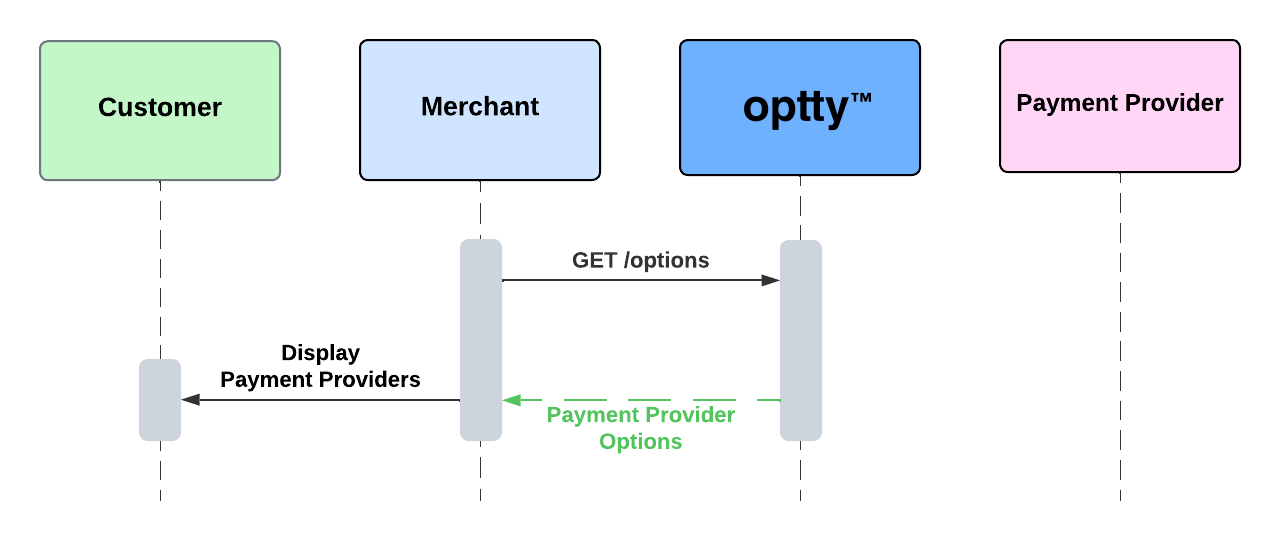
The options endpoint provides information on available payment providers for an order, enabling customers to select their preferred payment method. Implementing this endpoint allows for new payment methods to be enabled and configured via the Optty UPP or API, with changes reflected on checkout without technical intervention. It also supports basic routing based on currency and amount.

We highly recommend displaying the provider's Logo and Priority. Optty maintains up-to-date logos reflecting each payment provider's branding. The priority feature within the UPP allows for the prioritisation and ordering of payment methods on your checkout page, guiding customers toward preferred payment options (a priority of 1 indicates the top of the list).

## Dynamic Required Customer Information

In the response each payment method also has information regarding what customer information fields are required (`requiredFields` ). To prevent any validation issues while also restricting the amount of validation to streamline the customer experience it is recommended to dynamically update your validation of these fields based on which payment method is selected by the customer.

## Widget Implementation (Optional)

For expanded functionality and customisable checkout content from the UPP, utilize the [Easy Checkout Widget](/widget/easy-checkout-widget). To achieve this functionality from the UPP without the widget, contact `support@optty.com` for relevant documentation. You can use this widget in isolation from other widgets and complete the rest of the flow via API.

## Technical Flow

<figure><img src="https://3947039319-files.gitbook.io/~/files/v0/b/gitbook-x-prod.appspot.com/o/spaces%2FfCUCEi1845pQGMcbjae6%2Fuploads%2Fgit-blob-e7ca034f97737cc9afb5ab8b3e65d3dc14e52042%2FGet%20Options.png?alt=media" alt=""><figcaption></figcaption></figure>


# GET /options

## GET /options

> Get APM options

```json
{"openapi":"3.0.0","info":{"title":"Merchant API","version":"1.0"},"security":[{"bearer":[]}],"components":{"securitySchemes":{"bearer":{"scheme":"bearer","bearerFormat":"JWT","type":"http"}},"schemas":{"BnplOption":{"type":"object","properties":{"terms":{"type":"string","description":"A human-readable description of the payment terms for this option. Display this text to help customers understand the payment structure if the provider is a BNPL."},"name":{"type":"string","description":"The unique identifier for the APM provider. This is the provider name that should be used in the bnplProvider field when creating an order.","enum":["KLARNA","KLARNA_US","KLARNA_AU","KLARNA_NZ","KLARNA_3_INSTALMENTS","CLEARPAY","AFTERPAY_AU","OPENPAY_AU","ZIP_UK","ZIP_NZ","ZIP_AU","ZIP_SG","OPENPAY_UK","LAYBUY_NZ","LAYBUY_UK","LAYBUY_AU","PAYFLEX_SA","SPLITIT","HOOLAH_SG","HOOLAH_MY","HOOLAH_HK","QUADPAY_US","QUADPAY_CA","OPENPAY_NZ","AFTERPAY_NZ","AFTERPAY_US","AFTERPAY_CA","SEZZLE","AFFIRM_US","AFFIRM_CAD","LATITUDEPAY_AU","SPOTII","PAGANTIS_EU","ALMA","SCALAPAY","TENDOPAY","ATOME","ATOME_TW","ATOME_TH","ATOME_ID","ATOME_MY","ATOME_HK","ATOME_VN","ATOME_PH","RELY_SG","GRAB_SG","GRAB_MY","SOFINCO_X3CB","SOFINCO_X4CB","BILLEASE_PH","HUMM_AU","HUMM_NZ","HUMM_UK","HUMM_IE","PACE","SMARTPAY","PAYPAL","TABBY_AE","TABBY_SA","TABBY_QA","TABBY_KW","TABBY_BH","GENOAPAY","POSTPAY","REAL_SOLUTION_DIRECT_DEBIT","REAL_SOLUTION_OPEN_INVOICE","CLEOPAY","ERATY","ALIPAY_US","ALIPAY_CN","ALIPAY_HK","ALIPAY_PH","ALIPAY_MY","ALIPAY_TH","ALIPAY_ID","ALIPAY_BD","ABLR_MY","ABLR_SG","SHOPBACK_SG","SHOPBACK_MY","BNPP","LATITUDE_IF_AU","LATITUDE_IF_AU_DEFERRED","LATITUDE_IF_AU_DEFFERED","APLAZO_MX","PAYJUSTNOW_SA","TRIPLEA","MPGS","PAYSQUAD_NZ","WAAVE","TAMARA_SA","TAMARA_AE","VALU","PAYTAB","MYFATOORAH_KW","GOCARDLESS","GOCARDLESS_GB","GOCARDLESS_EU","GOCARDLESS_AU","GOCARDLESS_NZ","PAYMOB_EG","CASHEW","MONOOVA_AU","VOLT","LATITUDEPAY_SG","LATITUDEPAY_MY","LINK_US","AZUPAY_AU","AIRWALLEX_AU","ZIP_CA","PLANPAY_AU","RAZORPAY_IN","VOLT_AU","SANDBOX_PAYMENT_METHOD","SANDBOX_PAYMENT_METHOD_V2","IRIS_A2A_EUR","ADYEN_PAYPO_PL","UATP","COINSPAID","COINSPAID_EU","COINSPAID_GB","RAZORPAY_UPI_IN","MYFATOORAH_SA","PAYSAFE_SKRILL_EU","PAYSAFE_NETELLER_EU","PAYSAFECARD_EU","VOLT_BR","TRUSTLY_EU","TRUSTLY_NL","UNIONPAY_CN","KOMOJU","PAYPAY_JPY","PAYEASY_JP","KONBINI_JP","AUPAY_JP","BITCASH_JP","MERPAY_JP","NET_CASH_JP","KOMOJU_BANK_TRANSFER_JP","KOMOJU_CREDIT_CARD_JP","PAIDY_JP","RAKUTENPAY_JP","WEBMONEY_JP","ALIPAY_JP","MYBANK_EU","WECHATPAY_JP","KAKAOPAY_KR","TOUCH_N_GO_MY","GCASH_PHP","DANA_JP","GRABPAY_SG","TOSS_KR","DRAGONPAY_PH","PRZELEWY24_PL","PAYCO_KR","OVO_ID","PAYSAFE_CARD_EUR","LINEPAY_JP","KOREA_CREDIT_CARDS_KR","EPS_EU","PIX_BR","MULTIBANCO_EU","FPX_MY","HAPPY_MONEY_KR","DOKU_ID","CULTURE_VOUCHER_KR","BRAZIL_CREDIT_CARDS_BR","BANCONTACT_BE","BLIK_PL","FISERV_CARDS_AU","FAT_ZEBRA_AU","CREDITEA_MX","RIVERTY_INVOICE_DE","RIVERTY_INVOICE_NL","RIVERTY_PAYIN3_NL","RIVERTY_FIXED_INSTALLMENTS_DE","DLOCAL_SN","DLOCAL_CI","DLOCAL_OPAY_NG","DLOCAL_PAGA_WALLET_NG","FAT_ZEBRA_AU_3DS","KLARNA_MX","KLARNA_CA","KLARNA_HU","KLARNA_RO","KLARNA_PL","KLARNA_CZ","CONTACT_EG","SOUHOOLA_EG","ZIP_US","AFFIRM_GB","SHOPEEPAY","SHOPEEPAY_SG","SPLITITV3","VISA_CYBERSOURCE_CARD","ALIPAY_PLUS","ALIPAY_PLUS_TOUCH_N_GO_MY","PAYU_IN","HELLO_CLEVER_AU","ALIPAY_PLUS_CN","ONEY_4X_FR","ALIPAY_PLUS_GCASH_PH","PAYJUSTNOW_ZA_V2","ALIPAY_PLUS_TRUEMONEY_TH","ALIPAY_PLUS_DANA_JP","HUMM_CA","ALIPAY_PLUS_KAKAOPAY_KR","ALIPAY_PLUS_TOSS_KR","ALIPAY_PLUS_BOOST_MY","ALIPAY_PLUS_NAVERPAY_KR","ALIPAY_PLUS_AKULAKU_ID","ALIPAY_PLUS_RABBIT_LINE_PAY_TH","ALIPAY_PLUS_AKULAKU_PH","ALIPAY_PLUS_BILLEASE_PH","ALIPAY_PLUS_BPI_PH","ALIPAY_PLUS_KREDIVO_ID","ALIPAY_PLUS_MPAY_CN","ALIPAY_PLUS_MPAY_MO","WORLDPAY_CARDS","NUAPAY_GB","NUAPAY_EU","KNET_MYFATOORAH_KW","PAYBY_AE","STRIPE_CARDS","STRIPE","NUVEI_CARDS_AU","ANTOM_GCASH_PH","GOCARDLESS_US","ANTOM","PAYSQUAD","LATITUDE_IF_NZ","VISA_CYBERSOURCE_CARD_AU","ANTOM_PAY_NOW_SG","ANTOM_FAMI_PAY_JP","ANTOM_ALIPAY_HK","ANTOM_IDEAL_EU","ANTOM_BOOST_MY","ANTOM_PROMPT_PAY","ANTOM_KPLUS_TH","ANTOM_MAYA_PH","ANTOM_MERCADO_PAGO","ANTOM_MOMO","VIPPS_MOBILEPAY_NO","ANTOM_PIX","ANTOM_KAKAO_PAY","DLOCAL_KE","DLOCAL_BOOST_MY","DLOCAL_OVO_ID","DLOCAL_TOUCH_N_GO_MY","DLOCAL_FPX_MY","DLOCAL_DUITNOWQR_MY","DLOCAL_GRABPAY_PH","ANTOM_ALIPAY_CN","VIPPS_MOBILEPAY_DK","FLOOSS_BH","VIPPS_MOBILEPAY_FI","PAYU_UPI_IN","IRIS_PAY_GR","DLOCAL_DANA_ID","DLOCAL_SHOPEEPAY_ID","DLOCAL_SHOPEEPAY_MY","DLOCAL_LINKAJA_ID","DLOCAL_MAYBANK_MY","DLOCAL_QRIS_ID","DLOCAL_MAYA_PH","DLOCAL_SHOPEEPAY_PH","DLOCAL_ALFA_PK","DLOCAL_JAZZCASH_PK","DLOCAL_WALLETS_IN","DLOCAL_EASYPAISA_PK","DLOCAL_GCASH_PH","DLOCAL_UPI_IN","DLOCAL_NETBANKING_IN","DLOCAL_VALU_EG","DLOCAL_PIX_BR","SLICEPAY","AIRWALLEX_US","AIRWALLEX_GB","AIRWALLEX_EU","SPRING_GB","STC_PAY_BH","QPAY_OM","REVOLUT_PAY","PAYPAL_BLIK_PL","SPRING_GOOGLE_PAY_GB","PAYPAL_PAY_LATER","FISERV_CARDS_US"]},"imageUrl":{"type":"string","description":"The URL of the payment provider's logo image. Use this URL to display the provider logo on your checkout page."},"instalment":{"description":"The installment payment structure for this option. Use this information to display the payment schedule to customers if the APM is a BNPL.","allOf":[{"$ref":"#/components/schemas/Instalment"}]},"monthlyCost":{"description":"The monthly cost for this payment option. This represents the amount the customer will pay per month if they choose this payment method.","allOf":[{"$ref":"#/components/schemas/Rate"}]},"termDurationInMonths":{"type":"number","description":"The total duration of the payment term expressed in months. This is calculated from the installment structure and helps customers understand the repayment period."},"weeklyCost":{"description":"The weekly cost for this payment option. This represents the amount the customer will pay per week if they choose this payment method.","allOf":[{"$ref":"#/components/schemas/Rate"}]},"termDurationInWeeks":{"type":"number","description":"The total duration of the payment term expressed in weeks. This is calculated from the installment structure and helps customers understand the repayment period."},"recommended":{"type":"boolean","description":"Set to True for the payment method with the cheapest monthly or weekly repayment."},"maxAmount":{"type":"number","description":"The maximum cart amount the merchant has selected this provider to be enabled for.","minimum":0},"minAmount":{"type":"number","description":"The minimum cart amount the merchant has selected this provider to be enabled for.","minimum":0},"priority":{"type":"number","description":"The display priority of this payment option on the checkout page. Lower numbers indicate higher priority (priority 1 is the top of the list). Use this value to order payment methods on your checkout page, guiding customers toward preferred payment options. The priority is configured in the Universal Payment Platform (UPP)."},"lateFeesAllowed":{"type":"boolean","description":"Indicates whether late fees have been configured for this payment provider. This is a configuration flag set in the UPP. It does not affect checkout functionality of the APM."},"customerFeesAllowed":{"type":"boolean","description":"Indicates whether customer fees can be configured for this payment provider. This is a configuration flag set in the Universal Payment Platform (UPP)."},"customerFees":{"type":"string","description":"The customer fees configuration status. Indicates whether customer fees are enabled, disabled, or set to custom. Use this along with customerFeesCustomText to display fee information to customers that they must accept before continue with payment.","enum":["disabled","enabled","custom2","custom"]},"lateFees":{"type":"string","description":"The late fees configuration status. Indicates whether late fees are enabled, disabled, or set to custom. Use this along with lateFeesCustomText to display fee information to customers. This does not affect checkout funcitonality.","enum":["disabled","enabled","custom"]},"lateFeesCustomText":{"type":"string","description":"Custom text configured by the merchant regarding late fees for this payment provider. Display this text to inform customers about potential late payment fees. This text is configured in the Universal Payment Platform UPP by the merchant."},"customerFeesCustomText":{"type":"string","description":"Custom text configured by the merchant regarding processing fees for this payment provider. Display this text to inform customers about any processing fees incured and ensure they have accepted the fee. This text is configured in the UPP."},"customerFeesFlat":{"type":"number","description":"The flat rate customer fee amount charged to customers for using this payment method. This is a fixed fee amount regardless of order value."},"customerFeesPercentage":{"type":"number","description":"The percentage rate for customer fees charged to customers for using this payment method. This is calculated as a percentage of the order amount."},"surchargeCap":{"type":"number","description":"The maximum cap on the surcharge amount that can be charged to customers. If the calculated surcharge exceeds this cap, the surcharge will be limited to this amount."},"providerFees":{"type":"number","description":"The flat rate provider fee charged by the payment provider. This is a fixed fee amount that the merchant pays to the provider."},"providerFeesPercentage":{"type":"number","description":"The percentage rate for provider fees charged by the payment provider. This is calculated as a percentage of the order amount that the merchant pays to the provider. This is entered on the UPP by the merchant."},"interestRateAllowed":{"type":"boolean","description":"Indicates whether interest rates can be configured for this payment provider. This is a configuration flag set in the Universal Payment Platform (UPP)."},"isActive":{"type":"boolean","description":"Indicates whether this payment provider is currently active and available for use. Only active providers should be displayed to customers. Inactive providers have been disabled in the Universal Payment Platform (UPP) by the merchant."},"createdAt":{"type":"string","description":"The ISO 8601 timestamp (UTC) when this payment provider configuration was created in the Universal Payment Platform (UPP)."},"updatedAt":{"type":"string","description":"The ISO 8601 timestamp (UTC) when this payment provider configuration was last updated in the Universal Payment Platform (UPP)."},"userName":{"type":"string","description":"The username of the merchant or administrator who created or last modified this payment provider configuration in the Universal Payment Platform (UPP)."},"providerName":{"type":"string","description":"The display name of the payment provider. This is typically the same as the name field but may include additional formatting or branding."},"currency":{"type":"string","description":"The currency this payment provider is configured for. This must match the currency passed in the Get Options request.","enum":["AUD","GBP","USD","NZD","ZAR","EUR","SEK","NOK","DKK","CHF","SGD","CAD","AED","SAR","BHD","OMR","HKD","MYR","PHP","IDR","THB","TWD","VND","TRY","JPY","ILS","HUF","CNY","BRL","MXN","PLN","RUB","CZK","CLP","KWD","BDT","BND","EGP","INR","KRW","LKR","MUR","QAR","NGN","COP","GHS","KES","PEN","TZS","ZMW","BIF","SZL","BSD","GNF","LTL","CDF","CLF","ETB","MOP","ZMK","RSD","KGS","XPF","AZN","XCD","AFN","ERN","BGN","LYD","NPR","CRC","PKR","XOF","TND","MZN","GYD","MGA","KYD","GGP","GIP","MVR","RON","RWF","NAD","JOD","VUV","BBD","UAH","SOS","GEL","BOB","MDL","MMK","LRD","MRO","BYR","PGK","PYG","BZD","SRD","DZD","SVC","ARS","KHR","FJD","UZS","DJF","HNL","LBP","TJS","JEP","FKP","TMT","LSL","ISK","YER","SBD","PAB","BAM","KMF","HTG","ALL","MWK","MAD","GMD","AMD","UGX","DOP","MKD","ZWL","BYN","XAF","STD","NIO","KZT","IQD","WST","ANG","AWG","BTN","ECS","IRR","IEP","ITL","KPW","SLL","STN","SDP","SYP","VEB","VEF","ZWD","AOA","BMD","BWP","CVE","JMD","GTQ","LAK","MNT","SCR","SHP","SLE","TOP","TTD","UYU"]},"checkoutConfig":{"description":"Checkout configuration settings for this payment provider. Contains customizable content, button styling, and terms & conditions configuration that can be displayed during checkout. This configuration is set up in the Universal Payment Platform (UPP) and allows merchants to customize the checkout experience for each payment method.","allOf":[{"$ref":"#/components/schemas/BnplCheckoutBtnConfig"}]},"productDetailsConfig":{"description":"Product details configuration for this payment provider. Contains HTML content that can be displayed on product pages to provide information about the payment method. This content is configured in the Universal Payment Platform (UPP).","allOf":[{"$ref":"#/components/schemas/BnplProductDetailsConfig"}]},"paymentType":{"type":"string","description":"The type or category of the payment provider (e.g., \"BNPL\", \"card\", \"digital wallet\")."},"preferredDisplayMode":{"type":"string","description":"The preferred display mode configured by the merchant for this payment provider. Indicates how the payment interface should be displayed (e.g., \"REDIRECT\" for redirect-based flows, \"IN_CONTEXT\" for embedded flows). This will determine the payment flow type if an order is initiated with our widgets."},"incontextDisplayMode":{"type":"string","description":"The in-context display mode supported by this payment provider. Indicates how the provider's payment interface will be displayed within the merchant's checkout flow when using IN_CONTEXT mode with our widgets (e.g., \"IFRAME\" for embedded iframe, \"POPUP\" for popup overlay). "},"popupOverlayConfig":{"description":"Configuration for popup overlay content","allOf":[{"$ref":"#/components/schemas/PopupOverlayConfigDto"}]},"requiredFields":{"description":"Information about which customer information fields are required for initiating payment with this provider. Use this to dynamically update your form validation based on the selected payment method. This prevents validation errors and streamlines the customer experience by only requiring fields that are actually needed.","allOf":[{"$ref":"#/components/schemas/RequiredFields"}]},"customProviderLogo":{"type":"string","description":"Custom Logo for Provider"},"widgetLogoLabel":{"type":"string","description":"The label for the widget logo of the APM provider."}},"required":["terms","name","imageUrl","instalment","monthlyCost","termDurationInMonths","weeklyCost","termDurationInWeeks","recommended","maxAmount","minAmount","priority","lateFeesAllowed","customerFeesAllowed","customerFees","lateFees","lateFeesCustomText","customerFeesCustomText","customerFeesFlat","customerFeesPercentage","surchargeCap","providerFees","providerFeesPercentage","interestRateAllowed","isActive","createdAt","updatedAt","userName","providerName","currency","checkoutConfig","productDetailsConfig","paymentType","preferredDisplayMode","incontextDisplayMode","requiredFields","customProviderLogo","widgetLogoLabel"]},"Instalment":{"type":"object","properties":{"rate":{"description":"The payment rate for each installment. Contains the amount and currency for a single installment payment.","allOf":[{"$ref":"#/components/schemas/Rate"}]},"termDuration":{"type":"number","description":"The duration of the payment term. This number, combined with termUnit, specifies how long the payment plan lasts.","minimum":0},"termUnit":{"type":"string","description":"The unit in which the term duration is measured. Common values are \"weeks\" or \"months\". This determines the frequency of installment payments.","enum":["weeks","months"]}},"required":["rate","termDuration","termUnit"]},"Rate":{"type":"object","properties":{"amount":{"type":"number","description":"The monetary amount for this rate. Must be a positive number with up to 2 decimal places. This represents the payment amount per installment, per week, or per month depending on the context.","minimum":0},"currency":{"type":"string","description":"The currency code in ISO 4217 format (three-letter currency code, e.g., AUD, USD, GBP). This must match the currency used in the order."}},"required":["amount","currency"]},"BnplCheckoutBtnConfig":{"type":"object","properties":{"content":{"type":"string","description":"HTML content for BNPL provider during checkout"},"iframeUrl":{"type":"string","description":"Iframe URL"},"button":{"description":"Checkout button configuration","allOf":[{"$ref":"#/components/schemas/CheckoutConfigBtn"}]},"termsCondition":{"description":"Terms and condition configuration","allOf":[{"$ref":"#/components/schemas/CheckoutConfigTC"}]}},"required":["content","iframeUrl","button","termsCondition"]},"CheckoutConfigBtn":{"type":"object","properties":{"type":{"type":"string","description":"Config style to use for button. Global or custom"},"text":{"type":"string","description":"Button text"},"color":{"type":"string","description":"Button text color"},"background":{"type":"string","description":"Button background color"},"position":{"type":"string","description":"Button positioning"},"size":{"type":"string","description":"The button size"}},"required":["type","text","color","background","position","size"]},"CheckoutConfigTC":{"type":"object","properties":{"type":{"type":"string","description":"Type of terms and condition to use"},"content":{"type":"string","description":"Content on terms and condition. Supports HTML & URL"},"linkText":{"type":"string","description":"Terms and condition link text"}},"required":["type","content","linkText"]},"BnplProductDetailsConfig":{"type":"object","properties":{"content":{"type":"string","description":"The APM provider product details"}},"required":["content"]},"PopupOverlayConfigDto":{"type":"object","properties":{"title":{"type":"string","description":"Title displayed in the popup overlay"},"message":{"type":"string","description":"Message displayed in the popup overlay"}},"required":["title","message"]},"RequiredFields":{"type":"object","properties":{"billingAddress":{"description":"Billing address fields required for initiating payment with this provider. This object indicates which billing address fields are mandatory for the selected payment method. Use this information to dynamically update your form validation based on the customer's selected payment method to prevent validation errors and streamline the checkout experience.","allOf":[{"$ref":"#/components/schemas/BnplBillingAddressConfigDto"}]}},"required":["billingAddress"]},"BnplBillingAddressConfigDto":{"type":"object","properties":{"email":{"type":"boolean","description":"Indicates whether the email field is required for this payment provider. Set to true if the provider requires email address for payment processing."},"phoneNumber":{"type":"boolean","description":"Indicates whether the phoneNumber field is required for this payment provider. Set to true if the provider requires phone number for payment processing or verification."},"region":{"type":"boolean","description":"Indicates whether the region field is required for this payment provider. Set to true if the provider requires region/administrative area for address verification."},"state":{"type":"boolean","description":"Indicates whether the state field is required for this payment provider. Set to true if the provider requires state/province for address verification (common for countries like US, Canada, Australia)."},"postalCode":{"type":"boolean","description":"Indicates whether the postalCode field is required for this payment provider. Set to true if the provider requires postal/ZIP code for address verification."},"city":{"type":"boolean","description":"Indicates whether the city field is required for this payment provider. Set to true if the provider requires city for address verification."},"country":{"type":"boolean","description":"Indicates whether the country field is required for this payment provider. Set to true if the provider requires country code for payment processing."},"streetAddress":{"type":"boolean","description":"Indicates whether the streetAddress field (address line 1) is required for this payment provider. Set to true if the provider requires street address for address verification."},"streetAddress2":{"type":"boolean","description":"Indicates whether the streetAddress2 field (address line 2) is required for this payment provider. Set to true if the provider requires additional address details."}},"required":["email","phoneNumber","region","state","postalCode","city","country","streetAddress","streetAddress2"]}}},"paths":{"/options":{"get":{"operationId":"OptionsController_getOptions","summary":"Get APM options","parameters":[{"name":"amount","required":true,"in":"query","description":"The current cart or order amount for which to retrieve available payment providers. This amount is used to filter payment methods based on their minimum and maximum amount limits. Must be a positive number greater than or equal to 1.","schema":{"minimum":1,"type":"number"}},{"name":"currency","required":true,"in":"query","description":"The currency for the order in ISO 4217 format (three-letter currency code, e.g., AUD, USD, GBP). This determines which payment providers are available, as providers are configured for specific currencies. The currency must match the currency you will use when creating the order.","schema":{"type":"string"}},{"name":"channel","required":false,"in":"query","description":"The channel alias identifier to filter payment methods by channel configuration. If provided, only payment methods enabled for this channel will be returned. If not provided, all payment methods configured without a channel (default channel) will be returned. The same channel should be passed to both the Options endpoint and the Create Order endpoint to ensure consistency. Channels allow you to configure different payment methods and credentials for different sales channels (e.g., e-commerce, mobile app, in-store).","schema":{"type":"string"}},{"name":"isCapable","required":true,"in":"query","description":"Flag to include base64-encoded image data in the response. When set to true, the response will include the image field with base64-encoded logo data for each payment provider. When false (default), only the imageUrl field is returned. Set to true if you need to display provider logos without making additional HTTP requests.","schema":{"default":false,"type":"boolean"}}],"responses":{"200":{"description":"Returns a list of APM options","content":{"application/json":{"schema":{"type":"array","items":{"$ref":"#/components/schemas/BnplOption"}}}}}},"tags":["options"]}}}}
```


# POST /orders

When a user selects an Optty integrated APM, you should send through the order via this method.

## POST /orders

> Creates an order ---- \[auth scope:  api-user]

```json
{"openapi":"3.0.0","info":{"title":"Merchant API","version":"1.0"},"security":[{"bearer":[]}],"components":{"securitySchemes":{"bearer":{"scheme":"bearer","bearerFormat":"JWT","type":"http"}},"schemas":{"CreateOrderDto":{"type":"object","properties":{"orderReference":{"type":"string","description":"Your unique order reference to use for identifying an order. This must be unique per merchant. This reference will be returned in order status responses and webhook notifications, allowing you to correlate API responses with your internal order records."},"bnplProvider":{"type":"string","description":"The APM provider to place the order against. This value must be one of the providers returned from the GET /options endpoint. The provider determines which payment service will process the transaction.","enum":["KLARNA","KLARNA_US","KLARNA_AU","KLARNA_NZ","KLARNA_3_INSTALMENTS","CLEARPAY","AFTERPAY_AU","OPENPAY_AU","ZIP_UK","ZIP_NZ","ZIP_AU","ZIP_SG","OPENPAY_UK","LAYBUY_NZ","LAYBUY_UK","LAYBUY_AU","PAYFLEX_SA","SPLITIT","HOOLAH_SG","HOOLAH_MY","HOOLAH_HK","QUADPAY_US","QUADPAY_CA","OPENPAY_NZ","AFTERPAY_NZ","AFTERPAY_US","AFTERPAY_CA","SEZZLE","AFFIRM_US","AFFIRM_CAD","LATITUDEPAY_AU","SPOTII","PAGANTIS_EU","ALMA","SCALAPAY","TENDOPAY","ATOME","ATOME_TW","ATOME_TH","ATOME_ID","ATOME_MY","ATOME_HK","ATOME_VN","ATOME_PH","RELY_SG","GRAB_SG","GRAB_MY","SOFINCO_X3CB","SOFINCO_X4CB","BILLEASE_PH","HUMM_AU","HUMM_NZ","HUMM_UK","HUMM_IE","PACE","SMARTPAY","PAYPAL","TABBY_AE","TABBY_SA","TABBY_QA","TABBY_KW","TABBY_BH","GENOAPAY","POSTPAY","REAL_SOLUTION_DIRECT_DEBIT","REAL_SOLUTION_OPEN_INVOICE","CLEOPAY","ERATY","ALIPAY_US","ALIPAY_CN","ALIPAY_HK","ALIPAY_PH","ALIPAY_MY","ALIPAY_TH","ALIPAY_ID","ALIPAY_BD","ABLR_MY","ABLR_SG","SHOPBACK_SG","SHOPBACK_MY","BNPP","LATITUDE_IF_AU","LATITUDE_IF_AU_DEFERRED","LATITUDE_IF_AU_DEFFERED","APLAZO_MX","PAYJUSTNOW_SA","TRIPLEA","MPGS","PAYSQUAD_NZ","WAAVE","TAMARA_SA","TAMARA_AE","VALU","PAYTAB","MYFATOORAH_KW","GOCARDLESS","GOCARDLESS_GB","GOCARDLESS_EU","GOCARDLESS_AU","GOCARDLESS_NZ","PAYMOB_EG","CASHEW","MONOOVA_AU","VOLT","LATITUDEPAY_SG","LATITUDEPAY_MY","LINK_US","AZUPAY_AU","AIRWALLEX_AU","ZIP_CA","PLANPAY_AU","RAZORPAY_IN","VOLT_AU","SANDBOX_PAYMENT_METHOD","SANDBOX_PAYMENT_METHOD_V2","IRIS_A2A_EUR","ADYEN_PAYPO_PL","UATP","COINSPAID","COINSPAID_EU","COINSPAID_GB","RAZORPAY_UPI_IN","MYFATOORAH_SA","PAYSAFE_SKRILL_EU","PAYSAFE_NETELLER_EU","PAYSAFECARD_EU","VOLT_BR","TRUSTLY_EU","TRUSTLY_NL","UNIONPAY_CN","KOMOJU","PAYPAY_JPY","PAYEASY_JP","KONBINI_JP","AUPAY_JP","BITCASH_JP","MERPAY_JP","NET_CASH_JP","KOMOJU_BANK_TRANSFER_JP","KOMOJU_CREDIT_CARD_JP","PAIDY_JP","RAKUTENPAY_JP","WEBMONEY_JP","ALIPAY_JP","MYBANK_EU","WECHATPAY_JP","KAKAOPAY_KR","TOUCH_N_GO_MY","GCASH_PHP","DANA_JP","GRABPAY_SG","TOSS_KR","DRAGONPAY_PH","PRZELEWY24_PL","PAYCO_KR","OVO_ID","PAYSAFE_CARD_EUR","LINEPAY_JP","KOREA_CREDIT_CARDS_KR","EPS_EU","PIX_BR","MULTIBANCO_EU","FPX_MY","HAPPY_MONEY_KR","DOKU_ID","CULTURE_VOUCHER_KR","BRAZIL_CREDIT_CARDS_BR","BANCONTACT_BE","BLIK_PL","FISERV_CARDS_AU","FAT_ZEBRA_AU","CREDITEA_MX","RIVERTY_INVOICE_DE","RIVERTY_INVOICE_NL","RIVERTY_PAYIN3_NL","RIVERTY_FIXED_INSTALLMENTS_DE","DLOCAL_SN","DLOCAL_CI","DLOCAL_OPAY_NG","DLOCAL_PAGA_WALLET_NG","FAT_ZEBRA_AU_3DS","KLARNA_MX","KLARNA_CA","KLARNA_HU","KLARNA_RO","KLARNA_PL","KLARNA_CZ","CONTACT_EG","SOUHOOLA_EG","ZIP_US","AFFIRM_GB","SHOPEEPAY","SHOPEEPAY_SG","SPLITITV3","VISA_CYBERSOURCE_CARD","ALIPAY_PLUS","ALIPAY_PLUS_TOUCH_N_GO_MY","PAYU_IN","HELLO_CLEVER_AU","ALIPAY_PLUS_CN","ONEY_4X_FR","ALIPAY_PLUS_GCASH_PH","PAYJUSTNOW_ZA_V2","ALIPAY_PLUS_TRUEMONEY_TH","ALIPAY_PLUS_DANA_JP","HUMM_CA","ALIPAY_PLUS_KAKAOPAY_KR","ALIPAY_PLUS_TOSS_KR","ALIPAY_PLUS_BOOST_MY","ALIPAY_PLUS_NAVERPAY_KR","ALIPAY_PLUS_AKULAKU_ID","ALIPAY_PLUS_RABBIT_LINE_PAY_TH","ALIPAY_PLUS_AKULAKU_PH","ALIPAY_PLUS_BILLEASE_PH","ALIPAY_PLUS_BPI_PH","ALIPAY_PLUS_KREDIVO_ID","ALIPAY_PLUS_MPAY_CN","ALIPAY_PLUS_MPAY_MO","WORLDPAY_CARDS","NUAPAY_GB","NUAPAY_EU","KNET_MYFATOORAH_KW","PAYBY_AE","STRIPE_CARDS","STRIPE","NUVEI_CARDS_AU","ANTOM_GCASH_PH","GOCARDLESS_US","ANTOM","PAYSQUAD","LATITUDE_IF_NZ","VISA_CYBERSOURCE_CARD_AU","ANTOM_PAY_NOW_SG","ANTOM_FAMI_PAY_JP","ANTOM_ALIPAY_HK","ANTOM_IDEAL_EU","ANTOM_BOOST_MY","ANTOM_PROMPT_PAY","ANTOM_KPLUS_TH","ANTOM_MAYA_PH","ANTOM_MERCADO_PAGO","ANTOM_MOMO","VIPPS_MOBILEPAY_NO","ANTOM_PIX","ANTOM_KAKAO_PAY","DLOCAL_KE","DLOCAL_BOOST_MY","DLOCAL_OVO_ID","DLOCAL_TOUCH_N_GO_MY","DLOCAL_FPX_MY","DLOCAL_DUITNOWQR_MY","DLOCAL_GRABPAY_PH","ANTOM_ALIPAY_CN","VIPPS_MOBILEPAY_DK","FLOOSS_BH","VIPPS_MOBILEPAY_FI","PAYU_UPI_IN","IRIS_PAY_GR","DLOCAL_DANA_ID","DLOCAL_SHOPEEPAY_ID","DLOCAL_SHOPEEPAY_MY","DLOCAL_LINKAJA_ID","DLOCAL_MAYBANK_MY","DLOCAL_QRIS_ID","DLOCAL_MAYA_PH","DLOCAL_SHOPEEPAY_PH","DLOCAL_ALFA_PK","DLOCAL_JAZZCASH_PK","DLOCAL_WALLETS_IN","DLOCAL_EASYPAISA_PK","DLOCAL_GCASH_PH","DLOCAL_UPI_IN","DLOCAL_NETBANKING_IN","DLOCAL_VALU_EG","DLOCAL_PIX_BR","SLICEPAY","AIRWALLEX_US","AIRWALLEX_GB","AIRWALLEX_EU","SPRING_GB","STC_PAY_BH","QPAY_OM","REVOLUT_PAY","PAYPAL_BLIK_PL","SPRING_GOOGLE_PAY_GB","PAYPAL_PAY_LATER","FISERV_CARDS_US"]},"purchaseCountry":{"type":"string","description":"The country code the purchase is originating from. Must be in ISO 3166 alpha-2 format."},"purchaseCurrency":{"type":"string","description":"The currency the purchase is being made in. Must be in ISO 4217 format. The currency must be supported by the selected payment provider in the GET /options endpoint."},"locale":{"type":"string","description":"The locale for the order, used to determine language and regional formatting on the checkout page. Should be in RFC 1766 standard format."},"shippingAmount":{"type":"number","description":"The shipping cost for the order. Must be a non-negative number with up to 2 decimal places. If not provided, defaults to 0.","minimum":0},"discountAmount":{"type":"number","description":"The total discount amount applied to the order. Must be a non-negative number with up to 2 decimal places. Can be used for promotional discounts, coupon codes, or other price reductions.","minimum":0},"taxAmount":{"type":"number","description":"The total tax amount for the order. Must be a non-negative number with up to 2 decimal places. This is included in the order amount.","minimum":0},"orderAmount":{"type":"number","description":"The total order amount, including tax, shipping, and discounts. Must equal the sum of all order item total amounts plus shipping and tax, minus any discount. Formula: orderAmount = sum(orderItems.totalAmount) + shippingAmount + taxAmount - discountAmount. Must be a non-negative number with up to 2 decimal places.","minimum":0},"orderItems":{"description":"A list of items included in the order. Each item must have a name, SKU, quantity, unit price, and total amount. The total amount for each item must equal the product of unit price and quantity (totalAmount = unitPrice × quantity). At least one item is required.","type":"array","items":{"$ref":"#/components/schemas/OrderItem"}},"customer":{"description":"Information about the customer placing the order. Includes name, email, and phone number. Required for payment processing and order fulfillment.","allOf":[{"$ref":"#/components/schemas/OrderCustomer"}]},"billingAddress":{"description":"The customer's billing address. Required for payment processing and address verification. These values are conditionally mandatory based on the selected payment provider, the GET /options endpoint outlines these requirements.","allOf":[{"$ref":"#/components/schemas/BillingAddress"}]},"shippingAddress":{"description":"The customer's shipping address.","allOf":[{"$ref":"#/components/schemas/BillingAddress"}]},"shippingType":{"type":"string","description":"The shipping type for this order.","enum":["normal","express"]},"shippingMethod":{"type":"string","description":"The shipping method for this order. Indicates how the order will be delivered. Use \"digital\" for digital products or services that do not require physical shipping. Use \"delivery\" for standard home delivery, \"pick-up\" for store pickup, \"store\" for in-store purchases, etc.","enum":["store","delivery","digital","pick-up","registered","unregistered"]},"autoCapture":{"type":"boolean","description":"Determines if payment should be automatically captured immediately after authorization. If false, the payment will need to be captured manually later using the capture endpoint. Defaults to True."},"additionalData":{"type":"object","description":"Additional metadata or configuration data specific to the APM provider. This is a flexible object that can contain provider-specific fields and values."},"dynamicRedirectUrl":{"type":"string","description":"A custom URL to redirect the customer to after payment is completed. Must be a valid HTTPS URL. The customer will be redirected to this URL after completing payment, regardless of whether the payment was successful, declined, pending, canceled. You should handle all possible payment statuses on this page."},"dynamicCallbackUrl":{"type":"string","description":"A custom webhook URL to receive payment status updates for ORDER_ASYNC_CALLBACK events. Must be a valid HTTPS URL. This endpoint will receive asynchronous notifications when the order status changes to a final state (SUCCESSFUL, DECLINED, CANCELED, ERROR). Always handle PENDING status on initial response and wait for webhook notifications for final status."},"cancellationTimeout":{"type":"number","description":"The timeout in seconds from order creation after which an unpaid order will be automatically cancelled by the system. After this timeout expires, the order status will change to CANCELED with cancelledBy set to \"SYSTEM\" and we will cancel the checkout with the APM provider. You will receive an ORDER_ASYNC_CALLBACK webhook notification when this occurs.","minimum":0},"partnerConfiguration":{"type":"object","description":"Partner-specific configuration settings. This object can contain custom configuration parameters required by specific partners or integrations."},"getToken":{"type":"boolean","description":"Set to true to generate a payment token returned in the webhook notification when the order reaches a successful status. This token can be used for future merchant-initiated payments using the 'token' field without requiring the customer to re-enter payment details. The token will be included in the ORDER_ASYNC_CALLBACK webhook notification."},"token":{"type":"string","description":"A previously obtained payment token to use for merchant-initiated repeat payments. This allows processing a payment without requiring the customer to re-enter their payment details. The token must have been obtained from a previous transaction with getToken set to true. When using a token, you must also set customerPresent to indicate whether the customer is physically present during the transaction. It is then unnessecary to redirect a customer to the redirectUrl as the payment will be completed immediately."},"customerPresent":{"type":"boolean","description":"Indicates whether the customer is physically present during the transaction. Required when using token-based payments for merchant-initiated transactions. This is to confirm the merchant initiated transaction is compliant with the selected APM provider and token."},"channel":{"type":"string","description":"Channel alias identifier, should be the same channel alias passed in this order flows GET /options call."},"sessionId":{"type":"string","description":"The unique session identifier for the payment session. Must be a valid UUID. Used to track and link multiple requests within the same payment session."},"partnerOrderReference":{"type":"string","description":"A reference number or identifier provided by the partner or third-party system (grandparent or parent). Used for tracking and reconciliation purposes between systems."},"checkoutSessionTimeout":{"type":"number","description":"The timeout duration in seconds starting AFTER a customer has completed the checkout process. After this time, the order will be canceled if it has remained in a PENDING state. This is different from cancellationTimeout - checkoutSessionTimeout begins when the customer completes checkout process, while cancellationTimeout begins when the order is created.","minimum":0},"isActivatedViaOAuth":{"type":"boolean","description":"Tells if the provider is activated by oAuth or apiKey/ password "}},"required":["orderReference","bnplProvider","purchaseCountry","purchaseCurrency","locale","orderAmount","orderItems","customer","billingAddress","customerPresent","isActivatedViaOAuth"]},"OrderItem":{"type":"object","properties":{"name":{"type":"string","description":"The name of the order item. This may be displayed to the customer by the APM provider."},"imageUrl":{"type":"string","description":"The URL of the product image. Must be a valid HTTPS URL. This may be displayed to the customer by the APM provider."},"sku":{"type":"string","description":"The Stock Keeping Unit (SKU) or product code that uniquely identifies this item."},"quantity":{"type":"number","description":"The quantity of this item being ordered. Must be a non-negative integer.","minimum":0},"unitPrice":{"type":"number","description":"The price per unit of this item. Must be a number with up to 2 decimal places. Can be negative for discount line items."},"totalAmount":{"type":"number","description":"The total cost for this item line (unit price × quantity). Must be a number with up to 2 decimal places. Can be negative for discount line items. Must equal the product of unit price and quantity."},"type":{"type":"string","description":"If the item is a flight or hotel, this will be set to the type of item. This is to help the APM provider identify the item type and apply any relevant rules or constraints.","enum":["Flights","Hotel"]},"departureDate":{"type":"string","description":"The departure date for flight items. Required when item type is \"flight\". Should be in ISO 8601 date format (YYYY-MM-DD)."},"flightNumber":{"type":"string","description":"The flight number for flight items. Required when item type is \"flight\". Typically includes airline code and flight number."},"origin":{"type":"string","description":"The origin airport or city code for flight items. Required when item type is \"flight\". Typically uses IATA airport codes (e.g., LHR, JFK)."},"destination":{"type":"string","description":"The destination airport or city code for flight items. Required when item type is \"flight\". Typically uses IATA airport codes (e.g., JFK, LAX)."},"title":{"type":"string","description":"An optional title or short description for the order item. Can be used to provide additional context or categorization."},"unitAmount":{"type":"number","description":"The amount per unit before tax and discounts. Used for detailed breakdown of item pricing. Must be a number with up to 2 decimal places."},"unitTaxAmount":{"type":"number","description":"The tax amount per unit. Used for detailed tax breakdown. Must be a number with up to 2 decimal places."},"unitDiscountAmount":{"type":"number","description":"The discount amount per unit. Used for detailed discount breakdown. Must be a number with up to 2 decimal places."},"tripType":{"type":"string","description":"Trip type for flight items only","enum":["OneWay","Return","MultipleDestination","Unknown","Null"]}},"required":["name","imageUrl","sku","quantity","unitPrice","totalAmount","type","departureDate","flightNumber","origin","destination","title","unitAmount","unitTaxAmount","unitDiscountAmount","tripType"]},"OrderCustomer":{"type":"object","properties":{"firstName":{"type":"string","description":"The customer's first name. Required for payment processing and order fulfillment. Used for customer identification and communication."},"lastName":{"type":"string","description":"The customer's last name (surname). Required for payment processing and order fulfillment. Used for customer identification and communication."},"email":{"type":"string","description":"The customer's email address. Must be a valid email format. Required for order confirmation, payment notifications, and customer communication."},"phoneNumber":{"type":"string","description":"The customer's phone number. Should include country code for international numbers. Used for order updates, delivery notifications, and customer verification."}},"required":["firstName","lastName","email","phoneNumber"]},"BillingAddress":{"type":"object","properties":{"title":{"type":"string","description":"The customer's title or honorific (e.g., Mr, Mrs, Ms, Dr). Used for formal address formatting."},"firstName":{"type":"string","description":"The customer's first name for the billing address."},"lastName":{"type":"string","description":"The customer's last name (surname) for the billing address."},"phoneNumber":{"type":"string","description":"The customer's phone number for the billing address."},"email":{"type":"string","description":"The customer's email address for the billing address."},"streetAddress":{"type":"string","description":"The first line of the billing address (street address and number)."},"streetAddress2":{"type":"string","description":"The second line of the billing address (apartment number, suite, building, etc.)."},"city":{"type":"string","description":"The city or town of the billing address."},"state":{"type":"string","description":"The state, province, or region of the billing address."},"country":{"type":"string","description":"The country of the billing address. Must be in ISO 3166 alpha-2 format."},"region":{"type":"string","description":"The region or administrative area of the billing address. Used for additional address classification. In ISO 3166 format."},"postalCode":{"type":"string","description":"The postal code or ZIP code of the billing address."}},"required":["title","firstName","lastName","phoneNumber","email","streetAddress","city","state","country","region","postalCode"]},"OrderWithMetadataResponse":{"type":"object","properties":{"orderId":{"type":"string","description":"The unique identifier of the order generated by Optty. This is a UUID that uniquely identifies the order in Optty's system."},"orderToken":{"type":"string","description":"The order token returned from the APM provider. This token is used by the payment provider to identify the order."},"redirectUrl":{"type":"string","description":"The redirect URL provided by the APM provider where the customer should be redirected to complete payment. For merchant-initiated payments using tokens, this URL will redirect back to dynamicRedirectURL with payment status, allowing reuse of existing status page for customer present merchant initiated transactions. The customer should be redirected to this URL to complete the payment process."},"bnplProvider":{"type":"string","description":"The APM provider that is processing this order. This matches the bnplProvider value that was sent in the create order request.","enum":["KLARNA","KLARNA_US","KLARNA_AU","KLARNA_NZ","KLARNA_3_INSTALMENTS","CLEARPAY","AFTERPAY_AU","OPENPAY_AU","ZIP_UK","ZIP_NZ","ZIP_AU","ZIP_SG","OPENPAY_UK","LAYBUY_NZ","LAYBUY_UK","LAYBUY_AU","PAYFLEX_SA","SPLITIT","HOOLAH_SG","HOOLAH_MY","HOOLAH_HK","QUADPAY_US","QUADPAY_CA","OPENPAY_NZ","AFTERPAY_NZ","AFTERPAY_US","AFTERPAY_CA","SEZZLE","AFFIRM_US","AFFIRM_CAD","LATITUDEPAY_AU","SPOTII","PAGANTIS_EU","ALMA","SCALAPAY","TENDOPAY","ATOME","ATOME_TW","ATOME_TH","ATOME_ID","ATOME_MY","ATOME_HK","ATOME_VN","ATOME_PH","RELY_SG","GRAB_SG","GRAB_MY","SOFINCO_X3CB","SOFINCO_X4CB","BILLEASE_PH","HUMM_AU","HUMM_NZ","HUMM_UK","HUMM_IE","PACE","SMARTPAY","PAYPAL","TABBY_AE","TABBY_SA","TABBY_QA","TABBY_KW","TABBY_BH","GENOAPAY","POSTPAY","REAL_SOLUTION_DIRECT_DEBIT","REAL_SOLUTION_OPEN_INVOICE","CLEOPAY","ERATY","ALIPAY_US","ALIPAY_CN","ALIPAY_HK","ALIPAY_PH","ALIPAY_MY","ALIPAY_TH","ALIPAY_ID","ALIPAY_BD","ABLR_MY","ABLR_SG","SHOPBACK_SG","SHOPBACK_MY","BNPP","LATITUDE_IF_AU","LATITUDE_IF_AU_DEFERRED","LATITUDE_IF_AU_DEFFERED","APLAZO_MX","PAYJUSTNOW_SA","TRIPLEA","MPGS","PAYSQUAD_NZ","WAAVE","TAMARA_SA","TAMARA_AE","VALU","PAYTAB","MYFATOORAH_KW","GOCARDLESS","GOCARDLESS_GB","GOCARDLESS_EU","GOCARDLESS_AU","GOCARDLESS_NZ","PAYMOB_EG","CASHEW","MONOOVA_AU","VOLT","LATITUDEPAY_SG","LATITUDEPAY_MY","LINK_US","AZUPAY_AU","AIRWALLEX_AU","ZIP_CA","PLANPAY_AU","RAZORPAY_IN","VOLT_AU","SANDBOX_PAYMENT_METHOD","SANDBOX_PAYMENT_METHOD_V2","IRIS_A2A_EUR","ADYEN_PAYPO_PL","UATP","COINSPAID","COINSPAID_EU","COINSPAID_GB","RAZORPAY_UPI_IN","MYFATOORAH_SA","PAYSAFE_SKRILL_EU","PAYSAFE_NETELLER_EU","PAYSAFECARD_EU","VOLT_BR","TRUSTLY_EU","TRUSTLY_NL","UNIONPAY_CN","KOMOJU","PAYPAY_JPY","PAYEASY_JP","KONBINI_JP","AUPAY_JP","BITCASH_JP","MERPAY_JP","NET_CASH_JP","KOMOJU_BANK_TRANSFER_JP","KOMOJU_CREDIT_CARD_JP","PAIDY_JP","RAKUTENPAY_JP","WEBMONEY_JP","ALIPAY_JP","MYBANK_EU","WECHATPAY_JP","KAKAOPAY_KR","TOUCH_N_GO_MY","GCASH_PHP","DANA_JP","GRABPAY_SG","TOSS_KR","DRAGONPAY_PH","PRZELEWY24_PL","PAYCO_KR","OVO_ID","PAYSAFE_CARD_EUR","LINEPAY_JP","KOREA_CREDIT_CARDS_KR","EPS_EU","PIX_BR","MULTIBANCO_EU","FPX_MY","HAPPY_MONEY_KR","DOKU_ID","CULTURE_VOUCHER_KR","BRAZIL_CREDIT_CARDS_BR","BANCONTACT_BE","BLIK_PL","FISERV_CARDS_AU","FAT_ZEBRA_AU","CREDITEA_MX","RIVERTY_INVOICE_DE","RIVERTY_INVOICE_NL","RIVERTY_PAYIN3_NL","RIVERTY_FIXED_INSTALLMENTS_DE","DLOCAL_SN","DLOCAL_CI","DLOCAL_OPAY_NG","DLOCAL_PAGA_WALLET_NG","FAT_ZEBRA_AU_3DS","KLARNA_MX","KLARNA_CA","KLARNA_HU","KLARNA_RO","KLARNA_PL","KLARNA_CZ","CONTACT_EG","SOUHOOLA_EG","ZIP_US","AFFIRM_GB","SHOPEEPAY","SHOPEEPAY_SG","SPLITITV3","VISA_CYBERSOURCE_CARD","ALIPAY_PLUS","ALIPAY_PLUS_TOUCH_N_GO_MY","PAYU_IN","HELLO_CLEVER_AU","ALIPAY_PLUS_CN","ONEY_4X_FR","ALIPAY_PLUS_GCASH_PH","PAYJUSTNOW_ZA_V2","ALIPAY_PLUS_TRUEMONEY_TH","ALIPAY_PLUS_DANA_JP","HUMM_CA","ALIPAY_PLUS_KAKAOPAY_KR","ALIPAY_PLUS_TOSS_KR","ALIPAY_PLUS_BOOST_MY","ALIPAY_PLUS_NAVERPAY_KR","ALIPAY_PLUS_AKULAKU_ID","ALIPAY_PLUS_RABBIT_LINE_PAY_TH","ALIPAY_PLUS_AKULAKU_PH","ALIPAY_PLUS_BILLEASE_PH","ALIPAY_PLUS_BPI_PH","ALIPAY_PLUS_KREDIVO_ID","ALIPAY_PLUS_MPAY_CN","ALIPAY_PLUS_MPAY_MO","WORLDPAY_CARDS","NUAPAY_GB","NUAPAY_EU","KNET_MYFATOORAH_KW","PAYBY_AE","STRIPE_CARDS","STRIPE","NUVEI_CARDS_AU","ANTOM_GCASH_PH","GOCARDLESS_US","ANTOM","PAYSQUAD","LATITUDE_IF_NZ","VISA_CYBERSOURCE_CARD_AU","ANTOM_PAY_NOW_SG","ANTOM_FAMI_PAY_JP","ANTOM_ALIPAY_HK","ANTOM_IDEAL_EU","ANTOM_BOOST_MY","ANTOM_PROMPT_PAY","ANTOM_KPLUS_TH","ANTOM_MAYA_PH","ANTOM_MERCADO_PAGO","ANTOM_MOMO","VIPPS_MOBILEPAY_NO","ANTOM_PIX","ANTOM_KAKAO_PAY","DLOCAL_KE","DLOCAL_BOOST_MY","DLOCAL_OVO_ID","DLOCAL_TOUCH_N_GO_MY","DLOCAL_FPX_MY","DLOCAL_DUITNOWQR_MY","DLOCAL_GRABPAY_PH","ANTOM_ALIPAY_CN","VIPPS_MOBILEPAY_DK","FLOOSS_BH","VIPPS_MOBILEPAY_FI","PAYU_UPI_IN","IRIS_PAY_GR","DLOCAL_DANA_ID","DLOCAL_SHOPEEPAY_ID","DLOCAL_SHOPEEPAY_MY","DLOCAL_LINKAJA_ID","DLOCAL_MAYBANK_MY","DLOCAL_QRIS_ID","DLOCAL_MAYA_PH","DLOCAL_SHOPEEPAY_PH","DLOCAL_ALFA_PK","DLOCAL_JAZZCASH_PK","DLOCAL_WALLETS_IN","DLOCAL_EASYPAISA_PK","DLOCAL_GCASH_PH","DLOCAL_UPI_IN","DLOCAL_NETBANKING_IN","DLOCAL_VALU_EG","DLOCAL_PIX_BR","SLICEPAY","AIRWALLEX_US","AIRWALLEX_GB","AIRWALLEX_EU","SPRING_GB","STC_PAY_BH","QPAY_OM","REVOLUT_PAY","PAYPAL_BLIK_PL","SPRING_GOOGLE_PAY_GB","PAYPAL_PAY_LATER","FISERV_CARDS_US"]},"orderReference":{"type":"string","description":"The order reference that was submitted when creating the order. This is your unique identifier for the order that you provided in the create order request. Use this reference to track and correlate the order with your internal systems."},"orderAmount":{"type":"number","description":"The total order amount, including tax, shipping, and discounts. This matches the orderAmount value that was sent in the create order request. The amount is in the currency specified in purchaseCurrency."},"orderPaymentOption":{"type":"string","description":"A human-readable description of the type of the payment method selected for the order (e.g., \"buy now pay later\", \"debit/credit\", \"digital wallet\")."},"orderDate":{"format":"date-time","type":"string","description":"The date and time when the order was created. This is in ISO 8601 format (UTC)."},"paymentStatus":{"type":"string","description":"The current payment status of the order (SUCCESSFUL, CANCELLED, DECLINED, PENDING). Always handle PENDING status on initial response and wait for webhook notifications for final status updates."},"transactionReference":{"type":"string","description":"A non UUID transaction reference generated by Optty for this order."},"surcharge":{"type":"number","description":"The surcharge fee charged to the customer for using this payment method. This amount is added to the order total and is configured in the Universal Payment Platform (UPP). If no surcharge is configured, this field will be 0."},"partitionLocation":{"type":"string","description":"The partition location for spanner"},"bnplLateFeeText":{"type":"string","description":"Custom text configured by the merchant regarding late fees for this payment provider. Display this text to inform customers about potential late payment fees. This text is configured in the Universal Payment Platform UPP by the merchant."},"bnplCustomerFeeText":{"type":"string","description":"Custom text configured by the merchant regarding processing fees for this payment provider. Display this text to inform customers about any processing fees they may incur and ensure they have accepted the fee. This text is configured in the UPP."}},"required":["orderId","orderToken","bnplProvider","orderReference","orderAmount","orderPaymentOption","orderDate","paymentStatus","transactionReference"]},"BadRequestResponse":{"type":"object","properties":{"statusCode":{"type":"number","description":"statusCode"},"message":{"type":"string","description":"message"}},"required":["statusCode","message"]},"UnauthorizedResponse":{"type":"object","properties":{"statusCode":{"type":"number","description":"statusCode"},"message":{"type":"string","description":"message"}},"required":["statusCode","message"]},"NotFoundResponse":{"type":"object","properties":{"statusCode":{"type":"number","description":"statusCode"},"message":{"type":"string","description":"message"}},"required":["statusCode","message"]}}},"paths":{"/orders":{"post":{"operationId":"OrdersController_postOrders","summary":"Creates an order ---- [auth scope:  api-user]","deprecated":false,"parameters":[],"requestBody":{"required":true,"content":{"application/json":{"schema":{"$ref":"#/components/schemas/CreateOrderDto"}}}},"responses":{"201":{"description":"","content":{"application/json":{"schema":{"$ref":"#/components/schemas/OrderWithMetadataResponse"}}}},"400":{"description":"","content":{"application/json":{"schema":{"$ref":"#/components/schemas/BadRequestResponse"}}}},"401":{"description":"","content":{"application/json":{"schema":{"$ref":"#/components/schemas/UnauthorizedResponse"}}}},"404":{"description":"","content":{"application/json":{"schema":{"$ref":"#/components/schemas/NotFoundResponse"}}}}},"tags":["orders"]}}}}
```

## Sample Request/Response

{% tabs %}
{% tab title="Sample Request" %}

```javascript
{
   "bnplProvider":"LATITUDEPAY_AU",
   "locale":"en_AU",
   "customerToken":"eyJhbGciOiJIUzI1NiIsInR5cCI6IkpXVCJ9.eyJjdXN0b21lcklkZW50aWZpZXIiOiI5OWIwODI1MDA4OTUxMDNjMmNjNTNiZmNhMGVlZTNjOTdjMjE2MGM4ZGFhMGM0MmQ4NmI3M2M4NWU5NjA0NTE5ZGEzMDI4MWE3MjlhYzYwMWZjYzMyZDc4ZTdjZmQ1NmJkMjllNjIwZTI2YWU0ZTYzYTRjZTVlOTc2NWE2ZjA3NCIsIm1lcmNoYW50SWQiOiJkNmJiZmQ5Zi02OWZhLTQ3MjgtOTU0YS04MWU0NWI4YWFkMmQiLCJpYXQiOjE2MDE2NjAwMTUsImV4cCI6MTYwMTY2MzYxNX0.Y0UKdtSNPVnJlLN3Xv53Y1_o2AbLPhjxJ1P5O0DSpnE",
   "orderReference":"LP000_OrderID",
   "orderAmount":144.89,
   "taxAmount":6.9,
   "shippingAmount":7.99,
   "discountAmount":0,
   "purchaseCountry":"AU",
   "purchaseCurrency":"AUD",
   "orderItems":[
      {
         "name":"Optty Striped Dress Shirt",
         "quantity":1,
         "sku":"69309284M-1",
         "unitPrice":130,
         "totalAmount":130
      }
   ],
   "customer":{
      "firstName":"Your FirstName",
      "lastName":"Your LastName",
      "email":"test@test.test",
      "phoneNumber":"(415) 200-0000"
   },
   "billingAddress":{
      "firstName":"Your FirstName",
      "lastName":"Your LastName",
      "email":"test@test.test",
      "phoneNumber":"(415) 200-0000",
      "streetAddress":"Your Address",
      "streetAddress2":"Your Address2",
      "city":"Sydney",
      "country":"AU",
      "region":"Oceanian",
      "postalCode":"2000",
      "state": "NSW"
   }
   "shippingAddress":{
      "firstName":"Your FirstName",
      "lastName":"Your LastName",
      "email":"test@test.test",
      "phoneNumber":"(415) 200-0000",
      "streetAddress":"Your Address",
      "streetAddress2":"Your Address2",
      "city":"Sydney",
      "country":"AU",
      "region":"Oceanian",
      "postalCode":"2000",
      "state": "NSW"
   }
   "shippingType": "normal",
   "shippingMethod": "store pick-up",
   "dynamicRedirectUrl": "YOUR_URL",
   "dynamicCallbackUrl": "YOUR_URL",
   "cancellationTimeout": 2880
}
```

{% endtab %}
{% endtabs %}

## Tokenisation (merchant initiated orders)

To save a customer's payment details for later merchant-initiated payments, add a `tokenisation` object to the request, for example `"tokenisation": { "getToken": true, "customerPresent": true }`. To charge a stored token, send `"tokenisation": { "token": "<TOKEN_FROM_WEBHOOK>", "customerPresent": false }`. Not all payment methods support this; see [Merchant Initiated Orders](/direct-api-orders/order-flow/merchant-initiated-orders) for the full field list and examples. The top-level `getToken`, `token` and `customerPresent` fields are deprecated in favour of this object.

{% tabs %}
{% tab title="200 Order Created." %}

```javascript
{
    "orderId": "LP000429e48ec-f6e3-49d2-bd38-8e1408d025c8",
    "orderToken": "5d47c4a0-9bfc-406d-9da1-bbc61202c722",
    "redirectUrl": "https://app.uat.latitudepay.com/r/NVXIFQBC",
    "bnplProvider": "LATITUDEPAY_AU",
    "orderReference": "LP000429e48ec-f6e3-49d2-bd38-8e1408d025c8",
    "orderAmount": 144.89,
    "orderPaymentOption": "buy now pay later",
    "orderDate": "2021-10-07T14:30:36.166Z",
    "paymentStatus": "pending",
    "transactionReference": "40ca337c3b"
}
```

{% endtab %}

{% tab title="400 Check the Data fields or Value that you sent to Optty" %}

```javascript
{
    "statusCode": 400,
    "message": [
        "billingAddress.country must be a valid ISO31661 Alpha2 code"
    ],
    "error": "Bad Request"
}

//OR

{
    "statusCode": 400,
    "message": "Unexpected token / in JSON at position 1333",
    "error": "Bad Request"
}


```

{% endtab %}

{% tab title="401 Check your credentials and accessToken / Environment live or Staging. " %}

```javascript
{
    "statusCode": 401,
    "message": "Unauthorized"
}
```

{% endtab %}

{% tab title="404 Check if you're in the correct endpoint for the API call. " %}

```javascript
{
    "statusCode": 404,
    "message": "Cannot POST /orders/a",
    "error": "Not Found"
}
```

{% endtab %}

{% tab title="500 Try a different BNPL if that works, or contact <support@optty.com>  for further investigation" %}

```javascript
{
    "statusCode": 500,
    "message": "Internal server error"
}
```

{% endtab %}
{% endtabs %}


# GET /orders

## GET /orders/{reference}

> Get order status by reference ---- \[auth scope:  api-user]

```json
{"openapi":"3.0.0","info":{"title":"Merchant API","version":"1.0"},"security":[{"bearer":[]}],"components":{"securitySchemes":{"bearer":{"scheme":"bearer","bearerFormat":"JWT","type":"http"}},"schemas":{"GetOrderResponse":{"type":"object","properties":{"merchantReference":{"type":"string","description":"The merchant reference"},"status":{"type":"string","description":"The status of the order transaction"},"amount":{"type":"number","description":"The total order amount"},"surcharge":{"type":"number","description":"The fee charged to the payer"},"currency":{"type":"string","description":"The currency used for the order transaction"},"provider":{"type":"string","description":"The APM provider processing the order transaction"},"updatedAt":{"type":"string","description":"The last time an update was made to the order transaction"},"failureReason":{"type":"string","description":"The Failure reason for the error transactions"},"bnplOrderId":{"type":"string","description":"The APM OrderId for the transactions"},"transactionReference":{"type":"string","description":"The unique transaction reference"},"rejectReason":{"type":"string","description":"The Reject reason for the error transactions"},"partnerConfiguration":{"type":"object","description":"The partner configucation"},"cancelledBy":{"type":"string","description":"The order is cancelled by user, merchant or system"},"captureStatus":{"type":"string","description":"The capture status of an authorized order"}},"required":["merchantReference","status","amount","surcharge","currency","provider","updatedAt","failureReason","bnplOrderId","transactionReference","rejectReason","partnerConfiguration","cancelledBy","captureStatus"]},"BadRequestResponse":{"type":"object","properties":{"statusCode":{"type":"number","description":"statusCode"},"message":{"type":"string","description":"message"}},"required":["statusCode","message"]},"UnauthorizedResponse":{"type":"object","properties":{"statusCode":{"type":"number","description":"statusCode"},"message":{"type":"string","description":"message"}},"required":["statusCode","message"]},"NotFoundResponse":{"type":"object","properties":{"statusCode":{"type":"number","description":"statusCode"},"message":{"type":"string","description":"message"}},"required":["statusCode","message"]}}},"paths":{"/orders/{reference}":{"get":{"operationId":"OrdersController_getOrderStatus","summary":"Get order status by reference ---- [auth scope:  api-user]","deprecated":false,"parameters":[{"name":"reference","required":true,"in":"path","description":"The order reference received on payment order creation","schema":{}}],"responses":{"201":{"description":"","content":{"application/json":{"schema":{"$ref":"#/components/schemas/GetOrderResponse"}}}},"400":{"description":"","content":{"application/json":{"schema":{"$ref":"#/components/schemas/BadRequestResponse"}}}},"401":{"description":"","content":{"application/json":{"schema":{"$ref":"#/components/schemas/UnauthorizedResponse"}}}},"404":{"description":"","content":{"application/json":{"schema":{"$ref":"#/components/schemas/NotFoundResponse"}}}}},"tags":["orders"]}}}}
```


# POST /void

## POST /orders/{orderReference}/void

> Void an order ---- \[auth scope:  api-user]

```json
{"openapi":"3.0.0","info":{"title":"Merchant API","version":"1.0"},"security":[{"bearer":[]}],"components":{"securitySchemes":{"bearer":{"scheme":"bearer","bearerFormat":"JWT","type":"http"}},"schemas":{"VoidOrderDto":{"type":"object","properties":{"voidReference":{"type":"string","description":"A unique reference identifier for this void request. This must be unique per merchant."},"description":{"type":"string","description":"An optional description or note for this void. This can be used to record the reason for voiding the order (e.g., \"order cancelled\", \"customer requested cancellation\"). This description is stored with the void record for reference."},"amount":{"type":"number","description":"The amount to void from the authorized order. Must be a positive number with up to 2 decimal places. For full void, this should equal the remaining uncaptured authorized amount (order amount plus surcharge minus any previously captured amounts). For partial void (if the APM supports it), this can be any amount up to the remaining uncaptured authorized amount. The sum of all captures and voids cannot exceed the total order amount plus surcharge. If the APM does not support partial voids it must be equal to the full authorized amount.","minimum":0}},"required":["voidReference","amount"]},"VoidOrderResponse":{"type":"object","properties":{"voidReference":{"type":"string","description":"The void reference that was submitted in the void request."},"voidedId":{"type":"string","description":"A unique void identifier returned by the payment provider. Use this ID for support inquiries with the APM."},"amount":{"type":"number","description":"The amount that was successfully voided."}},"required":["voidReference","voidedId","amount"]},"BadRequestResponse":{"type":"object","properties":{"statusCode":{"type":"number","description":"statusCode"},"message":{"type":"string","description":"message"}},"required":["statusCode","message"]},"UnauthorizedResponse":{"type":"object","properties":{"statusCode":{"type":"number","description":"statusCode"},"message":{"type":"string","description":"message"}},"required":["statusCode","message"]},"NotFoundResponse":{"type":"object","properties":{"statusCode":{"type":"number","description":"statusCode"},"message":{"type":"string","description":"message"}},"required":["statusCode","message"]}}},"paths":{"/orders/{orderReference}/void":{"post":{"operationId":"OrdersController_voidOrder","summary":"Void an order ---- [auth scope:  api-user]","deprecated":false,"parameters":[{"name":"orderReference","required":true,"in":"path","description":"The unique order reference that was provided when creating the order. This is your merchant-specific identifier for the order. Use this reference to identify which order to perform operations on (e.g., capture, void, refund, get status).","schema":{"type":"string"}}],"requestBody":{"required":true,"content":{"application/json":{"schema":{"$ref":"#/components/schemas/VoidOrderDto"}}}},"responses":{"200":{"description":"","content":{"application/json":{"schema":{"$ref":"#/components/schemas/VoidOrderResponse"}}}},"400":{"description":"","content":{"application/json":{"schema":{"$ref":"#/components/schemas/BadRequestResponse"}}}},"401":{"description":"","content":{"application/json":{"schema":{"$ref":"#/components/schemas/UnauthorizedResponse"}}}},"404":{"description":"","content":{"application/json":{"schema":{"$ref":"#/components/schemas/NotFoundResponse"}}}}},"tags":["orders"]}}}}
```

## Sample Request/Response

{% tabs %}
{% tab title="Request" %}

```json
{
    "voidReference": "LatEHAuPtpN2HSrTMK-1",
    "description": "Please void this order",
    "amount": 100
}
```

{% endtab %}
{% endtabs %}

{% tabs %}
{% tab title="Response" %}

```json
{
    "voidReference": "LatEHAuPtpN2HSrTMK-1",
    "amount": 100,
    "voidedId": "LatEHAuPtpN2HSrTMK-1"
}
```

{% endtab %}
{% endtabs %}


# POST /capture

## POST /orders/{orderReference}/capture

> Capture an order ---- \[auth scope:  api-user]

```json
{"openapi":"3.0.0","info":{"title":"Merchant API","version":"1.0"},"security":[{"bearer":[]}],"components":{"securitySchemes":{"bearer":{"scheme":"bearer","bearerFormat":"JWT","type":"http"}},"schemas":{"CaptureOrderDto":{"type":"object","properties":{"captureReference":{"type":"string","description":"A unique reference identifier for this capture request. This must be unique per merchant and transaction."},"description":{"type":"string","description":"An optional description or note for this capture. This can be used to record the reason for capture, shipping details, or other relevant information."},"amount":{"type":"number","description":"The amount to capture from the authorized order. Must be a non-negative number with up to 2 decimal places. For full capture, this should equal the order amount plus surcharge. For partial capture (if the APM supports them), this can be any amount up to the remaining authorized amount. The sum of all captures (including this one) cannot exceed the total order amount plus surcharge.","minimum":0},"shippingInfo":{"description":"Optional shipping information for the captured items. Include this when capturing an order for physical goods that have been shipped. This information may be required by some payment providers for fulfillment verification.","allOf":[{"$ref":"#/components/schemas/ShippingInfo"}]}},"required":["captureReference","amount"]},"ShippingInfo":{"type":"object","properties":{"shippingCompany":{"type":"string","description":"The name of the shipping company or carrier handling the shipment (e.g., FedEx, UPS, DHL, Australia Post). This information may be required by some payment providers for fulfillment verification."},"shippingMethod":{"type":"string","description":"The shipping method or service level used for delivery (e.g., \"Standard Delivery\", \"Express\", \"Overnight\", \"Ground Shipping\"). This helps identify the delivery speed and service type."},"trackingNumber":{"type":"string","description":"The tracking number provided by the shipping carrier for this shipment. This allows customers and merchants to track the package. Some payment providers may require this for fulfillment verification."}},"required":["shippingCompany","shippingMethod","trackingNumber"]},"CaptureOrderResponse":{"type":"object","properties":{"captureReference":{"type":"string","description":"captureReference"},"captureId":{"type":"string","description":"captureId"},"capturedAmount":{"type":"number","description":"Amount to capture"}},"required":["captureReference","captureId","capturedAmount"]},"BadRequestResponse":{"type":"object","properties":{"statusCode":{"type":"number","description":"statusCode"},"message":{"type":"string","description":"message"}},"required":["statusCode","message"]},"UnauthorizedResponse":{"type":"object","properties":{"statusCode":{"type":"number","description":"statusCode"},"message":{"type":"string","description":"message"}},"required":["statusCode","message"]},"NotFoundResponse":{"type":"object","properties":{"statusCode":{"type":"number","description":"statusCode"},"message":{"type":"string","description":"message"}},"required":["statusCode","message"]}}},"paths":{"/orders/{orderReference}/capture":{"post":{"operationId":"OrdersController_captureOrder","summary":"Capture an order ---- [auth scope:  api-user]","deprecated":false,"parameters":[{"name":"orderReference","required":true,"in":"path","description":"The order reference to capture","schema":{"type":"string"}}],"requestBody":{"required":true,"content":{"application/json":{"schema":{"$ref":"#/components/schemas/CaptureOrderDto"}}}},"responses":{"200":{"description":"","content":{"application/json":{"schema":{"$ref":"#/components/schemas/CaptureOrderResponse"}}}},"400":{"description":"","content":{"application/json":{"schema":{"$ref":"#/components/schemas/BadRequestResponse"}}}},"401":{"description":"","content":{"application/json":{"schema":{"$ref":"#/components/schemas/UnauthorizedResponse"}}}},"404":{"description":"","content":{"application/json":{"schema":{"$ref":"#/components/schemas/NotFoundResponse"}}}}},"tags":["orders"]}}}}
```

## Sample Request/Response

{% tabs %}
{% tab title="Request" %}

```json
{
    "captureReference": "LatEHAuPtpN2HSrTMK-1",
    "description": "Please capture this order",
    "amount": 100
}
```

{% endtab %}
{% endtabs %}

{% tabs %}
{% tab title="Response" %}

```json
{
    "captureReference": "LatEHAuPtpN2HSrTMK-1",
    "capturedAmount": 100,
    "captureId": "LatEHAuPtpN2HSrTMK-1"
}
```

{% endtab %}
{% endtabs %}


# POST /orders/{reference}/refund

## POST /orders/{orderReference}/refund

> Process a refund for an order ---- \[auth scope:  api-user]

```json
{"openapi":"3.0.0","info":{"title":"Merchant API","version":"1.0"},"security":[{"bearer":[]}],"components":{"securitySchemes":{"bearer":{"scheme":"bearer","bearerFormat":"JWT","type":"http"}},"schemas":{"OrderRefundDto":{"type":"object","properties":{"refundReference":{"type":"string","description":"A unique reference identifier for this refund request. This must be unique per merchant."},"refundAmount":{"description":"The currency and amount to be refunded to the customer. The currency must match the currency of the original order. The amount must be a positive number with up to 2 decimal places. For full refund, this should equal the order amount + surcharge amount. For partial refund (if the APM supports it), this can be any amount up to the remaining refundable amount (captured amount minus any previously refunded amounts). The sum of all refunds cannot exceed the total captured amount.","allOf":[{"$ref":"#/components/schemas/OrderRefundAmount"}]},"refundDescription":{"type":"string","description":"A brief description or reason for the refund. This can be used to record why the refund was issued. This may be visible to the payment provider."},"isActivatedViaOAuth":{"type":"boolean","description":"If the provider is activated by oAuth or apiKey/ password "}},"required":["refundReference","refundAmount","refundDescription","isActivatedViaOAuth"]},"OrderRefundAmount":{"type":"object","properties":{"amount":{"type":"number","description":"The monetary amount to be refunded to the customer. Must be a positive number with up to 2 decimal places. For full refund, this should equal the captured amount. For partial refund, this can be any amount up to the remaining refundable amount. The currency must match the original order currency.","minimum":0},"currency":{"type":"string","description":"The currency code for the refund in ISO 4217 format (three-letter currency code, e.g., AUD, USD, AED). This must match the currency of the original order. The refund will be processed in this currency."}},"required":["amount","currency"]},"RefundResponse":{"type":"object","properties":{"refundReference":{"type":"string","description":"Refund Reference"},"bnplProvider":{"type":"number","description":"APM Provider","enum":[]},"refundedAmount":{"type":"string","description":"Refund Amount"},"refundStatus":{"type":"string","description":"Refund Status"},"description":{"type":"string","description":"Refund description"},"refundDate":{"type":"string","description":"Refund date"},"bnplRefundId":{"type":"string","description":"bnplRefundId"},"callbackUrl":{"type":"string","description":"The asynchronous refund-callback url"}},"required":["refundReference","bnplProvider","refundedAmount","refundStatus","description","refundDate","bnplRefundId"]},"BadRequestResponse":{"type":"object","properties":{"statusCode":{"type":"number","description":"statusCode"},"message":{"type":"string","description":"message"}},"required":["statusCode","message"]},"UnauthorizedResponse":{"type":"object","properties":{"statusCode":{"type":"number","description":"statusCode"},"message":{"type":"string","description":"message"}},"required":["statusCode","message"]},"NotFoundResponse":{"type":"object","properties":{"statusCode":{"type":"number","description":"statusCode"},"message":{"type":"string","description":"message"}},"required":["statusCode","message"]}}},"paths":{"/orders/{orderReference}/refund":{"post":{"operationId":"RefundsController_refundOrder","summary":"Process a refund for an order ---- [auth scope:  api-user]","deprecated":false,"parameters":[{"name":"orderReference","required":true,"in":"path","description":"The unique order reference that was provided when creating the order. This is your merchant-specific identifier for the order. Use this reference to identify which order to perform operations on (e.g., capture, void, refund, get status).","schema":{"type":"string"}}],"requestBody":{"required":true,"content":{"application/json":{"schema":{"$ref":"#/components/schemas/OrderRefundDto"}}}},"responses":{"200":{"description":"","content":{"application/json":{"schema":{"$ref":"#/components/schemas/RefundResponse"}}}},"400":{"description":"","content":{"application/json":{"schema":{"$ref":"#/components/schemas/BadRequestResponse"}}}},"401":{"description":"","content":{"application/json":{"schema":{"$ref":"#/components/schemas/UnauthorizedResponse"}}}},"404":{"description":"","content":{"application/json":{"schema":{"$ref":"#/components/schemas/NotFoundResponse"}}}}},"tags":["refunds"]}}}}
```

## Example Request/Response

{% tabs %}
{% tab title="Sample Request" %}

```javascript
{
    "refundReference": "TgEHcPtpN2HSrTMK-0",
    "refundAmount": {
        "amount": 100,
        "currency": "AUD"
    },
    "refundDescription": "Please refund this order"
}
```

{% endtab %}
{% endtabs %}

{% tabs %}
{% tab title="200 Refund Successfully" %}

```javascript
{
    "refundReference": "TgEHcPtpN2HSrTMK-0-00",
    "bnplProvider": "KLARNA_AU",
    "refundedAmount": 100,
    "refundStatus": "SUCCESSFUL",
    "description": {},
    "refundDate": "Fri, 08 Oct 2021 06:22:20 GMT",
    "bnplRefundId": "8ba78198-bc4c-48ae-9040-57c687bed51d"
}
```

{% endtab %}

{% tab title="400 Over Refund Limit / Parameters Error " %}

```javascript
//OVER REFUND LIMIT
{
    "statusCode": 400,
    "message": "You can only refund amount up to AUD 24.98",
    "error": "Bad Request"
}

//Invalid Parameters/ Value was sent to optty

{
    "statusCode": 400,
    "message": "Unexpected token a in JSON at position 157",
    "error": "Bad Request"
}
```

{% endtab %}

{% tab title="401 Check your credentials and accessToken / Environment live or Staging. " %}

```javascript
{
    "statusCode": 401,
    "message": "Unauthorized"
}
```

{% endtab %}

{% tab title="404 Original OrderID doesn" %}

```javascript
{
    "statusCode": 404,
    "message": "Not Found"
}
```

{% endtab %}

{% tab title="500 Internal Server Error" %}

```javascript
{
    "statusCode": 500,
    "message": "Internal server error"
}
```

{% endtab %}
{% endtabs %}


# GET /orders/{reference}/refund

## GET /orders/{refundReference}/refund

> Get refund status for a refund request ---- \[auth scope:  api-user]

```json
{"openapi":"3.0.0","info":{"title":"Merchant API","version":"1.0"},"security":[{"bearer":[]}],"components":{"securitySchemes":{"bearer":{"scheme":"bearer","bearerFormat":"JWT","type":"http"}},"schemas":{"BadRequestResponse":{"type":"object","properties":{"statusCode":{"type":"number","description":"statusCode"},"message":{"type":"string","description":"message"}},"required":["statusCode","message"]},"UnauthorizedResponse":{"type":"object","properties":{"statusCode":{"type":"number","description":"statusCode"},"message":{"type":"string","description":"message"}},"required":["statusCode","message"]},"NotFoundResponse":{"type":"object","properties":{"statusCode":{"type":"number","description":"statusCode"},"message":{"type":"string","description":"message"}},"required":["statusCode","message"]}}},"paths":{"/orders/{refundReference}/refund":{"get":{"operationId":"RefundsController_getRefundStatus","summary":"Get refund status for a refund request ---- [auth scope:  api-user]","deprecated":false,"parameters":[{"name":"refundReference","required":true,"in":"path","description":"Refund Reference for refund order","schema":{"type":"string"}}],"responses":{"200":{"description":"","content":{"application/json":{"schema":{"$ref":"#/components/schemas/RefundStatusResponse"}}}},"400":{"description":"","content":{"application/json":{"schema":{"$ref":"#/components/schemas/BadRequestResponse"}}}},"401":{"description":"","content":{"application/json":{"schema":{"$ref":"#/components/schemas/UnauthorizedResponse"}}}},"404":{"description":"","content":{"application/json":{"schema":{"$ref":"#/components/schemas/NotFoundResponse"}}}}},"tags":["refunds"]}}}}
```


# Overview

A payout is a transfer of funds **from** a merchant **to** a beneficiary — for example settling a marketplace seller, paying a contractor, or refunding outside the original transaction. Optty Payouts gives merchants a single, standardised way to initiate those transfers across any payout-enabled provider on their account.

## How payouts work in Optty

Payouts in Optty are automated from the merchant's existing balance held with the APM provider. Optty itself never touches the funds — exactly the same model as collections. When a payout is initiated, Optty translates the request into the provider's API call, submits it on the merchant's behalf, and tracks the lifecycle (scheduled, processing, paid, failed) using the provider's webhooks.

The benefit is consistency: a merchant integrates once with Optty and can disburse through any payout-enabled APM using the same UI, CSV format and lifecycle states, rather than learning each provider's payout API individually.

## Initiating payouts

There are two ways to send payouts today:

* **Bulk upload (CSV)** — a manual workflow in the portal. Upload a CSV of payouts in Optty's standard format and the entire batch is dispatched and tracked automatically. See [Bulk Payouts](/payouts/bulk-payouts).
* **Single payouts via API** — supported today; public documentation is being prepared and will be linked here when published. If you would like an early walkthrough or want to begin integrating now, email **<support@optty.com>** and we can arrange a demo.


# Bulk Payouts

Bulk Payouts lets a merchant disburse funds to many beneficiaries in a single upload. You select a payout-enabled provider and currency, upload a CSV, review the validation result, then submit. Payouts can be sent immediately or scheduled for a future date.

![Bulk Payouts end-to-end flow](https://3947039319-files.gitbook.io/~/files/v0/b/gitbook-x-prod.appspot.com/o/spaces%2FfCUCEi1845pQGMcbjae6%2Fuploads%2Fgit-blob-e8ff28ac7e21be2b29f225b5f24efbcc6072669b%2Fpayouts-bulk-payouts-flow.png?alt=media)

At a glance: the customer prepares and uploads the CSV; Optty validates it and either bounces it back for fixes or schedules and dispatches each payout to the chosen APM; the APM moves the funds and reports back; Optty updates statuses live in the portal for the customer to review.

> **This page uses Volt (AUD) as the worked example.** Optty applies the column set and validation rules of whichever APM and currency you select in step 1, so other providers may require different fields, accept different formats, or enforce slightly different rules. The CSV template downloaded from the portal is always the source of truth for the combination you are uploading against.

## Before you start: enabling a provider for payouts

Bulk Payouts is only available when the provider has been enabled with **every** credential field populated — including fields that look optional. For payout-capable providers, leaving an "optional" field blank is the most common cause of failed payouts.

For **Volt (AUD)** that means filling all five fields on the API Credentials page: Username, Password, Public Key ID, Private Key, **and** Payout Notification Secret. Without the Payout Notification Secret every payout will fail at submission.

![Volt API credentials — all fields required for payouts](https://3947039319-files.gitbook.io/~/files/v0/b/gitbook-x-prod.appspot.com/o/spaces%2FfCUCEi1845pQGMcbjae6%2Fuploads%2Fgit-blob-ca3775373ecf1e42ecf3af9c3b9134feebd943fc%2Fpayouts-00-volt-credentials.png?alt=media)

> **Leave Channel Name empty.** The APM must be enabled without a channel selected — payouts use the "default" (empty) channel APMs. If you link the provider to a specific channel, it will not be available for Bulk Payouts.

![Volt API credentials — Channel Name left empty for payouts](https://3947039319-files.gitbook.io/~/files/v0/b/gitbook-x-prod.appspot.com/o/spaces%2FfCUCEi1845pQGMcbjae6%2Fuploads%2Fgit-blob-d36b72c5466c1f54e739749e43b70d6d233d3dd9%2Fpayouts-00-volt-no-channel.png?alt=media)

### Configuring the Payout Notification in Fuzebox

The Payout Notification Secret is generated in **Volt's Fuzebox** (Volt's merchant portal) — not in Optty. In the same place you generate the secret, you must also set the **Payout Notification URL** so that Volt sends payout status updates back to Optty. Without this URL, payouts will be submitted successfully but their statuses will never progress past `PROCESSING` in the Optty portal, because Optty never receives the callback.

In Fuzebox, set the Payout Notification URL to the appropriate Optty webhook endpoint for your environment:

| Environment | Payout Notification URL                          |
| ----------- | ------------------------------------------------ |
| Sandbox     | `https://api.qa.optty.com/webhook?provider=VOLT` |
| Production  | `https://api.optty.com/webhook?provider=VOLT`    |

In Fuzebox this is set under **Connect → Notifications → Payout notifications**. Enable the toggle, paste the URL above (matching your environment), and copy the generated Notification Secret.

![Volt Fuzebox — Connect notifications, Payout notifications section](https://3947039319-files.gitbook.io/~/files/v0/b/gitbook-x-prod.appspot.com/o/spaces%2FfCUCEi1845pQGMcbjae6%2Fuploads%2Fgit-blob-ec62d51e9883ef208c05efe321f7a1e9143bfcea%2Fpayouts-00-volt-fusebox-payout-notifications.png?alt=media)

Then paste the Payout Notification Secret into the matching field on the Volt API Credentials page in Optty. Both sides — the URL in Fuzebox and the secret in Optty — must be configured together for payout notifications to flow.

## Uploading a batch

The flow is a three-step wizard reached from the **Payouts** page using the **Batch Upload** button in the top-right.

![Payouts dashboard — Batch Upload entry point](https://3947039319-files.gitbook.io/~/files/v0/b/gitbook-x-prod.appspot.com/o/spaces%2FfCUCEi1845pQGMcbjae6%2Fuploads%2Fgit-blob-b1d0be561c5de9048cd604ef24dae9cb78f67a03%2Fpayouts-00-payouts-dashboard-batch-upload.jpg?alt=media)

### 1. Select provider and currency

Pick the provider/currency combination you want to pay out from. The page shows the available balance for that combination and lists the required and optional columns for the CSV. A "Download CSV Template" link gives you a header-only template tailored to the currency you selected.

![Step 1 — Select Provider](https://3947039319-files.gitbook.io/~/files/v0/b/gitbook-x-prod.appspot.com/o/spaces%2FfCUCEi1845pQGMcbjae6%2Fuploads%2Fgit-blob-6aae4752b9228c5924e8462a66188fefe0db73da%2Fpayouts-01-select-provider.jpg?alt=media)

### 2. Upload the CSV

Drop the file into the upload card or browse for it. Maximum file size is 10 MB. The file is parsed and validated on the server before you move on.

![Step 2 — Upload](https://3947039319-files.gitbook.io/~/files/v0/b/gitbook-x-prod.appspot.com/o/spaces%2FfCUCEi1845pQGMcbjae6%2Fuploads%2Fgit-blob-2c111c078583c6a00064b0b08a6ed9a9c126f407%2Fpayouts-02-upload-validating.jpg?alt=media)

### 3. Review and submit

The review screen shows the count of valid and invalid rows. Invalid rows are listed individually with the specific reasons they failed, so you can fix them in your source data and re-upload. Only valid rows are submitted when you press **Submit Batch** — invalid rows are discarded.

![Step 3 — Review](https://3947039319-files.gitbook.io/~/files/v0/b/gitbook-x-prod.appspot.com/o/spaces%2FfCUCEi1845pQGMcbjae6%2Fuploads%2Fgit-blob-086693e7fb354d74a7b379d4552cd88f4a9e5183%2Fpayouts-03-review-invalid-rows.jpg?alt=media)

After submission you are taken to the batch detail page, where each accepted row begins moving through the payout lifecycle. The example below shows two payouts already settled (`PAID`), three queued for a future maturation date (`SCHEDULED`), and one that the provider rejected (`ERROR`). Not pictured: if the merchant's APM balance is insufficient at submission time, payouts sit in `WAITING_FOR_BALANCE` and Optty re-submits them automatically once funds become available — see the lifecycle table below.

![Batch detail with successful and other states](https://3947039319-files.gitbook.io/~/files/v0/b/gitbook-x-prod.appspot.com/o/spaces%2FfCUCEi1845pQGMcbjae6%2Fuploads%2Fgit-blob-6e25f202facbb39d7e35f13d3fdbd4cf82fd83e6%2Fpayouts-04-batch-summary.jpg?alt=media)

## Payout lifecycle

Every accepted row becomes a payout that progresses through these statuses. The batch detail page shows live counts for each status as the batch processes.

| Status                | Meaning                                                                                                                                                                                  |
| --------------------- | ---------------------------------------------------------------------------------------------------------------------------------------------------------------------------------------- |
| `INITIATED`           | Row accepted and queued. No provider call yet. Submissions are globally rate-limited across all providers at 2 per second, so large batches drain at that rate.                          |
| `SCHEDULED`           | Maturation date is in the future; the payout will be submitted automatically at that time.                                                                                               |
| `PROCESSING`          | Submitted to the provider; awaiting confirmation.                                                                                                                                        |
| `PAID`                | Provider confirmed the funds were sent. Terminal.                                                                                                                                        |
| `WAITING_FOR_BALANCE` | Provider rejected for insufficient funds. Optty re-checks balance every 5 minutes and re-submits automatically once funds are available.                                                 |
| `FAILED`              | Provider rejected for a reason other than balance (e.g. invalid beneficiary). Terminal — fix the source data and re-submit as a new payout.                                              |
| `ERROR`               | Submission failed before the provider accepted the request (e.g. missing credential, validation enforced provider-side). The failure reason is shown on the batch detail page. Terminal. |
| `CANCELED`            | A `SCHEDULED` payout was cancelled by the merchant before its maturation date. Terminal.                                                                                                 |

## CSV field reference

> The fields and validation rules below describe **VOLT\_AU — AUD**. Each APM (and each currency on that APM) defines its own column set and validation rules, applied automatically based on the provider/currency you selected in step 1. The CSV template downloaded from that step is always the source of truth for the combination you are uploading against.

Optty uses a **shared field schema across all APMs**: where a field is used by more than one provider it always carries the same column name and the same shape. `Maturation Date` means the same thing on every APM that supports scheduling; `BSB` is the same six-digit Australian bank-state-branch code on every APM that requires it; `Amount` is always a positive decimal. What varies between APMs is *which* fields are required and which are not used at all — not the schema of the fields themselves.

The header row in the template must be present and spelled exactly as shown. The table below reflects **VOLT\_AU — AUD**.

| Column            | Required      | Format / rules                                       | Notes                                                                                                       |
| ----------------- | ------------- | ---------------------------------------------------- | ----------------------------------------------------------------------------------------------------------- |
| `Name`            | Yes           | Non-empty text                                       | Beneficiary name as it should appear to the receiving bank.                                                 |
| `Email`           | Yes (AUD)     | Standard email format                                | Required for AUD payouts. Optional for GBP/EUR.                                                             |
| `Amount`          | Yes           | Positive number, ≤ 2 decimal places                  | Commas in the value are stripped before parsing, so `1,046.50` is accepted.                                 |
| `Reference`       | Optional      | ≤ 255 chars, unique within the file                  | Your internal reference. Auto-generated as a UUID if left blank. Maps to Volt `externalReference`.          |
| `Maturation Date` | Optional      | `dd/mm/yyyy`, `dd/mm/yyyyThh:mmTZ±hhmm`, or ISO 8601 | Blank or past date = process immediately. Future date = scheduled and submitted automatically at that time. |
| `Description`     | Yes           | Letters, numbers and spaces only                     | No punctuation or special characters. Maps to Volt `paymentTitle`.                                          |
| `BSB`             | Yes (AUD)     | 6 digits                                             | Dashes are tolerated, e.g. `062-000` and `062000` are both accepted.                                        |
| `Account Number`  | Yes (AUD/GBP) | 6–10 digits                                          | AUD/GBP only.                                                                                               |

For GBP, replace `BSB` with `Sort Code`; `Account Number` is still required. For EUR, use `IBAN` (required) and `SWIFT/BIC` (optional) instead of `BSB` and `Account Number`.

## Validation errors

Validation runs server-side as soon as you upload. The errors below are those enforced for **VOLT\_AU — AUD**; other APMs apply their own rules, surfaced in the same review screen.

| Error message                                                                            | Cause                                                                      | Fix                                                            |
| ---------------------------------------------------------------------------------------- | -------------------------------------------------------------------------- | -------------------------------------------------------------- |
| `Name is required`                                                                       | The `Name` cell is empty.                                                  | Populate the beneficiary name.                                 |
| `Amount is required`                                                                     | The `Amount` cell is empty.                                                | Add a positive amount with up to 2 decimal places.             |
| `Amount must be a positive number`                                                       | Non-numeric value, zero, or negative.                                      | Use a positive decimal, e.g. `100.50`.                         |
| `Amount must have at most 2 decimal places`                                              | Value like `100.555`.                                                      | Round to 2 decimals.                                           |
| `Description is required`                                                                | The `Description` cell is empty.                                           | Populate the description.                                      |
| `Description may only contain letters, numbers, and spaces`                              | Punctuation such as `'`, `,`, `&` in `Description`.                        | Remove special characters. Spaces are allowed.                 |
| `Email must be a valid email address`                                                    | Malformed email.                                                           | Use a standard email format.                                   |
| `BSB must be 6 digits (e.g. 062-000)` / `Missing required account field: BSB`            | BSB is missing or wrong length.                                            | Provide a 6-digit BSB.                                         |
| `Account Number must be 6–10 digits` / `Missing required account field: Account Number`  | Account number is missing, contains letters, or out of range.              | Use 6–10 numeric digits.                                       |
| `Maturation Date is not a valid date (expected dd/mm/yyyy or dd/mm/yyyyThh:mmAEDT+1000)` | Unrecognised date format.                                                  | Use `dd/mm/yyyy` or full ISO 8601.                             |
| `payoutReference is duplicated within this CSV`                                          | Two rows share the same `Reference`.                                       | Make each reference unique within the file.                    |
| `payoutReference already has an in-progress (INITIATED) payout`                          | The same reference is already in flight from an earlier batch or API call. | Use a new reference, or wait for the prior payout to complete. |

If a row passes all CSV validation but is later rejected by the provider — for example because the provider performs additional checks against the beneficiary record — the payout is created in the batch and surfaced with status **ERROR** and a failure reason. This is why you may still see error states on the batch detail page even when the upload was clean.

## Monitoring and cancelling payouts

The **Payouts** list page shows every individual payout across all batches, with filters by status, currency and date range. `SCHEDULED` payouts have a **Cancel** action; once a payout has moved to `PROCESSING` it cannot be cancelled.

![Payouts list](https://3947039319-files.gitbook.io/~/files/v0/b/gitbook-x-prod.appspot.com/o/spaces%2FfCUCEi1845pQGMcbjae6%2Fuploads%2Fgit-blob-65a6b106bab445057ceea182bab1cc26630bc8e7%2Fpayouts-06-payouts-list.jpg?alt=media)

### Jumping back to a batch

Each row in the Payouts list shows the **Batch** the payout came from. Clicking that batch link opens the same batch detail page you saw at the end of the upload flow, with the full row list and live status counts — useful for reviewing a batch after the fact without navigating through the upload wizard.

## Getting help

If a batch behaves unexpectedly or a payout sits in `ERROR` without an obvious reason, capture the batch ID from the batch detail URL and email **<support@optty.com>**. Including the batch ID lets us pull the full processing log immediately.


# Widgets Overview

Prior to processing an order, please review the "Universal Integration Features."

## Use Case

Optty offers JavaScript widgets to simplify partner integration.

[Display Widgets](/widget/display-widgets) enable the addition of automatically updating calls to action across a website, reflecting changes made on the UPP

The [Easy Checkout Widget](/widget/easy-checkout-widget) facilitates the display of payment method options, each with a customisable call to action from the UPP, allowing customers to select their preferred payment method.

For managing order creation and to start the customer checkout process directly on your checkout page, the [Create Order Widget](/widget/create-order-widget) or [API Driven Create Order Widget](/widget/api-driven-create-order-widget) can be used. These checkout widgets are recommended for an in-context checkout experience with Optty, eliminating the need for redirection.

## Get Started

<table data-card-size="large" data-view="cards"><thead><tr><th></th><th data-hidden data-card-target data-type="content-ref"></th><th data-hidden data-card-cover data-type="files"></th></tr></thead><tbody><tr><td>Widget Setup and Integration</td><td><a href="/widget/widget-setup-and-integration">Widget Setup and Integration</a></td><td><a href="https://content.gitbook.com/content/fCUCEi1845pQGMcbjae6/blobs/Ot6N7jZ6ukuXd7ZwkoiF/image_2025-06-13_170711656.png">image_2025-06-13_170711656.png</a></td></tr><tr><td>Display Widgets</td><td><a href="/widget/display-widgets">Display Widgets</a></td><td><a href="https://content.gitbook.com/content/fCUCEi1845pQGMcbjae6/blobs/OGI6rWMaISbf623oJYlL/image_2025-06-13_170839152.png">image_2025-06-13_170839152.png</a></td></tr><tr><td>Easy Checkout Widget</td><td><a href="/widget/easy-checkout-widget">Easy Checkout Widget</a></td><td><a href="https://content.gitbook.com/content/fCUCEi1845pQGMcbjae6/blobs/Nizd0Bx0RYYgvd2bFgtM/image_2025-06-13_170945018.png">image_2025-06-13_170945018.png</a></td></tr><tr><td>Create Order Widget</td><td></td><td><a href="https://content.gitbook.com/content/fCUCEi1845pQGMcbjae6/blobs/ydx9qRUYIvoBabE4uAcV/image_2025-06-13_171102292.png">image_2025-06-13_171102292.png</a></td></tr><tr><td>API Driven Create Order Widget</td><td></td><td><a href="https://content.gitbook.com/content/fCUCEi1845pQGMcbjae6/blobs/ydx9qRUYIvoBabE4uAcV/image_2025-06-13_171102292.png">image_2025-06-13_171102292.png</a></td></tr><tr><td></td><td></td><td></td></tr></tbody></table>

## View the Optty Widgets in Sandbox Mode

If you have an Optty Sandbox account with payment methods enabled, you can preview the widget functionality here. You can sign up for an account here [#get-started](#get-started "mention")

Before viewing the functionality for any of the widgets follow these steps:

* **Access the Sandbox**: Go to the **Optty Widgets Sandbox** at <https://widgets.qa.optty.com/>
* **Set Mode to Live**: In the **Mode** dropdown, select **Live**.
* **Choose Currency**: Select your desired currency (you must have payment methods enabled in this currency).
* **Provide Your Sandbox Token**: Enter your **sandbox `widgetToken`** into the **`Insert JSON Web Token Here`** input field.
* **Apply Configuration**: Click the **`Apply Config`** button to update the settings.

### Display Widgets

Once following the above steps, the display widgets will appear in widgets #1 - #9 to give a sense of what these widgets look like and how they could be utilised.

### Easy Checkout Widget

* **Select a Payment Provider**: Scroll to the **`#10 Optty Easy Checkout Widget`** section and choose a payment provider.
* **Process Payment**: Navigate to the **`Optty Create Order Widget`** section, modify the payload if needed to match your selected provider’s use case, and click **Pay** to test the in-context payment flow.

### API Driven Checkout Widget

* **Process Payment**: Navigate to the **`#13 Optty Handle Order Payment Widget`** section, provide the payment payload in the JSON editor, and click **Pay** to see the in-context payment flow in action


# Widget Setup and Integration

## **Widget Setup and Integration**

The following widget setup must be completed before implementing the functionality of the individual widgets.

The following steps use "optty-easy-checkout-widget" as an example of initialising a widget.

## Environments

| Environment            | UPP dashboard    | Widget SDK loader                               |
| ---------------------- | ---------------- | ----------------------------------------------- |
| Sandbox / QA (testing) | upp.qa.optty.com | `https://widgets.qa.optty.com/widget-loader.js` |
| Production (live)      | upp.optty.com    | `https://widgets.optty.com/widget-loader.js`    |

{% hint style="info" %}
When moving from testing to live, remember to switch the SDK URL from the **widgets.qa.optty.com** sandbox host to the **widgets.optty.com** production host, and initialise the widget in **live** mode.
{% endhint %}

## Domain Whitelisting

{% hint style="warning" %}
**Domain Whitelisting Required**

Any page that embeds an Optty widget must have its origin whitelisted in the UPP. Without this, the widget fails silently with a "Failed to fetch merchant data" error.

To add an origin:

1. Log in to the UPP and go to **My Account → Whitelisted Domains**.
2. Add the full origin of the page serving the widget — for example, `https://yourstore.com` or `http://127.0.0.1:3000`.
3. Save. Changes take effect immediately.

**Local development note:** The UPP domain whitelist rejects `http://localhost:<port>` entries. Use `http://127.0.0.1:<port>` instead — it passes validation and behaves identically in the browser.
{% endhint %}

## **Step 1 - Initiate Widget**

To initiate the optty widgets an integration script needs to be added to the e-commerce site’s html page.

```javascript
// Some code
<script>
(function (w,d,s,o,f,js,fjs) {
  w['Optty-Widget-SDK']=o;w[o] = w[o] || function () { (w[o].q = w[o].q || []).push(arguments) };
  js = d.createElement(s), fjs = d.getElementsByTagName(s)[0];
  js.id = o; js.src = f; js.async = 1;
    fjs.parentNode.insertBefore(js, fjs);
}(window, document, 'script', 'mw', 'https://widgets.qa.optty.com/widget-loader.js'));

// Add widget init function - example mw(‘footer-widget’, { mode: ‘preview’ }). 11 // See the next section for more information
</script>
```

{% hint style="success" %}
*Replace <https://widgets.qa.optty.com> to <https://widgets.optty.com> when you from the Testing Sandbox to Production*
{% endhint %}

The snippet above dynamically adds another script tag, setting src to *'<https://widgets.qa.optty.com/widget-loader.js>'*

It **asynchronously** loads the contents into the page. This script needs to ideally be embedded at the bottom of the HTML page.

After adding the widget initiation code, you will need to call the **init widget** and pass in some configuration objects that will be used to make requests to the Optty API. These are used to fetch the widgets configuration data before you can begin to utilise other widgets.

```javascript
<script>
    // … widget initiation script …
    mw('init', {
        token: "CUSTOMER SESSION TOKEN",
        currency: “string”,
        initialAmount: number
        mode: “live”
    });
</script>
```

{% hint style="danger" %}
Always specify mode as "live"
{% endhint %}

## **Step 2 - Embedding widgets into HTML Pages**

Embedding the different Optty widgets into the pages of your site requires adding a div tag. Optty utilises the concept of widget regions and HTML class attributes to uniquely create an instance of any optty widget in a particular region of the site.

```html
<HTML>
<!-- Easy Checkout Widget -->
<div class="optty-easy-checkout-widget"></div>

</HTML>
```

### **2.1 Individual Widgets Initialisation**

Optty provides you with different widgets to allow you to display them in different parts of your websites allowing easy integration for calls to action or to simplify the checkout process implementation. This is where a majority of the logic will sit on your site especially when using the more complex checkout widgets.

```javascript
<script>
  //[LOAD THE WIDGETS INTO THE DIVS]
  //---- Sample Script for product optty easy checkout widget ----
  mw('optty-easy-checkout-widget', {
    amount: 50
  });

</script>
```


# Easy Checkout Widget

## **Overview**

This is the recommended method for integrating a payment method selection section into your checkout page form when exclusively using Optty payment methods. This approach ensures that all configuration on the UPP, including checkout widgets and customer fees, are fully utilised on your checkout page.

## Step 1 - Widget Setup & Initialisation

<details>

<summary>Overview of <a data-mention href="/widget/widget-setup-and-integration">Widget Setup and Integration</a></summary>

### **1.1 Initiate Widget**

```javascript
<script>
  (function (w, d, s, o, f, js, fjs) {
    w['JS-Widget'] = o;
    w[o] = w[o] || function () { (w[o].q = w[o].q || []).push(arguments) };
    js = d.createElement(s), fjs = d.getElementsByTagName(s)[0];
    js.id = o; js.src = f; js.async = 1; fjs.parentNode.insertBefore(js, fjs);
  }(window, document, 'script', 'mw', 'https://widgets.qa.optty.com/widget-loader.js'));
</script>
```

### **1.2 Load configuration**

```javascript
<script>
    // … widget initiation script …
    mw('init', {
        token: {{CUSTOMER_WIDGET_TOKEN}},
        currency: "string",
        initialAmount: number
        mode: “live”
    });
</script>
```

### **1.3 Setup Optty Easy Checkout Widget**

```javascript
<script>
    mw('optty-easy-checkout-widget', {
        initialAmount: number,
    })
</script>
```

</details>

## **Step 2 -** Add Payment Provider Selection

Add this div where you want the payment provider options to appear, it will show an accordion of the available payment options for the relevant currency.

```html
<div class="optty-easy-checkout-widget"></div>
```

When a payment method is selected, there is a drop down with call to action information about the provider, in the example you can see the AfterPay default content. Explain how the buy now pay later works to the customer before they proceed to checkout.

<figure><img src="https://content.gitbook.com/content/fCUCEi1845pQGMcbjae6/blobs/iQpM09iMRStGfriPcYJA/image.png" alt="" width="375"><figcaption></figcaption></figure>

When a customer selects a payment method there is a`bnplSelected` message sent, this will contain which provider the customer has selected and you must pass it through to either of the following methods to handle creating an order, [Create Order Widget](/widget/create-order-widget), [API Driven Create Order Widget](/widget/api-driven-create-order-widget) or [Direct API Orders](/direct-api-orders/overview)

## Step 3 - Call to Action (CTA) Configuration

The area highlighted in red can be configured from the UPP under the "Checkout Widget" tab when managing a payment method.

<figure><img src="https://3947039319-files.gitbook.io/~/files/v0/b/gitbook-x-prod.appspot.com/o/spaces%2FfCUCEi1845pQGMcbjae6%2Fuploads%2FI5J6gBH68WoFHvf1ZJ3Q%2FScreenshot%202025-07-25%20at%2010.50.01%20am.png?alt=media&amp;token=244588c2-8456-41e3-91f9-6df6660bef4b" alt="" width="563"><figcaption></figcaption></figure>

You can customize this CTA using the configuration below. Entering an IFrame URL enables the use of the `%iframe` tag in the Text and Layout section to display an iframe as your CTA.

<figure><img src="https://3947039319-files.gitbook.io/~/files/v0/b/gitbook-x-prod.appspot.com/o/spaces%2FfCUCEi1845pQGMcbjae6%2Fuploads%2FyiTNEG3PCftK7KBDAkyx%2Fimage.png?alt=media&amp;token=3ad13947-5267-48e3-ad84-5ecfdef34dfc" alt="" width="563"><figcaption></figcaption></figure>

## Step 4 - Handling Surcharges (Optional)

Surcharge functionality can be enabled from the UPP, for details on how this surcharge amount is calculate and configured read more here [Surcharge Feature](/surcharge-feature). This surcharge is automatically applied to all orders created through any means.

A consumer must be made aware of the surcharge amount and consent to paying it. The `easy-checkout-widget` handles this.

<figure><img src="https://content.gitbook.com/content/fCUCEi1845pQGMcbjae6/blobs/8S1I8csKDs1YvSFLnCG2/image.png" alt=""><figcaption><p>Surcharge Display on easy-checkout-widget</p></figcaption></figure>

To ensure that the customer has consented to this surcharge before placing the order, you should add `place_order` id onto the button that initiates the payment by the customer. This will set the disabled flag on the button if the customer has selected a payment provider with a surcharge and has not checked the consent tick box or does not have any payment provider selected.

<details>

<summary>Sample React Example of Handling Message</summary>

```javascript
// Some code
useEffect(() => {
    const handleBnplSelected = (event: MessageEvent) => {
    if (event.data.type === "bnplSelected") {
        const newBnplProvider = event.data.bnplName;
        setSelectedBnpl(newBnplProvider);
    }
};
```

</details>


# Create Order Widget

## Overview

This create order widget is the simplest way to initialise the customer checkout flow from your checkout site and will take all order information on the frontend javascript to begin the customer checkout flow. If you wish to initiate an order from your backend system then the [API Driven Create Order Widget](/widget/api-driven-create-order-widget) widget may be more suited to your use case.

## Step 1 - Widget Setup & Initialisation

<details>

<summary>Overview of <a data-mention href="/widget/widget-setup-and-integration">Widget Setup and Integration</a></summary>

### **1.1 Initiate Widget**

```javascript
<script>
  (function (w, d, s, o, f, js, fjs) {
    w['JS-Widget'] = o;
    w[o] = w[o] || function () { (w[o].q = w[o].q || []).push(arguments) };
    js = d.createElement(s), fjs = d.getElementsByTagName(s)[0];
    js.id = o; js.src = f; js.async = 1; fjs.parentNode.insertBefore(js, fjs);
  }(window, document, 'script', 'mw', 'https://widgets.qa.optty.com/widget-loader.js'));
</script>
```

### **1.2 Load configuration**

```javascript
<script>
    // … widget initiation script …
    mw('init', {
        token: {{CUSTOMER_WIDGET_TOKEN}},
        currency: "string",
        initialAmount: number
        mode: “live”
    });
</script>
```

### **1.3 Setup Optty Easy Checkout Widget**

```javascript
<script>
    mw('optty-easy-checkout-widget', {
        initialAmount: number,
    })
</script>
```

</details>

## **Step 2 - Payment Provider Selection**

There must be an implementation in your checkout to handle a customer selecting a payment method option. The easiest way to implement this is to use the [Easy Checkout Widget](/widget/easy-checkout-widget), otherwise if you wish to have complete control of the display of the payment method selection the [Options](/direct-api-orders/order-flow/options) end point may be more preferable.

## Step 3 - Payload Field

Call the widget with required payload structure. For more details about the fields please view [Direct API Orders](/direct-api-orders/overview) as this is where the fields are passed to after the widget is called. The two fields on the payload field that are handled different are the `dynamicCallbackUrl` and `paymentStatusFetchEnabled` which are outlined below.

**Parameters**

When using the `optty-create-order-widget`, note the following about `dynamicCallbackUrl`:

* For In-Context implementation: `dynamicCallbackUrl` is **required**
* For standard implementation: `dynamicCallbackUrl` is optional

When provided, `dynamicCallbackUrl` should be a valid HTTPS URL that can receive requests for webhook notifications about order status changes.

The `paymentStatusFetchEnabled` determines whether to retrieve the payment status after the payment is completed. If set to `true`, a payment object is included in the `onFinalized` callback response.

### Step 3.2 - Callback Functions

**onFinalize:** This callback function is called when the consumer finishes the checkout flow with the payment method.

**onError:** This callback function is called when their was an error faced creating an order with the selected payment provider (bnplProvider), the best practise for handling this would be to remove that option from the checkout and get the customer to checkout with another provider. We also request any errors faced here to be sent to <support@optty.com> as we will follow up to get the technical issue with the provider directly on your behalf.

**onCancel:** This callback is only used when the in-context flow is used, and is when the customer cancels the checkout flow through either closing the popup table, or clicking the Optty cancel button on the IFrame, this IS NOT the only flow where a cancel occurs, if the customer cancels with the providers cancel functionality this will be passed as a CANCELED status in the onFinalize callback, but both should be handled the same way.

```javascript
<script>
    mw('optty-create-order-widget', {
        payload: {
          "locale": "en_US",
          "customerToken": "eyJhbGciOiJIUzI1NiIsInR5cCI6IkpXVCJ9.eyJjdXN0b21lcklkZW50aWZpZXIiOiJmM2I1OGEzMzE4ZmI3OTk2NmQ4Yzc3Njc5OTg0MzBhNjFmODNhYzY2ODU0NGFlODMwZTkwNDE4YjkwNzQ4YWYyNWQ2Mjg1YTIxMzIzZDJkNmNkNTcyNGQwM2RkMTk2OWU3NjZlODU4ZGIwZjNjYjM1NjJlNTk1N2FhMGRhZTZjMiIsIm1lcmNoYW50SWQiOiI0NGFkMzIxMS0yYTgzLTRiNWUtYTJlNy03ZmZlNjhlZTkyMWMiLCJpYXQiOjE2NDc4NzAwNjQsImV4cCI6MTY0ODQ3NDg2NH0.oQmfzTDvaEywgtaV5dhSeY_6pZ95og9rswE5LuktEnc",
          "orderReference": {{YOUR_UNIQUE_REFERENCE}},
          "bnplProvider": {{SELECTED_BNPL_PROVIDER}},
          "orderAmount": 50,
          "taxAmount": 0,
          "shippingAmount": 0,
          "discountAmount": 0,
          "orderItems": [
            {
              "name": "Striped Silk Tie",
              "quantity": 1,
              "sku": "793775370033M",
              "unitPrice": 50,
              "totalAmount": 50
            }
          ],
          "purchaseCountry": "AU",
          "purchaseCurrency": "AUD",
          "customer": {
            "firstName": "Ben",
            "lastName": "Tester",
            "email": "tester1@optty.com",
            "phoneNumber": "+6591234567"
          },
          "autoCapture": true,
          "billingAddress": {
            "firstName": "RTS",
            "lastName": "VDP",
            "email": "ben.tester@gmail.com",
            "phoneNumber": "+6591234567",
            "streetAddress": "201 S. Division St.",
            "streetAddress2": "Ann Arbor",
            "city": "PUNE",
            "country": "US",
            "state": "New york",
            "region": "skdsk",
            "postalCode": "48104-2201"
          },
          "shippingMethod": "digital",
          "shippingAddress": {
            "firstName": "Kaufen",
            "lastName": "Darf",
            "email": "ben.tester@gmail.com",
            "phoneNumber": "+6591234567",
            "streetAddress": "Herrengraben 31",
            "streetAddress2": "",
            "city": "Herrengraben",
            "country": "US",
            "state": "New york",
            "region": "Herrengraben",
            "postalCode": "48104-2201"
          },
          "dynamicRedirectUrl": "https://webhook.site/f133ab94-8687-4b94-a570-e008d999f362",
          "dynamicCallbackUrl": "https://webhook.site/f133ab94-8687-4b94-a570-e008d999f362",
          "cancellationTimeout": 8660,
          "paymentStatusFetchEnabled": true
        },
      onError: function(err) {
         // Handle error 
        console.error({ err });
      },
      onCancel: function(cancel) {
        // Handle cancel
        console.log({ cancel });
      },
      onFinalize: function(data) {
         // Handle completion
        console.log('Payment completed:', data);
      }
    });
</script>
```

## **Step 4 - Checkout Display Configuration**

The checkout widget offers two display options: External Link and In-Context. The In-Context method minimizes customer friction by avoiding redirection, allowing them to complete the checkout directly on the site. Conversely, the External Link method redirects the customer to the payment method's page to finalize the checkout.

For the In-Context display, the widget can appear as either a Pop-Up or an IFrame. The choice between these two depends on the payment provider's security settings; if their checkout page disallows iframing on another site, the Pop-Up method will be used for that provider.

<figure><img src="https://3947039319-files.gitbook.io/~/files/v0/b/gitbook-x-prod.appspot.com/o/spaces%2FfCUCEi1845pQGMcbjae6%2Fuploads%2FtoUsb9pycWaOMlkKvP84%2Fimage.png?alt=media&amp;token=fc09181d-5b76-4854-b729-ee1246fa886a" alt=""><figcaption></figcaption></figure>

### Pop Up

<figure><img src="https://3947039319-files.gitbook.io/~/files/v0/b/gitbook-x-prod.appspot.com/o/spaces%2FfCUCEi1845pQGMcbjae6%2Fuploads%2Flk9f0w9mHsG80DnuWExj%2Fimage.png?alt=media&amp;token=350eab3f-e9ef-44ac-9337-9d600e87b8c5" alt=""><figcaption></figcaption></figure>

### IFrame

<figure><img src="https://3947039319-files.gitbook.io/~/files/v0/b/gitbook-x-prod.appspot.com/o/spaces%2FfCUCEi1845pQGMcbjae6%2Fuploads%2FRloB6Op0s3UVqGvwoqIe%2Fimage.png?alt=media&amp;token=e8a1a44c-b342-440e-b91a-a6d77d6a43dc" alt=""><figcaption></figcaption></figure>

## **React Code Example**

To test this we recommend forking this example and entering your widget token from the UPP found under 'view profile' when hovering your user on the top right. Along with a currency which has a payment method enabled on the UPP.

{% embed url="<https://codesandbox.io/p/sandbox/optty-create-order-widget-forked-qg4g6y>" %}


# API Driven Create Order Widget

**Overview**

This widget allows the creation of an order to be completed by your backend services and then initiate the customer flow from your checkout page by passing through references to the order. The flow of the checkout experienced by the customer will be the same using either widget.

## Step 1 - Widget Setup & Initialisation

<details>

<summary>Overview of <a data-mention href="/widget/widget-setup-and-integration">Widget Setup and Integration</a></summary>

### **1.1 Initiate Widget**

```javascript
<script>
  (function (w, d, s, o, f, js, fjs) {
    w['JS-Widget'] = o;
    w[o] = w[o] || function () { (w[o].q = w[o].q || []).push(arguments) };
    js = d.createElement(s), fjs = d.getElementsByTagName(s)[0];
    js.id = o; js.src = f; js.async = 1; fjs.parentNode.insertBefore(js, fjs);
  }(window, document, 'script', 'mw', 'https://widgets.qa.optty.com/widget-loader.js'));
</script>
```

### **1.2 Load configuration**

```javascript
<script>
    // … widget initiation script …
    mw('init', {
        token: {{CUSTOMER_WIDGET_TOKEN}},
        currency: "string",
        initialAmount: number
        mode: “live”
    });
</script>
```

### **1.3 Setup Optty Easy Checkout Widget**

```javascript
<script>
    mw('optty-easy-checkout-widget', {
        initialAmount: number,
    })
</script>
```

</details>

## **Step 2 - Payment Provider Selection**

There must be an implementation in your checkout to handle a customer selecting a payment method option. The easiest way to implement this is to use the [Easy Checkout Widget](/widget/easy-checkout-widget), otherwise if you wish to have complete control of the display of the payment method selection the [Options](/direct-api-orders/order-flow/options) end point may be more preferable.

## **Step 3 - Create an Order**

As mentioned above, this widget is used to display an order that has been previously created via API here [Direct API Orders](/direct-api-orders/overview).

## **Step 4 -** Setup Optty Handle Order Payment Widget

### Step 4.1 - Payload Fields

The payload field takes in the parameters of the response from the order you have created, this helps us speed up the processing time to display the checkout to the customer instead of just passing a reference.

Is also takes in the `paymentStatusFetchEnabled` field which determines whether to retrieve the payment status after the payment is completed. If set to `true`, a payment object is included in the `onFinalized` callback response.

### Step 4.2 - Callback Functions

**onFinalize:** This callback function is called when the consumer finishes the checkout flow with the payment method.

<details>

<summary>onFinalize Data Response Example</summary>

```json
{
	"order": {
		"merchantReference": "WG-1750135641723",
		"provider": "PAYPAL",
		"transactionReference": "849e4b926c",
		"status": "PENDING"
	},
	"payment": {
		"merchantReference": "WG-1750135641723",
		"transactionReference": "849e4b926c",
		"amount": "850",
		"currency": "AUD",
		"status": "SUCCESSFUL",
		"provider": "PAYPAL",
		"preferredDisplayMode": "REDIRECT",
		"incontextDisplayMode": null,
		"paymentStatusFetchEnabled": true,
		"bnplOrderId": "WG-1750135641723",
		"failureReason": null,
		"rejectReason": null,
		"surcharge": "8.89",
		"updatedAt": "2025-06-17T04:47:48.224Z"
	}
}
```

</details>

**onError:** This callback function is called when their was an error faced creating an order with the selected payment provider (bnplProvider), the best practise for handling this would be to remove that option from the checkout and get the customer to checkout with another provider. We also request any errors faced here to be sent to <support@optty.com> as we will follow up to get the technical issue with the provider directly on your behalf.

**onCancel:** This callback is only used when the in-context flow is used, and is when the customer cancels the checkout flow through either closing the popup table, or clicking the Optty cancel button on the IFrame, this IS NOT the only flow where a cancel occurs, if the customer cancels with the providers cancel functionality this will be passed as a CANCELED status in the onFinalize callback, but both should be handled the same way.

```javascript
<script>
    mw('optty-handle-order-payment-widget', {
        payload: {
          "redirectUrl": {{RETURNED AS RESPONSE FROM /orders endpoint}},
          "orderReference": {{RETURNED AS RESPONSE FROM /orders endpoint}},
          "transactionReference": {{RETURNED AS RESPONSE FROM /orders endpoint}},
          "paymentStatusFetchEnabled": true
        },
      onError: function(err) {
         // Handle error 
        console.error({ err });
      },
      onCancel: function(cancel) {
        // Handle cancel
        console.log({ cancel });
      },
      onFinalize: function(data) {
         // Handle completion
        console.log('Payment completed:', data);
      }
    });
</script>
```

## **Step 5 - Checkout Display Configuration**

The checkout widget offers two display options: External Link and In-Context. The In-Context method minimizes customer friction by avoiding redirection, allowing them to complete the checkout directly on the site. Conversely, the External Link method redirects the customer to the payment method's page to finalize the checkout.

For the In-Context display, the widget can appear as either a Pop-Up or an IFrame. The choice between these two depends on the payment provider's security settings; if their checkout page disallows iframing on another site, the Pop-Up method will be used for that provider.

<figure><img src="https://3947039319-files.gitbook.io/~/files/v0/b/gitbook-x-prod.appspot.com/o/spaces%2FfCUCEi1845pQGMcbjae6%2Fuploads%2FtoUsb9pycWaOMlkKvP84%2Fimage.png?alt=media&amp;token=fc09181d-5b76-4854-b729-ee1246fa886a" alt=""><figcaption></figcaption></figure>

### Pop Up

<figure><img src="https://3947039319-files.gitbook.io/~/files/v0/b/gitbook-x-prod.appspot.com/o/spaces%2FfCUCEi1845pQGMcbjae6%2Fuploads%2Flk9f0w9mHsG80DnuWExj%2Fimage.png?alt=media&amp;token=350eab3f-e9ef-44ac-9337-9d600e87b8c5" alt=""><figcaption></figcaption></figure>

### IFrame

<figure><img src="https://3947039319-files.gitbook.io/~/files/v0/b/gitbook-x-prod.appspot.com/o/spaces%2FfCUCEi1845pQGMcbjae6%2Fuploads%2FRloB6Op0s3UVqGvwoqIe%2Fimage.png?alt=media&amp;token=e8a1a44c-b342-440e-b91a-a6d77d6a43dc" alt=""><figcaption></figcaption></figure>

## **React Code Example**

To test this we recommend forking this example and entering your widget token from the UPP found under 'view profile' when hovering your user on the top right. Along with a currency which has a payment method enabled on the UPP.

{% embed url="<https://codesandbox.io/p/sandbox/optty-handle-order-payment-widget-forked-w4jrtv>" %}

{% embed url="<https://codesandbox.io/p/sandbox/optty-handle-order-payment-widget-forked-w4jrtv?file=/src/HandleOrderPaymentWidget.tsx:113,107>" %}


# Full In Context Widget

## Overview

The Full In Context Widget is a checkout surface that lets a payment method render its **native checkout UI** — PayPal buttons, hosted card fields, or provider-supplied payment SDKs — directly inline on your checkout page. The customer never leaves your site: no redirect, no popup, no external iframe navigation.

Unlike the [Create Order Widget](/widget/create-order-widget) flow — which requires a payment method to be selected before an order is created, then completes payment via a redirect or iframe popup — the Full In Context Widget renders the payment method's checkout controls first, then creates the order at the moment the customer confirms payment.

{% hint style="info" %}
Only payment methods configured with **Full Page** in the UPP (see [Step 4](#step-4-upp-configuration-enabling-full-page-for-an-apm)) will render in this widget. Which of your enabled payment methods support Full Page is listed in Optty's feature matrix.
{% endhint %}

{% hint style="warning" %}
**Before you start:** The widget will not render any buttons until **Full Page** is enabled for at least one payment method + currency in the UPP. If this step is skipped, `onError` fires immediately with "No eligible bnpls with FULL\_IN\_CONTEXT preferred display mode" and nothing renders. Complete [Step 4 - UPP Configuration](#step-4-upp-configuration-enabling-full-page-for-an-apm) before testing your integration.
{% endhint %}

## Step 1 - Widget Setup & Initialisation

<details>

<summary>Overview of <a data-mention href="/widget/widget-setup-and-integration">Widget Setup and Integration</a></summary>

### **1.1 Initiate Widget**

```javascript
<script>
  (function (w, d, s, o, f, js, fjs) {
    w['JS-Widget'] = o;
    w[o] = w[o] || function () { (w[o].q = w[o].q || []).push(arguments) };
    js = d.createElement(s), fjs = d.getElementsByTagName(s)[0];
    js.id = o; js.src = f; js.async = 1; fjs.parentNode.insertBefore(js, fjs);
  }(window, document, 'script', 'mw', 'https://widgets.qa.optty.com/widget-loader.js'));
</script>
```

### **1.2 Load configuration**

```javascript
<script>
    // … widget initiation script …
    mw('init', {
        token: {{CUSTOMER_WIDGET_TOKEN}},
        currency: "string",
        initialAmount: number,
        mode: "live"
    });
</script>
```

### **1.3 Setup Optty Full In Context Widget**

```javascript
<script>
    mw('optty-full-in-context-widget', {
        initialAmount: number,
    })
</script>
```

### **1.4 Retrieving Your Widget Token**

The `token` passed to `mw('init', ...)` is a **merchant-scoped JWT** — it identifies your merchant to the widget SDK and is safe to embed on public checkout pages. Retrieve it from the UPP:

1. Log in to `upp.qa.optty.com` (sandbox) or your production UPP URL.
2. In the top right, open the profile menu (**Hey \<username>**) and choose **View Profile**.
3. Copy the value shown under **Widget Token**. The same panel exposes your **Client ID** and **Client Secret**, used for the direct API endpoints described in [Verifying the Transaction](#verifying-the-transaction).

</details>

## **Step 2 - Embed the Widget Region**

Add an empty `div` with the `optty-full-in-context-widget` class where you want the payment method to render on your checkout page. The widget creates a self-contained iframe inside this element and dynamically resizes it to fit the payment method's UI.

```html
<div class="optty-full-in-context-widget"></div>
```

## Step 3 - Payload Field

Call the widget with the required payload structure. All order data is captured on the frontend and passed to Optty when the customer confirms payment inside the payment method's native UI.

**Parameters**

The widget has a few behaviours that differ from other checkout widgets — worth calling out before you build against it:

* The `purchaseCurrency` on the payload **must match** the `currency` you passed to `mw('init', ...)`. A mismatch fires `onError` immediately with a currency-mismatch message and no buttons render.
* You do **not** need to include a `bnplProvider` field. The widget sets it automatically based on which native control the customer interacts with.
* `autoCapture: true` (default) captures the payment immediately on customer approval. Setting `autoCapture: false` authorises the payment for manual capture later via the API.
* Merchant-initiated transactions (passing a merchant `token` inside `payload`) are not supported by the Full In Context Widget — the widget rejects these with an `onError` callback. Merchant-initiated transactions should be completed directly via the API, since they do not require customer input and therefore do not require a widget.
* At least one payment method with **Full Page** enabled in the UPP (see [Step 4](#step-4-upp-configuration-enabling-full-page-for-an-apm)) must match the `currency` on the init call. If no eligible payment method exists, `onError` fires with a "No eligible bnpls with FULL\_IN\_CONTEXT preferred display mode" message.
* The `dynamicCallbackUrl`, if provided, should be a valid HTTPS URL that receives webhook notifications about order status changes.
* `paymentStatusFetchEnabled` set to `true` includes a `payment` object in the `onFinalize` callback.

### Step 3.2 - Callback Functions

**onFinalize:** Called when the customer completes payment successfully inside the payment method's native UI. Receives an object containing `order` (Optty order details) and `payment` (payment result — status, amount, currency, provider, bnplOrderId, surcharge).

**onError:** Called when an error occurs — order creation failure, currency mismatch, no eligible payment methods, or a provider-side error inside the native UI. Receives `{ statusCode, message, error }`. Best practice: log the error, surface a message to the customer, and send unexpected errors to <support@optty.com> so we can follow up with the provider on your behalf.

**onCancel:** Called when the customer cancels payment inside the native UI (for example, closing the PayPal window or clicking Cancel). Receives `{ message, statusCode, orderReference, transactionReference, ...providerCancelData }` — the trailing fields depend on the provider's own cancel payload.

```javascript
<script>
    mw('optty-full-in-context-widget', {
        payload: {
          "locale": "en_AU",
          "orderReference": "{{YOUR_UNIQUE_REFERENCE}}",
          "orderAmount": 50,
          "taxAmount": 0,
          "shippingAmount": 0,
          "discountAmount": 0,
          "orderItems": [
            {
              "name": "Striped Silk Tie",
              "quantity": 1,
              "sku": "793775370033M",
              "unitPrice": 50,
              "totalAmount": 50
            }
          ],
          "purchaseCountry": "AU",
          "purchaseCurrency": "AUD",
          "customer": {
            "firstName": "Ben",
            "lastName": "Tester",
            "email": "tester1@optty.com",
            "phoneNumber": "+61491570156"
          },
          "autoCapture": true,
          "billingAddress": {
            "firstName": "Ben",
            "lastName": "Tester",
            "email": "tester1@optty.com",
            "phoneNumber": "+61491570156",
            "streetAddress": "1 Test St",
            "streetAddress2": "",
            "city": "Sydney",
            "country": "AU",
            "state": "NSW",
            "region": "NSW",
            "postalCode": "2000"
          },
          "shippingMethod": "digital",
          "shippingAddress": {
            "firstName": "Ben",
            "lastName": "Tester",
            "email": "tester1@optty.com",
            "phoneNumber": "+61491570156",
            "streetAddress": "1 Test St",
            "streetAddress2": "",
            "city": "Sydney",
            "country": "AU",
            "state": "NSW",
            "region": "NSW",
            "postalCode": "2000"
          },
          "cancellationTimeout": 8660,
          "paymentStatusFetchEnabled": true
        },
      onError: function(err) {
        // Handle error
        console.error({ err });
      },
      onCancel: function(cancel) {
        // Handle cancel
        console.log({ cancel });
      },
      onFinalize: function(data) {
        // Handle completion
        console.log('Payment completed:', data);
      }
    });
</script>
```

<figure><img src="https://3947039319-files.gitbook.io/~/files/v0/b/gitbook-x-prod.appspot.com/o/spaces%2FfCUCEi1845pQGMcbjae6%2Fuploads%2Fgit-blob-5e256e6539f57031e5ce4a84005401f553922750%2Fwidget-full-in-context-paypal-button.png?alt=media" alt="Example: PayPal Pay in 4 button rendered inline by the Full In Context Widget"><figcaption><p>Example — a PayPal Pay in 4 button rendered inline by the Full In Context Widget (AUD, sandbox)</p></figcaption></figure>

### Payload Field Requirements

Required fields vary between payment methods, but most Full In Context payment methods need only minimal customer information — the native provider UI typically collects the rest from the customer directly.

While integrating, the widget itself is the best source of truth. If a required field is missing or invalid on your payload, the widget will surface a validation error via the `onError` callback describing exactly what was missing or wrong. Iterate against those errors until the payload is accepted for each payment method you plan to support.

## Step 4 - UPP Configuration (enabling Full Page for an APM)

For a payment method to appear in the Full In Context Widget, the merchant administrator needs to enable **Full Page** on that method in the UPP.

**Steps**

1. Log in to the UPP for the relevant environment (sandbox: `upp.qa.optty.com`; production: your UPP URL).
2. Go to **Payments Management → Payment Methods**.
3. Find the payment method + currency row you want to enable (e.g. PayPal AUD, or PayPal Pay in 4 AUD) and click **Manage**.
4. Open the **Checkout Widget** tab.
5. In the **Incontext Display Options** section, under **Open Payment Method In**, select **Full Page**.
6. Click **Save Changes**.

<figure><img src="https://3947039319-files.gitbook.io/~/files/v0/b/gitbook-x-prod.appspot.com/o/spaces%2FfCUCEi1845pQGMcbjae6%2Fuploads%2Fgit-blob-778ec1a98f5e2c59b3c86e80e599e7b0a8c1f77d%2Fwidget-full-in-context-upp-checkout-widget.png?alt=media" alt="PayPal Pay in 4 Checkout Widget configuration in the UPP"><figcaption><p>Checkout Widget tab in the UPP — Payment Methods → Manage</p></figcaption></figure>

<figure><img src="https://3947039319-files.gitbook.io/~/files/v0/b/gitbook-x-prod.appspot.com/o/spaces%2FfCUCEi1845pQGMcbjae6%2Fuploads%2Fgit-blob-13f457a3d29dc223d841eb2a1e685572b056d492%2Fwidget-full-in-context-upp-fullpage-toggle.png?alt=media" alt="Full Page option selected under Incontext Display Options"><figcaption><p>Selecting Full Page under Incontext Display Options</p></figcaption></figure>

**Effect of selecting Full Page**

Selecting **Full Page** on a payment method **removes** it from the [Easy Checkout Widget](/widget/easy-checkout-widget) and [Create Order Widget](/widget/create-order-widget) surfaces and makes it available **only** inside the Full In Context Widget for that merchant. The three options under Incontext Display Options are mutually exclusive:

* **Iframe** — the payment method opens inside an Optty-hosted iframe in the Easy Checkout / Create Order widgets.
* **External Link** — the payment method redirects to the provider's page in a new tab from the Easy Checkout / Create Order widgets.
* **Full Page** — the payment method's native controls render inline via the Full In Context Widget.

If you want the same payment method to be available in more than one widget surface for the same currency, you cannot currently configure this — one payment method + currency combination has one display mode.

{% hint style="warning" %}
Selecting **Full Page** takes the payment method out of every other checkout widget. If the Full In Context Widget is **not** embedded on your checkout page, that payment method will not appear anywhere for the customer. Make sure the widget is present on the page(s) that customers will check out from before enabling Full Page on a live payment method.
{% endhint %}

## Verifying the Transaction

After a payment completes, you can verify the final state of the order server-side (independent of the `onFinalize` callback). Use the Optty direct API:

1. Exchange your **Client ID** and **Client Secret** for an access token — see [Create Access Token](/direct-api-orders/create-access-token). The base URL for each environment is listed in [Environments](/direct-api-orders/environments).
2. Call the [https://gitlab.com/optty/documentation/merchant-integration-docs/-/tree/master/direct-api-orders/get-orders.md](https://gitlab.com/optty/documentation/merchant-integration-docs/-/tree/master/direct-api-orders/get-orders.md "mention") endpoint with your `orderReference` (the same reference you passed on the widget payload).
3. Confirm the `status` on the returned order and payment records is a final state (e.g. `SUCCESSFUL`).

Alternatively, log in to the UPP and check **Reports & Analytics → Transaction Reporting**, searching by your merchant reference. Reporting can lag by a few minutes; the API is the fastest way to confirm.

## Interactive Code Example

A working sandbox implementation is available on CodeSandbox — pre-configured with a sandbox widget token and PayPal AUD:

{% embed url="<https://codesandbox.io/p/sandbox/full-in-context-widget-xzs38f>" %}

Replace the `token` value in `mw('init', ...)` with your own widget token (found in the UPP under your profile → **Widget Token**). Make sure the origin you're serving from is added to your Whitelisted Domains — see [Domain Whitelisting](/widget/widget-setup-and-integration#domain-whitelisting) in Widget Setup and Integration.

## Live Test Harness

The fastest way to see the widget in action is the Optty widgets sandbox at <https://widgets.qa.optty.com/>:

1. Set **Mode** to **live**.
2. Paste your merchant's widget token into the **Insert Widget Token here** field.
3. Set **Currency** to a currency that has a Full Page–enabled payment method on your merchant (for example, **AUD** if you enabled Full Page on PayPal Pay in 4 AUD).
4. Click **Apply Config**.
5. Scroll to **#14 Full In Context Widget** and edit the Order Payload in the JSON editor. The widget re-renders on every change with the current payload.


# Display Widgets

## Overview

Display widgets promote available payment method options to consumers before they reach checkout, helping reduce cart abandonment. All widget content and styling is configured centrally from the **Universal Payments Platform (UPP)** and rendered on the storefront through the Optty widget SDK or an e-commerce platform plugin.

Optty provides four configurable display widgets:

| Widget             | Storefront location                     | Typical use                                     |
| ------------------ | --------------------------------------- | ----------------------------------------------- |
| **Footer**         | Site-wide footer                        | General awareness of pay-later availability     |
| **Product List**   | Category / product listing page         | Per-product instalment messaging in listings    |
| **Product Detail** | Product detail page + quick view        | Instalment estimate and hover detail on the PDP |
| **Cart**           | Cart page (+ mini-cart where supported) | Reinforce pay-later before checkout             |

Widgets only display once at least one payment provider has been configured and Optty payments are enabled.

> **Note:** Optty also offers checkout / payment-option and mini-cart widgets. These are outside the scope of this guide, which focuses on the four widgets configurable on the Widgets page (Footer, Product List, Product Detail, Cart).

## Pre-Requisites

Make sure that you have followed the steps for [Widget Setup and Integration](/widget/widget-setup-and-integration) before implementing the individual widgets into your site.

Before configuring widgets in the UPP, confirm:

* **UPP access** — Login credentials for the Optty Universal Payments Platform.
* **At least one payment provider configured** — Widgets render the live list of available providers; if none are enabled, widgets will not display.
* **Optty payments enabled on the storefront** — Widgets only display when the Optty payment integration is active.
* **Widget SDK embedded / plugin installed** — The Optty widget loader script (or the platform plugin) must be present, and your storefront domain whitelisted with Optty.
* **Widget token** — A widget/session token is used to load the correct provider options.

## Display Widget Examples

<figure><img src="https://content.gitbook.com/content/fCUCEi1845pQGMcbjae6/blobs/h4kp4tg0TVJjyiYD8hgC/Screenshot%202025-06-16%20at%204.10.50%20pm.png" alt="" width="375"><figcaption><p>Logos</p></figcaption></figure>

<figure><img src="https://content.gitbook.com/content/fCUCEi1845pQGMcbjae6/blobs/yjK0gmc9pYm1t37xlZTU/Screenshot%202025-06-16%20at%204.10.27%20pm.png" alt="" width="359"><figcaption><p>product-box-widget</p></figcaption></figure>

<figure><img src="https://content.gitbook.com/content/fCUCEi1845pQGMcbjae6/blobs/UCBEdPBRAPTdkUsqQ2bd/Screenshot%202025-06-16%20at%204.10.38%20pm.png" alt="" width="375"><figcaption><p>footer-widget</p></figcaption></figure>

## Display Widget Code Example

To test this we recommend forking this example and entering your widget token from the UPP found under 'view profile' when hovering your user on the top right.

{% embed url="<https://codesandbox.io/p/sandbox/pqzq3l>" %}

***

## Display Widget Configuration

From the UPP you can customise each widget to fit in with your site's styling from the **Widgets** tab found on the left sidebar. Here you can toggle different themes for each widget and update details such as font, colours and text.

### Accessing Widget Configuration in the UPP

1. Log in to the UPP for the relevant environment (**upp.qa.optty.com** for Sandbox, or your Production URL).
2. In the left-hand navigation, select **Widgets**. The page header reads "Widgets – Tailor your widgets to your specific preferences."
3. Use the four tabs across the top to switch between widgets: **Footer**, **Product List**, **Product Detail**, and **Cart**.
4. Configure the selected widget, then use **Preview Widget** (top right) to review, and **Save & Publish** to make changes live.

<figure><img src="https://3947039319-files.gitbook.io/~/files/v0/b/gitbook-x-prod.appspot.com/o/spaces%2FfCUCEi1845pQGMcbjae6%2Fuploads%2Fgit-blob-b7a5145af4b81b12f589445d8d651c8a6e232964%2Fwidget-upp-config-dashboard.png?alt=media" alt="UPP Widget Configuration Dashboard"><figcaption><p>UPP Widget Configuration Dashboard</p></figcaption></figure>

### Configuration Concepts

Each widget shares the same set of controls:

#### Visibility

A simple On/Off toggle that controls whether the widget appears on the consumer-facing site. Switching a widget Off shows a confirmation dialog before it is hidden:

> "Are you sure you would like to disable this widget? The widget will no longer display on your consumer-facing site and will be hidden until enabled again." Choose **Disable** to confirm or **Cancel** to keep it on.

#### Select Widget Style (Theme 1 / Theme 2)

Every widget offers two preset layouts. The fields shown in the **Style** and **Text** sections change depending on which theme is selected:

* **Theme 1** — the richer layout. Depending on the widget it can include a brand logo, both a primary and secondary colour, separate heading and body fonts, and several text fields.
* **Theme 2** — a streamlined layout. Typically a single primary colour and fewer text fields (often a single heading line).

#### Style

* **Brand Logo** (Theme 1, Footer only) — upload via click or drag-and-drop. Transparent `.png` recommended. Maximum 1 MB; recommended dimensions 500 × 500 px.
* **Colours** — Primary (and Secondary where shown). Enter a hex value (e.g. `#5031EA`) or use the colour picker with RGB sliders and eyedropper.
* **Fonts** — Heading and Body (some themes expose Heading only). Available options include **AvenirNext** and **ProximaNova**.

#### Text

Copy fields vary by widget and theme — Body Text, Primary Text, Secondary Text, Tooltip Text, Hover Heading/Body/Extra Text, or a single Heading Text. The exact set for each widget is listed in the sections below.

#### Preview Widget

Opens a panel on the right that renders the widget using current settings, alongside the live list of available payment provider logos. Use **Close Preview** to return to the editor. Preview reflects unsaved edits, so it is useful for checking copy and colours before publishing.

> **Note:** Preview doesn't show an uploaded logo — that will reflect on the actual site where the same merchant configs are used.

#### Save & Publish

Persists the configuration and pushes it live. Changes are **not** visible on the storefront until they are published. On some platforms (e.g. Salesforce) you may also need to clear the platform cache for changes to appear.

***

## Widget Configuration Reference

### Footer Widget

**Placement:** the storefront footer, shown site-wide.

| Section            | Theme 1 fields                            | Theme 2 fields  |
| ------------------ | ----------------------------------------- | --------------- |
| Visibility         | On / Off toggle                           | On / Off toggle |
| Style – Brand Logo | Yes (transparent .png, ≤1 MB, 500×500 px) | Not available   |
| Style – Colours    | Primary + Secondary                       | Primary only    |
| Style – Fonts      | Heading + Body                            | Heading only    |
| Text               | Body Text                                 | Body Text       |

Provider logos are rendered automatically beneath the body text based on the providers enabled for the account.

> **Sample Body Text:** "Pay for your order in instalments or direct from your bank. Your linked debit or credit card will be charged on a weekly or monthly basis based on your preference."

**Theme 1 — Footer widget**

<figure><img src="https://3947039319-files.gitbook.io/~/files/v0/b/gitbook-x-prod.appspot.com/o/spaces%2FfCUCEi1845pQGMcbjae6%2Fuploads%2Fgit-blob-fac23533051a759643443ac9df1a5bb2abf4ce5a%2Fwidget-footer-theme1.png?alt=media" alt="Footer widget Theme 1"><figcaption><p>Footer widget — Theme 1</p></figcaption></figure>

**Theme 2 — Footer widget**

<figure><img src="https://3947039319-files.gitbook.io/~/files/v0/b/gitbook-x-prod.appspot.com/o/spaces%2FfCUCEi1845pQGMcbjae6%2Fuploads%2Fgit-blob-8b394782d4bd72281c0ca430b54ce95bea4a4796%2Fwidget-footer-theme2.png?alt=media" alt="Footer widget Theme 2"><figcaption><p>Footer widget — Theme 2</p></figcaption></figure>

***

### Product List Widget

**Placement:** the product listing / category page.

**Theme 1 — Product List widget**

<figure><img src="https://3947039319-files.gitbook.io/~/files/v0/b/gitbook-x-prod.appspot.com/o/spaces%2FfCUCEi1845pQGMcbjae6%2Fuploads%2Fgit-blob-bb731af3cf00d8a0ff07dc5e41b8eed3ac2854b2%2Fwidget-product-list-theme1.png?alt=media" alt="Product List widget Theme 1"><figcaption><p>Product List widget — Theme 1</p></figcaption></figure>

**Theme 2 — Product List widget**

<figure><img src="https://3947039319-files.gitbook.io/~/files/v0/b/gitbook-x-prod.appspot.com/o/spaces%2FfCUCEi1845pQGMcbjae6%2Fuploads%2Fgit-blob-a484b544979a303bac73a0b112ef090736fd062b%2Fwidget-product-list-theme2.png?alt=media" alt="Product List widget Theme 2"><figcaption><p>Product List widget — Theme 2</p></figcaption></figure>

***

### Product Detail Widget

**Placement:** the product detail page (and quick-view, where supported).

| Section         | Theme 1 fields                                                                      | Theme 2 fields  |
| --------------- | ----------------------------------------------------------------------------------- | --------------- |
| Visibility      | On / Off toggle                                                                     | On / Off toggle |
| Style – Colours | Primary + Secondary                                                                 | Primary only    |
| Style – Fonts   | Heading + Body                                                                      | Heading + Body  |
| Text            | Primary Text, Secondary Text, Hover Heading Text, Hover Body Text, Hover Extra Text | Heading Text    |

The **Hover** fields control the tooltip shown when a shopper hovers the widget. The widget typically displays an instalment estimate (for example, "From **\[AMOUNT]** p/w, interest free") alongside provider logos.

> **Sample copy (Theme 1):**
>
> * **Primary Text:** "Pay Later"
> * **Secondary Text:** "Pay later"
> * **Hover Heading Text:** "Buy now, pay later"
> * **Hover Body Text:** "Pay for your order in instalments. Your linked debit or credit card will be charged on a weekly or monthly basis based on your preferences."
> * **Hover Extra Text:** "Displayed option available at checkout"

**Theme 1 — Product Detail widget**

<figure><img src="https://3947039319-files.gitbook.io/~/files/v0/b/gitbook-x-prod.appspot.com/o/spaces%2FfCUCEi1845pQGMcbjae6%2Fuploads%2Fgit-blob-12d8147ddab3950e5e0607bde81e86bdc13cf1c0%2Fwidget-product-detail-theme1.png?alt=media" alt="Product Detail widget Theme 1"><figcaption><p>Product Detail widget — Theme 1</p></figcaption></figure>

Selecting the information icon triggers the following overlay:

<figure><img src="https://3947039319-files.gitbook.io/~/files/v0/b/gitbook-x-prod.appspot.com/o/spaces%2FfCUCEi1845pQGMcbjae6%2Fuploads%2Fgit-blob-c98b070e2c9f4c4103205b121ef7d1abec9c8144%2Fwidget-product-detail-theme1-info.png?alt=media" alt="Product Detail widget Theme 1 info overlay"><figcaption><p>Product Detail widget — Theme 1 info overlay</p></figcaption></figure>

<figure><img src="https://3947039319-files.gitbook.io/~/files/v0/b/gitbook-x-prod.appspot.com/o/spaces%2FfCUCEi1845pQGMcbjae6%2Fuploads%2Fgit-blob-c98b070e2c9f4c4103205b121ef7d1abec9c8144%2Fwidget-product-detail-theme1-info.png?alt=media" alt="Product Detail widget Theme 1 additional view"><figcaption><p>Product Detail widget — Theme 1 additional view</p></figcaption></figure>

**Theme 2 — Product Detail widget**

<figure><img src="https://3947039319-files.gitbook.io/~/files/v0/b/gitbook-x-prod.appspot.com/o/spaces%2FfCUCEi1845pQGMcbjae6%2Fuploads%2Fgit-blob-0754f893f4a2db9017fcf8bef7ccf8047a82c384%2Fwidget-product-detail-theme2.png?alt=media" alt="Product Detail widget Theme 2"><figcaption><p>Product Detail widget — Theme 2</p></figcaption></figure>

Clicking on the payment provider icon triggers the following overlay (checkout content, configured for that provider):

<figure><img src="https://3947039319-files.gitbook.io/~/files/v0/b/gitbook-x-prod.appspot.com/o/spaces%2FfCUCEi1845pQGMcbjae6%2Fuploads%2Fgit-blob-d0727afa1addecdc9868519d812964e01da869fd%2Fwidget-product-detail-theme2-info.png?alt=media" alt="Product Detail widget Theme 2 provider overlay"><figcaption><p>Product Detail widget — Theme 2 provider overlay</p></figcaption></figure>

<figure><img src="https://3947039319-files.gitbook.io/~/files/v0/b/gitbook-x-prod.appspot.com/o/spaces%2FfCUCEi1845pQGMcbjae6%2Fuploads%2Fgit-blob-d0727afa1addecdc9868519d812964e01da869fd%2Fwidget-product-detail-theme2-info.png?alt=media" alt="Product Detail widget Theme 2 additional view"><figcaption><p>Product Detail widget — Theme 2 additional view</p></figcaption></figure>

***

### Cart Widget

**Placement:** the cart page (and mini-cart, where supported).

| Section         | Theme 1 fields               | Theme 2 fields  |
| --------------- | ---------------------------- | --------------- |
| Visibility      | On / Off toggle              | On / Off toggle |
| Style – Colours | Primary only                 | Primary only    |
| Style – Fonts   | Heading + Body               | Heading + Body  |
| Text            | Primary Text, Secondary Text | Heading Text    |

The Cart widget renders the primary/heading text with an instalment estimate (for example, "From **\[AMOUNT]** per month over **\[N]** month(s)") and provider logos.

> **Sample copy:**
>
> * **Primary Text (Theme 1):** e.g. your product/price line
> * **Secondary Text (Theme 1):** "Interested? Select the pay later option on checkout"
> * **Heading Text (Theme 2):** Heading text

**Theme 1 — Cart widget**

<figure><img src="https://3947039319-files.gitbook.io/~/files/v0/b/gitbook-x-prod.appspot.com/o/spaces%2FfCUCEi1845pQGMcbjae6%2Fuploads%2Fgit-blob-728013a2d434c202266ec96839e130e33344b058%2Fwidget-cart-theme1.png?alt=media" alt="Cart widget Theme 1"><figcaption><p>Cart widget — Theme 1</p></figcaption></figure>

**Theme 2 — Cart widget**

<figure><img src="https://3947039319-files.gitbook.io/~/files/v0/b/gitbook-x-prod.appspot.com/o/spaces%2FfCUCEi1845pQGMcbjae6%2Fuploads%2Fgit-blob-58ea9687d78b1c8bd01ed6189607cd39ddabbbbd%2Fwidget-cart-theme2.png?alt=media" alt="Cart widget Theme 2"><figcaption><p>Cart widget — Theme 2</p></figcaption></figure>

***

## Customisation Best Practices

* **Align to brand.** Set Primary/Secondary colours and Heading/Body fonts to match your storefront.
* **Use a clean logo.** Upload a transparent `.png` within the size limits (≤1 MB, \~500×500 px) so it sits cleanly on any background.
* **Keep copy short and benefit-led.** Lead with the customer benefit ("Pay later", "interest free") and keep within any provider/regulatory disclosure requirements.
* **Preview both themes.** Switch between Theme 1 and Theme 2 in Preview before deciding; the field set differs between them.
* **Test in Sandbox first.** Validate on QA, then replicate in Production and switch the SDK host.
* **Always Save & Publish.** Changes are not live until published; clear platform/browser cache if they don't appear immediately.
* **Confirm at least one provider is enabled.** Widgets render the live provider list; with none enabled, nothing shows.

## Troubleshooting

| Symptom                          | Likely cause                                                                                                                               | Resolution                                                                                                                                                                            |
| -------------------------------- | ------------------------------------------------------------------------------------------------------------------------------------------ | ------------------------------------------------------------------------------------------------------------------------------------------------------------------------------------- |
| Widget not displaying at all     | Optty payments not enabled; no provider configured; Visibility set to Off; changes not published; SDK not embedded; domain not whitelisted | Enable Optty payments and at least one provider; set Visibility On; Save & Publish; confirm the loader script is present and the domain is whitelisted with correct merchant configs. |
| Changes not appearing            | Not published; platform or browser cache; still pointing at the sandbox host                                                               | Save & Publish; clear platform/browser cache; confirm the production SDK URL is used.                                                                                                 |
| Logo not showing / looks wrong   | Unsupported format or oversized file                                                                                                       | Use a transparent `.png` ≤1 MB, \~500×500 px.                                                                                                                                         |
| Wrong providers or amounts shown | Amount not passed to the widget; currency/initial amount misconfigured; expired token                                                      | Pass the correct amount/currency on init; refresh the widget/session token.                                                                                                           |
| Styling not applied              | Field belongs to the other theme; theme mismatch                                                                                           | Confirm the intended theme is selected; the available fields change per theme.                                                                                                        |
| Preview panel appears blank      | Widget render not available in preview for the current selection                                                                           | Re-check configuration/theme; verify on the storefront after publishing.                                                                                                              |


# Surcharge Feature


# Overview

Optty Direct Overview

Optty Direct is an Optty-hosted payment page that facilitates a complete checkout flow without the need for your own hosted checkout page. It manages the entire payment process, from collecting customer payment details and selecting payment methods to processing payments with providers and displaying final payment status to the customer and merchant. Optty Direct is aligned with Optty's principles of white-labelling and API-first design, it can be fully white-labelled to remove all Optty references and all APIs implemented by Optty to surface Optty Direct on the Universal Payment Platform (UPP) are available to partners to use in your integrations, including webhook integration.

The primary use cases for Optty Direct are in-store payments and online invoices. For in-store payments, a QR code to the checkout is automatically generated and provided to the merchant to share with the customer. These links can also be added to invoices shared online to collect payments.

All payment methods supported within Optty are also supported within Optty Direct.

## Use Cases

{% tabs %}
{% tab title="In Store" %}

## **In Store**

<figure><img src="https://3947039319-files.gitbook.io/~/files/v0/b/gitbook-x-prod.appspot.com/o/spaces%2FfCUCEi1845pQGMcbjae6%2Fuploads%2F63CbTG4DukHCcSieUWBQ%2Fimage.png?alt=media&amp;token=b664dcad-a1bb-4b16-ad4d-6ea24ca21c6f" alt=""><figcaption></figcaption></figure>

{% content-ref url="/pages/jjrGuT4M0lPOuVB5MCnY" %}
[In Store Use Case](/hosted-payment-page/in-store-use-case)
{% endcontent-ref %}
{% endtab %}

{% tab title="Online" %}

## Online Invoice

{% content-ref url="/pages/JBDM8wC0EPTkxYuuveKt" %}
[Online Use Case](/hosted-payment-page/online-use-case)
{% endcontent-ref %}
{% endtab %}
{% endtabs %}

\
\ <br>


# In Store Use Case

### 1. Customer Experience

These are the steps taken by a customer during the checkout process for an instore payment. This is a hypothetical simple use case and there is the ability to add additional functionality to this flow about POS display.

#### 1.1 QR Code and Customer Information

Once the cashier has entered the amount of the purchase, the terminal can initiate an Optty Direct session and display the returned QR Code for the customer to complete their checkout.

Initially once the customer has landed on the page, they fill in their billing details, this example is showing the worst case example of all fields required, this form can be dynamic to display only fields required by the merchants enabled payment providers. For example Paypal does not require much information from customers, if only this was enabled the customer would not have to enter details, but just review the order details before proceeding.

<figure><img src="https://content.gitbook.com/content/fCUCEi1845pQGMcbjae6/blobs/wrJBR78YkcYVihYfJeoM/Optty%20Direct%20In%20Store%20Step%201%20(1).png" alt="" width="563"><figcaption></figcaption></figure>

#### 1.2 Payment Method selection

The customer will then be displayed the payment methods enabled by that merchant on their UPP and choose one to make their payment.

<figure><img src="https://content.gitbook.com/content/fCUCEi1845pQGMcbjae6/blobs/Ybawyqf7CiiYnyR0Ac7W/Optty%20Direct%20In%20Store%20Step%202_%20Decision.png" alt="" width="563"><figcaption></figcaption></figure>

#### 1.3 Payment

Payment is then completed with the customers preferred payment provider.

<figure><img src="https://content.gitbook.com/content/fCUCEi1845pQGMcbjae6/blobs/QAYm63L7G8Pbs0vN7x2a/Optty%20Direct%20In%20Store%20Step%203_%20Payment.png" alt="" width="563"><figcaption></figcaption></figure>

#### 1.4 Status Displayed

The final payment status is then displayed to the customer and cashier.

<figure><img src="https://content.gitbook.com/content/fCUCEi1845pQGMcbjae6/blobs/wZQLTJUWbcw0Ry3c1fUx/Optty%20Direct%20In%20Store%20Step%204_%20Status%20Displayed.png" alt="" width="563"><figcaption></figcaption></figure>

### 2.Technical Flow

Below is an example of the technical API flow for Optty Direct payments with the In-Store use case, this can be converted to a invoice technical flow if cashier and terminal are replaced with employee and invoicing system respectively.

<figure><img src="https://content.gitbook.com/content/fCUCEi1845pQGMcbjae6/blobs/RU5Fl9p1exLIqXms9nkl/Optty%20Direct%20In%20Store%20Flow.svg" alt="" width="563"><figcaption><p>Use Case Flow with In Store</p></figcaption></figure>


# Online Use Case

## Overview

Optty’s Hosted Payment Page (HPP) solution streamlines the way merchants collect payments for invoices. Whether online or in-store, this tool allows you to generate secure, shareable links that enable customers to pay using their preferred Optty payment methods.

The checkout experience ensures consistency across all channels. While these pages can be generated manually as explained below via the Optty Universal Payment Platform (UPP), the process can also be fully automated via API to enable the bulk generation and distribution of payment links.

### 1. Manually Generating a Hosted Payment Page

You can generate Hosted Payment Page links directly through the Optty UPP interface or programmatically via the API.

Manual Generation via UPP To manually create a link for a customer:

1. Navigate to the sidebar of your Optty UPP dashboard.
2. Locate the Optty-Direct tab.
3. Select Get-Paid.
4. Select Create Invoice
5. Enter the required transaction details (amount, reference, currency).

Once the details are confirmed, the system generates a unique payment session.

> Note for Developers: If you wish to automate this process within your own invoicing system, please refer to the Optty Direct Sessions section in our API reference documentation [Optty Direct Sessions](/hosted-payment-page/optty-direct-sessions)

<figure><img src="https://3947039319-files.gitbook.io/~/files/v0/b/gitbook-x-prod.appspot.com/o/spaces%2FfCUCEi1845pQGMcbjae6%2Fuploads%2Fyx7xs1mHaQ1ifS8DpYpP%2FIn%20Store%20Flow%20-%20Page%201%20(2).png?alt=media&amp;token=5f670379-640e-45a0-bdd7-b28ec248313a" alt=""><figcaption></figcaption></figure>

### 2. Sharing a Hosted Payment Page

Once the payment session is created, there are several ways to deliver the payment request to your customer.

* QR Code: On completion of generating a payment link, a QR Code is displayed. If the customer is with you, you can get them to scan it or access to the payment link.
* Direct URL: Copy the generated URL at the end of the creation journey and share it via SMS, WhatsApp, or your own communication channels.
* Automatic Email: Optty automatically dispatch's an email to the recipient's address entered during generation.

Branding and Whitelabeling the visual style of the email and the payment page depends on your configuration:

* Whitelabeled Instances: The email and payment link will reflect your specific UPP branding (logos, colors, and domain).
* Standard Instances: The communication will be sent with standard Optty branding.

<figure><img src="https://3947039319-files.gitbook.io/~/files/v0/b/gitbook-x-prod.appspot.com/o/spaces%2FfCUCEi1845pQGMcbjae6%2Fuploads%2Fj9XOQpyZmLnW2QV4QTVl%2FIn%20Store%20Flow%20-%20Page%201%20(3).png?alt=media&amp;token=c4b36e63-c19a-4226-9275-39814004119c" alt=""><figcaption></figcaption></figure>

### 3. Customer Makes Payment

The customer journey is designed to be frictionless and secure. Upon clicking the link or scanning the QR code, the customer is directed to the checkout page.

{% hint style="info" %}
These pages whitelabeling can be configured via the Get Paid configuration page, documented here [Configuration](/hosted-payment-page/configuration)
{% endhint %}

The Checkout Flow:

1. Billing Information: The customer enters any required billing details necessary for the enabled Alternative Payment Methods (APMs).
2. Method Selection: The customer selects their preferred APM (e.g., BNPL, Digital Wallet, or Card).
3. Completion: The customer completes the checkout process securely within the APM's environment.
4. Confirmation: Upon successful capture, the customer receives an immediate on-screen notification confirming the payment.

<figure><img src="https://3947039319-files.gitbook.io/~/files/v0/b/gitbook-x-prod.appspot.com/o/spaces%2FfCUCEi1845pQGMcbjae6%2Fuploads%2FTyNpUzhtNVK32S1D6JmE%2FIn%20Store%20Flow%20-%20Page%201%20(3).png?alt=media&amp;token=3c90857c-8f94-4808-b2fe-e6b1726a115c" alt=""><figcaption></figcaption></figure>

### 4. Merchant Notified of Final Status

Once a payment is successfully processed, the merchant is notified through three distinct channels to ensure records are kept up to date.

* Email Notification: The email address of the user logged in when generating the link will receive a confirmation email stating the payment has been completed. This email matches the whitelabeling style configured for the customer-facing emails.
* Dashboard Update: The Get-Paid listing page in the UPP, which tracks all generated links, will automatically update the status of the specific link to "Paid."
* API Webhook: For integrations using the API, a webhook is triggered regarding the underlying APM payment. This payload includes a reference to the payment link ID, allowing you to programmatically reconcile the payment with the original hosted session.

<figure><img src="https://3947039319-files.gitbook.io/~/files/v0/b/gitbook-x-prod.appspot.com/o/spaces%2FfCUCEi1845pQGMcbjae6%2Fuploads%2FknuRc6Tkv2urgYMBj5tA%2FIn%20Store%20Flow%20-%20Page%201%20(2).png?alt=media&amp;token=c2dc1b1e-d3b1-4e57-af3d-7cc55e6c1dd7" alt=""><figcaption></figcaption></figure>

<figure><img src="https://3947039319-files.gitbook.io/~/files/v0/b/gitbook-x-prod.appspot.com/o/spaces%2FfCUCEi1845pQGMcbjae6%2Fuploads%2Fs6clcqJsAjAdntdBgMwE%2FIn%20Store%20Flow%20-%20Page%201%20(1).png?alt=media&amp;token=e3d39b7e-a0ab-4469-b2c0-bb3fe4b9f53f" alt=""><figcaption></figcaption></figure>


# Configuration

## Theme Configuration

Optty Direct allows basic White Labelling out of the box. Optty is not a consumer facing brand hence there is no default theme and you should setup a white label theme before taking payments from customer.

The logo is displayed in the top left of the banner, the Primary Colour is the top bar colour and the secondary colour is the background colour of the forms.

The masked URL will insert this into text into the URL to increase customer comfort e.g. with the below configured masked URL this would be the base URL of the payment session, [`https://hpp.qa.optty.com/payment-link/loremipsum/...`](https://hpp.qa.optty.com/payment-link/loremipsum)

<div><figure><img src="https://content.gitbook.com/content/fCUCEi1845pQGMcbjae6/blobs/AN8ORYH4Cm7S5e015eBe/image_2025-07-04_140123416.png" alt=""><figcaption><p>Theme Configuration Page</p></figcaption></figure> <figure><img src="https://content.gitbook.com/content/fCUCEi1845pQGMcbjae6/blobs/kqvecfX1VSSVDe6Z4pf8/image.png" alt=""><figcaption><p>Theme Configuration Example</p></figcaption></figure></div>

## Default Taxes

This configuration can be used to streamline the process of creating Optty Direct payments from the UPP. When a default tax is enabled this will automatically apply this tax to any line item generated, the most basic example below means that an automatic GST tax of 10% will be added to any item entered from the UPP. Importantly these default taxes are only applied when generating payment sessions from the UPP.

<figure><img src="https://content.gitbook.com/content/fCUCEi1845pQGMcbjae6/blobs/8x5kPcNFQ4K6xzHgwy0k/image_2025-07-04_140428268.png" alt="" width="449"><figcaption><p>Default Taxs</p></figcaption></figure>


# Postman

Postman Access

#### **Optty Direct API: Hosted Payment Page Integration Guide**

This document provides a guide for using the "Optty Direct (docs)" Postman collection to integrate with Optty's Hosted Payment Page (HPP). It outlines the required setup and the sequence of API calls for creating, managing, and receiving updates on payment links.

{% file src="/files/c05MF8t2vP7UEXgnYCVZ" %}

**1. Prerequisites: Initial Setup**

Before you begin, you must configure your environment and set up a webhook to receive payment status updates.

* **Sandbox UPP Account:** If you do not already have a sandbox merchant account please sign up here, [**https://www.optty.com/merchant-account**](https://www.optty.com/merchant-account)
* **Set Collection Variables**: In your Postman environment, set the following variables:
  * `client_id`: Your unique Optty client identifier.
  * `client_secret`: Your Optty client secret.\
    These credentials are used in the first authentication call to obtain a secure token for all subsequent requests.
* **Set Up Your Webhook URL**: To receive real-time transaction status updates, you must enable a webhook on your site. Please configure this under `Settings` on the side bar tab of the UPP. For development and testing purposes, you can use a service like **webhook.site** to generate a temporary URL to inspect incoming notifications.

***

**2. API Workflow: Order of Calls**

The collection is designed to be run in a specific order. Each request builds on the previous one.

| Step  | Call Name                                          | Description                                                                                                                                                                                                              |
| ----- | -------------------------------------------------- | ------------------------------------------------------------------------------------------------------------------------------------------------------------------------------------------------------------------------ |
| **1** | **Authentication (`Auth - Merchant`)**             | Authenticates your service using your `client_id` and `client_secret`. A test script automatically saves the returned `access_token` to a collection variable for use in subsequent calls.                               |
| **2** | **Create Payment Link (`Create Session`)**         | A pre-request script generates a unique `invoiceNumber`, and the call creates a session link that you can present to your customer to complete the payment.                                                              |
| **3** | **Refund or Cancel Link (`Refund / Cancel Link`)** | This call uses the `invoiceNumber` from the latest created session to cancel a pending payment or refund a completed one. If the payment is not in a `PAID` state, it will be cancelled; otherwise, it will be refunded. |

<br>


# Optty Direct Sessions

{% hint style="info" %}

## Sessions can also be created via the UPP by navigationg to Optty Direct on the sidebar and selecting Create New. This is a great way to take manual payments, or to test the functionality before completing an API integration.

{% endhint %}

## Session Overview

An Optty direct session refers to each Optty Direct link that has been created. Within each session only a single payment can be made, such that a maximum of one Successful order will be associated with any Optty Direct Session. It is possible to have a Order decline and a customer retry the payment, in this case after reaching the status page, it will show a declined state with an option to retry the payment.

Sessions are referred to by their invoice number which is unique and specified on creation of a session.

### Retrying Payments

Each Optty Direct session can only have a single payment request in progress at any time, this is to prevent two payments being in progress and getting completed at the same time, hence if a customer begins the flow and proceeds past payment provider selection and an order is initiated, they will have to complete that order, either cancelling or being declined before they can access the link and attempt another payment. If there is a payment in progress and they access the session they will be faced with a message to complete existing payment, with the option to cancel it if they wish to proceed.

### Sharing of Session Link and Status

When a link is created the customer email specified will be sent an email from Optty, this email sender and styling can be customised whitelabeled, if you wish to do so please reach out to Optty at <support@optty.com>.

This email will include the details of the order along with the link to the payment page for them to complete their payment. The email received by the customer can be disabled when created via API by passing `false` the `emailCustomer` customer field. [Creating a Session](/hosted-payment-page/optty-direct-sessions/creating-a-session)

If the session was created via the UPP the user who creates it will also receive a confirmation email once a successful payment has been completed for that session confirming the user has successfully made their payment.

### Webhooks

When a payment is completed from a session, a webhook will be sent for the related order with a reference to the `invoiceNumber` of the associated session in the metadata field and initiator will be specified as `payment-link` .

```json
{
  "event": "ORDER_ASYNC_CALLBACK",
  "data": {
    "data"...
    "initiator": "payment-link",
    "metadata": {
      "invoiceNumber": "000098"
    }
  }
}
```


# Creating a Session

## POST /custom/hpp

> Create custom payment link ---- \[auth scope:  merchant]

```json
{"openapi":"3.0.0","info":{"title":"Merchant API","version":"1.0"},"paths":{"/custom/hpp":{"post":{"operationId":"CustomHppController_createCustomHpp","summary":"Create custom payment link ---- [auth scope:  merchant]","deprecated":false,"parameters":[],"requestBody":{"required":true,"content":{"application/json":{"schema":{"$ref":"#/components/schemas/CustomHppDto"}}}},"responses":{"200":{"description":"Get Paid link created successfully.","content":{"application/json":{"schema":{"$ref":"#/components/schemas/CustomPaymentLinkResponse"}}}}},"tags":["custom"]}}},"components":{"schemas":{"CustomHppDto":{"type":"object","properties":{"email":{"type":"string","description":"Hpp user email."},"price":{"type":"number","description":"Hpp payment price"},"phoneNumber":{"type":"string","description":"Hpp user phone number"},"description":{"type":"string","description":"Hpp payment description"},"currency":{"type":"string","description":"Hpp payment currency"},"accountCode":{"type":"string","description":"Hpp payment accountCode"},"invoiceNumber":{"type":"string","description":"Hpp payment invoiceNumber"},"referenceName":{"type":"string","description":"Hpp payment referenceName"},"dueDate":{"format":"date-time","type":"string","description":"Hpp payment dueDate"},"subTotal":{"type":"number","description":"Hpp payment subTotal"},"taxAmount":{"type":"number","description":"Hpp payment taxAmount"},"enableTipping":{"type":"boolean","description":"Hpp payment enableTipping"},"items":{"description":"Hpp payment items","type":"array","items":{"type":"string"}},"hideTax":{"type":"boolean","description":"Hide Tax in order-summary on HPP"},"emailCustomer":{"type":"boolean","description":"Hpp payment emailCustomer"}},"required":["email","price","phoneNumber","description","currency","invoiceNumber","referenceName","dueDate","subTotal","taxAmount","enableTipping","items"]},"CustomPaymentLinkResponse":{"type":"object","properties":{"message":{"type":"string","description":"Payment link message."},"link":{"type":"string","description":"Hpp payment link."},"id":{"type":"string","description":"Get paid link unique Id"},"QRCodeImgUrl":{"type":"string","description":"Hpp payment QR COde."}},"required":["message","link","id","QRCodeImgUrl"]}}}}
```


# Cancelling and Refunding

## PUT /custom/hpp/{idOrInvoiceNumber}/cancel

> Cancel payment link ---- \[auth scope:  merchant]

```json
{"openapi":"3.0.0","info":{"title":"Merchant API","version":"1.0"},"paths":{"/custom/hpp/{idOrInvoiceNumber}/cancel":{"put":{"operationId":"CustomHppController_cancelPaymentLink","summary":"Cancel payment link ---- [auth scope:  merchant]","deprecated":false,"parameters":[{"name":"idOrInvoiceNumber","required":true,"in":"path","description":"custom link id or invoice-number","schema":{"type":"string"}}],"responses":{"200":{"description":"Link cancelled successfully.","content":{"application/json":{"schema":{"$ref":"#/components/schemas/"}}}}},"tags":["custom"]}}},"components":{"schemas":{}}}
```


# Getting Details

## GET /custom/hpp/{idOrInvoiceNumber}

> Fetch details for custom link with given id ---- \[auth scope:  merchant]

```json
{"openapi":"3.0.0","info":{"title":"Merchant API","version":"1.0"},"paths":{"/custom/hpp/{idOrInvoiceNumber}":{"get":{"operationId":"CustomHppController_getCustomLinkDetails","summary":"Fetch details for custom link with given id ---- [auth scope:  merchant]","deprecated":false,"parameters":[{"name":"idOrInvoiceNumber","required":true,"in":"path","description":"custom link id or invoice-number","schema":{"type":"string"}}],"responses":{"200":{"description":"Saved items retrieved successfully.","content":{"application/json":{"schema":{"$ref":"#/components/schemas/CustomHppDto"}}}}},"tags":["custom"]}}},"components":{"schemas":{"CustomHppDto":{"type":"object","properties":{"email":{"type":"string","description":"Hpp user email."},"price":{"type":"number","description":"Hpp payment price"},"phoneNumber":{"type":"string","description":"Hpp user phone number"},"description":{"type":"string","description":"Hpp payment description"},"currency":{"type":"string","description":"Hpp payment currency"},"accountCode":{"type":"string","description":"Hpp payment accountCode"},"invoiceNumber":{"type":"string","description":"Hpp payment invoiceNumber"},"referenceName":{"type":"string","description":"Hpp payment referenceName"},"dueDate":{"format":"date-time","type":"string","description":"Hpp payment dueDate"},"subTotal":{"type":"number","description":"Hpp payment subTotal"},"taxAmount":{"type":"number","description":"Hpp payment taxAmount"},"enableTipping":{"type":"boolean","description":"Hpp payment enableTipping"},"items":{"description":"Hpp payment items","type":"array","items":{"type":"string"}},"hideTax":{"type":"boolean","description":"Hide Tax in order-summary on HPP"},"emailCustomer":{"type":"boolean","description":"Hpp payment emailCustomer"}},"required":["email","price","phoneNumber","description","currency","invoiceNumber","referenceName","dueDate","subTotal","taxAmount","enableTipping","items"]}}}}
```


# BigCommerce

Integrate your BigCommerce store with the Optty platform using our ready-made plugin, to give your customers the choice of paying through a selection of payment options at checkout

{% hint style="info" %}
If you do not currently have an Optty merchant account, sign up with Optty & receive your login credentials [here](https://www.optty.com/merchant-account?utm_source=bigcommerce\&utm_medium=web\&utm_campaign=bc_platform).
{% endhint %}

## Overview

[**Optty**](https://www.optty.com/) gives you direct access to the world’s Payment Method providers, allowing you to add over 90 providers in 70 countries using more than 40 currencies (and growing) through a single plugin and without any additional development required in BigCommerce.

#### The following guides take you through the process to integrate and enable Optty in BigCommerce.

{% content-ref url="/pages/Fb3pHp90jIOnwQzZ1pai" %}
[Activate Optty](/platforms/bigcommerce/activate-optty)
{% endcontent-ref %}

{% content-ref url="/pages/YlfnNBwY3eHSo1uMlxnG" %}
[Add Optty Widgets](/platforms/bigcommerce/add-optty-widgets)
{% endcontent-ref %}

{% content-ref url="/pages/Bb1DDFMhgBQvabKLskjM" %}
[Refunds](/platforms/bigcommerce/refunds)
{% endcontent-ref %}


# Activate Optty

To get started, Optty needs to be enabled as a payment method on your BigCommerce store.

Once you’ve logged into the admin portal of your store, click Settings on the left hand menu and then Payments in Setup options.

<figure><img src="https://content.gitbook.com/content/fCUCEi1845pQGMcbjae6/blobs/47oSmsaNnvdhj5Oo4lZG/image.png" alt=""><figcaption></figcaption></figure>

Then under **Online Payment Methods**, find **Optty** and click on the **\[Set up]** button.

<figure><img src="https://content.gitbook.com/content/fCUCEi1845pQGMcbjae6/blobs/CaRakyznFPQpBtuh8UhR/image.png" alt=""><figcaption></figcaption></figure>

This will take you to the Optty settings page, where you can input your **Client ID**, **Client Secret**, and **Client Hash**.

For the sandbox environment, these can be found in your welcome email under Optty API Credentials. Please note that the **Client Hash** may also be called **hmac** or **redirect secret**.

Production credentials are provided to you once you’ve completed the onboarding process by one of the Optty team members.

<figure><img src="https://content.gitbook.com/content/fCUCEi1845pQGMcbjae6/blobs/CnQ5L7L3k5qv5SbypXj4/image.png" alt=""><figcaption></figcaption></figure>

In the box below your credentials, you need to click the **\[Enable]** button to activate the Optty payment method on your checkout.

You can also change the name of the payment method, in the **Display Name** field. It’s defaulted to “Optty Buy Now Pay Later”.

<figure><img src="https://content.gitbook.com/content/fCUCEi1845pQGMcbjae6/blobs/1LV4pcOFwv54zjfQ6pmy/image.png" alt=""><figcaption></figcaption></figure>

As shown in the example below, this is the name that appears on your checkout.

<figure><img src="https://content.gitbook.com/content/fCUCEi1845pQGMcbjae6/blobs/UeYhLhsrPD15qfcxYaCn/image.png" alt=""><figcaption></figcaption></figure>

Then finally on this page, you can also enable Test Mode by clicking on the Enable checkbox.

When Test mode is enabled, using your Optty Sandbox Credentials allows you to safely test your configuration without processing any live transactions.

Uncheck the “Enable” checkbox to switch over to the production mode, when you’re ready to move to the production.

<figure><img src="https://content.gitbook.com/content/fCUCEi1845pQGMcbjae6/blobs/w4xoZ36KpHKwokLjshTx/image.png" alt=""><figcaption></figcaption></figure>

<mark style="background-color:yellow;">Remember to click the</mark> <mark style="background-color:yellow;">**\[Save]**</mark> <mark style="background-color:yellow;">button to save everything you’ve inputted in the previous steps.</mark>

{% hint style="info" %}
Once you have completed these steps and for the right payment options to appear at your checkout, you will need to add them in the Optty Universal Payment Platform (UPP) by performing steps as shown in this [Support Article](https://articles.optty.com/optty-retail-control-panel/add-new-buy-now-pay-later).
{% endhint %}


# Add Optty Widgets

Optty offers a selection of customisable widgets that can be presented along the customer journey, bringing awareness that alternative payment options are available, positively impacting conversion

Optty provides a BigCommerce app that automatically implements the widgets for you across your eCommerce store. Installing setting up widgets can be done in the following 4 step process.

{% content-ref url="/pages/XplXUNROs7Qf5isRV7C9" %}
[Install the App](/platforms/bigcommerce/add-optty-widgets/install-the-app)
{% endcontent-ref %}

{% content-ref url="/pages/KkGgWcZcVmrEeyKn6kRl" %}
[Create Widget Token](/platforms/bigcommerce/add-optty-widgets/create-widget-token)
{% endcontent-ref %}

{% content-ref url="/pages/4juSWDmoGuorS8JsCKZk" %}
[Edit Your Template](/platforms/bigcommerce/add-optty-widgets/edit-your-template)
{% endcontent-ref %}

{% content-ref url="/pages/ToJqwccMKZBuZyYyh8yt" %}
[Widget Configuration](/platforms/bigcommerce/add-optty-widgets/widget-configuration)
{% endcontent-ref %}


# Install the App

First, go to the BigCommerce App Marketplace, which can either be accessed by going to <https://www.bigcommerce.com/apps> or via your BigCommerce admin in the **Apps >> Marketplace** menu item.

Once in the marketplace, simply search for **Optty** via the search bar at the top of the page, and an App called **Optty BNPL Banners** should appear.

<figure><img src="https://content.gitbook.com/content/fCUCEi1845pQGMcbjae6/blobs/Y1hJTO8rn80kWwzhw6Dt/image.png" alt=""><figcaption></figcaption></figure>

Click on the Optty App and then on the **\[GET THIS APP]** button on the subsequent page.

BigCommerce will then ask you whether you want to install it on an existing store or if you need to sign up. Click on the log in button for an existing BigCommerce store and sign in if you need to. If you’ve already signed in, you just need to click **\[Continue]**.

Once you’ve been taken back to your store admin, you should see the Optty BNPL Banners app page with an **\[Install]** button at the top of the page, which you will need to click.

<figure><img src="https://content.gitbook.com/content/fCUCEi1845pQGMcbjae6/blobs/5X1SGKtGUTArFBA9ZCbm/image.png" alt=""><figcaption></figcaption></figure>

You’ll then see a disclaimer on the following page. Check the box and click **\[Confirm]**.

<figure><img src="https://content.gitbook.com/content/fCUCEi1845pQGMcbjae6/blobs/Bd2E3QYfm0D0IV94lP1b/image.png" alt=""><figcaption></figcaption></figure>


# Create Widget Token

You’ll then be taken to a page to add your **Widget Token**. To obtain your widget token, you need to go back to the **Universal Payments Platform** and login.

Then click on your name on the top right and select **View Account**.

On the right hand side of the screen, you should see the Widget Token section with a **\[Generate Token]** button, which you need to click. Once the token is generated, you should see it in the field. Click the copy button next to the token to copy it to your clipboard.

<figure><img src="https://content.gitbook.com/content/fCUCEi1845pQGMcbjae6/blobs/h4XjJkeoKAAtjjscACYn/image.png" alt=""><figcaption></figcaption></figure>

Return to your BigCommerce admin screen and enter the Widget Token into the corresponding field.

Then enter one of the following URL’s into the **Widget SDK Url** field.

<table data-header-hidden><thead><tr><th width="187"></th><th></th></tr></thead><tbody><tr><td><strong>Sandbox</strong></td><td><a href="https://widgets.qa.optty.com/widget-loader.js">https://widgets.qa.optty.com/widget-loader.js</a></td></tr><tr><td>Production</td><td><a href="https://widgets.optty.com/widget-loader.js">https://widgets.optty.com/widget-loader.js</a></td></tr></tbody></table>

<figure><img src="https://content.gitbook.com/content/fCUCEi1845pQGMcbjae6/blobs/QXH6xDmFj85f7dyIYQqF/image.png" alt=""><figcaption></figcaption></figure>

Finally, click **\[Submit]** and you should see a success notification pop up.


# Edit Your Template

You will now need to edit the template files to add the Widgets to the Product and cart pages.

In your BigCommerce admin, select **Channel Manager** from the menu.

Make a copy of your theme by clicking **Edit storefront settings** and then selecting **Themes** from the left menu, then under the **\[Advanced]** button, click **Make a Copy** from the drop down menu. Once you name the new theme click **Save a Copy**.

Then under your new theme, you can click the 3 dot menu and select **Edit Theme Files**. BigCommerce may then ask for a confirmation, where you just click the **\[Edit Theme Files]** button in the overlay.

<figure><img src="https://content.gitbook.com/content/fCUCEi1845pQGMcbjae6/blobs/uKVzu1SlBVtjq2tOLsjZ/image.png" alt=""><figcaption></figcaption></figure>

Once you’re in the Theme Editor, select Templates from the Left Hand Side navigator, and then update the files as described in the following sections. .

Any example code has been created to work with the default “Cornerstone” theme and may need to be amended to fit your template.

### Product Cards

**Theme File:** templates/components/card.html

{% hint style="info" %}
Insert following code above the last \</article> tag
{% endhint %}

{% code overflow="wrap" %}

```html
<div class='product-listing-widget-container'>
<div id='product-listing-widget-0' class='product-listing-widget' data-amount='{{price.without_tax.value}}'></div>
<script type='text/javascript'>
mw( 'product-listing-widget', { amount:
{{price.without_tax.value}} } );
</script>
</div>
```

{% endcode %}

### Product Listing Page

**Theme File:** templates/components/products/product-view\.html

{% hint style="info" %}
Insert following code after line 115: {{{region name="product\_below\_price"}}}
{% endhint %}

```html
{{#if product}}
   <div class='product-box-widget'></div>
     {{#if product.price.with_tax}}
         <script>
            mw('product-box-widget', { 
             amount: '{{product.price.with_tax.value}}'
                  })
         </script>
     {{/if}}
     {{#if product.price.without_tax}}
         <script>
            mw('product-box-widget', { 
             amount: '{{product.price.without_tax.value}}'
                     })
         </script>
     {{/if}}
{{/if}}
```

### Cart

**Theme File:** templates/pages/cart.html

{% hint style="info" %}
Insert following code above the line\
{{else}}\
\<h3 tabindex="0">{{lang 'cart.checkout.empty\_cart'}}\</h3>
{% endhint %}

{% code overflow="wrap" %}

```html
<div class='cart-widget'>
<div class='cart-box-widget'></div>

<!-- The data in this input tag is needed for when the cart page has fragments rerendered →

<input type='hidden' id='cart-total' value='{{cart.grand_total.value}}'>
   <script type='text/javascript'>
         mw( 'cart-box-widget', { amount:  
            {{cart.grand_total.value}} }) 
    </script>
</div>
```

{% endcode %}

### Footer

**Theme File:** templates/components/common/footer.html

{% hint style="info" %}
Insert following code above the line {{#if theme\_settings.show\_powered\_by}}
{% endhint %}

```html
<div class='optty-footer-widget'></div>
   <script>
      mw('footer-widget', {});
    </script>
</div>
```


# Widget Configuration

Optty widgets are built to be configurable allowing merchants to configure UI elements such as font family, colours, etc within the UPP.

In the UPP, you can find the checkout and product widgets section. For both of these, you can enter into the editor what you would like to display for each particular APM when a customer clicks on their logo.

For more information regarding this, please refer to the [Widget Configuration Support Article](https://articles.optty.com/optty-retail-control-panel/widget-configuration) and also check with your Optty integration support person for templates that we have on hand for certain APM’s.

<figure><img src="https://content.gitbook.com/content/fCUCEi1845pQGMcbjae6/blobs/JrmVz1m4YziwUrsEo9gL/image.png" alt=""><figcaption></figcaption></figure>


# Refunds

The Optty BigCommerce integration allows you to trigger a refund which will send the APM the refund notification to return whatever the customer has paid and to cancel any upcoming installments.

You can do this on the BigCommerce orders page. Click **\[Orders]** in the BigCommerce admin on the left hand menu and under the **Action** menu of the order you need to do a refund on, choose **Refund**.

![](https://content.gitbook.com/content/fCUCEi1845pQGMcbjae6/blobs/J32AcoR17vixdD83aCoM/image.png)

On the next page, choose whether you want to refund individual items (partial refund) or refund the entire order (full refund). Then click **\[Continue]**

![](https://content.gitbook.com/content/fCUCEi1845pQGMcbjae6/blobs/XJz8gLOPZriAnjcTOlEo/image.png)

Finally, select the option to refund it to the Optty integrated payment method and click on \[Confirm Refund] to execute the refund.

You can then verify that the refund has been processed correctly in the UPP portal.


# Magento 2

Optty extension installation Guide

## **Overview**

This document outlines how to install and configure the Optty extensions on Magento 2. Optty is available as a [Magento 2 extension](https://marketplace.magento.com/optty-magento2-module-payment.html). The extension is a bundle of Optty Payment and Optty Widgets. It allows merchants to activate Optty as a payment method on their store, and display Optty widgets on the frontend.

[**Optty**](https://www.optty.com/) unlocks direct access to the world’s Payment Methods (70+ providers in 70+ countries and 40+ currencies… and we’re still growing) through a single integration. With the Optty extension, retailers are able to leverage each of the 50+ Payment Providers across the globe with whom Optty is certified, without any additional development required.

To setup Optty within your Magento store you can follow these steps:

1. [Install Optty Module](/platforms/magento-2/install-optty-module)
2. [Configure the Optty Extension](/platforms/magento-2/configure-the-optty-extension)
3. [(Optional) Enable one-step checkout](/platforms/magento-2/one-step-checkout)


# Install Optty Module

## **Step 1 Module Installation**

{% hint style="info" %}
If you do not currently have an Optty merchant account, sign up with Optty & receive your login credentials [here](https://www.optty.com/merchant-account?utm_source=Magento\&utm_medium=web\&utm_campaign=magento_platform).
{% endhint %}

### Install the Optty extension via Magento official Marketplace

```
https://marketplace.magento.com/optty-magento2-module-payment.html 
```

OR

### Install it manually by loading the Optty files into your server.

{% hint style="info" %}
Please reach out to <mark style="color:blue;"><support@optty.com></mark> to get the extension file for manual install.
{% endhint %}

1. Unzip the Optty Module and copy the files to your Magento directory `(Magento_Dir)/app/code/`

<div align="left"><img src="https://lh5.googleusercontent.com/4oRCBvJsHum0V_A--xTKQUqTQ2TjDSsfDBfdXUFi9JQ6a15671sibLDVc9sViXw6yxgJo3Igb8JsSJzY1SwK3YSQZwmRJweIH-jy6LdCT9AsK1hHFbRI1PalXxozlaxTRvm0dcY" alt=""></div>

2\. Execute Magento setup upgrade:

```
bin/magento setup:upgrade
```

3\. Clean the cache and generated code:

```
bin/magento cache:clean

rm -rf var/generation/*
```

4\. Run magento compiler to generate auto-generated classes (this will take some time ...) :

```
bin/magento setup:di:compile 
```


# Configure the Optty Extension

### Optty Widgets Setting

Once the extension has been installed in your Magento store, you will find and Optty option in the stores configuration.

Please check the OPTTY -> Widgets configuration, is set to:

* **Enabled** to **YES**
* **widget Mode** in **Live**.
* URLs should be remaining as system default value.

![](https://content.gitbook.com/content/fCUCEi1845pQGMcbjae6/blobs/pkAQfc0WMMEtN0sZUf5s/image.png)

Individual widget placements can be enabled/disabled and the configuration is handled within the Optty Retailers Dashboard, please refer to the article [HERE](https://articles.optty.com/optty-retail-control-panel/widget-configuration) for the details of Optty widget configuration guide.

### Credentials Settings

1\. Optty Payment is a payment option, added to the Sales -> Payment Method section of the Magento Admin.

![](https://lh3.googleusercontent.com/8OuRAmMbJydsbu4gP9S0mdmr2YXnHQzicZhRrR72Rb0hf8_-Obg6mCTBgehjdQLTjYVVwVAVEjIEXTc7CmN9rzViTErpOq-aT1X7qK65NhugOFr4CXb2Cgsy55Cq2lVilOAV0xk)

2\. Configure the payment method by providing your Optty `Client ID`, `Client Secret` and `Payment Secret` for either the Optty Sandbox or Optty Live environments. Sandbox credentials will have been provided to you during your Optty Merchant registration, and Production credentials will be sent tp you by our Support team once you are ready to go live.

![](https://lh4.googleusercontent.com/OU2zT4YSQttqlXpdqifQw1XuF7vRIms2kepfM8wZvDEQVCHQK_KH5UJYCOCkU-fcTI7uLi4N8oLn-dEzWbS3otiV58jbODO5TopiIO1VBTBLTTey6vuXhIQ9iCfwvvDDA-MZHiQ)

3\. Switch between the different Optty environments by toggling the **Test Mode** option. If set to No, Optty Payment will connect to your live Optty Merchant Account. For testing purposes, set Test Mode to Yes

### Basic Settings - Optty

Enable Optty Payment as a payment method on the storefront by toggling Enable to Yes, under the Basic Settings section. Specify a payment title, upload a payment logo and configure the countries Optty Payments should be available for during checkout.

![](https://lh6.googleusercontent.com/ThCMfnLs_2NyGlGRSym3tNKYHYLr2QNVNDgF7_eWkGtaol0ZEEiV-GZ1xK3YtN7q-D1nw5kUwsozrfqUrS35uw737l9I1443x7HlVx1WSpGhi7X9_4mKdZwUFPr83ZBHuWGXe_E)

1. To use the default Optty Payment logo on checkout, leave Optty Payment Logo empty
2. Optty Payment can be configured on a Default or Website level
3. Clean the cache via the Magento Admin to ensure the config setting changes takes effect on the storefront.
4. Optty Payment should now be available as a payment method on Checkout.

![](https://lh5.googleusercontent.com/6u4pTWaBFf9zdli3d8GyUjy3g90_XOD9ukEwDLV2g43T0_6nmjRiIf4Dun3ujak1YN9vxzWUvX_U9H4aFYLvrmFmYMqCrSNGOtRq8wcetSfJKuZWve8DP17sNBJOtVgjStqaEzo)

### Advance Settings

![](https://content.gitbook.com/content/fCUCEi1845pQGMcbjae6/blobs/UUkhqACDs4T8D75wqAux/image.png)

**Dynamic Redirect URL**

The URL that Optty use to redirect the user back after the payment is completed.

eg: *`https://YOURSTOREURL/optty/payment/callback`*

**Create Order Before Payment**

* Yes (Default) - Optty will create an order, and it will sit in a pending status. After the Payment has completed, the order will move to a processing status in the Magento order.

{% hint style="info" %}
Optty will run a cron job, to cancel orders older than 10 minutes, that didn't complete.

To adjust the duration, please use `Cron Running Time`, and `Order Older (Min)`
{% endhint %}

* No - Optty will only create order when receive the payment status from provider.


# One Step Checkout

OneStepCheckout is an extension that simplifies the checkout process of your Magento store

Optty extension in Magento2 is also compatible with OneStepCheckout

## Step 3 Install One Step Checkout

1\. Follow the installation guide provide by OneStepCheckout [HERE](https://knowledgebase.onestepcheckout.com/magento-2/getting-started-with-m2/installation-guide/).

2\. Setup OneStepCheckout and in the "Payment Method Defaults" settings set Optty as the default payment option, to display all the payment options that provided by Optty in the top position.

![](https://content.gitbook.com/content/fCUCEi1845pQGMcbjae6/blobs/xDXxaP0uhmMRnL7uE5GI/image.png)

To learn about how to enable payment options, please refer to our article [here](https://articles.optty.com/).

## Ready to go

Once you have completed the setup above, your users will able to checkout with Optty with any Payment Providers that you have enabled.

![](https://content.gitbook.com/content/fCUCEi1845pQGMcbjae6/blobs/sSbrwggf6M3RX7aRMlhW/image.png)


# Salesforce Commerce Cloud

**Intended Audience**

This document is for technical personnel assigned to integrate Optty into a Commerce Cloud shop (SiteGenesis 104 & 105) solution.

## Overview

Optty unlocks direct access to the world’s Payment Methods (70+ providers in 70+ countries and 40+ currencies… and we’re still growing) through a single integration.

Optty provides a payment processing gateway. Optty payment gateway connects your storefront to process transactions that allow customers to purchase products.

## Process

1. [Component Overview](/platforms/salesforce-commerce-cloud/component-overview)
2. [Implementation Guide](/platforms/salesforce-commerce-cloud/implementation-guide)
3. [Operation and Management](/platforms/salesforce-commerce-cloud/operation-and-management)
4. [User Guide](/platforms/salesforce-commerce-cloud/user-guide)


# Component Overview

## 1. Component Overview

The basic Optty architecture (from a business user perspective) includes the following application and/or cartridge functionality:

A) Universal Payments Platform (UPP)

B) A module or cartridge that points to the Optty API end-points

C) API payloads that include Javascript to render the Optty default widgets (if used)

D) Call-to-action widgets (Footer, Listing Page, Product Detail Page, Cart and Checkout)

A combination of Custom Configuration on the Business Manager and specific configuration within the standalone ORCC allows the client to customize a number of different display and visibility options.

### 1.1 Functional Overview

The majority of the display and all of the business logic that determines the availability of a given Payment Provider sits within the Optty application set and is accessed by client business users through the Universal Payments Platform (UPP).

The Cartridge allows the Optty integration to be switched on or off and in some cases override design and aesthetic configuration options directly within the store-front templates.

Once a retailer has added one or more payment providers using the UPP the Optty integration will be available to the client's customer base.

Store-front users will see Call-to-action widgets displayed throughout their journey (D) when a ‘buyer’ arrives at the checkout page they will see a new payment option is available (Optty – but can be re-branded as desired by the retailer).

Customers select the payment provider they wish to use and are then re-directed to the provider-hosted pages.

If the process is successful, the customer is redirected back to the retailer's nominated success page and an order is created with the appropriate payment status.

For transactions that are not successful retailers can define how they would like the re-direct to behave.

### 1.2 Optty Widgets

Optty widgets are pure JavaScript widgets that can be integrated into third-party web-based e-commerce platforms. This section serves the purpose of demonstrating how the Optty widgets can be successfully integrated into third-party E-commerce platforms.

Optty provides widgets in the footer, cart, minicart, product listing page, product details page, and checkout page to display the available Payment providers and relevant information.

### 1.3 Optty Payment Flow

**Integration Pre-Requisites**

The following is required to proceed with an Optty integration:

* Authentication (OAuth2) client ID and secret provided by Optty.
* A shared secret between Optty and the integration platform is used for HMAC signing and verification of browser-side parameters sent between Optty and the integration backend.
* A callback URL to accept payment redirects from Optty. This will need to be provided by the e-commerce platform.
* A list of domains that will have the Optty widgets embedded that Optty will whitelist.
* Login credentials to the Optty Universal Payments Platform (UPP).

To handle a payment flow using Optty, the following functions need to be carried out:

* Authentication - using client credentials to gain an OAuth2 access token.
* Order Placement - A server-to-server call to Optty’s orders endpoint to initiate the payment process.
* Redirect Handling - Handle the payment redirect from Optty that indicates the payment status.
* Refunds - Handle the store’s refund process for all orders paid for using Optty.

Below is a diagram representing the flow an Optty order would go through when integrating with an e-commerce store.

![](https://content.gitbook.com/content/fCUCEi1845pQGMcbjae6/blobs/nCyMo5zo02kdAuAY6O5S/1.jpeg)

### 1.4 Compatibility

Designed for Commerce Cloud API version 16.2 or higher, based on SiteGenesis 2 and the cartridge is tested in compatibility mode 21.2.

### 1.5 Privacy of Payments

This integration requires access to the following customer data elements:

* Billing Address,
* Shipping Address,
* Order Details and
* Customer Profile.


# Implementation Guide

## 2. Implementation Guide

### 2.1 Adding the cartridge in SFCC UX Studio

To upload the cartridges into the SFCC server, you first need to add the cartridges in SFCC UX Studio. In order to do this, follow these instructions.

1. In UX Studio, select in the menu, File > Import.
2. In the import dialog, select General > Existing Projects in the workspace and click on 'Next'.
3. Ensure 'Select archive file' is selected and select the compressed cartridge file by clicking on the 'Browse' button.
4. Click on the 'Finish' button to import the cartridges.
5. Studio will now ask you if you want to link the cartridge to your active DigitalServer connection. Click on yes or manually link the cartridge to your server by checking the project under project references in the server connection properties.

### 2.2 Business Manager Configurations

For the Optty integration to work, the following needs to be configured in the Business manager.

#### 2.2.1 Activating the cartridge in Business Manager

Before the Optty functionality can become available on Site, the cartridges have to be added to the cartridge path of the Site. In order to do this, follow the following instructions:

1. Log into Business Manager.
2. Navigate to Administration > Sites > Manage Sites.
3. Click on the site name and on the next page go to the 'Settings' tab.
4. In the 'Cartridges' input field add '**int\_optty\_controllers:int\_optty\_core**' in front of the SiteGenesis cartridge.
5. Click on the 'Apply' button.
6. To activate the cartridge for the Sandbox/Development/Production instances repeat steps 4 and 5 after selecting the appropriate instance from the 'Instance Type' dropdown menu.
7. Repeat steps 3 to 6 for each site that is to use Optty.
8. Go to 'Manage the Business Manager site'.
9. In the ‘Cartridges’ input field add 'bm\_optty:bc\_optty:int\_optty\_core'.
10. Click on the ‘Apply’ button.

#### 2.2.2 Enable Cartridge Module

To enable the Cartridge module,

1. Go to Administration > Organization > Roles & Permissions.
2. Click on ‘Administrator’ and click on the ‘Business Manager Modules’ tab.
3. In the Select Context dialog, check your site ID checkbox and click on the ‘Apply’ button.
4. Find ‘Optty’ and check the checkbox to enable it.
5. Click on the ‘Update’ button.

#### 3.2.3 Importing Metadata

For the Optty integration to work, the following object structures (metadata) need to be imported and configured in the Business manager. Follow the below steps:

1. In the cartridge bundle find the ‘metadata/optty-meta-import’ folder.
2. Find the ‘sites’ folder and inside it, find the ‘RefArch’ folder.
3. Rename this ‘RefArch’ folder to the ID of your site. If you have multiple sites that need this meta to be imported, then copy and paste this ‘RefArch’ folder to replicate for other sites. Rename those folders with the ID of the corresponding sites.
4. In the cartridge bundle, inside the ‘metadata’ folder, compress optty-meta-import folder to generate ‘optty-meta-import.zip’ file.
5. Go to Business Manager Menu > Administration > Site Development > Site Import & Export
6. Under Import: Upload Archive: Ensure that the radio button with the label ‘Local’ is enabled (Else click on the radio button to enable it)
7. Click on Choose File input field, select the ‘optty-meta-import.zip’ file from the open dialog box and click on the upload button.
8. After finishing the upload, from the Archives list click the radio button corresponding to ‘optty-meta-import.zip’ and click on the ‘Import’ button.
9. Click on the ‘OK’ button of the confirmation box asking, ‘Are you sure that you want to import the selected archive?’

#### 3.2.4 Custom Site Preferences

After the successful metadata import following attributes should have been created:

In Business Manager, navigate to Merchant Tools > Site Preferences > Custom Preferences. Custom site preference groups with the ID ‘Optty Settings’ will be available.

![](https://content.gitbook.com/content/fCUCEi1845pQGMcbjae6/blobs/50MKHknnaghGM8vKCunT/2.png)

Please select it and edit the attributes according to your Optty account data.

For each site, set the values for your site preferences. Many of these values will be provided during sign-up to Optty or found within the UPP.

1. Is Optty Enabled (ID: isOpttyEnabled, Type: Boolean) – Used to enable and disable Optty and its functionality in a single point.
2. API Client ID (ID: opttyAPIClientID, Type: String) – API client Id of Optty.
3. Client Secret (ID: opttyClientSecret, Type: String) – Client secret of Optty.
4. Secret Key (ID: opttySecretKey, Type: String) – Secret key of Optty. Used to generate the signature.
5. Widget Mode (ID: opttyWidgetMode, Type: Enum of Strings) – Used to select preview and live mode.
6. Display Mini Cart Widget (ID: opttyEnableMinicartWidget, Type: Boolean) – Used to enable and disable the Optty widget on the minicart page.
7. Display Cart Widget (ID: opttyEnableCartWidget, Type: Boolean) – Used to enable and disable the Optty widget on the cart page.
8. Display Product Details Widget (ID: opttyEnableProductDetailsWidget, Type: Boolean) – Used to enable and disable Optty widget on the product details page.
9. Display Product Listing Widget (ID: opttyEnableProductListingWidget, Type: Boolean) – Used to enable and disable Optty widget on the product listing page.
10. Display Checkout Widget (ID: opttyEnableCheckoutWidget, Type: Boolean) – Used to enable and disable Optty widget on the checkout page.
11. Display Footer Widget (ID: opttyEnableFooterWidget, Type: Boolean) – Used to enable and disable Optty widget in the footer.
12. Live Widget URL (ID: opttyLiveWidgetURL, Type: String) – Widget URL for live mode.
13. Sandbox Widget URL (ID: opttySandboxWidgetURL, Type: String) – Widget URL for preview mode.
14. Scope (ID: opttyScope, Type: String) – Scope of Optty.
15. Live Widget Configuration (ID: opttyLiveWidgetConfiguration, Type: Text) – Configuration data of live widget.
16. Use Default Locale(ID: opttySetDefaultLocale, Type: String) – Used to set locale value for a site that has selected ‘Default’ as the default locale.
17. Orders Created Time(in Minutes)(ID: opttyOrdersCreatedTime, Type: String) – Used to find the orders behind this given time. Set time in minutes.

#### 3.2.5 Payment Methods

Under Merchant Tools > Ordering > Payment Methods, check that the payment method with ID ‘OPTTY’ is created.

![](https://content.gitbook.com/content/fCUCEi1845pQGMcbjae6/blobs/IqtrrUZpZy0pRlubBzoI/3.png)

#### 3.2.6 Payment Processor

Under Merchant Tools > Ordering > Payment Processors, check those payment processors with IDs ‘OPTTY’ and ‘OPTTY\_PROVIDER’ are created.

#### 3.2.7 HTTP Services

Under Administration > Operations > Services, check that services with IDs ‘optty.http.auth’ and ‘optty.http.generic’ are created.

![](https://content.gitbook.com/content/fCUCEi1845pQGMcbjae6/blobs/LuKroRsPTZ9ZlXBGKde7/4.png)

#### 3.2.8 Jobs

Under Administration > Operations > Jobs, check that job with ID ‘OpttyMerchantData’ and ‘OpttyOrders’ is created.

### 3.3 Custom Code

To integrate Optty into the store few changes should be made to the default Site Genesis cartridge code.

#### 3.3.1 SiteGenesis controllers cartridge changes

Below are the changes that you have to implement in the storefront controller code, for each file. To find these files go to (SiteGenesis Storefront Controllers cartridge) > cartridge.

* Move the file from ‘int\_optty\_controllers/reference/cartridge/scripts/payment/processor/OPTTY.js’ to \<SiteGenesis controllers cartridge>/ cartridge/scripts/payment/processor/OPTTY.js
* Move the file from ‘int\_optty\_controllers/reference/cartridge/scripts/payment/processor/OPTTY\_PROVIDER.js’ to \<SiteGenesis controllers cartridge>/ cartridge/scripts/payment/processor/OPTTY\_PROVIDER.js

**scripts/hooks.json**

Inside the ‘hooks’ array, add a new hook definition for the Optty processor under the specified line

```json
	{
		"name": "app.payment.processor.VERISIGN_CREDIT",
		"script": "./payment/processor/VERISIGN_CREDIT"
	},
 
-------------------------- ADD THE BELOW CODE ---------------------------------
	{
		"name": "app.payment.processor.OPTTY",
		"script": "./payment/processor/OPTTY"
	},
	{
		"name": "app.payment.processor.OPTTY_PROVIDER",
		"script": "./payment/processor/OPTTY_PROVIDER"
	}

```

**controllers/COBilling.js**

a. In the resetPaymentForms function, add below lines and else if condition under specified lines.

```javascript
 var status = Transaction.wrap(function () {
 if (app.getForm('billing').object.paymentMethods.selectedPaymentMethodID.value.equals('PayPal')) {
 app.getForm('billing').object.paymentMethods.creditCard.clearFormElement();
 app.getForm('billing').object.paymentMethods.bml.clearFormElement();
 cart.removePaymentInstruments(cart.getPaymentInstruments(PaymentInstrument.METHOD_CREDIT_CARD));
 cart.removePaymentInstruments(cart.getPaymentInstruments(PaymentInstrument.METHOD_BML));

--------------------------- ADD THE FOLLOWING LINE --------------------------------------
// remove Optty PaymentInstrument
 cart.removePaymentInstruments(cart.getPaymentInstruments('OPTTY'));
 } else if (app.getForm('billing').object.paymentMethods.selectedPaymentMethodID.value.equals(PaymentInstrument.METHOD_CREDIT_CARD)) {
 app.getForm('billing').object.paymentMethods.bml.clearFormElement(); cart.removePaymentInstruments(cart.getPaymentInstruments(PaymentInstrument.METHOD_BML));
 cart.removePaymentInstruments(cart.getPaymentInstruments('PayPal'));
 
--------------------------- ADD THE FOLLOWING LINE --------------------------------------
// remove Optty PaymentInstrument
cart.removePaymentInstruments(cart.getPaymentInstruments('OPTTY'));
 } else if (app.getForm('billing').object.paymentMethods.selectedPaymentMethodID.value.equals(PaymentInstrument.METHOD_BML)) {
 app.getForm('billing').object.paymentMethods.creditCard.clearFormElement();
 if (!app.getForm('billing').object.paymentMethods.bml.ssn.valid) {
 return false;
 } cart.removePaymentInstruments(cart.getPaymentInstruments(PaymentInstrument.METHOD_CREDIT_CARD));
 cart.removePaymentInstruments(cart.getPaymentInstruments('PayPal'));
 
--------------------------- ADD THE FOLLOWING LINE --------------------------------------
// remove Optty PaymentInstrument
 cart.removePaymentInstruments(cart.getPaymentInstruments('OPTTY'));
 
--------------------- ADD THE FOLLOWING LINE AND ELSE IF CONDITION ----------------------
 } else if (app.getForm('billing').object.paymentMethods.selectedPaymentMethodID.value.equals('OPTTY')) {
 app.getForm('billing').object.paymentMethods.creditCard.clearFormElement();
 app.getForm('billing').object.paymentMethods.bml.clearFormElement();
 cart.removePaymentInstruments(cart.getPaymentInstruments(PaymentInstrument.METHOD_CREDIT_CARD));
 cart.removePaymentInstruments(cart.getPaymentInstruments(PaymentInstrument.METHOD_BML));
 cart.removePaymentInstruments(cart.getPaymentInstruments('PayPal'));
 }

 return true;
 });
```

b. In the billing function, find the function save: **function** (). Replace the existing function with the below code.

```javascript
 save: function () {
 var cart = app.getModel('Cart').get();
 if (!cart) {
 app.getController('Cart').Show();
 return {};
 }
 Transaction.wrap(function () {
 if (!resetPaymentForms() || !validateBilling() || !handleBillingAddress(cart) // Performs validation steps, based upon the entered billing address
 // and address options.
 ) {// Performs payment method specific checks, such as credit card verification.
 returnToForm(cart);
 }
 var paymentSelection = handlePaymentSelection(cart);
 if (paymentSelection.error){// Performs payment method specific checks, such as credit card verification.
 returnToForm(cart);
 } else {
 if (customer.authenticated && app.getForm('billing').object.billingAddress.addToAddressBook.value) {
 app.getModel('Profile').get(customer.profile).addAddressToAddressBook(cart.getBillingAddress());
 }
// Mark step as fulfilled
app.getForm('billing').object.fulfilled.value = true;
 var utils = require('*/cartridge/scripts/utils/opttyUtils');
 var isOpttyDefaultCheckout = utils.getConfiguration().isOpttyDefaultCheckout;
 var isOpttySummaryPageEnabled = utils.getConfiguration().isOpttySummaryPageEnabled;
 var isCustomCheckoutButton = utils.getConfiguration().isCustomCheckoutButton;
 if ((isOpttyDefaultCheckout || isCustomCheckoutButton) && !isOpttySummaryPageEnabled && request.httpParameterMap.format.stringValue === 'ajax') {
 let r = require('~/cartridge/scripts/util/Response');
 r.renderJSON({
 status: 'success'
 });
 } else if (!isOpttyDefaultCheckout && !isOpttySummaryPageEnabled && paymentSelection.redirectUrl) {
 response.redirect(paymentSelection.redirectUrl);
 } else {
 // A successful billing page will jump to the next checkout step.
 app.getController('COSummary').Start();
 }
 return;
 }
 });
 }
```

#### 3.3.2 SiteGenesis core Cartridge changes

Below are the changes that you have to implement in the storefront core code, for each file. To find these files, (Sitegenesis core cartridge)> cartridge.

**Scripts**

1. **scripts/util/Resource.ds**

a. In `ResourceHelper.getUrls` function, add ‘opttyCheckout’ key in var urls

```javascript
 opttyCheckout : URLUtils.url('OpttyCheckout-Redirect').toString()
```

b. In `ResourceHelper.getPreferences` function, add `OPTTY_ENABLE` and SUMMARY\_PAGE\_ENABLE keys in the return object.

```javascript
OPTTY_ENABE: 
Site.getCurrent().getCustomPreferenceValue('isOpttyEnabled'),
SUMMARY_PAGE_ENABLE: 
Site.getCurrent().getCustomPreferenceValue('isOpttySummaryPageEnabled'),
DEFAULT_OPTTY_CHECKOUT: 
Site.getCurrent().getCustomPreferenceValue('opttyDefaultCheckout')
```

**Templates**

**1. templates/default/components/footer/footer.isml**

Add the code under the specified line.

```javascript
 <div class="footer-item">
 <iscontentasset aid="footer-about"/>
 </div>
 ------------------- ADD THE CODE BELOW -----------------------------
 <iscomment>Optty Widget</iscomment>
 <isinclude template="widget/opttyfooterwidget"/>
```

**2. templates/default/checkout/cart/minicart.isml**

Add the code under the specified line.

```javascript
<div class="mini-cart-totals">
 <div class="mini-cart-subtotals">
 <span class="label">${Resource.msg('order.ordersummary.ordersubtotal','order',null)}</span>
 <span class="value"><isprint value="${pdict.Basket.getAdjustedMerchandizeTotalPrice(false).add(pdict.Basket.giftCertificateTotalPrice)}"/></span>
 </div>
------------------- ADD THE CODE BELOW -----------------------------
 <iscomment>Optty Widget</iscomment>
 <isinclude template="widget/opttyminicartwidget"/>
```

**3. templates/default/checkout/cart/cart.isml**

Add the code under the specified line.

```javascript
<iselseif condition="${pdict.CouponStatus != null && pdict.CouponStatus.error}">
 <div class="error">
 ${Resource.msgf('cart.' + pdict.CouponStatus.code,'checkout', null, pdict.CurrentForms.cart.couponCode.htmlValue)}
 </div>
 </isif>
 </div>
</div>
 <input type="hidden" name="${dw.web.CSRFProtection.getTokenName()}" value="${dw.web.CSRFProtection.generateToken()}"/>
 </fieldset>
</form>
---------------------- ADD THE CODE BELOW -----------------------------
<iscomment>Optty Widget</iscomment>
<isinclude template="widget/opttycartwidget"/>
```

**4. default/rendering/category/categoryproducthits.isml**

Add the code under the specified line.

```javascript
 <iscomment>
 Render promotional content at the top of search results as global slot.
 This content is only displayed if the search result is refined by a category.
 If the search result is not refined by a category a global default is displayed.
 </iscomment>
---------------------- ADD THE CODE BELOW -----------------------------
 <iscomment>Optty Widget</iscomment>
 <isinclude template="widget/opttyproductlistingwidget"/>
```

**5. templates/default/product/producttile.isml**

Add the code under the specified line.

```javascript
 
<iscomment>Rating</iscomment>
<iscomment>++++++++++++++++++++++++++++++++++++++++++++++++++++++++++++++++++</iscomment>
<isif condition="${showrating && !Product.productSet}">
	<isinclude template="product/components/reviewsmini"/>
</isif>
 
---------------------- ADD THE CODE BELOW -----------------------------
 
 
<iscomment>Optty Widget</iscomment>
<isinclude template="widget/opttyproductlistingwidgetdiv"/>

```

**6. templates/default/slots/product/product\_listing.isml**

Add the code under the specified line.

```javascript
<isinclude template="util/modules"/>
<div class="product-slot product-listing">
---------------------- ADD THE CODE BELOW ------------------
 <iscomment>Optty Widget</iscomment>
 <isinclude template="widget/opttyproductlistingwidget"/>
```

**7. templates/default/product/productcontent.isml**

Add the code under the specified line.

```javascript
<isset name="showTieredPrice" value="${true}" scope="page"/>
 <isinclude template="product/components/pricing"/>
 ----------------- ADD THE CODE BELOW ------------------------
 <iscomment>Optty Widget</iscomment>
 <isinclude template="widget/opttyproductdetailswidget"/>
```

**8. templates/default/product/producttopcontentPS.isml**

Add the code under the specified line.

```javascript
<label>${Resource.msg('product.setpricelabel','product',null)}</label>
 <isinclude template="product/components/pricing"/>
 ----------------- ADD THE CODE BELOW ---------------------------
 <iscomment>Optty Widget</iscomment>
<isinclude template="widget/opttyproductsetwidget"/>
```

**9. default/product/components/productsetproduct.isml**

Add the code under the specified line.

```javascript
<iscomment>
 product pricing
 =============================================================
 </iscomment>
 <isinclude template="product/components/pricing"/>
 ----------------- ADD THE CODE BELOW ---------------------------
 <iscomment>Optty Widget</iscomment>
 <isif condition="${pdict.isSet}">
 <isinclude template="widget/opttyproductdetailswidget"/>
 </isif>
```

**10. default/checkout/billing/billing.isml**

a. Replace the below code

```javascript
<iscomment>payment method area</iscomment>
<isinclude template="checkout/billing/paymentmethods"/>
```

With

```javascript
 <iscomment>payment method area</iscomment>
 <isif condition="${dw.system.Site.current.getCustomPreferenceValue('opttyDefaultCheckout') === false}">
 <isinclude template="customcheckout/billing/paymentmethods"/>
 <iselse/>
 <isinclude template="checkout/billing/paymentmethods"/>
 </isif>

```

b. Add the code under the specified line.

```javascript
<isbonusdiscountlineitem p_alert_text="${Resource.msg('billing.bonusproductalert','checkout',null)}" p_discount_line_item="${pdict.BonusDiscountLineItem}"/>
 ----------------- ADD THE CODE BELOW ----------------------
 <iscomment>Optty Widget </iscomment>
 <isinclude template="widget/opttybillingcheckoutwidget"/>
```

c. Replace the below code

```javascript
<div class="form-row form-row-button">
<button class="button-fancy-large" type="submit" name="${pdict.CurrentForms.billing.save.htmlName}" value="${Resource.msg('global.continueplaceorder','locale',null)}"><span>${Resource.msg('global.continueplaceorder','locale',null)}</span></button>
</div>
```

With

```
<isif condition="${(dw.system.Site.current.getCustomPreferenceValue('opttyDefaultCheckout') === true) || (dw.system.Site.current.getCustomPreferenceValue('opttyDefaultCheckout') === false && dw.system.Site.current.getCustomPreferenceValue('opttyCustomCheckoutButton') === false)}">
 <div class="form-row form-row-button">
 <button class="button-fancy-large" type="submit" name="${pdict.CurrentForms.billing.save.htmlName}" value="${Resource.msg('global.continueplaceorder','locale',null)}"><span>${Resource.msg('global.continueplaceorder','locale',null)}</span></button>
 </div>
</isif>
```

**11. default/checkout/billing/paymentmethods.isml**

a. Add the code under the specified line.

```javascript
<iscomment>Ignore GIFT_CERTIFICATE method, GCs are handled separately before other payment methods.</iscomment>
 <isif condition="${paymentMethodType.value.equals(dw.order.PaymentInstrument.METHOD_GIFT_CERTIFICATE)}"><iscontinue/></isif>
 ----------------- ADD THE CODE BELOW ----------------------
<isset name="isOptty" value="${paymentMethodType.value.equals('OPTTY') ? true : false}" scope="page" />
<isset name="opttyDefaultCheckout" value="${dw.system.Site.current.getCustomPreferenceValue('opttyDefaultCheckout')}" scope="page" />
<iscomment>Ignore OPTTY method, if it is not supposed to be displayed</iscomment>
<isif condition="${isOptty && (opttyDefaultCheckout === false || dw.system.Site.current.getCustomPreferenceValue('isOpttyEnabled') === false || dw.system.Site.current.getCustomPreferenceValue('opttyEnableCheckoutWidget') === false)}">
 <iscontinue/>
</isif>
<iscomment>Ignore OPTTY payment providers, if it is not supposed to be displayed</iscomment>
<isif condition="${isOpttyProvider && (opttyDefaultCheckout === true || dw.system.Site.current.getCustomPreferenceValue('isOpttyEnabled') === false || dw.system.Site.current.getCustomPreferenceValue('opttyEnableCheckoutWidget') === false)}">
 <iscontinue/>
</isif>
```

b. Replace the below line,

```javascript
<div class="form-row label-inline">
<isset name="radioID" value="${paymentMethodType.value}" scope="page"/>
<div class="field-wrapper">
<input id="is-${radioID}" type="radio" class="input-radio" name="${pdict.CurrentForms.billing.paymentMethods.selectedPaymentMethodID.htmlName}" value="${paymentMethodType.htmlValue}" <isif condition="${paymentMethodType.value == pdict.CurrentForms.billing.paymentMethods.selectedPaymentMethodID.htmlValue}">checked="checked"</isif> />
</div>
<label for="is-${radioID}"><isprint value="${Resource.msg(paymentMethodType.label,'forms',null)}"/></label>
</div>
```

With:

```javascript
<div class="form-row label-inline">
 <isset name="radioID" value="${paymentMethodType.value}" scope="page"/>
 <div class="field-wrapper">
 <input id="is-${radioID}" type="radio" class="input-radio" name="${pdict.CurrentForms.billing.paymentMethods.selectedPaymentMethodID.htmlName}" value="${paymentMethodType.htmlValue}" <isif condition="${paymentMethodType.value == pdict.CurrentForms.billing.paymentMethods.selectedPaymentMethodID.htmlValue}">checked="checked"</isif> />
 </div>
 <isif condition="${isOptty}">
 <img width="90" class="optty-payment-icon" src="https://widgets.dev.optty.com/images/optty/black/optty-sub.svg" alt="Optty Logo">
 <iselseif condition="${isOpttyProvider && logoImageUrl}">
 <img width="90" class="optty-payment-provider-icon" src="${logoImageUrl}" alt="${paymentMethodType.value} Logo">
 <iselse/>
 <label for="is-${radioID}"><isprint value="${Resource.msg(paymentMethodType.label,'forms',null)}"/></label>
 </isif>
</div>
```

c. Add the code under specified line.

```javascript
<iscomment>
 Custom processor
 --------------------------------------------------------------
 </iscomment>
 ----------------- ADD THE CODE BELOW ----------------------
 <div class="payment-method <isif condition="${!empty(pdict.selectedPaymentID) && pdict.selectedPaymentID=='OPTTY'}">payment-method-expanded</isif>" data-method="OPTTY">
 <iscomment>Optty Widget</iscomment>
 <isinclude template="widget/opttypaymentoptionswidget"/>
 </div>
```

**12. templates/default/checkout/summary/summary.isml**

a. Replace the below code block,

```javascript
<form action="${URLUtils.https('COSummary-Submit')}" method="post" class="submit-order">
 <fieldset>
 <div class="form-row">
 <a class="back-to-cart" href="${URLUtils.url('Cart-Show')}">
 <isprint value="${Resource.msg('summary.editcart','checkout',null)}" encoding="off" />
 </a>
 <button class="button-fancy-large" type="submit" name="submit" value="${Resource.msg('global.submitorder', 'locale',null)}">
 ${Resource.msg('global.submitorder','locale',null)}
 </button>
 </div>
 <input type="hidden" name="${dw.web.CSRFProtection.getTokenName()}" value="${dw.web.CSRFProtection.generateToken()}"/>
 </fieldset>
</form>
```

With:

```javascript
<iscomment>Optty Place order button</iscomment>
<isinclude template="widget/opttysummarycheckoutwidget"/>
```

**Client-side JavaScript**

**1. js/pages/checkout/billing.js**

a. Add the following function.

```javascript
/**
 * @function
 * @description Redirected to optty bnpl provider page
 */
function opttyPlaceOrder(bnplProvider) {
 var url = Urls.opttyCheckout;
 var postData = {bnplProvider: bnplProvider};
 $.post(url, postData, function (data) {
 var result = data ? data : {};
 if (!result.error && result.redirectUrl) {
 window.location.href = result.redirectUrl;
 } else {
 window.location.href = result.redirectUrl;
 }
 });
}
```

b. Add code to the exports.init function.

```javascript
$giftCertCode.on('keydown', function (e) {
 if (e.which === 13) {
 e.preventDefault();
 $addGiftCert.click();
 }
 });
 ----------------- ADD THE CODE BELOW----------------------
 // Optty redirect from billing page
 $checkoutForm.on('click','button[name$="_billing_save"]', function(e){
 if (SitePreferences.OPTTY_ENABLE && SitePreferences.SUMMARY_PAGE_ENABLE === false && $('input[name$=_paymentMethods_selectedPaymentMethodID]:checked').val() == 'OPTTY'){
 e.preventDefault();
 var $this = $(this);
 var url = util.appendParamsToUrl($this.closest('form').attr('action'), {format: 'ajax'});
 $.ajax({
 url: url,
 type: 'post',
 data: $this.closest('form').serialize(),
 success: function(data){
 if (data.status === 'success') {
 window.postMessage({type: 'modal-checkout-box'});
 }
 }
 });
 } else {
 $checkoutForm.submit();
 }
 });
 // Open optty popup
 $('.optty-place-order-button').click(function () {
 window.postMessage({type: 'modal-checkout-box'});
 });
 // Receive events from optty popup
 window.addEventListener('message', function (event) {
 if (event.data.type === 'continue_click_checkout') {
 var bnplProvider = event.data.name;
 opttyPlaceOrder(bnplProvider);
 } else if (event.data.type === 'demo-checkout-btn-click') {
 if (SitePreferences.SUMMARY_PAGE_ENABLE) {
 $checkoutForm.submit();
 } else {
 if (!$checkoutForm.valid()) {
 $checkoutForm.data().validator.errorList[0].element.focus();
 return;
 }
 var url = util.appendParamsToUrl($checkoutForm.attr('action'), {format: 'ajax'});
 $.ajax({
 url: url,
 type: 'post',
 data: $checkoutForm.serialize(),
 success: function (data) {
 if (data.status === 'success') {
 opttyPlaceOrder(event.data.provider);
 }
 }
 });
 }
 }
 })
```

**SCSS**

* Move the file from ‘int\_optty\_core/cartridge/scss/default/\_optty.scss’ to ‘\<SiteGenesis core cartridge> /cartridge/scss/default/\_optty.scss’.
* **scss/default/style.scss**

```css
Add the code under the specified line.
@import "responsive";
@import "print";
----------------- ADD THE CODE BELOW----------------------
@import "optty";
```

### 3.4 Testing

1. In Business Manager, navigate to Merchant Tools > Site Preferences > Custom Preferences. A custom site preference group with the ID ‘Optty Settings’ is available. Please click on the group ID and set the respective data obtained from Optty.
2. In Business Manager, navigate to Administration > Operations > Services. Then click on the ‘Credentials’ tab. Set the service URL to the relevant environment for ‘optty.auth.credentials’ and ‘optty.generic.credentials’.
3. In Business Manager, navigate to Administration > Operations > Jobs. Find the job ‘OpttyMerchantData’ and run the job.
4. A merchant needs to set up a return callback URL for Optty. The return call-back URL is <mark style="color:blue;">`https://<Host name>/on/demandware.store/Sites-<Site ID>-Site/<Site Locale ID>/OpttyCheckout-HandleResponse`</mark>
5. When the service is unavailable, Optty API will provide the industry-wide and expected HTTP 500 response error and the user cannot see the live widget in the storefront and is unable to checkout using ‘Optty’ payment method.


# Operation and Management

## 3. Operation, Maintenance

### 3.1 Data Storage

This integration requires System Object Extension to store payment related information.

* **Order Custom attributes**

1. isOpttyOrder (Boolean) – True if the order placed by Optty.
2. opttyPaidAmount (Number) – Store paid amount.
3. opttyProviderName (String) – Store the provider’s name.
4. opttyProviderReference (String) – Store the provider’s reference number received from Optty.
5. opttyRefundHistory (Text) – Store refund transaction details.
6. opttyTransactionStatus (String) – Store the transaction status received from Optty.
7. opttyOrderStatus (String) – Store the custom order status.

### 3.2 Logs

This integration introduces few new custom logs.

**1. Optty custom log**

This log file contains all errors related information of the int\_optty\_controllers, int\_optty\_core and bm\_optty cartridges. Example log file:

custom-optty-ecom-sandbox-\<SANDBOX>-appserver-\<DATETIME>.log

**2. Optty service log**

This log contains every request and response to the Optty API endpoint.

To enable these logs, go to Administration > Operations > Services > optty.http.auth/ optty.http.generic and check the Communication Log Enabled preference. Examples of service communication log –

service-optty-ecom-sandbox-\<SANDBOX>-appserver-\<DATETIME>.log

### 3.3 Availability

If the Optty service is unavailable, user cannot see the live widget in storefront and unable to checkout using ‘Optty’ payment method.

The service availability can be tracked in Business Manager (Administration > Operations > Service Status).

### Support

Email: <support@optty.com>


# User Guide

## 4. User Guide

### 4.1 Roles, Responsibilities

Integration of this cartridge will typically be done by a SFCC (B2C commerce) developer.

Optty will provide API Client ID, Client Secret and Secret Key to be used with the API.

Optty introduces no new roles with this integration. You will need to update existing roles and update new ones if you want to use the Business Manager extension for Optty Transactions.

### 4.2 Business Manager

1. Once the cartridge is installed and integrated based on these instructions. You can see the ‘Optty’ module, under the Merchant Tools tab.

![](https://content.gitbook.com/content/fCUCEi1845pQGMcbjae6/blobs/4I3p8NeEOKiW1aHzbXf1/5.png)

2. On click of ‘Transaction Management’, you will be redirected to the ‘Order List’ page.

![](https://content.gitbook.com/content/fCUCEi1845pQGMcbjae6/blobs/5Rk5zYZq1TluUP2DURAa/6.png)

| **Order Status**            | **Optty Payment Method Redirection** | **SFCC redirection**           | **Optty Order Status**  |
| --------------------------- | ------------------------------------ | ------------------------------ | ----------------------- |
| Created                     | Failed                               | Failed                         | Not Redirected to Optty |
| Created                     | Successful                           | Failed                         | Redirected to Optty     |
| Failed(After order created) | Successful                           | Successful (But error on SFCC) | Failed at SFCC          |
| New/Open                    | Successful                           | Successful                     | Paid                    |

3. Click on the **‘**&#x4F;rder ID’ and it will redirect to the ‘Order Details’ page.

![](https://content.gitbook.com/content/fCUCEi1845pQGMcbjae6/blobs/L0e8Cd5C6wUQfWH8ERWI/7.png)

4. On click of the ‘Show Actions’ button, a popup to refund the transaction will appear.

![](https://content.gitbook.com/content/fCUCEi1845pQGMcbjae6/blobs/FR6fRAB9FEgvnizo55n2/8.png)

5. If the transaction status is ‘SUCCESSFUL’ and the paid amount is greater than 0, then the transaction can be refunded. To refund the full amount, enter the description in the ‘Refund Description’ text area and click on the ‘Submit’ button.

To refund the partial amount, enter the amount which you want to refund and enter the description in ‘Refund Description’ text area. Then click on the ‘Submit’ button.

Performing refund action on Orders whose status is Created or Failed and updating the Optty Order Status field accordingly.

| **Order Status**           | **Optty Order Status**  | **Refund Type** | **OpttyTransactionStatus**                | **Optty Order Status** |
| -------------------------- | ----------------------- | --------------- | ----------------------------------------- | ---------------------- |
| Created                    | Not Redirected to Optty | Full/Partial    | Payment Method orderID Not Found at Optty | Never Paid             |
| Created                    | Redirected to Optty     | Full/Partial    | Successful                                | Refunded/PartPaid      |
| Failed(AfterOrder created) | Failed at SFCC          | Full/Partial    | Successful                                | Refunded/PartPaid      |

### 4.3 Storefront Functionality

Once the cartridge is installed and integrated based on instructions, you can see the Optty widgets in the storefront and try to place an order using the ‘Optty’ payment option.

#### Optty Widgets

**Footer widget** – The footer widget will be displayed in the footer of the storefront.

![](https://content.gitbook.com/content/fCUCEi1845pQGMcbjae6/blobs/9y3kOfpYJmMSor4EJUWy/9.png)

**Product listing widget** – The product listing widget will be displayed on the product listing page.

![](https://content.gitbook.com/content/fCUCEi1845pQGMcbjae6/blobs/lGWrDsPca7K1ixY4EoJZ/10.png)

**Product details widget** – The product details widget will be displayed on the product details page and quick view page.

![](https://content.gitbook.com/content/fCUCEi1845pQGMcbjae6/blobs/uDQX39PL7wcAZEsbW9ap/11.png)

**the Cart widget** – The cart widget will be displayed on cart page.

![](https://content.gitbook.com/content/fCUCEi1845pQGMcbjae6/blobs/4cYGMZ9kr1Q2GggpYvDr/12.png)

**Minicart widget** – The minicart widget will be displayed on the minicart page.

![](https://content.gitbook.com/content/fCUCEi1845pQGMcbjae6/blobs/d0hQldnWItbFMspuF5nm/13.png)

**Payment options widget** – The payment options widget will be displayed on the billing page upon the selection of the Optty payment option.

![](https://content.gitbook.com/content/fCUCEi1845pQGMcbjae6/blobs/uFpd3y4l6qs4Cf2azecC/14.png)

**Checkout widget**

If the default checkout is enabled and summary page is disabled in custom preference setting, then the checkout widget will be displayed on click of ‘Continue to Place Order’ button in billing page. If the default checkout is enabled and summary page is enabled in custom preference setting, then the checkout widget will be displayed on click of ‘Place Order’ button in summary page.

![](https://content.gitbook.com/content/fCUCEi1845pQGMcbjae6/blobs/RPk9xeJ1Gp0Mb2c4TPBC/15.png)

If the default checkout is disabled and custom checkout button is enabled in custom preference setting, then the checkout widget will be displayed on selection of payment option in billing page.

![](https://content.gitbook.com/content/fCUCEi1845pQGMcbjae6/blobs/uUdxT77giO4gP0ZZkJQm/16.png)

If the default checkout and custom checkout buttons are disabled in the custom preference setting, then the checkout widget will be displayed on the selection of payment options on the billing page.

![](https://content.gitbook.com/content/fCUCEi1845pQGMcbjae6/blobs/yDE4BJorceRKTZhQowl4/17.png)

#### Checkout Flow

**Optty Default checkout**

1. Add product into the cart.
2. Redirect to the checkout page.
3. Checkout as a guest or log in if you have an account.
4. Fill in the shipping address and select the shipping method.
5. Continue To the billing page.
6. Fill in the billing address and select the payment option as Optty.
7. If the summary page is enabled in the custom preference setting, on the click of the ‘Continue to Place Order’ button, it will redirect to a summary page and on the click of the ‘Place Order’ button, the Optty checkout pop-up will open. Else on click of the ‘Continue to Place Order’ button on the billing page, the Optty checkout pop-up will open.

!\[Graphical user interface, application

Description automatically generated]\(../../.gitbook/assets/18.png)

8. Click on the ‘Continue’ button of any provider. It will redirect to provider page.
9. Fill in the necessary data on the provider page.
10. Then submit the order.
11. If the payment is successful it will redirect to an order confirmation page, else it will redirect to the billing page with an error message.

![](https://content.gitbook.com/content/fCUCEi1845pQGMcbjae6/blobs/G5bI8Giu2cao8sU3Krug/19.png)

**Optty Custom Checkout**

If opttyDefaultCheckout is disabled in the custom preferences setting, then all the Payment Providers will be seen as payment methods on the billing page.

**The summary Page and Custom checkout button is enabled in the custom preference setting.**

1. Add product into the cart.
2. Redirect to the checkout page.
3. Checkout as a guest or log in if you have an account.
4. Fill in the shipping address and select the shipping method.
5. Continue To the billing page.
6. Fill in the billing address.
7. On selection of the payment option, the checkout widget will display.

!\[Graphical user interface, text, application

Description automatically generated]\(../../.gitbook/assets/20.png)

9. the If the summary page is enabled in the custom preference setting, on click of the ‘Continue to Payment’ button, it will redirect to a summary page and on click of the ‘Place Order’ button, it will redirect to the Optty provider login page or payment details page. Else on click of the ‘Continue to Payment’ button on the billing page, it will redirect to the Optty provider login page or payment details page.
10. Fill in the necessary data on the provider page.
11. Then submit the order.
12. If the payment is a success it will redirect to an order confirmation page, else it will redirect to the billing page with an error message.

!\[Graphical user interface, text

Description automatically generated]\(../../.gitbook/assets/21.png)

**The summary page is disabled, and the Custom checkout button is disabled in the custom preference setting.**

1. Add product into cart.
2. Redirect to checkout page.
3. Checkout as guest or login if you have account.
4. Fill the shipping address and select the shipping method.
5. Continue To billing page.
6. Fill the billing address and select the payment option.
7. If the summary page is enabled in custom preference setting, on click of ‘Continue to Place Order’ button, it will redirect to summary page and on click of ‘Place Order’ button, it will redirect to optty provider login page or payment details page. Else on click of ‘Continue to Place Order’ button in billing page, it will redirect to optty provider login page or payment details page.
8. Fill the necessary data in provider page.
9. Then submit the order.
10. If the payment is success it will redirect to order confirmation page, else it will redirect to billing page with error message.

<figure><img src="https://content.gitbook.com/content/fCUCEi1845pQGMcbjae6/blobs/KThhiE7h9ojQJZBjRNLo/image.png" alt=""><figcaption></figcaption></figure>


# WooCommerce

Integrate your WooCommerce store with the Optty platform using our ready-made plugin, to give your customers the choice of paying through a selection of payment options at checkout.

{% hint style="info" %}
If you do not currently have an Optty merchant account, sign up with Optty & receive your login credentials [here](https://www.optty.com/merchant-account?utm_source=bigcommerce\&utm_medium=web\&utm_campaign=bc_platform).
{% endhint %}

## Overview

[**Optty**](https://www.optty.com/) gives you direct access to the world’s Payment Method providers, allowing you to add over 90 providers in 70 countries using more than 40 currencies (and growing) through a single plugin and without any additional development required in WooCommerce.

#### The following guides take you through the process to integrate and enable Optty in WooCommerce.

{% content-ref url="/pages/H21ZrbXDG4YHlLQa573b" %}
[Install Optty](/platforms/woocommerce/install-optty)
{% endcontent-ref %}

{% content-ref url="/pages/Kdsn8j6669oBWRW0COH2" %}
[Setup Widgets](/platforms/woocommerce/setup-widgets)
{% endcontent-ref %}

{% content-ref url="/pages/NS2a781N4CSluKSFh422" %}
[Refunds](/platforms/woocommerce/refunds)
{% endcontent-ref %}


# Install Optty

To get started, the Optty plugin needs to be installed onto your Wordpress/WooCommerce store.

Once you’ve logged into the admin portal of your store, click **Plugins** on the left hand menu and then **Add New at the top of the page**.

<figure><img src="https://content.gitbook.com/content/fCUCEi1845pQGMcbjae6/blobs/kCLhTakGfUHr1dATaour/image.png" alt=""><figcaption></figcaption></figure>

Then search for **Optty** and click on the **\[Install Now]** button.

<figure><img src="https://content.gitbook.com/content/fCUCEi1845pQGMcbjae6/blobs/R4Q1SdpwszMLu8dhODhr/image.png" alt=""><figcaption></figcaption></figure>

Once it's installed, the **\[Install Now]** button will turn into an **\[Activate]** button, which you will now need to click.

Next, you'll need to configure the Optty plugin. You can get to the settings page by clicking **\[Settings]** under **WooCommerce** in the left hand menu, and then selecting the **\[Payments]** tab at the top of the page.

<figure><img src="https://content.gitbook.com/content/fCUCEi1845pQGMcbjae6/blobs/GDIjtw3vjpWjDkj6m8zh/image.png" alt=""><figcaption></figcaption></figure>

On this page, the first field is the description which will appear on your checkout page.

You will also need to input the Authentication URL, Merchant API URL and Widget SDK URL, which you can find below. Choose either the Sandbox or Production environment depending upon whether you're testing or ready to launch.

### Update Cart and Checkout Widget

In this step, we will link the Optty checkout and cart to your site. Go to Pages on the side navigation bar. For the Cart Page and Checkout Page, go through the two following steps, remove all content on the page add a shortcode block and enter the following, for the checkout page enter "\[woocommerce\_checkout]" and for the cart page enter "\[woocommerce\_cart]".

To add a shortcode block click the blue "+" button in the top left and select shortcode.

The final page for both should look like the below image.

<figure><img src="https://content.gitbook.com/content/fCUCEi1845pQGMcbjae6/blobs/QonxJvwEzwenXy9lld9i/image.png" alt=""><figcaption></figcaption></figure>

### Sandbox / Testing environment

```
Authentication: https://auth.qa.optty.com/token

Merchant URL: https://api.qa.optty.com

Widget SDK URL: https://widgets.qa.optty.com/widget-loader.js
```

### Production URL

```
Authentication: https://auth.optty.com/token

Merchant URL: https://api.optty.com

Widget SDK URL: https://widgets.optty.com/widget-loader.js
```

Finally, input your **Client ID, Client Secret,** and **Hash Secret.**

For the sandbox environment, these can be found in your welcome email under Optty API Credentials. Please note that the **Hash Secret** may also be called **hmac** or r**edirect secret**.

Production credentials are provided to you once you’ve completed the onboarding process by one of the Optty team members.

Click **\[Save changes]** once all of the information has been entered.

In your checkout, you will now have Optty Payment as an additional payment method (without any APM options, until you add them).

![](https://content.gitbook.com/content/fCUCEi1845pQGMcbjae6/blobs/sE94OR7paRXxu2VcXSfh/image.png)

If you want to change the name “Optty Payment”, you’ll need to do so in the source code.

On your server, in your Wordpress folder, you need to navigate to **/wp-content/plugins/optty/src/classes** and open the file “**class-optty-gateway.php**”.

Find the line that says:

**$this->title = 'Optty Payment';**

And change the words between the apostrophe’s to what you would like it to say.

If you would like to change or remove the image, find the line that says:

**$this->icon = ‘<https://widgets.optty.com/images/optty/black/optty-sub.svg>';**

And change the URL between the apostrophe’s to a new image or leave it blank to remove the image entirely.

{% hint style="danger" %}
If you encounter any CORS-related errors while loading the Optty widget on your site after completing the setup, please ensure your domain is added to the "Whitelisted Domains" in the Optty Universal Payment Platform (UPP). This option can be found under the "Account Details" section.\
\
Please ensure that you use the domain with **HTTPS** only, and do not include a trailing slash at the end of the URL (ie: <https://www.yourdomain.com>).
{% endhint %}

***

{% hint style="info" %}
Once you have completed these steps and for the right payment options to appear at your checkout, you will need to add them in the Optty Universal Payment Platform (UPP) by performing steps as shown in this [Support Article](https://articles.optty.com/optty-retail-control-panel/add-new-buy-now-pay-later).
{% endhint %}


# Setup Widgets

Optty offers a selection of customisable widgets that can be presented along the customer journey, bringing awareness that alternative payment options are available, positively impacting conversion

Optty offers a selection of widgets that can be customised and presented along the customer journey, bringing awareness that APM and alternative payment options are available, which in-turn positively impacts conversion.

With the WooCommerce plugin, your widgets should automatically appear in your product and checkout pages. However, depending upon your template you may need to do some additional configuration for your footer widget.

The footer widget can be placed in your preferred column inside the store theme's foote. This can be set up using the following steps:

Click on **\[Appearance**] in the left hand menu of your Wordpress admin. Then click on **\[Widgets]**. If the Widgets tab does not appear, then your current theme may not support widgets.

Add the Optty footer widget into your footer by dragging it from the available widgets into the footer box.

<figure><img src="https://content.gitbook.com/content/fCUCEi1845pQGMcbjae6/blobs/MbeFMMzhIN5sLdjO4fSD/image.png" alt=""><figcaption></figcaption></figure>

### Widget Configuration

Optty widgets are built to be configurable allowing merchants to configure UI elements such as font family, colours, etc within the UPP.

In the UPP, you can find the checkout and product widgets section. For both of these, you can enter into the editor what you would like to display for each particular APM when a customer clicks on their logo.

For more information regarding this, please refer to the [Widget Configuration Support Article](https://articles.optty.com/optty-retail-control-panel/widget-configuration) and also check with your Optty integration support person for templates that we have on hand for certain APM’s.

<div align="left"><figure><img src="https://content.gitbook.com/content/fCUCEi1845pQGMcbjae6/blobs/HCHCf5UMTNIdbfNb7Kls/image.png" alt=""><figcaption></figcaption></figure></div>


# Refunds

The Optty WooCommerce integration allows you to trigger a refund which will send the APM the refund notification to return whatever the customer has paid and to cancel any upcoming installments.

You can do this on the WooCommerce orders page. Click **\[Orders]** in the WooCommerce section on the left hand menu and select the order you need to do a refund on. Then click the **\[Refund]** button at the bottom of the Products section on the Order page.

ii. Select the particular order that you would like to refund and click on the refund button at the bottom of the item details section.

<div align="left" data-full-width="false"><figure><img src="https://content.gitbook.com/content/fCUCEi1845pQGMcbjae6/blobs/CbJCnf7saJLT3l9fzGsD/image.png" alt=""><figcaption></figcaption></figure></div>

A new menu will appear which allows you to enter the amount to refund and, optionally, put in a reason for the refund. You can then click the **\[Refund via Optty]**, which will then trigger the refund with the APM provider.<br>

<div align="left"><figure><img src="https://content.gitbook.com/content/fCUCEi1845pQGMcbjae6/blobs/w7OLlbimVSde7ReEGSRL/image.png" alt=""><figcaption></figcaption></figure></div>

You can then verify that the refund has been processed correctly in the UPP portal.


# Introduction

## Overview

This documentation is aimed at either a Parent or Grandparent within the Optty hierarchy. It's important to note that a Grandparent offers no additional functionality beyond what a Parent has; it simply provides an extra layer of abstraction. This can be beneficial for certain use cases, but it may also introduce unnecessary complexity.

This document serves as a guide for recreating the full functionality of the UPP Optty portal using API calls.

Since the Optty portal was built with an API-first architecture, all features and operations available within the user interface can be replicated programmatically. This flexibility allows Grandparents and Parents to integrate Optty's functionality directly into their existing portals or systems, eliminating the need to use the UPP Optty portal for day-to-day operations.

If you are interested in implementing Grandparent or Parent functionality, please contact us at <sales@optty.com>

## Hierarchy

Optty uses a three-layer hierarchical structure: Grandparent, Parent, and Merchant.

The primary functionalities detailed in this documentation are the onboarding of Parents and Merchants and the configuration of payment methods for a given merchant. Taking payments is not covered here; that functionality is detailed in the separate Merchant Level documentation, which will be required for a complete integration.

* Grandparents are at the root of the hierarchy. They have the ability to manage a group of Parents and all their associated merchants. Grandparents have full visibility of all entities beneath them and can onboard new Parents and merchants.
* Parents can manage a group of merchants. They only have visibility into their direct merchants and cannot see any other Parents or merchants under the same Grandparent.
* Merchants are at the Child level. This is where payment processing occurs and payment configuration is completed. This configuration is done per merchant but can be set up by a Grandparent or Parent.

<figure><img src="https://1547574893-files.gitbook.io/~/files/v0/b/gitbook-x-prod.appspot.com/o/spaces%2FZhsUpq2iUPMhEqWrHrBn%2Fuploads%2Fgit-blob-7ceab7a61484824e437c4946e279d1762146435d%2FHierarchy%20Diagram.png?alt=media" alt=""><figcaption></figcaption></figure>


# Use Cases


# API Scopes

When interacting with Optty's APIs, the API scope you use is crucial, as it determines the level of access and the entity you are acting on behalf of.

There is a key distinction between the scopes used for payment processing and those used for configuration.

* The `api-user` scope is specifically used on the APIs that handle taking payments.
* The `merchant` scope, on the other hand, is used to act on behalf of a merchant when configuring their setup. This is part of the Partner APIs.

When generating a token for the Partner APIs, the scope will be one of the following:

* `merchant`
* `parent`
* `grandparent`

The credentials used to generate this token will specify which merchant, parent, or grandparent you are performing actions for, ensuring all actions are correctly attributed within the hierarchy.

## Generating Token

<mark style="color:green;">`POST`</mark> `/token`

#### Headers

| Name                                           | Type | Description                       |
| ---------------------------------------------- | ---- | --------------------------------- |
| content-type<mark style="color:red;">\*</mark> |      | application/x-www-form-urlencoded |

#### Request Body

| Name                                             | Type   | Description                                                                                                                                                                                                                     |
| ------------------------------------------------ | ------ | ------------------------------------------------------------------------------------------------------------------------------------------------------------------------------------------------------------------------------- |
| client\_id<mark style="color:red;">\*</mark>     | string | The Client ID credential provided by Optty for the specific merchant, parent, or grandparent you are generating a token for.                                                                                                    |
| client\_secret<mark style="color:red;">\*</mark> | string | The Client Secret credential provided by Optty, which corresponds to the `client_id` you are using.                                                                                                                             |
| grant\_type<mark style="color:red;">\*</mark>    | string | Always “client\_credentials”                                                                                                                                                                                                    |
| scope<mark style="color:red;">\*</mark>          | string | <p>The hierarchical level that defines the permissions for the generated token. The scope must be one of the following:</p><ul><li><code>merchant</code></li><li><code>parent</code></li><li><code>grandparent</code></li></ul> |


# Demo Video (TODO)


# Postman

{% file src="/files/yODRYRiV3Tr3oY0CUx2P" %}


# Partner Hierarchy Overview

Optty uses a three-tier account hierarchy to organise the relationships between resellers, partners, and end businesses. Understanding this structure is important before onboarding new accounts or configuring access.

**Grandparents** are typically whitelabel resellers. They sit at the top of the hierarchy and are responsible for onboarding and managing Partner accounts beneath them. Optty's platform may be presented under a Grandparent's own branding.

**Parents** manage one or more Merchant accounts. They can configure payment methods and users on behalf of their merchants, and can impersonate merchant users directly via the Login As feature. **Merchants** are the end businesses that accept payments through Optty.

| Tier        | Manages                              |
| ----------- | ------------------------------------ |
| Grandparent | Parents and Merchants                |
| Parent      | Merchants                            |
| Merchant    | Payment Methods, Integrations, Users |

Each tier supports multiple users with configurable permissions. For setup instructions, see the pages below.

* [Onboarding a Parent](broken://pages/a4d1931f110a384e306533b103fccc60388ac3cb)
* [Onboarding a Merchant](broken://pages/a53f7aded075955fdf168e39261da13320a7ab99)
* [Onboarding a User](broken://pages/77555e0cdbf815d19c95eb1bc6dc3b1d1aa42b9c)
* [User Impersonation (Login As)](broken://pages/2c20d2c47cd7e74e7aedb7d4ef0fe5e99b27873c)


# Onboarding a Parent

This page explains how a Grandparent (Superpartner) account holder adds a new Partner beneath them in the Optty dashboard.

***

### 1. Log In to the Optty Dashboard

Navigate to your Optty dashboard URL and log in with your Grandparent account credentials.

> 📋 **Note:** The sandbox environment is available at <https://upp.qa.optty.com/>. Your production dashboard URL will differ — check with your Optty contact if you are unsure which environment to use.

***

### 2. Open Partners Management

In the left sidebar, click **Partners Management**.

![Grandparent dashboard with Partners Management highlighted in the sidebar](https://1547574893-files.gitbook.io/~/files/v0/b/gitbook-x-prod.appspot.com/o/spaces%2FZhsUpq2iUPMhEqWrHrBn%2Fuploads%2Fgit-blob-5049ffad919ac46600375c983e4fa6d519b2b37a%2F.gitbookassets01-grandparent-dashboard%20\(1\).png?alt=media)

> **What you see:** The **Your Partners** page loads, listing any Partners already associated with your account.

***

### 3. Add a New Partner

Click **+ Add New** in the top-right corner of the Partners list.

![Partners list with + Add New button highlighted](https://1547574893-files.gitbook.io/~/files/v0/b/gitbook-x-prod.appspot.com/o/spaces%2FZhsUpq2iUPMhEqWrHrBn%2Fuploads%2Fgit-blob-c8267b5c5b3ed6faa282c7161df25eec74ca562f%2F.gitbookassets02-partners-list%20\(1\).png?alt=media)

> **What you see:** The **Add Partner Details** modal appears.

***

### 4. Enter the Partner's Name

In the **Add Partner Details** modal, enter the Partner's name in the **Partner's Name** field (marked with `*`, required).

![Add Partner Details modal with Partner's Name field and Save Changes button highlighted](https://1547574893-files.gitbook.io/~/files/v0/b/gitbook-x-prod.appspot.com/o/spaces%2FZhsUpq2iUPMhEqWrHrBn%2Fuploads%2Fgit-blob-487136158da504ad1d816c378af8957f3dbb18ff%2F.gitbookassets03-add-partner-modal.png?alt=media)

> 📋 **Note:** **Advance Settings** is available in this modal for additional configuration. This is not required to complete basic Partner onboarding.

***

### 5. Save the New Partner

Click **Save Changes**.

***

### 6. Reload the Page to Confirm

After saving, reload the page to see the updated Partners list. The new Partner will appear at the top of the list.

![Partners list after reload showing the newly added Partner at the top](https://1547574893-files.gitbook.io/~/files/v0/b/gitbook-x-prod.appspot.com/o/spaces%2FZhsUpq2iUPMhEqWrHrBn%2Fuploads%2Fgit-blob-6780565652708915ebc31f203fe6579cd2431179%2F.gitbookassets05-partners-list-reload%20\(1\).png?alt=media)

> 📋 **Note:** After saving, you must reload the page before the new Partner appears in the list.

***

The new Partner is now created and active. You can click **Manage Partner** to configure their settings, or **Manage Users** to add users to the Partner account.


# Onboarding a Merchant

This page explains how a Parent (Partner) account holder adds a new Merchant beneath them in the Optty dashboard.

Before you begin, ensure you are operating in the Parent account context. The header displays **Partner Name: \[name]** and a yellow banner at the bottom of the screen reads "Your original account is \[name] — Exit this view." If you are not yet in the Parent context, follow the [User Impersonation (Login As)](/partner-onboarding-docs/onboarding-via-portal/user-impersonation-login-as) guide first.

***

### 1. Navigate to Merchants Management

Select **Merchants Management** in the left sidebar. The **Your Merchants** page opens, listing any Merchants already associated with this Partner account.

![Merchants Management page with + Add New highlighted and Exit this view banner visible](https://1547574893-files.gitbook.io/~/files/v0/b/gitbook-x-prod.appspot.com/o/spaces%2FZhsUpq2iUPMhEqWrHrBn%2Fuploads%2Fgit-blob-853f2adde468eab2fe6a03faffcc5d067e8b89b9%2F.gitbookassets12-parent-merchants-empty.png?alt=media)

***

### 2. Add a New Merchant

Click **+ Add New** in the top-right corner of the page.

![Merchants list with + Add New button highlighted](https://1547574893-files.gitbook.io/~/files/v0/b/gitbook-x-prod.appspot.com/o/spaces%2FZhsUpq2iUPMhEqWrHrBn%2Fuploads%2Fgit-blob-c8267b5c5b3ed6faa282c7161df25eec74ca562f%2F.gitbookassets02-partners-list%20\(1\).png?alt=media)

***

### 3. Enter the Merchant's Name and Save Changes

Enter the **Merchant's Name** in the required field (marked with `*`).

![Add Merchant Details modal with name field and Save Changes button highlighted](https://1547574893-files.gitbook.io/~/files/v0/b/gitbook-x-prod.appspot.com/o/spaces%2FZhsUpq2iUPMhEqWrHrBn%2Fuploads%2Fgit-blob-b3ccae2856a84f36f3d0be39b2ea99e58ce2890c%2F.gitbookassets13-add-merchant-modal.png?alt=media)

> 📋 **Note:** **Advance Settings** is available within the modal for additional configuration. This is not required to complete basic onboarding and can be revisited later.

***

***

### 4. Reload the Page to Confirm

The new Merchant will not appear in the list immediately after saving. **Reload the page** to see the updated Merchant list.

![Merchant list after reload with the new merchant entry highlighted](https://1547574893-files.gitbook.io/~/files/v0/b/gitbook-x-prod.appspot.com/o/spaces%2FZhsUpq2iUPMhEqWrHrBn%2Fuploads%2Fgit-blob-48ade23b1b6b93db07e3023a8927a6ce4bac2200%2F.gitbookassets14-merchants-list-reload%20\(1\).png?alt=media)

> 📋 **Note:** After saving, you must reload the page before the new Merchant appears in the list.

***

### 5. Next Steps

The Merchant is now created and active. From the Merchant row you can:

* Click **Manage Merchant** to configure payment methods and settings.
* Click **Manage Users** to add users to this Merchant account.


# Onboarding a User

Users can be added to any Parent or Merchant account. Each user receives a login to the Optty dashboard scoped to that account. The process is identical for both Parent and Merchant accounts.

There are two key settings to configure when creating a user:

* **Is User Admin** — when enabled, this user can add, edit, and deactivate other users within the same account.
* **Send a welcome email** — when checked, the new user automatically receives an email containing their login credentials. When unchecked, you are responsible for sharing the credentials manually.

***

### 1. Navigate to the Account's Management Page

Select **Partners Management** or **Merchants Management** in the left sidebar, depending on which account you want to add a user to.

***

### 2. Open the Manage Users Modal

Locate the Partner or Merchant row in the list and click **Manage Users** in the Actions column.

![Manage Users modal with Add User button highlighted](https://1547574893-files.gitbook.io/~/files/v0/b/gitbook-x-prod.appspot.com/o/spaces%2FZhsUpq2iUPMhEqWrHrBn%2Fuploads%2Fgit-blob-8535d7ce3294be32b92d1eece00c4e63c8eda41c%2F.gitbookassets06-manage-users-modal%20\(1\).png?alt=media)

> **What you see:** The **Manage Users** modal opens, listing any existing users on the account.

***

### 3. Click Add User

Click the **Add User** button in the top-right corner of the modal.

***

### 4. Complete the Add User Form

The **Add User** form appears. Fill in all required fields.

![Add User form with Is User Admin toggle and Send welcome email checkbox highlighted](https://1547574893-files.gitbook.io/~/files/v0/b/gitbook-x-prod.appspot.com/o/spaces%2FZhsUpq2iUPMhEqWrHrBn%2Fuploads%2Fgit-blob-bd77cadf172c744360db9cff516854cc951892a7%2F.gitbookassets07-add-user-form.png?alt=media)

> 📋 **Is User Admin:** A user with admin rights can add, edit, and deactivate other users for this account — including creating further admin users.

> 📧 **Welcome Email:** If **Send a welcome email** is unchecked, you are responsible for sharing the login credentials with the new user securely.

***

### 5. Configure and Submit

Fill in all required fields. Toggle **Is User Admin** on if this user should be able to manage other users on the account. Check or uncheck **Send a welcome email** as appropriate. Click **Add User**.

***

### 6. Confirm the User Was Created

A green **"User Created Successfully"** notification appears at the top right of the screen. The new user now appears in the Manage Users list with **Edit** and **Login As** buttons in their row.

![User list showing newly created user with Login As button highlighted](https://1547574893-files.gitbook.io/~/files/v0/b/gitbook-x-prod.appspot.com/o/spaces%2FZhsUpq2iUPMhEqWrHrBn%2Fuploads%2Fgit-blob-19b9804acc1fc2b70d1ee931b25469f0a78cbda4%2F.gitbookassets09-user-list-login-as.png?alt=media)


# User Impersonation (Login As)

The **Login As** feature allows a higher-tier account to impersonate a user on a lower-tier account, giving full access to that account's dashboard. A Grandparent can log in as a Parent user; a Parent can log in as a Merchant user. Use this feature for troubleshooting, configuration, and account management on behalf of partners or merchants.

> ⚠️ **Active impersonation:** While logged in as another user, all actions you take are performed as that user. Be careful when making changes.

> 🔒 **Access scope:** A Grandparent can impersonate Parent users. A Parent can impersonate Merchant users. You cannot impersonate a user at your own tier or higher.

***

### 1. Open the Management Page

Navigate to **Partners Management** in the left sidebar to impersonate a Partner user, or **Merchants Management** to impersonate a Merchant user.

![Merchants Management highlighted in the left sidebar](https://1547574893-files.gitbook.io/~/files/v0/b/gitbook-x-prod.appspot.com/o/spaces%2FZhsUpq2iUPMhEqWrHrBn%2Fuploads%2Fgit-blob-f32a747ae046f118b6f660f623065854b2bf14bb%2F.gitbookassets11-merchants-management-sidebar.png?alt=media)

***

### 2. Open the Manage Users Modal

Locate the Partner or Merchant row and click **Manage Users** in the Actions column.

![Merchant row with Manage Users button highlighted in the Actions column](https://1547574893-files.gitbook.io/~/files/v0/b/gitbook-x-prod.appspot.com/o/spaces%2FZhsUpq2iUPMhEqWrHrBn%2Fuploads%2Fgit-blob-b40d3287e7154f01936cd4d7eb1c2b459475e13d%2F.gitbookassets15-manage-users-button.png?alt=media)

***

### 3. Click Login As

The **Manage Users** modal opens, showing the list of users for that account. In the **Actions** column, click **Login As** next to the user you want to impersonate.

![User list with Login As button highlighted](https://1547574893-files.gitbook.io/~/files/v0/b/gitbook-x-prod.appspot.com/o/spaces%2FZhsUpq2iUPMhEqWrHrBn%2Fuploads%2Fgit-blob-19b9804acc1fc2b70d1ee931b25469f0a78cbda4%2F.gitbookassets09-user-list-login-as.png?alt=media)

***

### 4. Confirm the Impersonation

A confirmation dialog appears: **"Impersonating \[User Name]"**. Review the message confirming which user profile and dashboard you will be redirected to. Click **Yes** to proceed.

![Impersonation confirmation dialog with Yes button highlighted](https://1547574893-files.gitbook.io/~/files/v0/b/gitbook-x-prod.appspot.com/o/spaces%2FZhsUpq2iUPMhEqWrHrBn%2Fuploads%2Fgit-blob-e4b1bc5d1fed8794ca4829faf0b8a60a91f15d33%2F.gitbookassets10-impersonation-dialog.png?alt=media)

***

### 5. Access the Impersonated Dashboard

The system switches you to the impersonated user's dashboard. The header updates to display **Partner Name: \[Partner Name]** (or **Merchant Name** for Merchant accounts). A persistent yellow banner appears at the bottom of the screen:

> **"Your original account is \[Your Name] — Exit this view"**

This banner remains visible for the duration of your session.

<figure><img src="https://1547574893-files.gitbook.io/~/files/v0/b/gitbook-x-prod.appspot.com/o/spaces%2FZhsUpq2iUPMhEqWrHrBn%2Fuploads%2Fgit-blob-3db5d78f2a55154deeed54a1ac3adf756dc9180c%2F18-merchant-dashboard.png?alt=media" alt=""><figcaption></figcaption></figure>

***

## Exiting Impersonation

To return to your original account at any time, click **Exit this view** in the yellow banner at the bottom of the screen.


# Enabling a Payment Method (Parent Account)

As a parent account holder, Pre-configure payment providers at the parent level so merchants under your account can activate them without entering credentials themselves.

### 1. Open Parent Provider Configuration

***

1. Log in to the UPP as a **parent** account.
2. In the left-hand sidebar, click **Parent Provider Configuration**.

**What you see:** A table listing every payment provider that supports parent-level setup

* **Provider** : Provider's logo image alongside a circular currency flag badge and a currency code label (e.g. `AUD`)
* **Connector** : Name of the underlying connector used for this provider / currency combination
* **Status** : Configured or Not Configured
* **Last Updated** : Date when configuration was last saved (blank if never configured)
* **Actions** : a Manage button

<figure><img src="https://1547574893-files.gitbook.io/~/files/v0/b/gitbook-x-prod.appspot.com/o/spaces%2FZhsUpq2iUPMhEqWrHrBn%2Fuploads%2Fgit-blob-be6aae125589d29e63f5b90185dbcbb977ad60b8%2FScreenshot%202026-04-17%20at%207.24.26%E2%80%AFPM.png?alt=media" alt=""><figcaption></figcaption></figure>

### 2. Configure a provider

***

1. Locate the provider you want to set up in the table.
2. Click **Manage** on that row.

**What you see:** The form below contains one or both of the following sections depending on the provider: an **OAuth connection area** and a **dynamic credentials form**. An **Update Configurations** button appears at the bottom; it is disabled until all required fields are valid.

#### Path A : OAuth connection (e.g. PayPal)

Providers that use OAuth for parent-level authorisation display the OAuth connection section above the credentials form.

<figure><img src="https://1547574893-files.gitbook.io/~/files/v0/b/gitbook-x-prod.appspot.com/o/spaces%2FZhsUpq2iUPMhEqWrHrBn%2Fuploads%2Fgit-blob-fd412946094706d4fe55e4e43eade7b92c4d2bde%2FScreenshot%202026-04-17%20at%207.32.48%E2%80%AFPM.png?alt=media" alt=""><figcaption></figcaption></figure>

#### Path B : Dynamic credential fields

For providers that authenticate via API keys rather than OAuth, the configuration form renders a set of credential inputs defined by the provider.

<figure><img src="https://1547574893-files.gitbook.io/~/files/v0/b/gitbook-x-prod.appspot.com/o/spaces%2FZhsUpq2iUPMhEqWrHrBn%2Fuploads%2Fgit-blob-3fa78084ec2814294c638cccf6831d65fc5281ca%2FScreenshot%202026-04-17%20at%207.45.54%E2%80%AFPM.png?alt=media" alt=""><figcaption></figcaption></figure>

**What you see:** A form section with one or more labelled text inputs. Each field label has a small **ⓘ information icon** immediately to the right. Hovering over the ⓘ shows a tooltip which explains what the credential is and exactly where to find it in the provider's portal.

* Fields marked with a red asterisk (\*) are required.
* Fields without an asterisk are optional.

After filling in all required fields, click **Update Configurations**. The provider's row in the table updates to **Configured** with the current date in the **Last Updated** column.

### 3. Parent-only vs. partially merchant-configurable providers

***

#### Parent-configurable with merchant fallback (example: PayPal)

PayPal supports OAuth at **both** the parent and merchant level. The merchant's experience depends entirely on whether the parent has completed their OAuth setup first.

**When a parent OAuth connection exists:**

> On the **API Credentials** tab of the merchant's add wizard, the merchant sees: *"Credentials for this provider are managed by \[Parent Name]. No additional credentials are required."* followed by a **Next** button.

Clicking **Next** activates PayPal immediately using the parent's OAuth connection. No action is required from the merchant.

<figure><img src="https://1547574893-files.gitbook.io/~/files/v0/b/gitbook-x-prod.appspot.com/o/spaces%2FZhsUpq2iUPMhEqWrHrBn%2Fuploads%2Fgit-blob-a9aa966ce92aeee6f01064ac537f0b6201ced420%2FScreenshot%202026-04-17%20at%207.51.38%E2%80%AFPM.png?alt=media" alt=""><figcaption></figcaption></figure>

**When no parent OAuth connection exists:**

The merchant sees the full OAuth credentials step. They can either:

* Click **Connect with PayPal** to complete their own OAuth redirect flow independently, or
* Enter their own API credentials manually if they have them.

<figure><img src="https://1547574893-files.gitbook.io/~/files/v0/b/gitbook-x-prod.appspot.com/o/spaces%2FZhsUpq2iUPMhEqWrHrBn%2Fuploads%2Fgit-blob-f5621824871e7fadbdb3fcce841d89ba447e7d6e%2FScreenshot%202026-04-17%20at%207.57.46%E2%80%AFPM.png?alt=media" alt=""><figcaption></figcaption></figure>

#### Partially merchant-configurable providers (example: CyberSource)

The parent can configure a shared set of credentials (e.g. a shared API key for a group-level CyberSource merchant account).

### 4. Bulk enabling a provider across merchants

***

For parent accounts, the UPP also provides a **Payments Bulk Enable** page (accessible from the left-hand sidebar). This page allows you to activate a payment provider for multiple merchants simultaneously.\
This is the recommended path when onboarding many merchants to the same parent-configured provider at once.

<figure><img src="https://1547574893-files.gitbook.io/~/files/v0/b/gitbook-x-prod.appspot.com/o/spaces%2FZhsUpq2iUPMhEqWrHrBn%2Fuploads%2Fgit-blob-773359689d41128bc47f43ecb2a65814481f889a%2FScreenshot%202026-04-17%20at%208.06.48%E2%80%AFPM.png?alt=media" alt=""><figcaption></figcaption></figure>


# Onboarding

This section outlines the process for onboarding new entities (Parents or Merchants) using the Partner APIs. The API schemas for both are similar, with a few key parameters that define the new entity.

The primary fields to consider when onboarding are the entity's name, its position in the hierarchy, and the security credentials returned in the response.

* `entityName`: This is a simple, required string that defines the name of the new entity being onboarded (e.g., `parentName` or `merchantName`).
* `grandparentId` or `parentId`: This parameter is crucial for establishing the hierarchy. It's the unique identifier (ID) of the entity under which the new entity will be onboarded.
  * If not specified while onboarding a parent as a grandparent or merchant as a parent, this value will default to the grandparentId or parentId of the auth token you are using.
* `theme`: This optional object allows for the customization of the UPP Optty portal's appearance for the new entity. It provides granular control over the UI, including:
  * `logo`: A string representing the URL for the entity's logo.
  * Color Fields: Strings for background, active, hover, and text colors for both the left sidebar and top bar, allowing for brand alignment.
  * `paymentLinkMenuAlias`: A string to customize the name of the payment link (optty direct) menu item.
* `popupOverlayConfig`
  * The title and message displayed on your page when the inContext checkout flow is in progress (either in an iframe or seperate popup)

{% hint style="info" %}
If you are completely replicating the portal functionality via API, the `theme` object will have no effect on this process and can be passed as an empty object (`{}`).
{% endhint %}

The fields returned are

* `parentId` or `merchantId`: This parameter is crucial for establishing the hierarchy. It's the unique identifier (ID) of the entity under which the new entity will be onboarded.
* `authSecret`: This is a crucial security credential. Along with the entity's ID, it is used to generate an access token for making API calls as that specific entity.
* `hmacKey`: This security-related field is only relevant for Merchants. It is used for signature validation when checking the return signature.

{% hint style="info" %}
The parentId and merchantId also act as the respective clientId when generating an auth token for the newly onboarded entity
{% endhint %}

## POST /merchants/create: field notes

* `status`: boolean. Send `true`.
* `isAllOptIn`: optional boolean. Controls whether the merchant can see every payment provider. If omitted, it takes the value from the parent. See [Provider Visibility](/partner-onboarding-docs/onboarding-api/provider-visibility).
* `partitionCountry`: the merchant's trading country as an ISO 3166-1 alpha-3 code (for example `AUS`). It sets the region where the merchant's data is stored, which affects latency. The API reference labels this field "Country"; the property name to send is `partitionCountry`.
* `preferredDisplayMode`: `IN_CONTEXT`, `REDIRECT` or `FULL_IN_CONTEXT`. It only affects the front-end checkout widgets.
  * `IN_CONTEXT`: checkout opens in a popup or iframe.
  * `REDIRECT`: the customer is redirected to the payment page.
  * `FULL_IN_CONTEXT`: the payment method only appears in the Full In-Context widget (one-click buttons such as PayPal).
  * Direct API integrations without front-end widgets should use `REDIRECT`.


# POST /parents/create

## POST /parents/create

> Create Parent ---- \[auth scope:  admin, grandparent]

```json
{"openapi":"3.0.0","info":{"title":"Merchant API","version":"1.0"},"security":[{"bearer":[]}],"components":{"securitySchemes":{"bearer":{"scheme":"bearer","bearerFormat":"JWT","type":"http"}},"schemas":{"ParentDto":{"type":"object","properties":{"parentName":{"type":"string","description":"The name of Parent"},"status":{"type":"boolean","description":"Parent's Status"},"isAllOptIn":{"type":"object","description":"Do you want to opt in for all payment providers"},"theme":{"description":"The new parent theme color details object","allOf":[{"$ref":"#/components/schemas/ThemeDto"}]},"grandparentId":{"type":"string","description":"The new parent grandparent id"},"slug":{"type":"object","description":"The new Parent slug"},"Country":{"type":"string","description":"The country in which you want to store data of merchant in spanner"}},"required":["parentName","status","isAllOptIn","theme","grandparentId","slug","Country"]},"ThemeDto":{"type":"object","properties":{"logo":{"type":"string","description":"The merchant logo"},"leftSidebarBgColor":{"type":"string","description":"The left sidebar background color"},"leftSidebarActiveColor":{"type":"string","description":"The left sidebar active color"},"leftSidebarHoverColor":{"type":"string","description":"The left sidebar hover color"},"leftSidebarTextColor":{"type":"string","description":"The left sidebar text color"},"topBarTextColor":{"type":"string","description":"The top bar text color"},"topBarBgColor":{"type":"string","description":"The top bar background color"},"paymentLinkMenuAlias":{"type":"string","description":"The alias for \"Optty Direct\" label on UPP"}},"required":["logo","leftSidebarBgColor","leftSidebarActiveColor","leftSidebarHoverColor","leftSidebarTextColor","topBarTextColor","topBarBgColor","paymentLinkMenuAlias"]},"CreateParentResponseDto":{"type":"object","properties":{"image":{"type":"string","description":"Parent image URL"},"parentId":{"type":"string","description":"Parent's Id"},"parentName":{"type":"string","description":"Parent's Name "},"status":{"type":"boolean","description":"Parent's Status"},"theme":{"description":"Parent's theme","allOf":[{"$ref":"#/components/schemas/ThemeDto"}]},"authSecret":{"type":"string","description":"The parent secret"},"hmacKey":{"type":"string","description":"The parent hmac key"},"isAllOptIn":{"type":"boolean","description":"opted in status for all payment providers"}},"required":["parentId","parentName","status","theme","authSecret","hmacKey","isAllOptIn"]}}},"paths":{"/parents/create":{"post":{"operationId":"ParentController_create","summary":"Create Parent ---- [auth scope:  admin, grandparent]","deprecated":false,"parameters":[],"requestBody":{"required":true,"content":{"application/json":{"schema":{"$ref":"#/components/schemas/ParentDto"}}}},"responses":{"201":{"description":"Parent created successfully","content":{"application/json":{"schema":{"$ref":"#/components/schemas/CreateParentResponseDto"}}}}},"tags":["parents"]}}}}
```


# POST /merchants/create

## POST /merchants/create

> Create Merchant ---- \[auth scope:  admin, grandparent, parent]

```json
{"openapi":"3.0.0","info":{"title":"Merchant API","version":"1.0"},"security":[{"bearer":[]}],"components":{"securitySchemes":{"bearer":{"scheme":"bearer","bearerFormat":"JWT","type":"http"}},"schemas":{"CreateMerchantDto":{"type":"object","properties":{"redirectUrl":{"type":"string","description":"The new merchant URL"},"merchantName":{"type":"string","description":"The new merchant name"},"status":{"type":"object","description":"The new merchant status"},"isAllOptIn":{"type":"object","description":"Do you want to opt in for all payment providers as paren"},"parentId":{"type":"string","description":"The new merchant parent"},"theme":{"description":"The new merchant theme","allOf":[{"$ref":"#/components/schemas/ThemeDto"}]},"preferredDisplayMode":{"type":"string","description":"The new merchant Preferred display mode for payment"},"popupOverlayConfig":{"description":"Configuration for popup overlay content","allOf":[{"$ref":"#/components/schemas/PopupOverlayConfigDto"}]},"Country":{"type":"string","description":"The country in which you want to store data of merchant in spanner"}},"required":["redirectUrl","merchantName","status","isAllOptIn","parentId","theme","preferredDisplayMode"]},"ThemeDto":{"type":"object","properties":{"logo":{"type":"string","description":"The merchant logo"},"leftSidebarBgColor":{"type":"string","description":"The left sidebar background color"},"leftSidebarActiveColor":{"type":"string","description":"The left sidebar active color"},"leftSidebarHoverColor":{"type":"string","description":"The left sidebar hover color"},"leftSidebarTextColor":{"type":"string","description":"The left sidebar text color"},"topBarTextColor":{"type":"string","description":"The top bar text color"},"topBarBgColor":{"type":"string","description":"The top bar background color"},"paymentLinkMenuAlias":{"type":"string","description":"The alias for \"Optty Direct\" label on UPP"}},"required":["logo","leftSidebarBgColor","leftSidebarActiveColor","leftSidebarHoverColor","leftSidebarTextColor","topBarTextColor","topBarBgColor","paymentLinkMenuAlias"]},"PopupOverlayConfigDto":{"type":"object","properties":{"title":{"type":"string","description":"Title displayed in the popup overlay"},"message":{"type":"string","description":"Message displayed in the popup overlay"}},"required":["title","message"]},"CreateMerchantResponse":{"type":"object","properties":{"merchantId":{"type":"string","description":"The merchant ID"},"redirectUrl":{"type":"string","description":"The merchant redirect url"},"merchantName":{"type":"string","description":"The merchant name"},"status":{"type":"boolean","description":"The merchant status"},"parentId":{"type":"string","description":"The parent ID"},"authClientId":{"type":"string","description":"The merchant client ID"},"authClientSecret":{"type":"string","description":"The merchant client secret"},"hmacKey":{"type":"string","description":"The merchant hmac key"},"theme":{"description":"The merchant theme","allOf":[{"$ref":"#/components/schemas/ThemeDto"}]},"partnerMerchantId":{"type":"string","description":"The partner's merchant id"},"isAllOptIn":{"type":"boolean","description":"opted in status for all payment providers as parent"}},"required":["merchantId","redirectUrl","merchantName","status","parentId","authClientId","authClientSecret","hmacKey","theme","partnerMerchantId","isAllOptIn"]}}},"paths":{"/merchants/create":{"post":{"operationId":"MerchantsController_create","summary":"Create Merchant ---- [auth scope:  admin, grandparent, parent]","deprecated":false,"parameters":[],"requestBody":{"required":true,"content":{"application/json":{"schema":{"$ref":"#/components/schemas/CreateMerchantDto"}}}},"responses":{"200":{"description":"Merchant created successfully","content":{"application/json":{"schema":{"$ref":"#/components/schemas/CreateMerchantResponse"}}}}},"tags":["merchants"]}}}}
```


# Provider Visibility

Provider visibility decides which payment providers a merchant is allowed to activate. It is separate from configuration.

* **Visibility**: can the merchant see and activate this provider and currency?
* **Configuration**: the credentials and settings used once it is activated (see [Merchant Payment Method Configuration](/partner-onboarding-docs/onboarding-api/merchant-payment-method-configuration)).

{% hint style="info" %}
Visibility only controls new activations. A provider and currency that is already active keeps working.
{% endhint %}

## How visibility is decided

* `isAllOptIn` is a boolean on the parent and on each merchant. `true` means every provider is visible.
* If a merchant's `isAllOptIn` is `false`, it can only see the providers you opt in, either for that merchant or for all merchants under your parent.
* A merchant created without `isAllOptIn` takes its parent's value.

## Permissions

Use a parent (or grandparent) token. Portal users need the `manage_provider_visibility` permission. `get-available-payment-providers` can also be called with a merchant token.

## Opt in for all merchants

Omit `ringfencedFor` to apply the opt-in to every merchant under your parent, including merchants you create later.

```bash
curl -X POST https://api.qa.optty.com/ringfenced-provider/ringfence-payment-provider \
  -H "Authorization: Bearer $TOKEN" \
  -H "Content-Type: application/json" \
  -d '{"provider": "KLARNA_AU", "currency": "AUD"}'
```

## Opt in for one merchant

```bash
curl -X POST https://api.qa.optty.com/ringfenced-provider/ringfence-payment-provider \
  -H "Authorization: Bearer $TOKEN" \
  -H "Content-Type: application/json" \
  -d '{"provider": "KLARNA_AU", "currency": "AUD", "ringfencedFor": "<merchantId>"}'
```

## Opt in several providers at once

`ringfencedFor` is required on the bulk call.

```bash
curl -X POST https://api.qa.optty.com/ringfenced-provider/ringfence-payment-providers \
  -H "Authorization: Bearer $TOKEN" \
  -H "Content-Type: application/json" \
  -d '{
    "ringfencedFor": "<merchantId>",
    "payload": [
      {"provider": "KLARNA_AU", "currencies": ["AUD"]},
      {"provider": "VOLT_AU", "currencies": ["AUD"]}
    ]
  }'
```

## Check what a merchant can see

```bash
curl "https://api.qa.optty.com/ringfenced-provider/get-available-payment-providers?currency=AUD&ringfencedFor=<merchantId>" \
  -H "Authorization: Bearer $TOKEN"
```

To list the opt-ins you have created:

```bash
curl "https://api.qa.optty.com/ringfenced-provider/get-ringfenced-payment-providers" \
  -H "Authorization: Bearer $TOKEN"
```

`currency` and `ringfencedFor` are optional filters.

## Remove an opt-in

`revert-ringfenced-provider` takes the same body as the single opt-in call, and `revert-ringfenced-providers` takes the same body as the bulk call.

```bash
curl -X POST https://api.qa.optty.com/ringfenced-provider/revert-ringfenced-provider \
  -H "Authorization: Bearer $TOKEN" \
  -H "Content-Type: application/json" \
  -d '{"provider": "KLARNA_AU", "currency": "AUD", "ringfencedFor": "<merchantId>"}'
```

{% hint style="warning" %}
Removing an opt-in blocks new activations only. A provider the merchant has already activated stays active until it is deactivated separately.
{% endhint %}

## Portal

The portal's Payments Management page manages visibility for one selected merchant at a time, and is only editable while that merchant's `isAllOptIn` is `false`. To opt in all merchants at once, use the API.


# Merchant Payment Method Configuration

## Payment Method Configuration

Once a merchant has been onboarded, the next step is to make sure the merchant can see the payment methods you want to offer, then configure them. Visibility is covered in [Provider Visibility](/partner-onboarding-docs/onboarding-api/provider-visibility). Configuration involves two API calls: one to discover available payment methods and their required credential structure, and a second to activate the chosen method.

### **Step 1: Discover Available Payment Methods**

To begin, you must call the `/merchant/provider/new` endpoint. This API call returns a list of all available payment methods that can be configured for the merchant. Crucially, the response from this endpoint also provides the specific structure of the credentials required (credentialsFields) for each payment method. This information is essential for the next step. It can also be used to display and collect the relevant fields from your merchant.

* credentialsFields
  * `name`: The name of the field that should be passed in the credentials fields when enabling that payment method
  * `infoGuide`: A guide decribing the credential and where to get it in the payment providers portal

{% hint style="info" %}
`/merchant/provider/new` returns the full provider list and does not apply provider visibility. To list only the providers a merchant is allowed to activate, call `GET /ringfenced-provider/get-available-payment-providers` (see [Provider Visibility](/partner-onboarding-docs/onboarding-api/provider-visibility)).
{% endhint %}

### **Step 2: Activate a Payment Method**

After identifying the desired payment method, you will use the `/merchant/provider/activate/new` endpoint to activate it. In this call, you must pass the merchant's unique ID and the credentials for the chosen payment method. The credentials must be formatted exactly as outlined in the response from the previous `/merchant/provider/new` API call. Upon a successful call, the payment method will be enabled and ready for use by the merchant.

For basic testing purpose it is recommened to not specify a channel, if you wish to explore this functionality please look into the channels section on the merchant documentation.

{% hint style="warning" %}
The credentials used for enabling this method should be obtained directly from the merchants (or MoR) relationship with the payment method.

For testing purposes you can use the credentials below to enable a payment method and test putting through an order.
{% endhint %}

## Credentials

{% tabs %}
{% tab title="Klarna AUD" %}
**Api Key**\
`8e65ed69-d84e-4ddd-82a9-031de6181869`

Api Secret\
`klarna_test_api_dUZoaVVIYkticTB2LWhhd0QyMUhBbDIzU2ExIVg5d1EsOGU2NWVkNjktZDg0ZS00ZGRkLTgyYTktMDMxZGU2MTgxODY5LDEsQitidkE1SnJzckZuUXZIUDZJM1pXQTFKTmZZSzJnTGVBMW1rbTY4aUcyaz0`
{% endtab %}

{% tab title="Go Cardless USD" %}
**Access Token:**\
`sandbox_rtjNuRcBr12GVuepqzBmOo9uyiYBpcuRMZFG8ezy`

**Webhook Secret:**\
`vhx87n-P8VLdflbih838YOKJHYzc7bwmZ7s0i_xy`
{% endtab %}

{% tab title="Volt AUD" %}
**username**:\
[`tes64eeb6106aea28.92715557@volt.io`](mailto:tes64eeb6106aea28.92715557@volt.io)

**Public Key Id:**\
`5f0cbe19-a757-4f33-8178-0177386d51ae`

**Password:**\
`$4EOtj%2s6@#fMzlu9YR*10H&3v7Z!G1`

\
**Private key:**

```
-----BEGIN PRIVATE KEY----- MIIEvAIBADANBgkqhkiG9w0BAQEFAASCBKYwggSiAgEAAoIBAQClkADrP+95yyyhFSdIH7dwf3u3I+IoumCNZHkh1pAHvC2zG0jiopy7jzCLfIO+gxq/Kn31eiKNU8itNXNIE2VgjMeTzEqZ3k6aTkND2F4R6SEbYNy/JVwaKZLnYqMJGbDsSu7PgOBfBpwAyOWR8XKnsi3IszEyo2WxCIR6maIzel/8gIXig/WNDYV1ojcZxKyszk4BA9PiuFF4eQEaGWebGKdU/DKQruCpQws4K8OU4Iynj+Ff+JQG+F3MPjcqM6IaxsK7Ec6DDBFvOJ9H1g4diWgukDdvMPBSavfFTwBxEIVT8s3wGYbAk6o7acXEhqsOgoGT/HVnV/PGS4CUpa1bAgMBAAECggEAOWVy7Bt+KfsFvdJXi+ly7s1DVnpaLURvtJTgaZq40/Wo4i7TVb6KF3vMmI7SHXnWC+/vOurcj6I8L9AX5yTSQGaNye9I7Y7kMRpwt1SLSCpKD/PEk3+gLnG7O/w2CTGe5EwV/lnvbwIbkyoSbEYIOZrLxIhaxfNfjcAmLVqVoMJ81NKLiIiamUYGgpQfJ7qf7AGDT/tCzr8vNNIbINdWzJuXgP+ErrV0FcoCZvGcm3tGn9MpGnxAOFdsjHdrpCWpgyTzqk10BbFUYJFNjFN/Iy/5GSB4u/9e6W8tUpoRtcQFBM+nBrxvyE/oxylYdSX2m447IXLVVTCaawU6DS6YAQKBgQDetE/JhcpbhIK0XG3hT02sFVuKB0J4mxCsa1wKKOH5Io3s3Vv6ENDxHrj4ADY7bTLxisU6wPo/rcrpQm6fy/Tbxc8UMCJ6dGnfGJngfOxg8kHmeJC/P480W7RE9FwznhyI40YlGs5G23HWdULcuFyhfDU5hyLPx2UBTcIs7eTo0QKBgQC+UKuvE6oP6pvEBW8WYOPOZgjyptd/8dF+PtspkXWK6TDm2uHHe5szM03y7/tCx3/KZsbx0zb/Ykkp250zisKWRxpmQhamDMU89B9OryM8xzumYse90IgxDDBQAHWi0fyyySPfYvTSOvMfO33PduikmLzM6+Gu6LdHQKcyRan+awKBgFS8dr9O0LgRq0nFAWoBKqSXW8UhDgGlvqpcDyEufQy2QRom/6AeVeHotqhmLDxgSEnvayv30T/5eINYa48Ro5EbqrcbuYKuWLoyOhpYbfhVNQ3kQe8C2BIr8mNqNsrNFj5fe4kSsfnz9VSMOWySGWy4Pegtquk0DRJ566/8tGSBAoGAYVKLmUprCxykb0eAGWeO13uiU8QyK8GTqgWmucki3NiHI2cHUqXJJhO0ZumGCg5PMUgBsKScWVj/pSIjb7oj7AmMXIKrZlrdemA0ql4xnOEdhea50j2Th9F920uA3LSZjywA5jmKjP+MWIppufBK4/Efi4OMs49aOlu7pJ+vYOUCgYAF6bagHBKWL/S4tm7PluXlT8DS3vwadTXlH9ieCEw23gnXHethSmThyZ9qOPn0dDsQ5wDyZHvAo+WzMn/hJ0WdXVUgLDF2Y7JbIQ+QmZDHp3exQELRjQnTd27OtZ2dtUxSMhMvSjw80xCCzvxoNiXxlOsVY0uzQszBBjCA313efA== -----END PRIVATE KEY-----
```

{% endtab %}

{% tab title="FatZebra 3DS" %}
**username**: vsmrt-TESToptty

**sharedSecret**: 733d8b567c

**access\_key**: 1DrrvOD8CW5FIA==\
\
**token**: 5517fa6e8f1580b6904b735106baa7be60b38eb6

**access\_secret**: g4amFj1RTJwQrJpUHUN\_xGUmYZw=
{% endtab %}
{% endtabs %}

## Test Data

{% tabs %}
{% tab title="Klarna AUD" %}
Phone Number: `+61 473 752 244`
{% endtab %}

{% tab title="Go Cardless USD" %}
**All Defaults**

Routing Number: `026073150`

Account Number: `2715500356`
{% endtab %}

{% tab title="Volt AUD" %}
Any BSB and Account Number.

Or any PayId
{% endtab %}

{% tab title="FatZebra 3DS" %}
Card Number: 4000000000001000\
\
Card Holder Name: Any\
\
Expiry: Any Future Date\
\
CVC: Any 3 Digits
{% endtab %}
{% endtabs %}


# GET /merchant/provider/new

## GET /merchant/provider/new

> Get all new APM providers ---- \[auth scope:  merchant]

```json
{"openapi":"3.0.0","info":{"title":"Merchant API","version":"1.0"},"security":[{"bearer":[]}],"components":{"securitySchemes":{"bearer":{"scheme":"bearer","bearerFormat":"JWT","type":"http"}},"schemas":{"NewProvidersDto":{"type":"object","properties":{"id":{"type":"string","description":"The id of the APM provider."},"provider":{"type":"string","description":"The name of the APM provider."},"paymentType":{"type":"string","description":"The payment type of the APM provider."},"imageUrl":{"type":"string","description":"The url to the image of the APM provider."},"currencies":{"description":"Supported currencies","type":"array","items":{"type":"string"}},"friendlyName":{"type":"string","description":"Providers friendly name"},"description":{"type":"string","description":"description about provider"},"marketingName":{"type":"string","description":"Providers Marketing name"},"mpgsIdentifier":{"type":"string","description":"Identifier for MPGS"},"credentialsFields":{"type":"object","description":"Credential fields"},"credentialsSchema":{"type":"object","description":"Credential schema"}},"required":["id","provider","paymentType","imageUrl","currencies","friendlyName","description","marketingName","mpgsIdentifier","credentialsFields","credentialsSchema"]}}},"paths":{"/merchant/provider/new":{"get":{"operationId":"MerchantProviderController_getNewProviders","summary":"Get all new APM providers ---- [auth scope:  merchant]","deprecated":false,"parameters":[],"responses":{"200":{"description":"Returns a list of new APM providers","content":{"application/json":{"schema":{"type":"array","items":{"$ref":"#/components/schemas/NewProvidersDto"}}}}}},"tags":["merchant/provider"]}}}}
```


# POST /merchant/provider/activate/new

## POST /merchant/provider/activate/new

> Activates a new provider using credential schema returned in "GET /merchant/provider/new" ---- \[auth scope:  merchant]

```json
{"openapi":"3.0.0","info":{"title":"Merchant API","version":"1.0"},"security":[{"bearer":[]}],"components":{"securitySchemes":{"bearer":{"scheme":"bearer","bearerFormat":"JWT","type":"http"}},"schemas":{"ActivateNewProviderDto":{"type":"object","properties":{"credentials":{"type":"object","description":"The credential for the APM provider."},"provider":{"type":"string","description":"The APM provider to the credentials are associated with.","enum":["KLARNA","KLARNA_US","KLARNA_AU","KLARNA_NZ","KLARNA_3_INSTALMENTS","CLEARPAY","AFTERPAY_AU","OPENPAY_AU","ZIP_UK","ZIP_NZ","ZIP_AU","ZIP_SG","OPENPAY_UK","LAYBUY_NZ","LAYBUY_UK","LAYBUY_AU","PAYFLEX_SA","SPLITIT","HOOLAH_SG","HOOLAH_MY","HOOLAH_HK","QUADPAY_US","QUADPAY_CA","OPENPAY_NZ","AFTERPAY_NZ","AFTERPAY_US","AFTERPAY_CA","SEZZLE","AFFIRM_US","AFFIRM_CAD","LATITUDEPAY_AU","SPOTII","PAGANTIS_EU","ALMA","SCALAPAY","TENDOPAY","ATOME","ATOME_TW","ATOME_TH","ATOME_ID","ATOME_MY","ATOME_HK","ATOME_VN","ATOME_PH","RELY_SG","GRAB_SG","GRAB_MY","SOFINCO_X3CB","SOFINCO_X4CB","BILLEASE_PH","HUMM_AU","HUMM_NZ","HUMM_UK","HUMM_IE","PACE","SMARTPAY","PAYPAL","TABBY_AE","TABBY_SA","TABBY_QA","TABBY_KW","TABBY_BH","GENOAPAY","POSTPAY","REAL_SOLUTION_DIRECT_DEBIT","REAL_SOLUTION_OPEN_INVOICE","CLEOPAY","ERATY","ALIPAY_US","ALIPAY_CN","ALIPAY_HK","ALIPAY_PH","ALIPAY_MY","ALIPAY_TH","ALIPAY_ID","ALIPAY_BD","ABLR_MY","ABLR_SG","SHOPBACK_SG","SHOPBACK_MY","BNPP","LATITUDE_IF_AU","LATITUDE_IF_AU_DEFERRED","LATITUDE_IF_AU_DEFFERED","APLAZO_MX","PAYJUSTNOW_SA","TRIPLEA","MPGS","PAYSQUAD_NZ","WAAVE","TAMARA_SA","TAMARA_AE","VALU","PAYTAB","MYFATOORAH_KW","GOCARDLESS","GOCARDLESS_GB","GOCARDLESS_EU","GOCARDLESS_AU","GOCARDLESS_NZ","PAYMOB_EG","CASHEW","MONOOVA_AU","VOLT","LATITUDEPAY_SG","LATITUDEPAY_MY","LINK_US","AZUPAY_AU","AIRWALLEX_AU","ZIP_CA","PLANPAY_AU","RAZORPAY_IN","VOLT_AU","SANDBOX_PAYMENT_METHOD","SANDBOX_PAYMENT_METHOD_V2","IRIS_A2A_EUR","ADYEN_PAYPO_PL","UATP","COINSPAID","COINSPAID_EU","COINSPAID_GB","RAZORPAY_UPI_IN","MYFATOORAH_SA","PAYSAFE_SKRILL_EU","PAYSAFE_NETELLER_EU","PAYSAFECARD_EU","VOLT_BR","TRUSTLY_EU","TRUSTLY_NL","UNIONPAY_CN","KOMOJU","PAYPAY_JPY","PAYEASY_JP","KONBINI_JP","AUPAY_JP","BITCASH_JP","MERPAY_JP","NET_CASH_JP","KOMOJU_BANK_TRANSFER_JP","KOMOJU_CREDIT_CARD_JP","PAIDY_JP","RAKUTENPAY_JP","WEBMONEY_JP","ALIPAY_JP","MYBANK_EU","WECHATPAY_JP","KAKAOPAY_KR","TOUCH_N_GO_MY","GCASH_PHP","DANA_JP","GRABPAY_SG","TOSS_KR","DRAGONPAY_PH","PRZELEWY24_PL","PAYCO_KR","OVO_ID","PAYSAFE_CARD_EUR","LINEPAY_JP","KOREA_CREDIT_CARDS_KR","EPS_EU","PIX_BR","MULTIBANCO_EU","FPX_MY","HAPPY_MONEY_KR","DOKU_ID","CULTURE_VOUCHER_KR","BRAZIL_CREDIT_CARDS_BR","BANCONTACT_BE","BLIK_PL","FISERV_CARDS_AU","FAT_ZEBRA_AU","CREDITEA_MX","RIVERTY_INVOICE_DE","RIVERTY_INVOICE_NL","RIVERTY_PAYIN3_NL","RIVERTY_FIXED_INSTALLMENTS_DE","DLOCAL_SN","DLOCAL_CI","DLOCAL_OPAY_NG","DLOCAL_PAGA_WALLET_NG","FAT_ZEBRA_AU_3DS","KLARNA_MX","KLARNA_CA","KLARNA_HU","KLARNA_RO","KLARNA_PL","KLARNA_CZ","CONTACT_EG","SOUHOOLA_EG","ZIP_US","AFFIRM_GB","SHOPEEPAY","SHOPEEPAY_SG","SPLITITV3","VISA_CYBERSOURCE_CARD","ALIPAY_PLUS","ALIPAY_PLUS_TOUCH_N_GO_MY","PAYU_IN","HELLO_CLEVER_AU","ALIPAY_PLUS_CN","ONEY_4X_FR","ALIPAY_PLUS_GCASH_PH","PAYJUSTNOW_ZA_V2","ALIPAY_PLUS_TRUEMONEY_TH","ALIPAY_PLUS_DANA_JP","HUMM_CA","ALIPAY_PLUS_KAKAOPAY_KR","ALIPAY_PLUS_TOSS_KR","ALIPAY_PLUS_BOOST_MY","ALIPAY_PLUS_NAVERPAY_KR","ALIPAY_PLUS_AKULAKU_ID","ALIPAY_PLUS_RABBIT_LINE_PAY_TH","ALIPAY_PLUS_AKULAKU_PH","ALIPAY_PLUS_BILLEASE_PH","ALIPAY_PLUS_BPI_PH","ALIPAY_PLUS_KREDIVO_ID","ALIPAY_PLUS_MPAY_CN","ALIPAY_PLUS_MPAY_MO","WORLDPAY_CARDS","NUAPAY_GB","NUAPAY_EU","KNET_MYFATOORAH_KW","PAYBY_AE","STRIPE_CARDS","STRIPE","NUVEI_CARDS_AU","ANTOM_GCASH_PH","GOCARDLESS_US","ANTOM","PAYSQUAD","LATITUDE_IF_NZ","VISA_CYBERSOURCE_CARD_AU","ANTOM_PAY_NOW_SG","ANTOM_FAMI_PAY_JP","ANTOM_ALIPAY_HK","ANTOM_IDEAL_EU","ANTOM_BOOST_MY","ANTOM_PROMPT_PAY","ANTOM_KPLUS_TH","ANTOM_MAYA_PH","ANTOM_MERCADO_PAGO","ANTOM_MOMO","VIPPS_MOBILEPAY_NO","ANTOM_PIX","ANTOM_KAKAO_PAY","DLOCAL_KE","DLOCAL_BOOST_MY","DLOCAL_OVO_ID","DLOCAL_TOUCH_N_GO_MY","DLOCAL_FPX_MY","DLOCAL_DUITNOWQR_MY","DLOCAL_GRABPAY_PH","ANTOM_ALIPAY_CN","VIPPS_MOBILEPAY_DK","FLOOSS_BH","VIPPS_MOBILEPAY_FI","PAYU_UPI_IN","IRIS_PAY_GR","DLOCAL_DANA_ID","DLOCAL_SHOPEEPAY_ID","DLOCAL_SHOPEEPAY_MY","DLOCAL_LINKAJA_ID","DLOCAL_MAYBANK_MY","DLOCAL_QRIS_ID","DLOCAL_MAYA_PH","DLOCAL_SHOPEEPAY_PH","DLOCAL_ALFA_PK","DLOCAL_JAZZCASH_PK","DLOCAL_WALLETS_IN","DLOCAL_EASYPAISA_PK","DLOCAL_GCASH_PH","DLOCAL_UPI_IN","DLOCAL_NETBANKING_IN","DLOCAL_VALU_EG","DLOCAL_PIX_BR","SLICEPAY","AIRWALLEX_US","AIRWALLEX_GB","AIRWALLEX_EU","SPRING_GB","STC_PAY_BH","QPAY_OM","REVOLUT_PAY","PAYPAL_BLIK_PL","SPRING_GOOGLE_PAY_GB","PAYPAL_PAY_LATER","FISERV_CARDS_US"]},"currency":{"type":"string","description":"The currency being supported","enum":["AUD","GBP","USD","NZD","ZAR","EUR","SEK","NOK","DKK","CHF","SGD","CAD","AED","SAR","BHD","OMR","HKD","MYR","PHP","IDR","THB","TWD","VND","TRY","JPY","ILS","HUF","CNY","BRL","MXN","PLN","RUB","CZK","CLP","KWD","BDT","BND","EGP","INR","KRW","LKR","MUR","QAR","NGN","COP","GHS","KES","PEN","TZS","ZMW","BIF","SZL","BSD","GNF","LTL","CDF","CLF","ETB","MOP","ZMK","RSD","KGS","XPF","AZN","XCD","AFN","ERN","BGN","LYD","NPR","CRC","PKR","XOF","TND","MZN","GYD","MGA","KYD","GGP","GIP","MVR","RON","RWF","NAD","JOD","VUV","BBD","UAH","SOS","GEL","BOB","MDL","MMK","LRD","MRO","BYR","PGK","PYG","BZD","SRD","DZD","SVC","ARS","KHR","FJD","UZS","DJF","HNL","LBP","TJS","JEP","FKP","TMT","LSL","ISK","YER","SBD","PAB","BAM","KMF","HTG","ALL","MWK","MAD","GMD","AMD","UGX","DOP","MKD","ZWL","BYN","XAF","STD","NIO","KZT","IQD","WST","ANG","AWG","BTN","ECS","IRR","IEP","ITL","KPW","SLL","STN","SDP","SYP","VEB","VEF","ZWD","AOA","BMD","BWP","CVE","JMD","GTQ","LAK","MNT","SCR","SHP","SLE","TOP","TTD","UYU"]},"channels":{"description":"The channels associated with this merchant and payement provider","type":"array","items":{"type":"string"}}},"required":["credentials","provider","currency","channels"]},"GenericMessageResponse":{"type":"object","properties":{"message":{"type":"string","description":"A success message"}},"required":["message"]}}},"paths":{"/merchant/provider/activate/new":{"post":{"operationId":"MerchantProviderController_activateNewProvider","summary":"Activates a new provider using credential schema returned in \"GET /merchant/provider/new\" ---- [auth scope:  merchant]","deprecated":false,"parameters":[],"requestBody":{"required":true,"content":{"application/json":{"schema":{"$ref":"#/components/schemas/ActivateNewProviderDto"}}}},"responses":{"201":{"description":"The record has been successfully created.","content":{"application/json":{"schema":{"$ref":"#/components/schemas/GenericMessageResponse"}}}}},"tags":["merchant/provider"]}}}}
```


# GET /merchant/provider/available

## GET /merchant/provider/available

> Get all available APM providers ---- \[auth scope:  merchant]

```json
{"openapi":"3.0.0","info":{"title":"Merchant API","version":"1.0"},"security":[{"bearer":[]}],"components":{"securitySchemes":{"bearer":{"scheme":"bearer","bearerFormat":"JWT","type":"http"}},"schemas":{"AvailableProvidersDto":{"type":"object","properties":{"isActive":{"type":"boolean","description":"The state of the merchant's integration with the APM provider."},"createdAt":{"type":"string","description":"The date of the activation of the APM integration."},"updatedAt":{"type":"string","description":"The date of an update to the APM integration."},"userName":{"type":"string","description":"The name of the user that handled this integration."},"providerName":{"type":"string","description":"The name of the APM provider."},"imageUrl":{"type":"string","description":"The url to the image of the APM provider."},"maxAmount":{"type":"number","description":"The maximum amount the APM provider is eligible for"},"minAmount":{"type":"number","description":"The minimum amount the APM provider is eligible for"},"interestRate":{"type":"number","description":"The interest rate of the APM provider"},"priority":{"type":"number","description":"Provider order based on merchant preference"},"lateFeesAllowed":{"type":"boolean","description":"Late fee"},"customerFeesAllowed":{"type":"boolean","description":"Customer Fee alloweed"},"interestRateAllowed":{"type":"boolean","description":"Interest Rate allowed"},"lateFees":{"type":"string","description":"Late fee allowed"},"customerFees":{"type":"string","description":"Customer Fee"},"lateFeesCustomText":{"type":"string","description":"late fees custom text"},"customerFeesCustomText":{"type":"string","description":"customer fees custom text"},"providerFees":{"type":"number","description":"Provider Fees Flat Rate"},"providerFeesPercentage":{"type":"number","description":"Provider Fees Percentage Rate"},"customerFeesFlat":{"type":"number","description":"Customer Fees Flat Rate"},"customerFeesPercentage":{"type":"number","description":"Customer Fees Percentage Rate"},"surchargeCap":{"type":"number","description":"The cap on surcharge amount"},"currency":{"type":"string","description":"Supported currencies"},"checkoutConfig":{"description":"Checkout configuration","allOf":[{"$ref":"#/components/schemas/BnplCheckoutBtnConfig"}]},"productDetailsConfig":{"description":"Content for APM provider product details","allOf":[{"$ref":"#/components/schemas/BnplProductDetailsConfig"}]},"callbackUrlUseDefault":{"type":"boolean","description":"Use default callback URL"},"callbackRawResponse":{"type":"boolean","description":"Callback raw response"},"callbackEnabled":{"type":"boolean","description":"Enable callback"},"callbackUrl":{"type":"string","description":"Callback URL"},"friendlyName":{"type":"string","description":"Providers friendly name"},"description":{"type":"string","description":"description about provider"},"marketingName":{"type":"string","description":"Providers Marketing name"},"mpgsIdentifier":{"type":"string","description":"Identifier for MPGS"},"preferredDisplayMode":{"type":"string","description":"Preferred display mode for payment"},"incontextDisplayMode":{"type":"string","description":"Incontext display mode for payment"},"popupOverlayConfig":{"description":"Configuration for popup overlay content","allOf":[{"$ref":"#/components/schemas/PopupOverlayConfigDto"}]},"connector":{"type":"string","description":"Connector Text for Providers"},"message":{"type":"string","description":"Message for Providers"},"channelName":{"type":"string","description":"Channel Name"},"channelAlias":{"type":"string","description":"Channel Alias"},"signupDescription":{"type":"string","description":"Signup description for Providers"},"supportDescription":{"type":"string","description":"Support description for Providers"},"signupLink":{"type":"string","description":"Signup link for Providers"},"supportLink":{"type":"string","description":"Support link for Providers"},"logoUrl":{"type":"string","description":"Logo url for Providers"},"customProviderLogo":{"type":"string","description":"Custom Logo for Provider"},"widgetLogoLabel":{"type":"string","description":"The label for the widget logo of the APM provider."},"merchantId":{"type":"string","description":"The ID of the merchant associated with the provider."},"apiKeyReference":{"type":"string","description":"The API key reference for the APM provider."}},"required":["isActive","createdAt","updatedAt","userName","providerName","imageUrl","maxAmount","minAmount","interestRate","priority","lateFeesAllowed","customerFeesAllowed","interestRateAllowed","lateFees","customerFees","lateFeesCustomText","customerFeesCustomText","providerFees","providerFeesPercentage","customerFeesFlat","customerFeesPercentage","surchargeCap","currency","checkoutConfig","productDetailsConfig","callbackUrlUseDefault","callbackRawResponse","callbackEnabled","callbackUrl","friendlyName","description","marketingName","mpgsIdentifier","preferredDisplayMode","incontextDisplayMode","connector","message","channelName","channelAlias","signupDescription","supportDescription","signupLink","supportLink","logoUrl","customProviderLogo","widgetLogoLabel","merchantId","apiKeyReference"]},"BnplCheckoutBtnConfig":{"type":"object","properties":{"content":{"type":"string","description":"HTML content for BNPL provider during checkout"},"iframeUrl":{"type":"string","description":"Iframe URL"},"button":{"description":"Checkout button configuration","allOf":[{"$ref":"#/components/schemas/CheckoutConfigBtn"}]},"termsCondition":{"description":"Terms and condition configuration","allOf":[{"$ref":"#/components/schemas/CheckoutConfigTC"}]}},"required":["content","iframeUrl","button","termsCondition"]},"CheckoutConfigBtn":{"type":"object","properties":{"type":{"type":"string","description":"Config style to use for button. Global or custom"},"text":{"type":"string","description":"Button text"},"color":{"type":"string","description":"Button text color"},"background":{"type":"string","description":"Button background color"},"position":{"type":"string","description":"Button positioning"},"size":{"type":"string","description":"The button size"}},"required":["type","text","color","background","position","size"]},"CheckoutConfigTC":{"type":"object","properties":{"type":{"type":"string","description":"Type of terms and condition to use"},"content":{"type":"string","description":"Content on terms and condition. Supports HTML & URL"},"linkText":{"type":"string","description":"Terms and condition link text"}},"required":["type","content","linkText"]},"BnplProductDetailsConfig":{"type":"object","properties":{"content":{"type":"string","description":"The APM provider product details"}},"required":["content"]},"PopupOverlayConfigDto":{"type":"object","properties":{"title":{"type":"string","description":"Title displayed in the popup overlay"},"message":{"type":"string","description":"Message displayed in the popup overlay"}},"required":["title","message"]}}},"paths":{"/merchant/provider/available":{"get":{"operationId":"MerchantProviderController_getAvailableProviders","summary":"Get all available APM providers ---- [auth scope:  merchant]","deprecated":false,"parameters":[{"name":"currency","required":false,"in":"query","description":"The currency, in ISO 4217 format.","schema":{}}],"responses":{"200":{"description":"Returns a list of available APM providers","content":{"application/json":{"schema":{"type":"array","items":{"$ref":"#/components/schemas/AvailableProvidersDto"}}}}}},"tags":["merchant/provider"]}}}}
```