> For the complete documentation index, see [llms.txt](https://docs.optty.com/llms.txt). Markdown versions of documentation pages are available by appending `.md` to page URLs; this page is available as [Markdown](https://docs.optty.com/partner-onboarding-docs/parent-grandparent-apm-management/enabling-a-payment-method-parent-account.md).
# Enabling a Payment Method (Parent Account)
As a parent account holder, Pre-configure payment providers at the parent level so merchants under your account can activate them without entering credentials themselves.
### 1. Open Parent Provider Configuration
***
1. Log in to the UPP as a **parent** account.
2. In the left-hand sidebar, click **Parent Provider Configuration**.
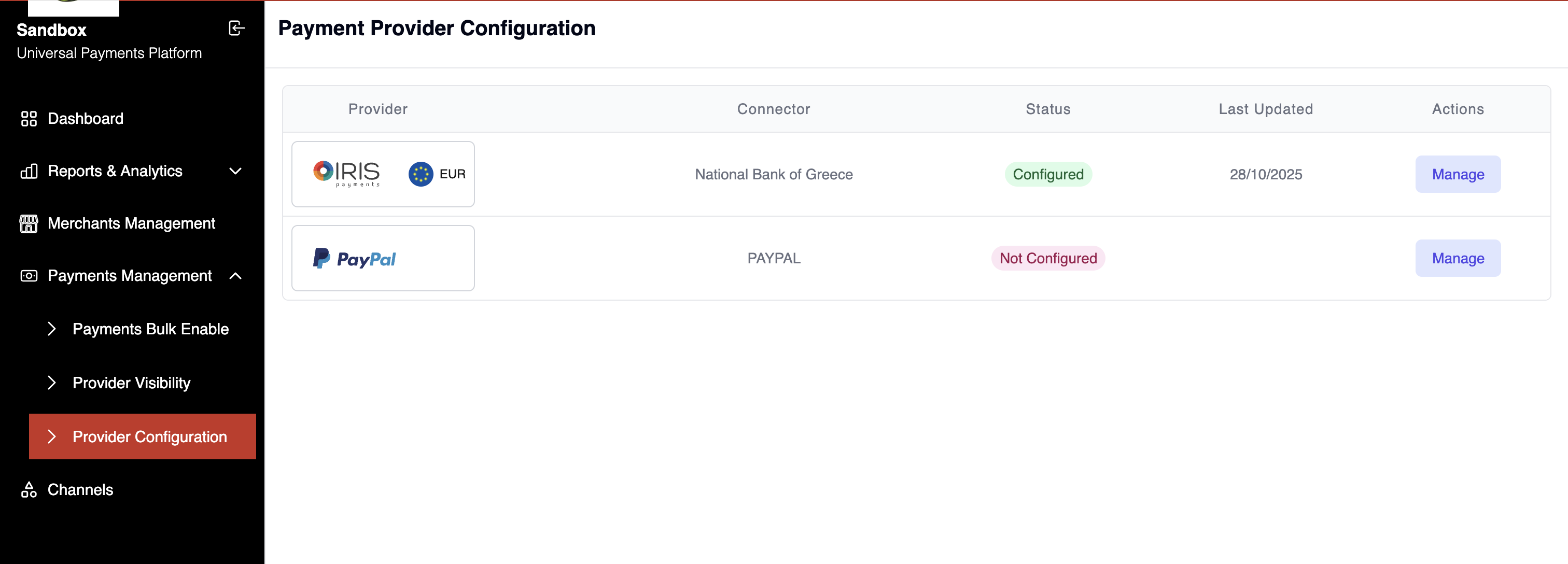
**What you see:** A table listing every payment provider that supports parent-level setup
* **Provider** : Provider's logo image alongside a circular currency flag badge and a currency code label (e.g. `AUD`)
* **Connector** : Name of the underlying connector used for this provider / currency combination
* **Status** : Configured or Not Configured
* **Last Updated** : Date when configuration was last saved (blank if never configured)
* **Actions** : a Manage button
### 2. Configure a provider
***
1. Locate the provider you want to set up in the table.
2. Click **Manage** on that row.
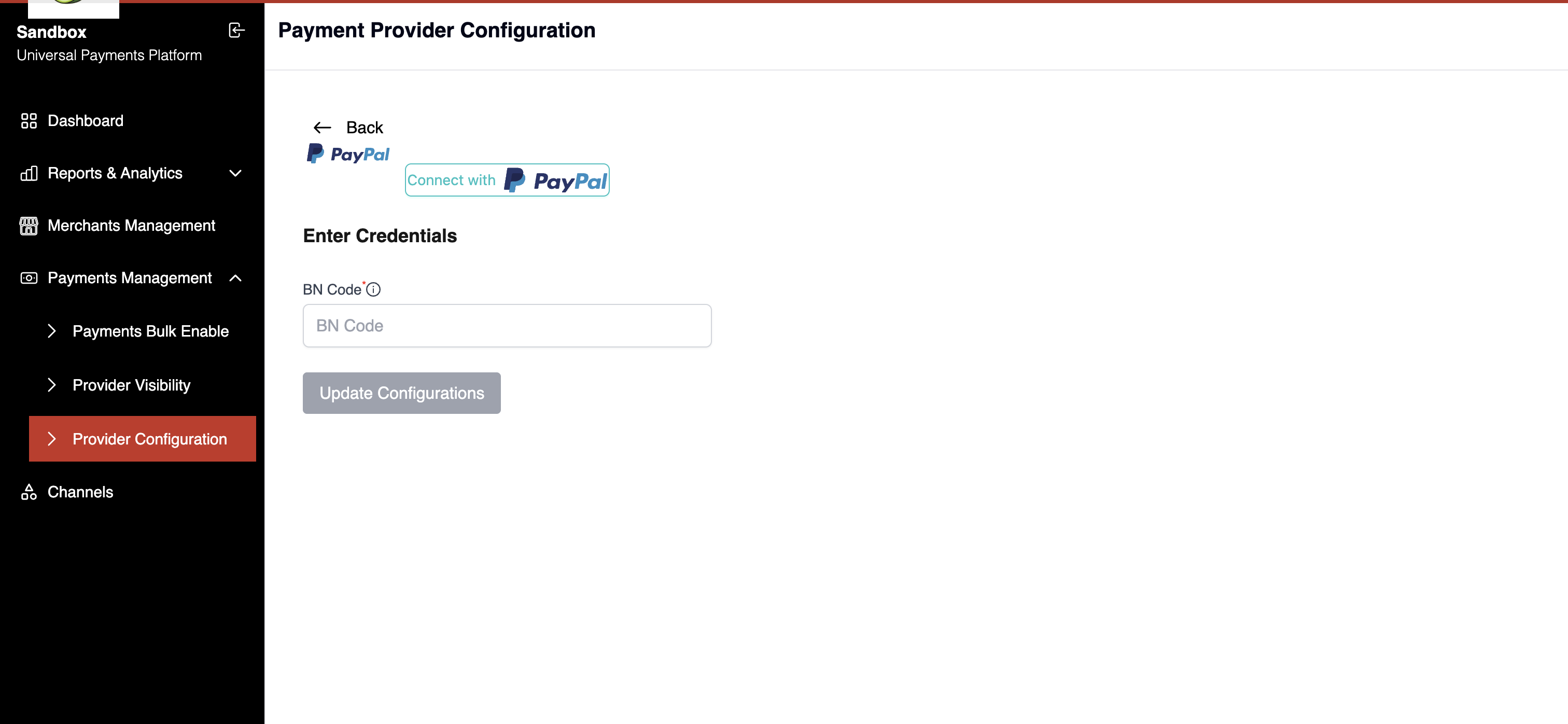
**What you see:** The form below contains one or both of the following sections depending on the provider: an **OAuth connection area** and a **dynamic credentials form**. An **Update Configurations** button appears at the bottom; it is disabled until all required fields are valid.
#### Path A : OAuth connection (e.g. PayPal)
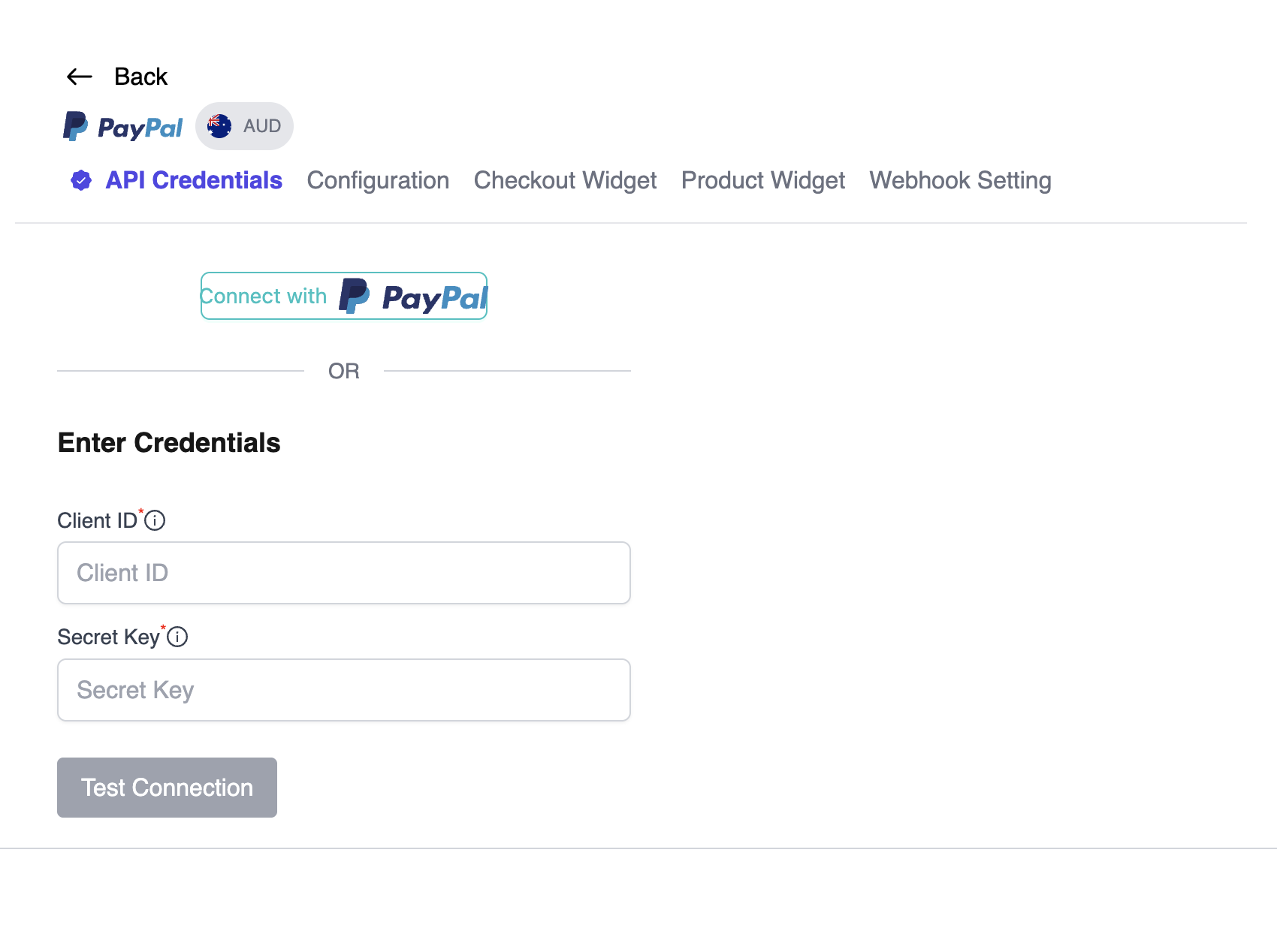
Providers that use OAuth for parent-level authorisation display the OAuth connection section above the credentials form.
#### Path B : Dynamic credential fields
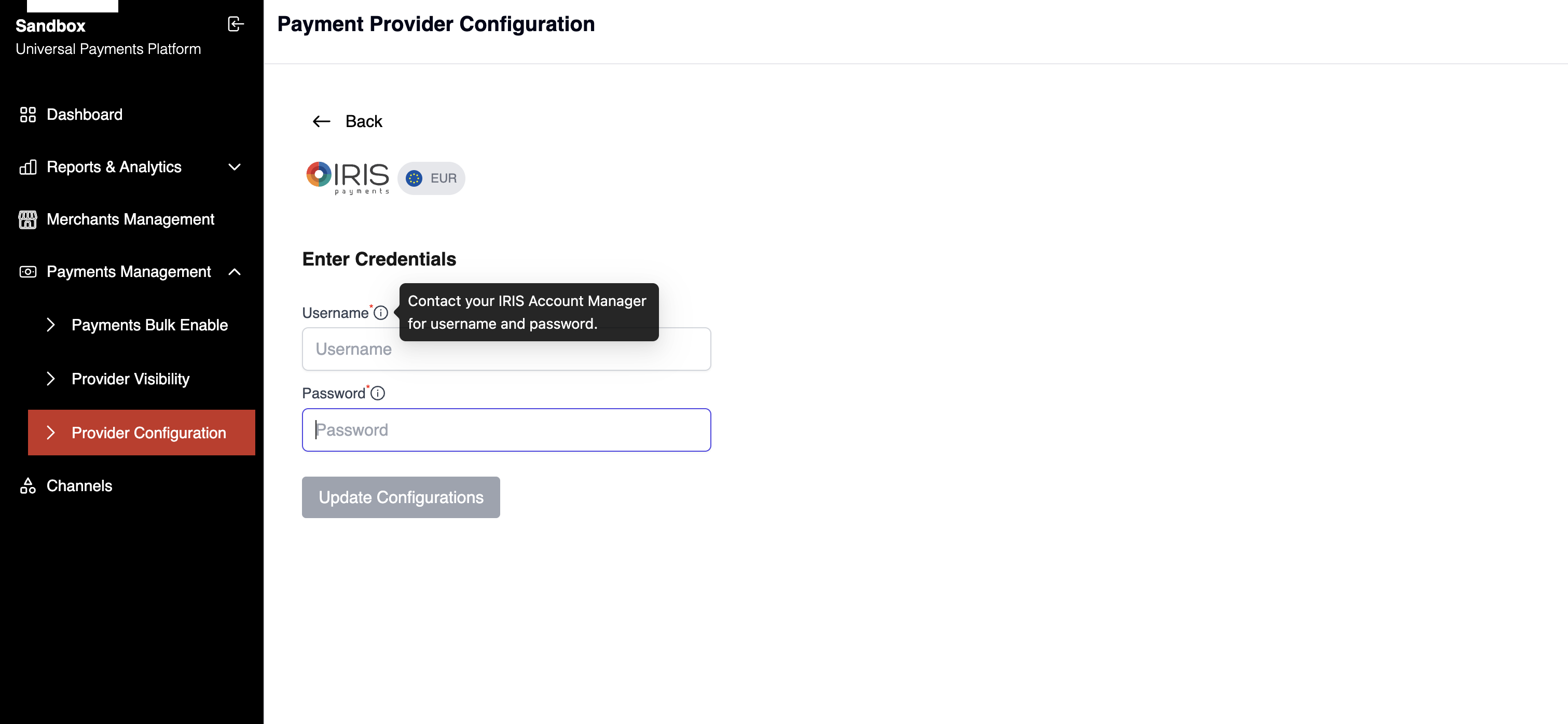
For providers that authenticate via API keys rather than OAuth, the configuration form renders a set of credential inputs defined by the provider.
**What you see:** A form section with one or more labelled text inputs. Each field label has a small **ⓘ information icon** immediately to the right. Hovering over the ⓘ shows a tooltip which explains what the credential is and exactly where to find it in the provider's portal.
* Fields marked with a red asterisk (\*) are required.
* Fields without an asterisk are optional.
After filling in all required fields, click **Update Configurations**. The provider's row in the table updates to **Configured** with the current date in the **Last Updated** column.
### 3. Parent-only vs. partially merchant-configurable providers
***
#### Parent-configurable with merchant fallback (example: PayPal)
PayPal supports OAuth at **both** the parent and merchant level. The merchant's experience depends entirely on whether the parent has completed their OAuth setup first.
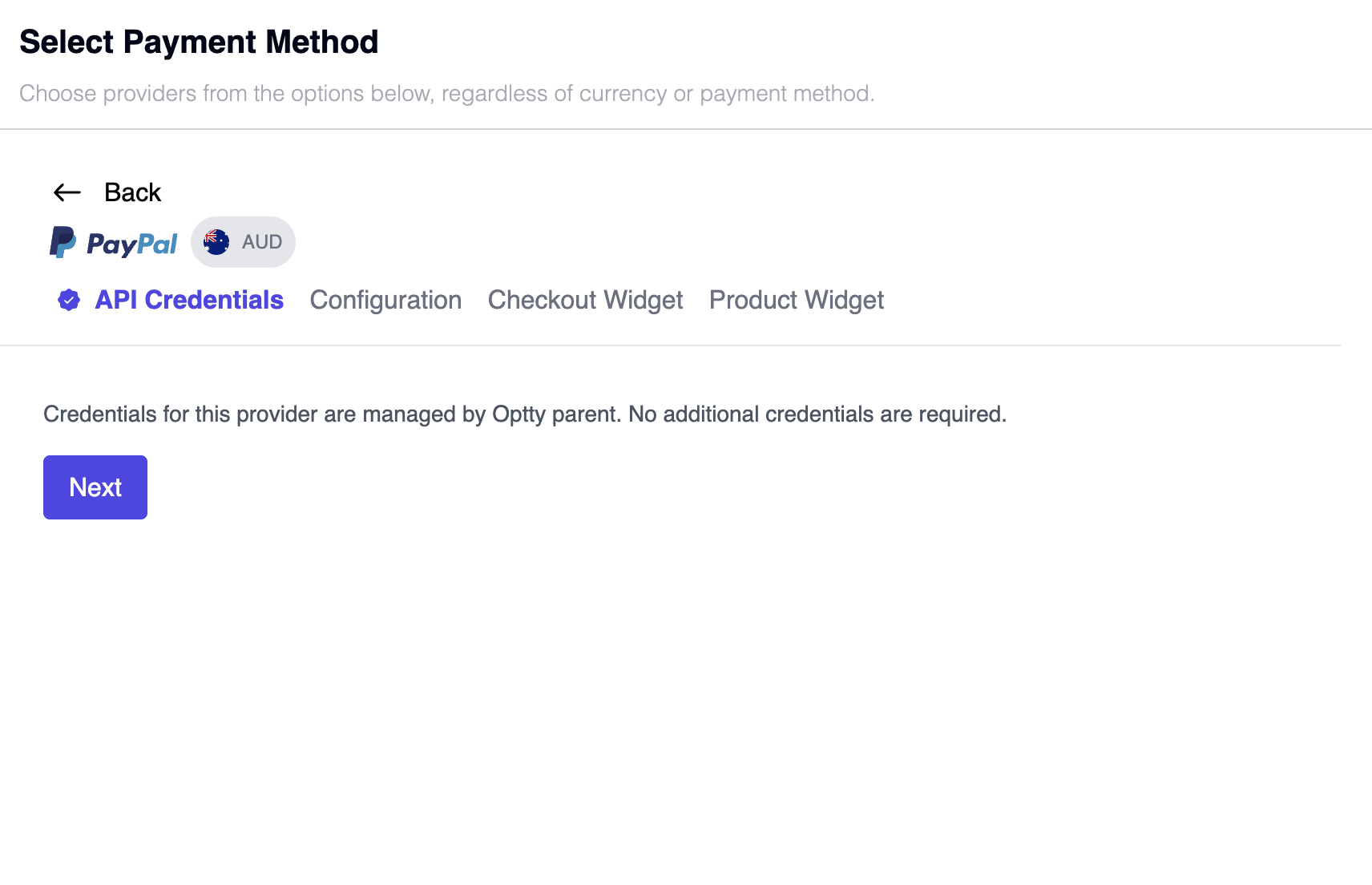
**When a parent OAuth connection exists:**
> On the **API Credentials** tab of the merchant's add wizard, the merchant sees: *"Credentials for this provider are managed by \[Parent Name]. No additional credentials are required."* followed by a **Next** button.
Clicking **Next** activates PayPal immediately using the parent's OAuth connection. No action is required from the merchant.
**When no parent OAuth connection exists:**
The merchant sees the full OAuth credentials step. They can either:
* Click **Connect with PayPal** to complete their own OAuth redirect flow independently, or
* Enter their own API credentials manually if they have them.
#### Partially merchant-configurable providers (example: CyberSource)
The parent can configure a shared set of credentials (e.g. a shared API key for a group-level CyberSource merchant account).
### 4. Bulk enabling a provider across merchants
***
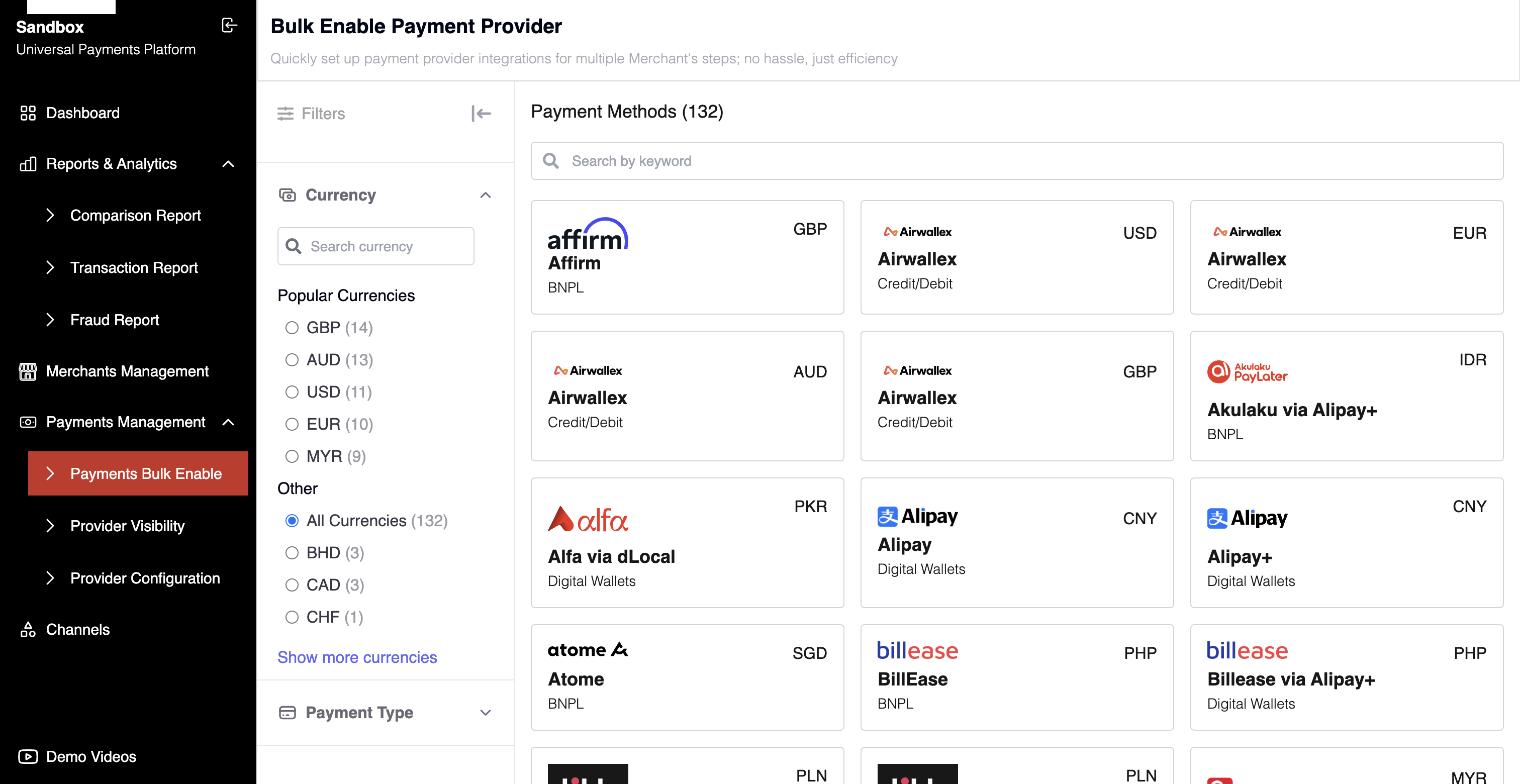
For parent accounts, the UPP also provides a **Payments Bulk Enable** page (accessible from the left-hand sidebar). This page allows you to activate a payment provider for multiple merchants simultaneously.\
This is the recommended path when onboarding many merchants to the same parent-configured provider at once.